Action Item Module
The Action Items feature enables users to create and manage tasks linked to incidents. Action items can be created independently and are automatically associated with an incident when accessed or created from the Incident page. This feature is role-based, displaying action items based on the user’s permissions, such as facility mapping and stakeholder access.
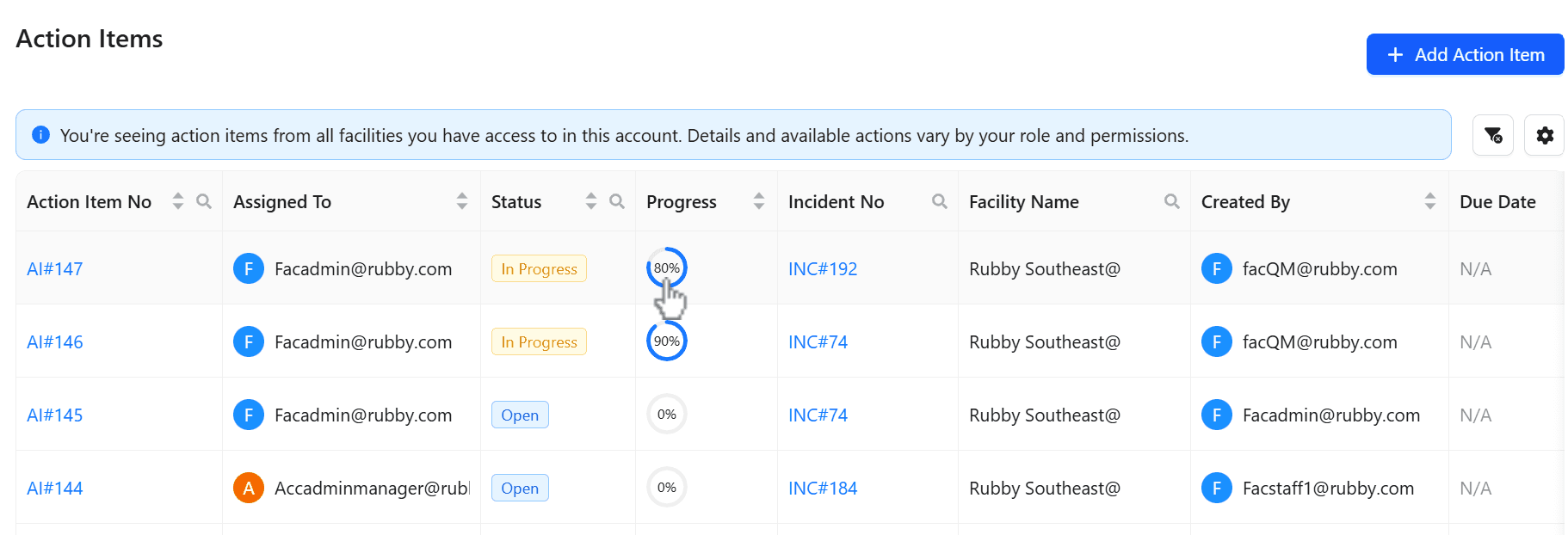
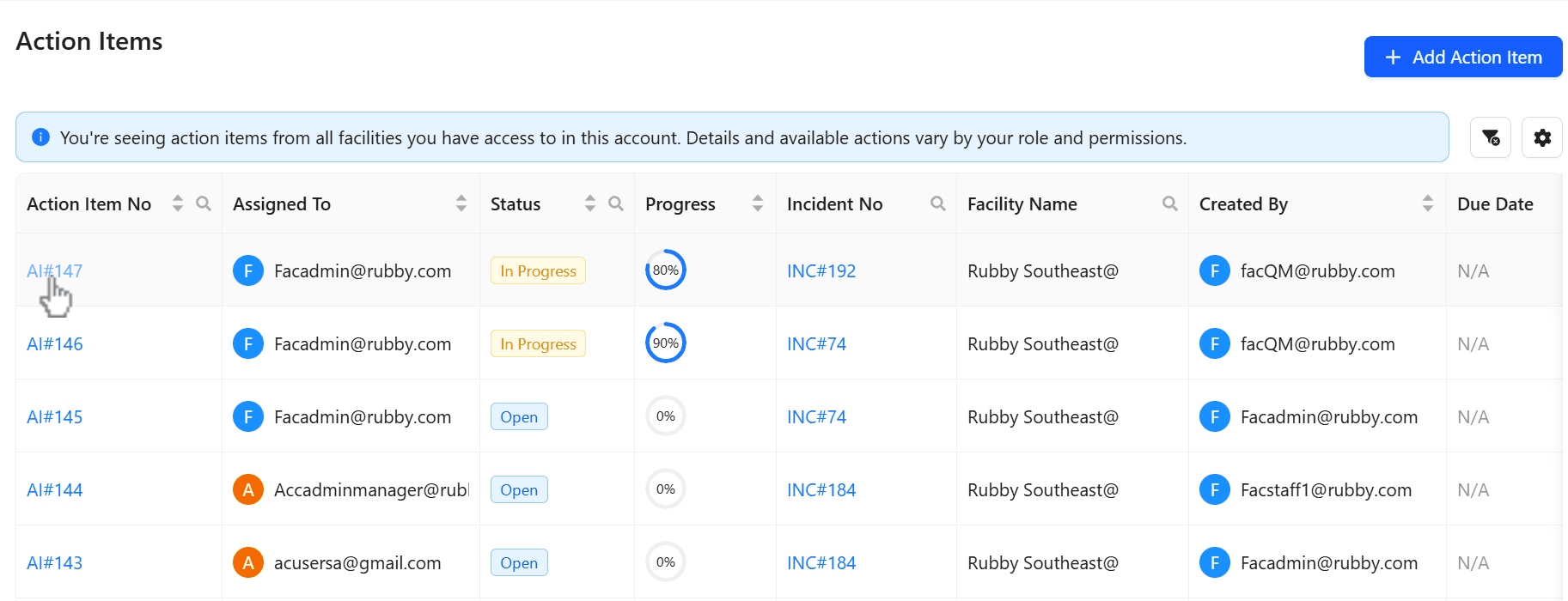
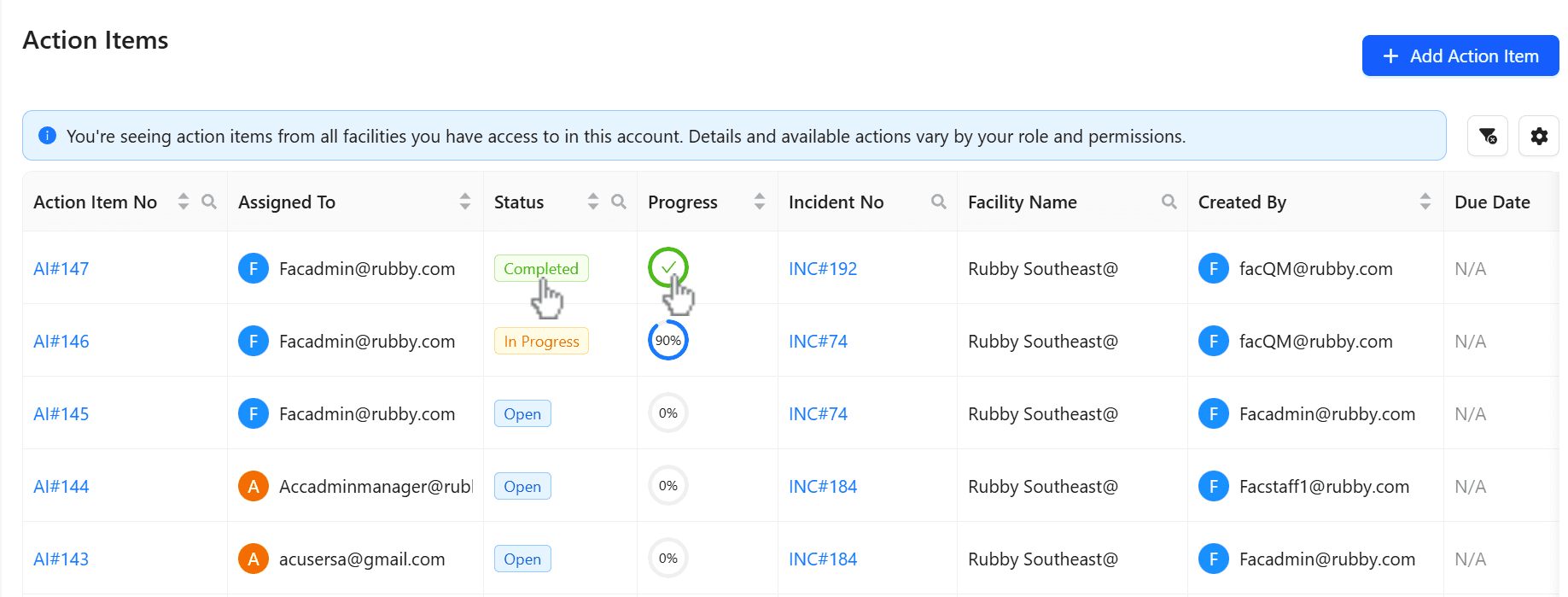
The Action Item view displays key details such as Action Item No, Assigned To, Status, Progress, Incident No, Facility Name, Created By, and Due Date. If you click Action Item No, you can open the action item to edit details and update progress. If you click Incident No, you can view the complete incident summary related to that action item.
Steps
Click the Action Item module. This will give the list of Action items that the user has access. The access is based on the facilities the user has access. Details and available actions may vary based on the role and permissions.
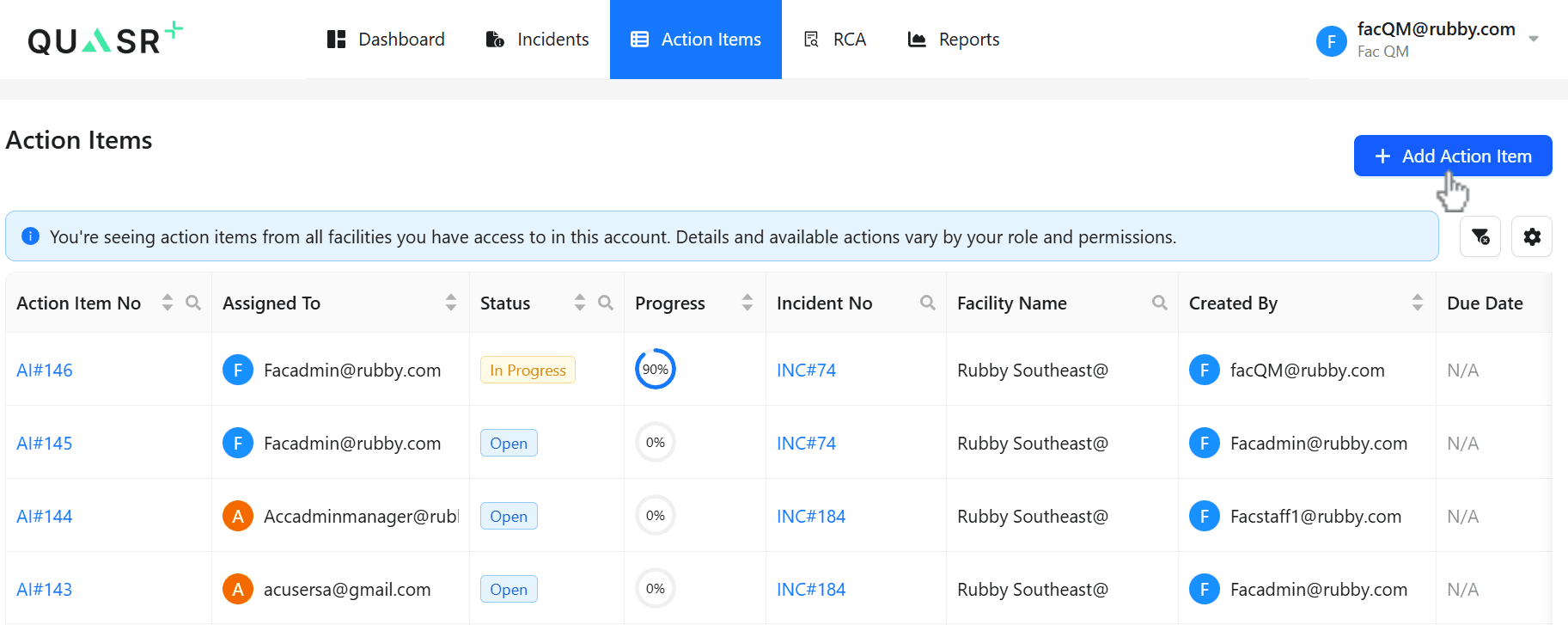
Action Item Features and Functionality
- Enter action item details:-Provide the required information in the form fields.
- Map the action item to an incident:-Select and link the action item to a single incident. Only one incident can be associated with an action item.
- Assign the User Responsible:-Select one user from the list of incident stakeholders. Only one user can be assigned to an action item (single selection).
- (Optional) Set a due date:-Specify a due date for the action item, if applicable.
Click Save
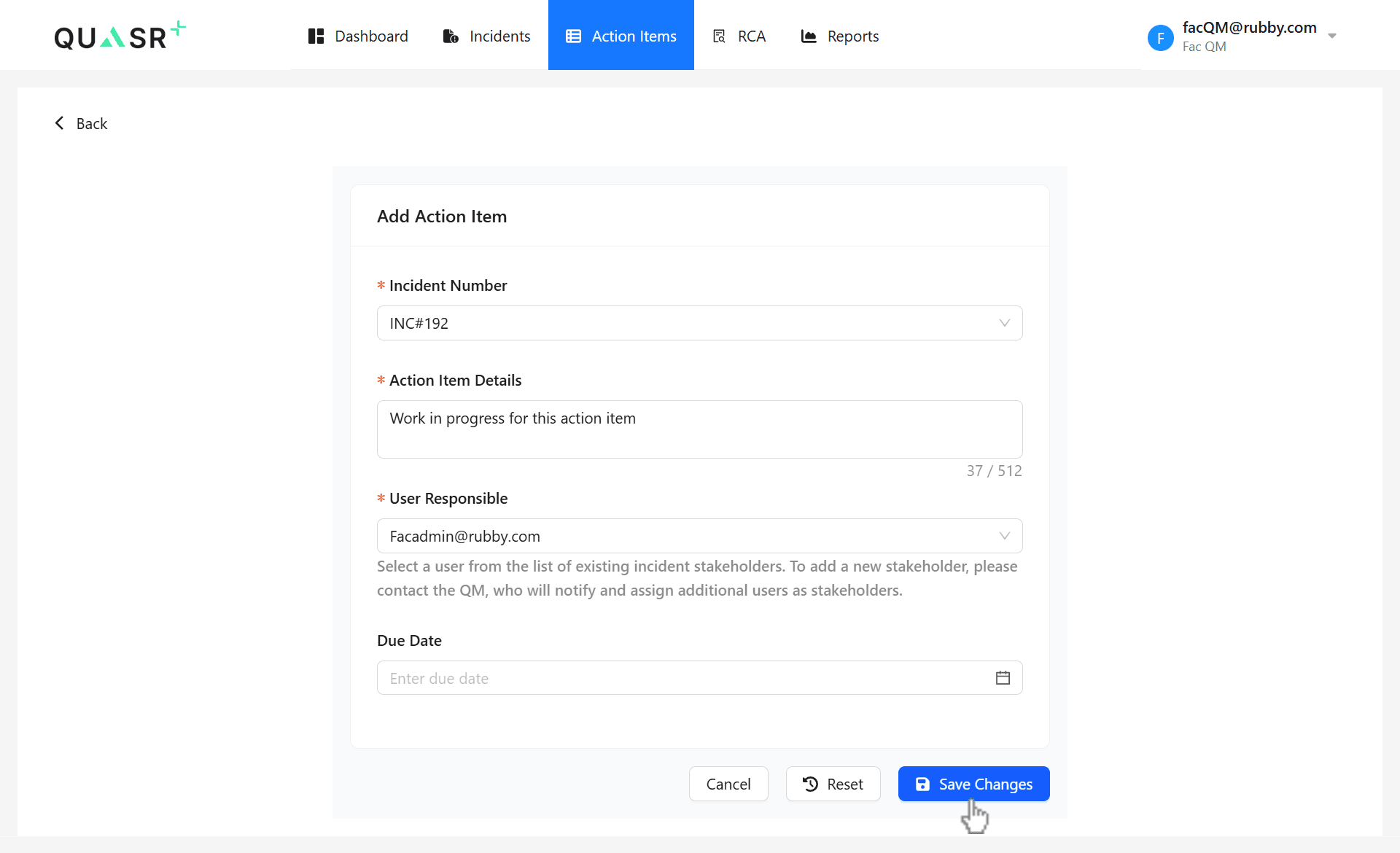
Expected result:-The action item is created successfully, and a unique action item number is generated. The action item is assigned to the selected user, and its progress can now be tracked.
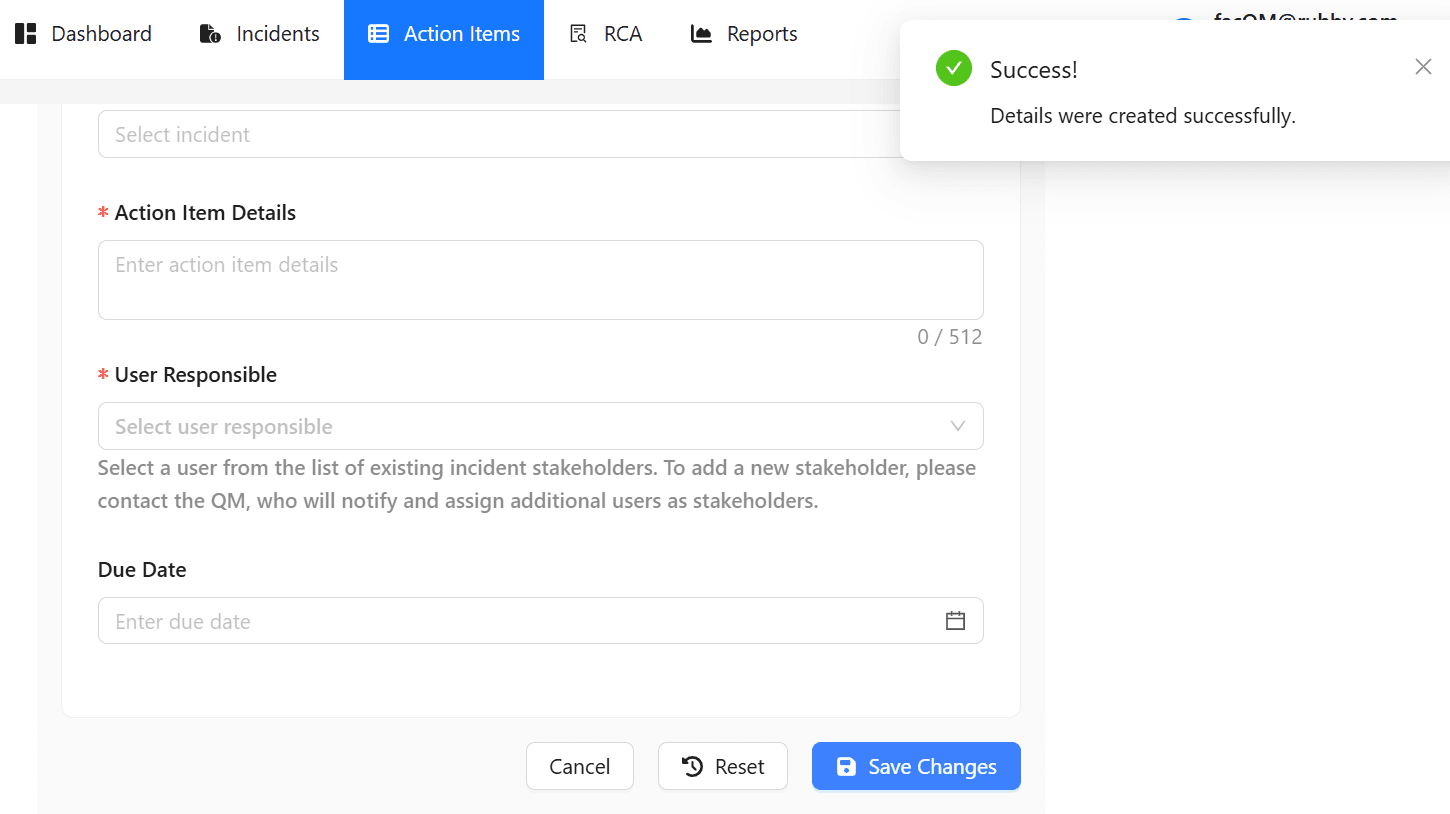
View the updated Action Item
- Navigate to the Action Items main page:- Open the Action Items module to access the list of all action items.
- Locate the created action item:-Find the required action item in the list.
- View action item details:- Review the updated information, including status and progress, linked incident number, associated facility, creator information, due date (if applicable), and the latest updates and changes.
Expected result:- The selected action item details are displayed, allowing you to monitor its status, progress, and recent updates.
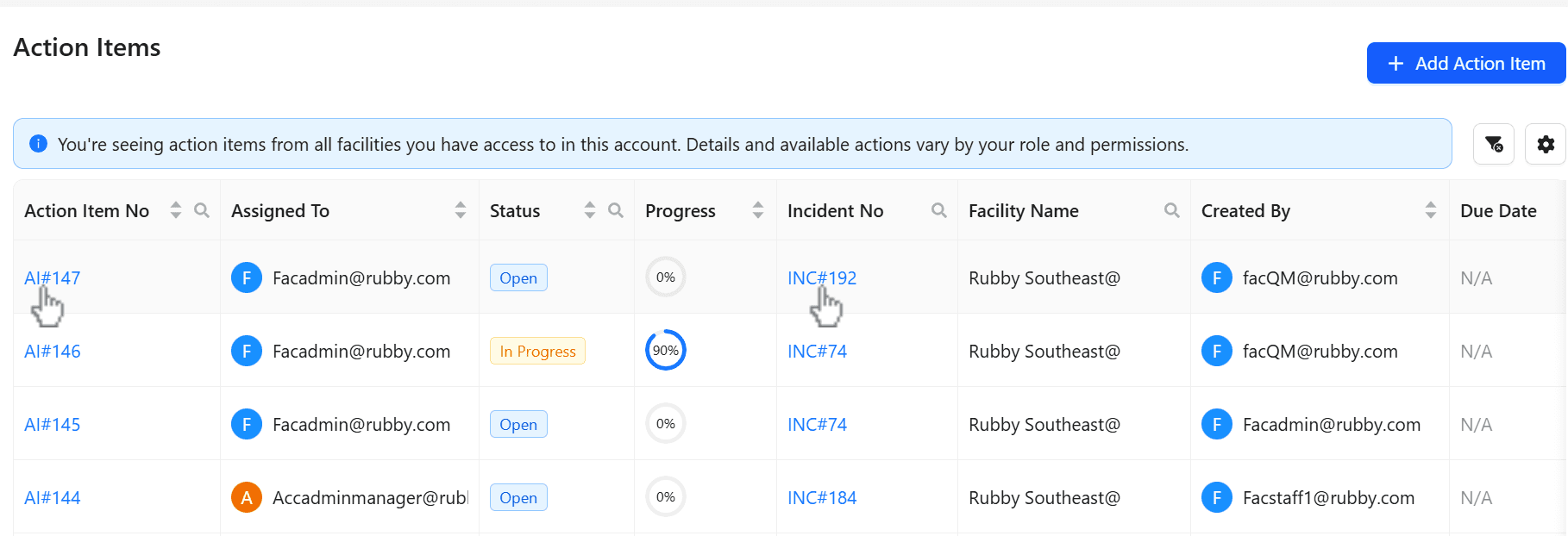
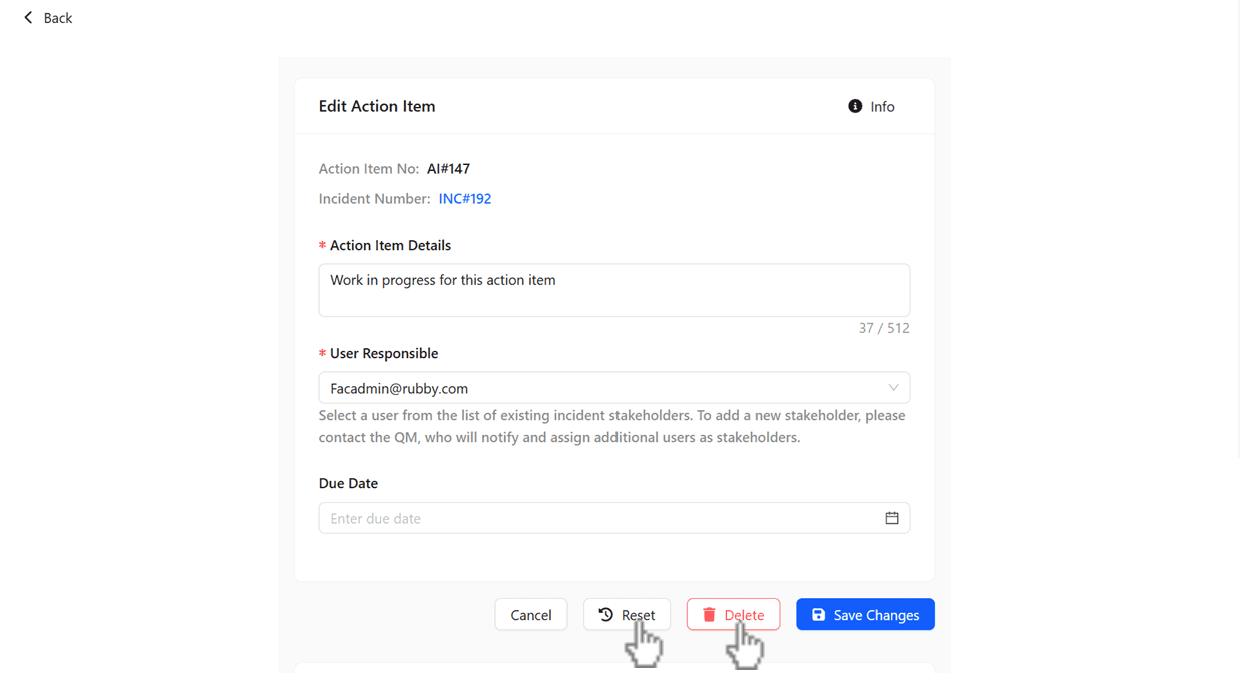
Edit or Delete an Action Item
- Open the action item:-Click on the generated action item number to view its details.
- Edit or delete the action item:-The creator of the action item and Facility QMs can edit or delete the action item based on action rights.
Expected result:-The action item details are displayed, and authorized users can modify or delete the action item as required.
Update Action Progress
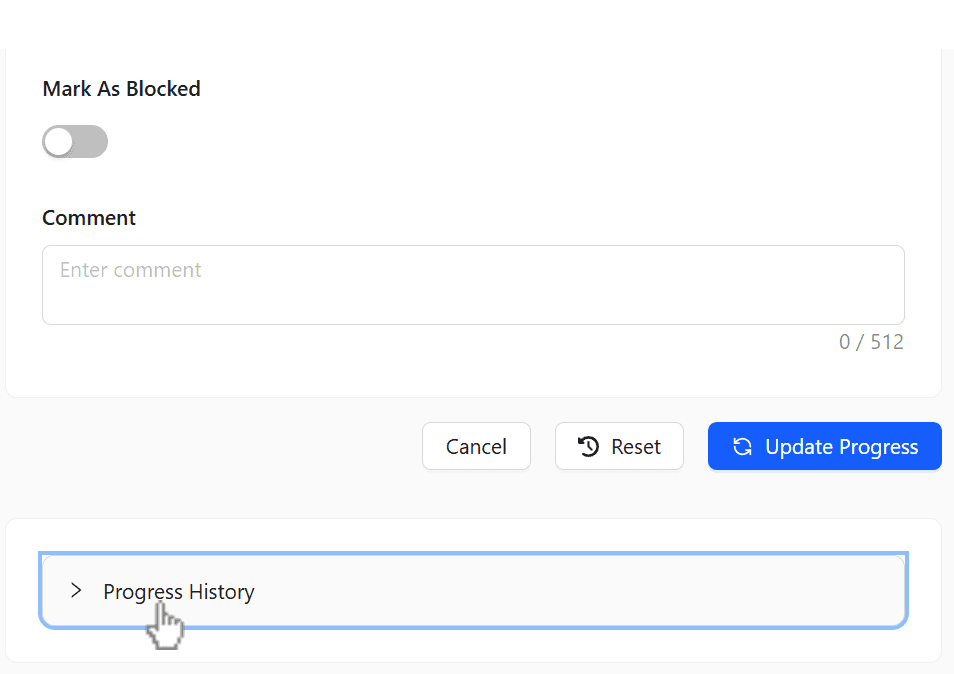
- Navigate to the Update Progress section:-Scroll to the Update Progress section within the action item.
- Enter progress details:-Provide the progress percentage.
- (Optional) Add comments:-Include any relevant comments or updates.
Click Update Progress
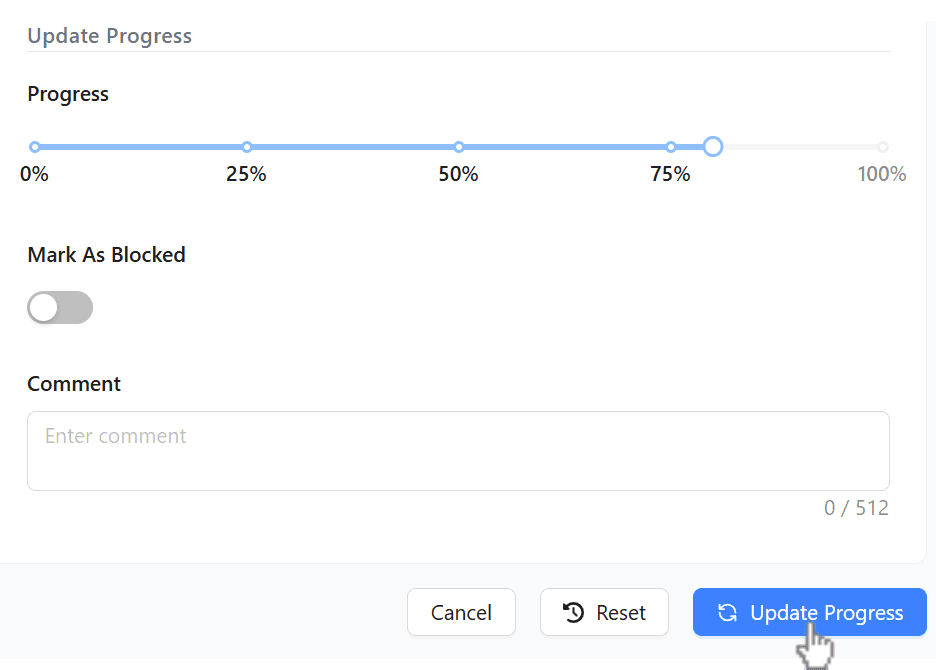
Expected result:- The action item status is updated based on the entered progress and is reflected on the main page.
Access Ownership and Responsibilities
- Understand action item ownership:-Action items are managed primarily between the owner and the assignee.
- Identify users who can update progress:-The assignee, owner, and Facility Admin have permission to update the progress.
- Complete the action item :- The assignee is responsible for completing the action item.
- Track action item progress:-Assigned users can view progress and track updates at any time.
Expected result:-Action item responsibilities are clearly defined, and authorized users can update and monitor progress effectively.
Update by Assignee
Navigate to Action Items:- Log in and open the Action Items module.
- Open the assigned action item:-Select the action item linked to the incident.
- Enter progress details:-Update the progress and add comments if required.
Click Update Progress
Expected result:-The Updated Progress is saved and reflected on the Action Items page.
Add and Manage Progress Comments
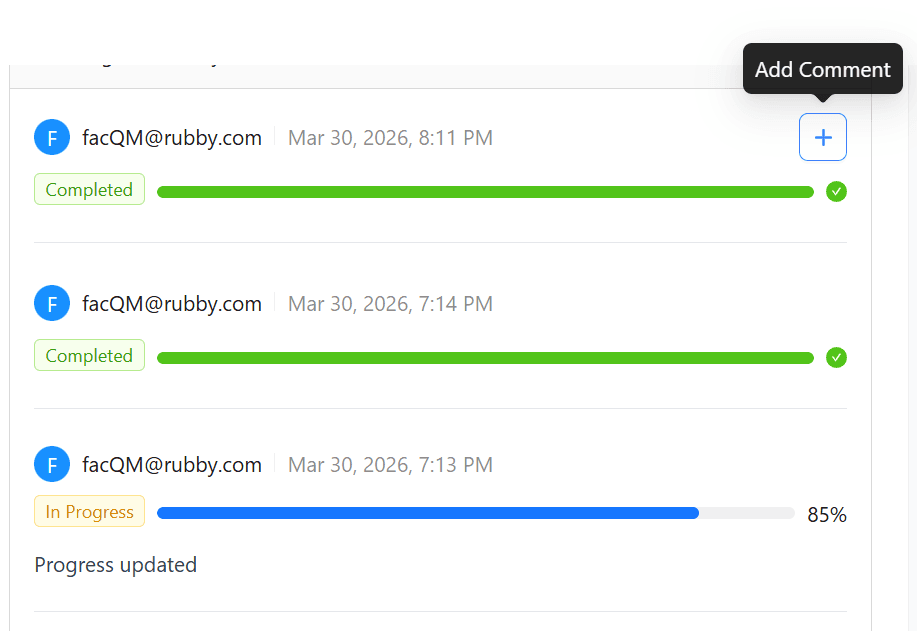
- Access Progress History:-While updating progress, navigate to the Progress History section to view previous updates.
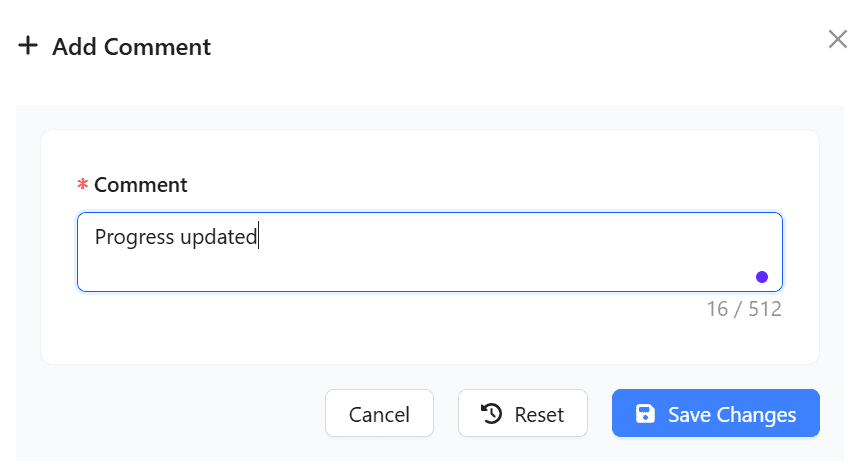
- Add a comment:- Enter a comment to provide additional context.
Only one Comment can be added at a time.
- Manage comments:-The comment can be edited or deleted by its creator. Facility QMs (with elevated privileges) can also edit.
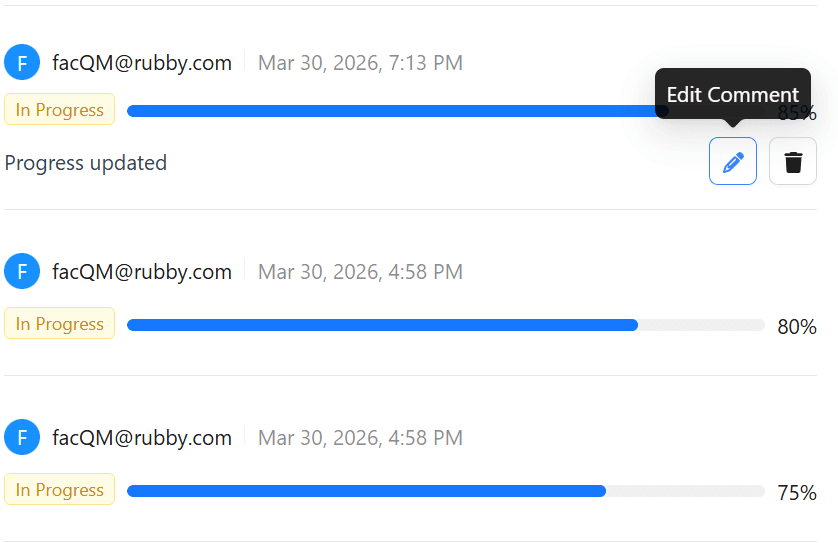
- Delete comments on behalf of the user.
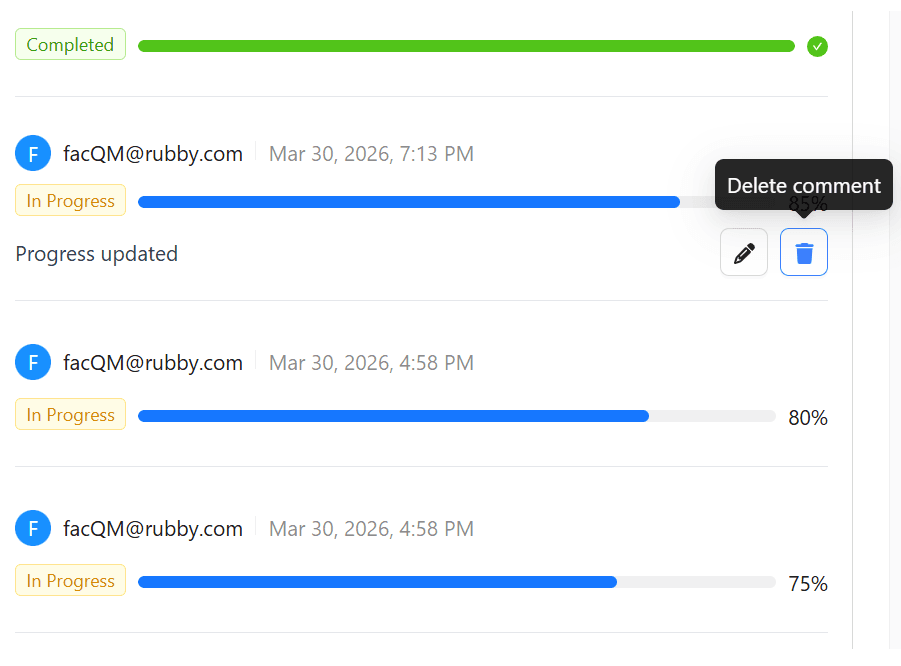
Expected result:-The comment is recorded in the progress history, and authorized users can update or remove it as needed.
Email Notifications
This section explains which emails are sent during Action Item events, who receives them, and the subject lines used.
- All listed events currently have email enabled.
- Subject placeholders include values such as
INC#<INC_NO>andAI#<AI_NO>.
Action Item Added
- Recipients: Assigned User, Facility Quality Manager
- Subjects:
Action Item AI#<AI_NO> Added: INC#<INC_NO>
Action Item Deleted
- Recipients: Assigned User, Facility Quality Manager
- Subjects:
Action Item AI#<AI_NO> Deleted: INC#<INC_NO>
Action Item Progress Updated
- Recipients: Action Item Owner
- Subjects:
Action Item AI#<AI_NO> Progress Updated: INC#<INC_NO>
Action Item Blocked
- Recipients: Action Item Owner
- Subjects:
Action Item AI#<AI_NO> Blocked: INC#<INC_NO>
Action Item Completed
- Recipients: Action Item Owner, Facility Quality Manager
- Subjects:
Action Item AI#<AI_NO> Completed: INC#<INC_NO>
Action Item Updated (New Assignee)
- Recipients: New Assignee
- Subjects:
Action Item AI#<AI_NO> Assigned: INC#<INC_NO>
Action Item Updated (Old Assignee)
- Recipients: Old Assignee
- Subjects:
Action Item AI#<AI_NO> Unassigned: INC#<INC_NO>
Action Item Updated (Current Assignee)
- Recipients: Current Assignee
- Subjects:
Action Item AI#<AI_NO> Updated: INC#<INC_NO>
Action Item Updated (Comment Deleted)
- Recipients: Current Assignee
- Subjects:
Action Item AI#<AI_NO> Comment Deleted: INC#<INC_NO>