Manage Reasons for Rejection
This guide explains how you can create and manage Reasons for Rejection in QUASR+. Defining clear, standardized reasons helps ensure consistency across reviews, improves reporting accuracy, and provides transparency for downstream users.
Before You Start
- Access level required: Account Admin access
- Limitations: Only admins can create or modify reasons for rejection
Ensure you are Navigated to the Admin module before starting.
Steps
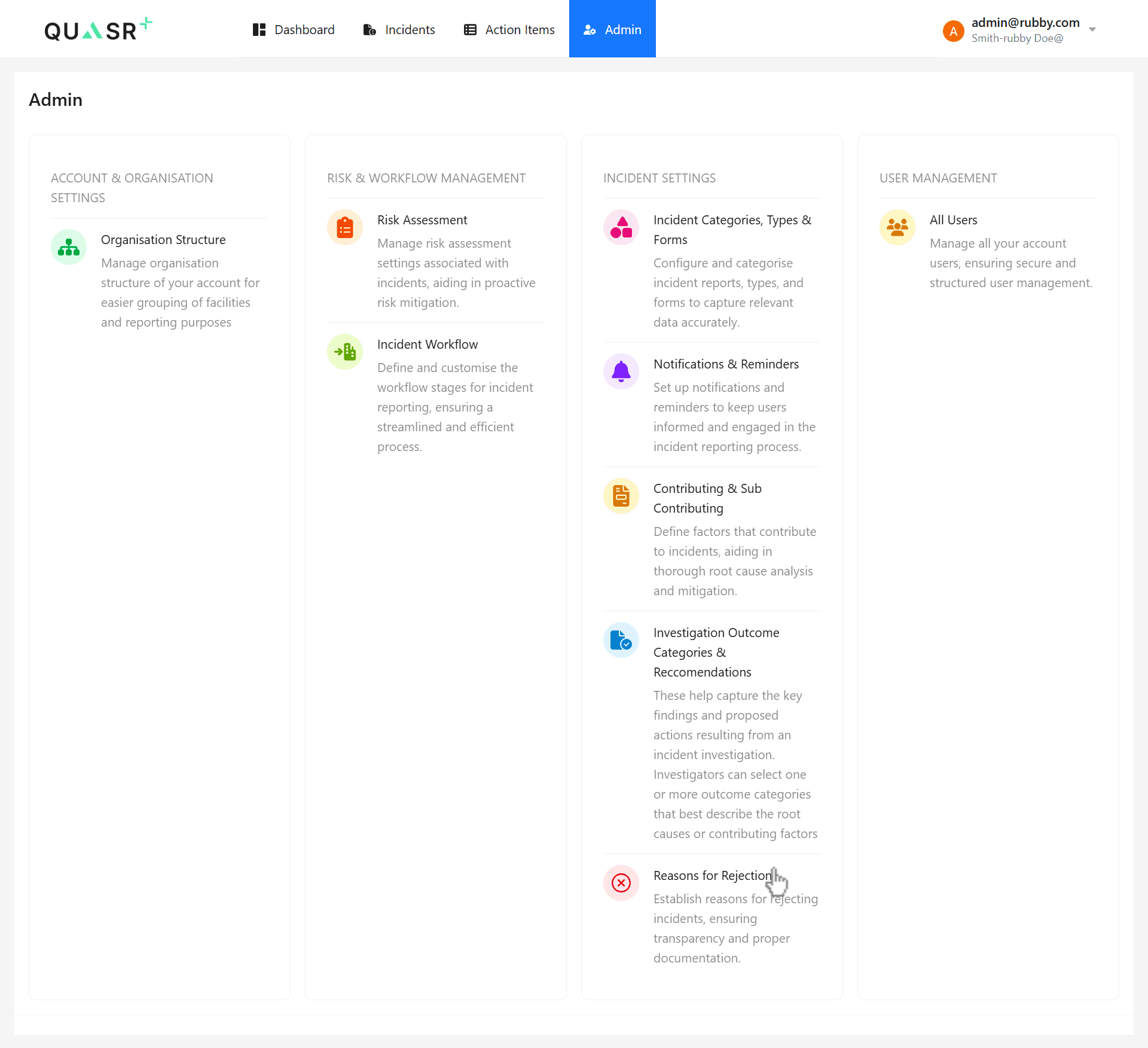
Navigate to Reasons for Rejection
From the main navigation, open the Admin module in QUASR+ click on Reasons for Rejection.
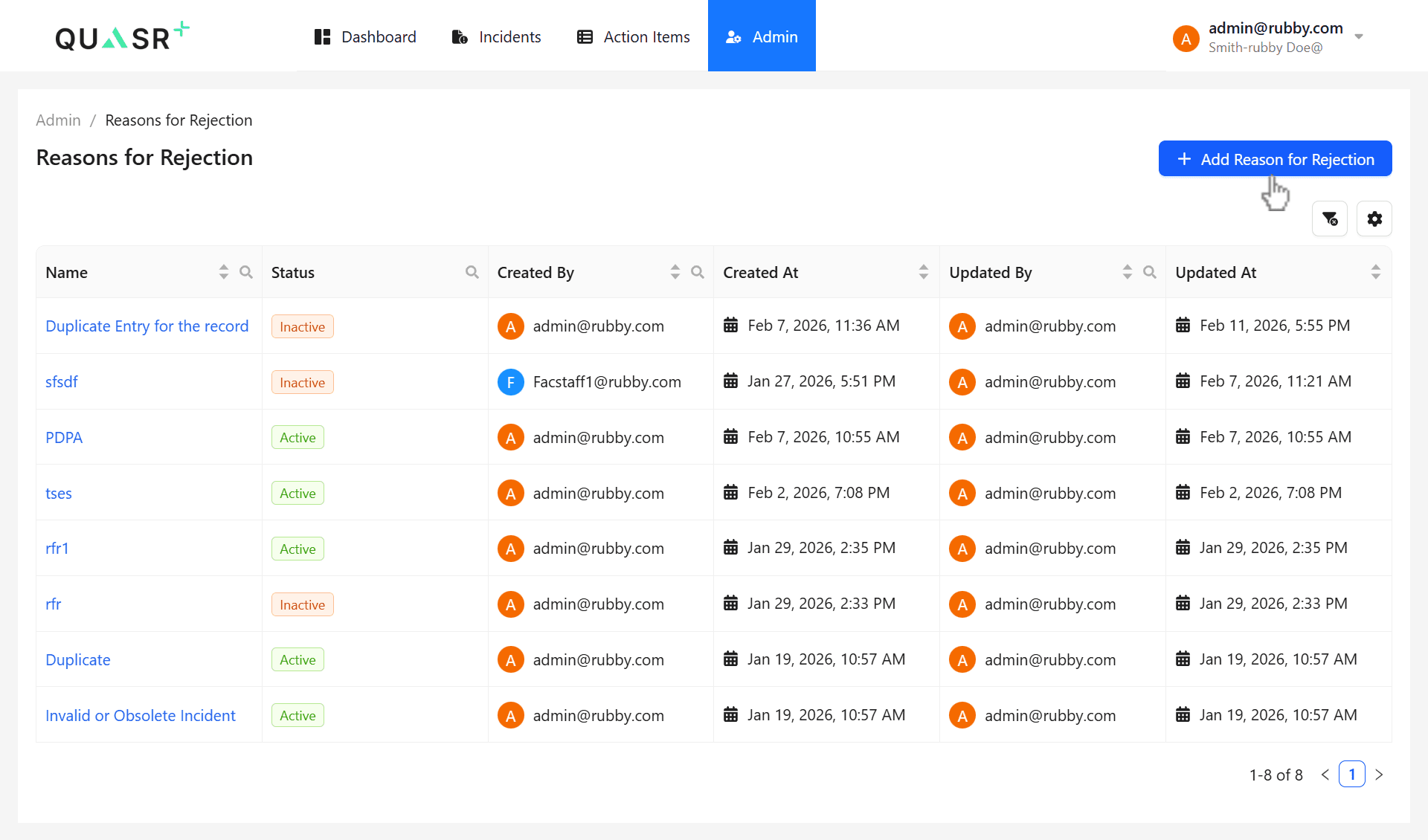
Add a New Reason for Rejection
Click + Add Reason for Rejection from the Reasons for Rejection List view to create a new entry.
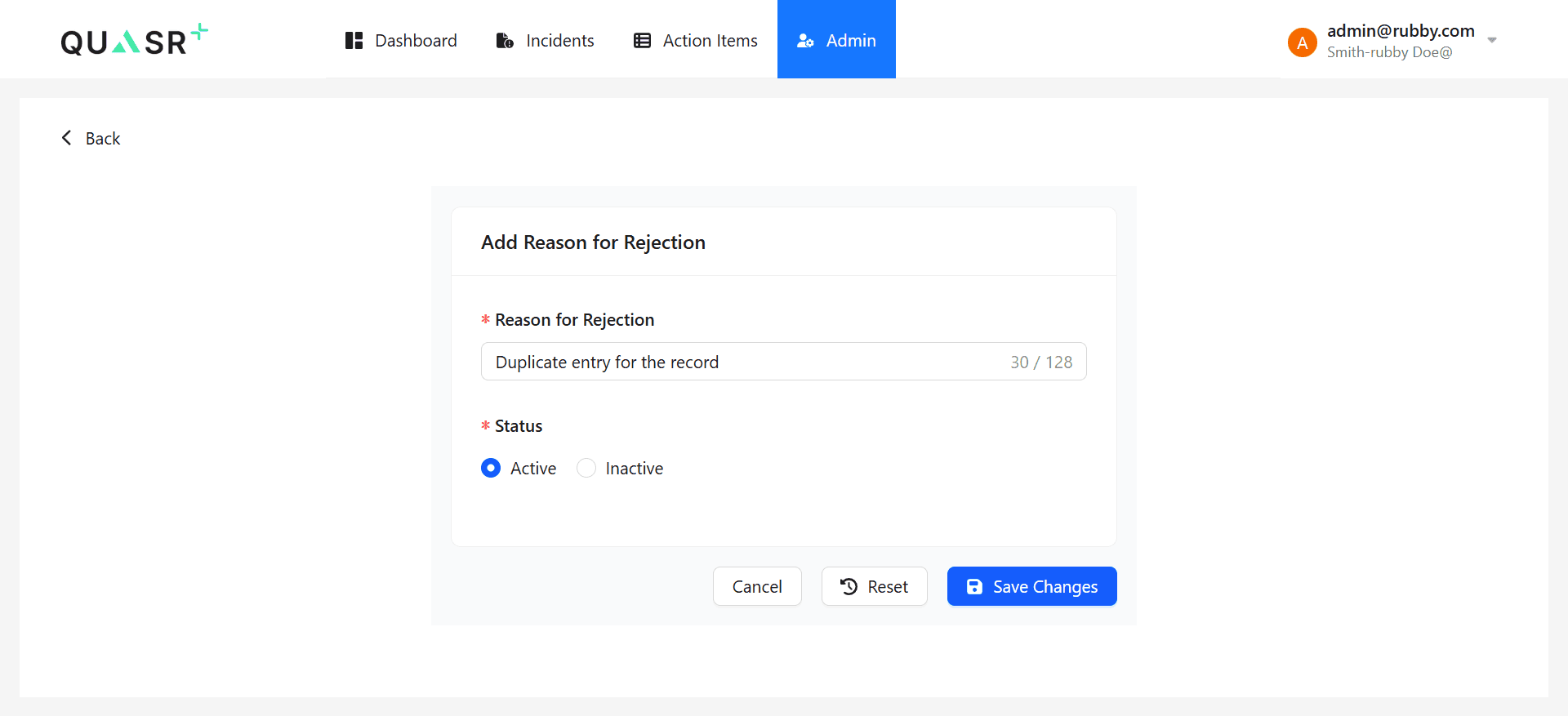
Enter Details and Set Status
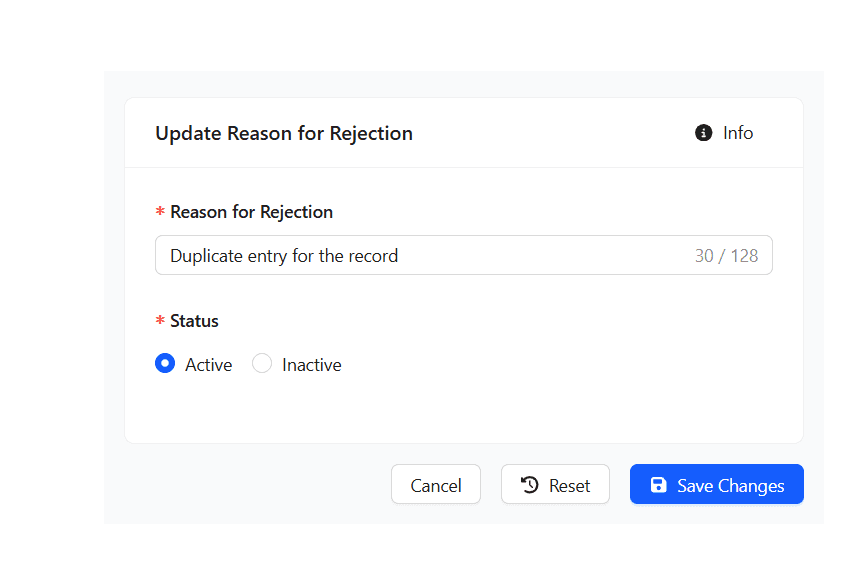
Fill in the rejection reason and select its status.
| Field | Description | Required |
|---|---|---|
| Reason for Rejection | Clear description explaining why an Incident may be rejected | Yes |
| Status | Set to Active or Inactive | Yes |
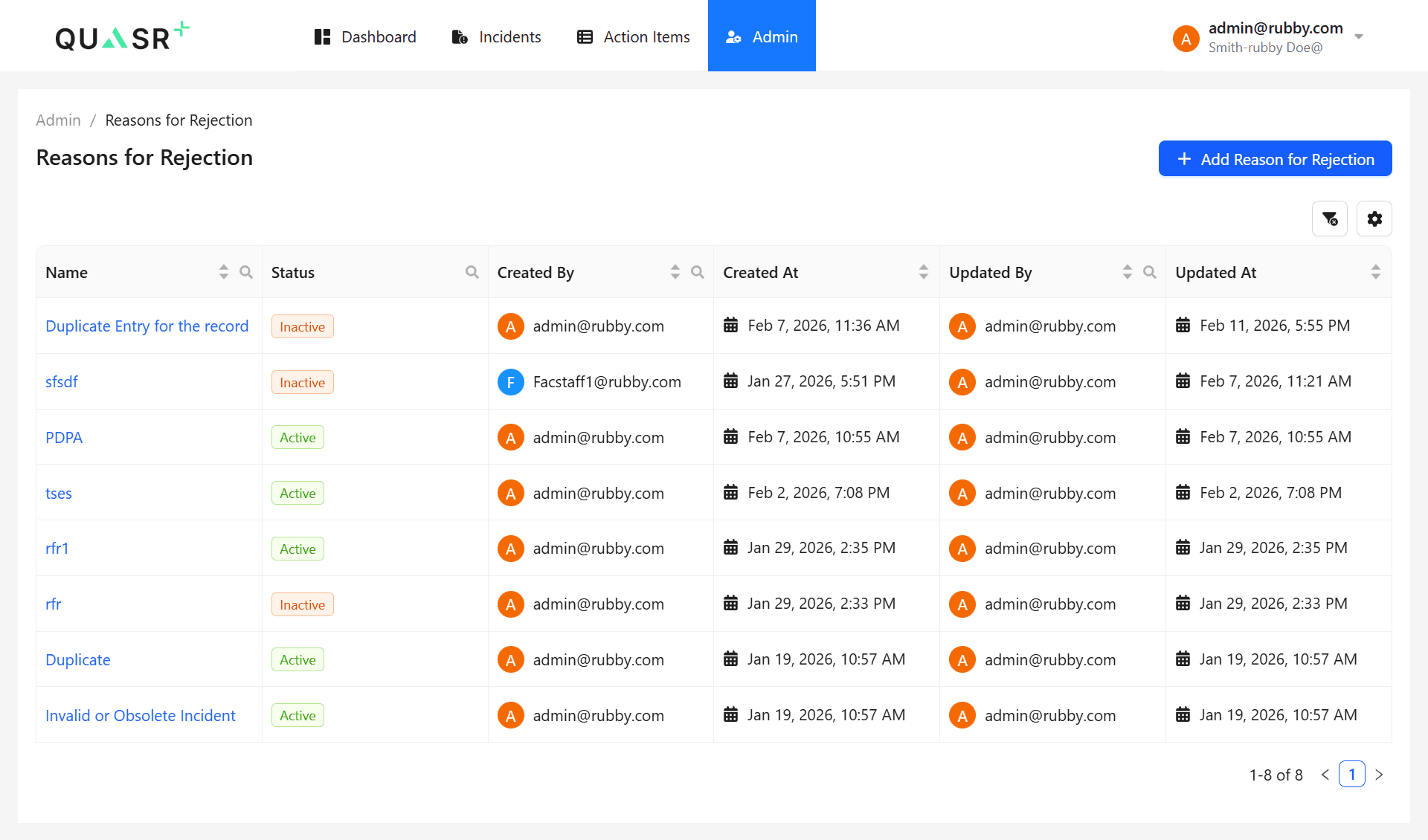
Save and Review
Click Save Changes, then select Back to return to the list view.
- Expected result: The new reason appears in the Reasons for Rejection list.
Your reason for rejection is saved and available for use.
Edit an Existing Reason
Select an existing reason from the list to update it. You can modify the description or change its status between Active and Inactive.
- Click Reset to undo changes before saving.
- Click Save Changes to apply updates.
Inactive reasons will no longer be available for selection in the Incident workflow but remain in the system for reference.