Configure Incident Workflow Stages and Reviews
This feature allows Account Admins to configure, rename, add, or remove incident workflow stages for different healthcare facility types. Customizing workflows ensures incident reporting and reviews align with your organization’s governance, compliance, and operational processes.
Who can perform this?
Time to complete
~15-30 minutes for initial setup; additional time for stakeholder review
Prerequisites
Admin access to QUASR+; understanding of organizational incident workflows; stakeholder input on review stages
Before You Start
- Access level required: Admin module access
- Limitations: Workflow behavior varies by feature group (e.g., Hospitals vs Clinics)
In QUASR+ the Reviewers and Approvers are defined as below
-
L1 Reviewer: Supervisors - Immediate supervisors of the reporter.
-
L2 Reviewer: Department Heads - Heads of the department responsible for the incident.
-
QM Reviewer: Quality Managers (QM) - Facility quality managers.
-
Sign-off Members: Members belonging to sign-off the Incidents are managed under Facility Settings > Facility > Sign-off Members.
If your organization uses SSO, ensure you are already authenticated before accessing the Admin module.
Steps
Navigate to the Admin module
From the main navigation, open the Admin module in QUASR+ click on Incident Workflow.
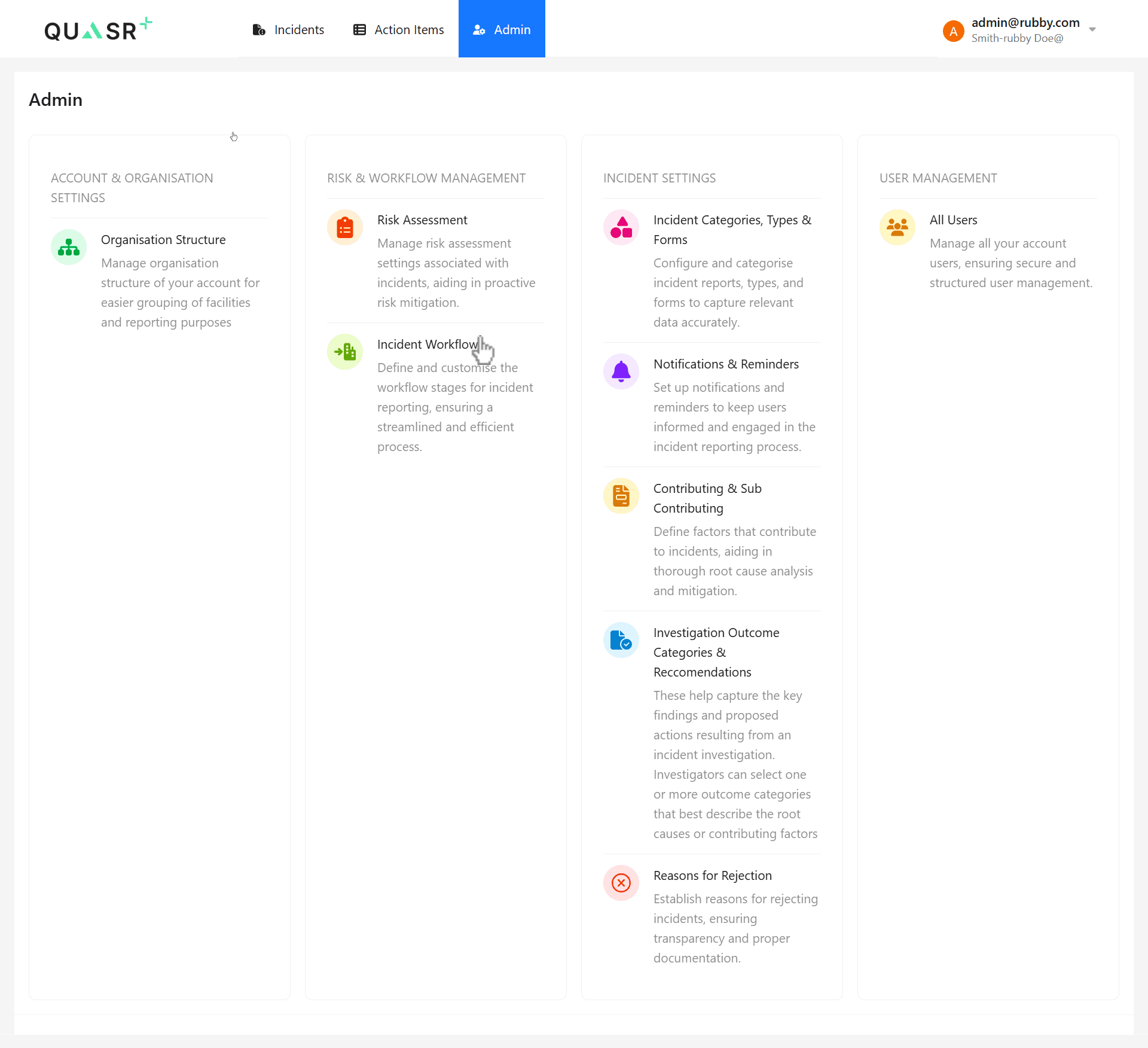
Open Incident Workflow settings
Select Incident Workflow to configure workflow stages at the account level. This configuration applies across all feature groups (Hospital, Medical Centre, Nursing Home, Clinic, Medical Laboratory).
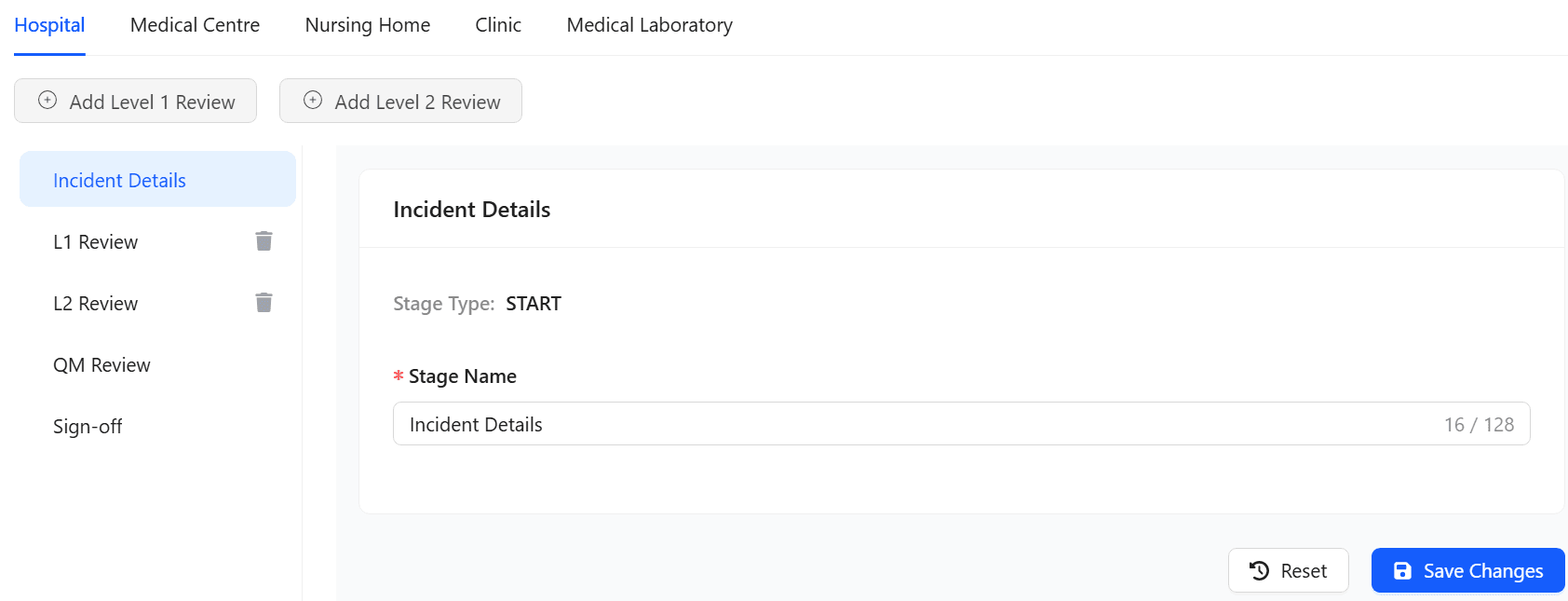
Customize workflow stages for Hospital
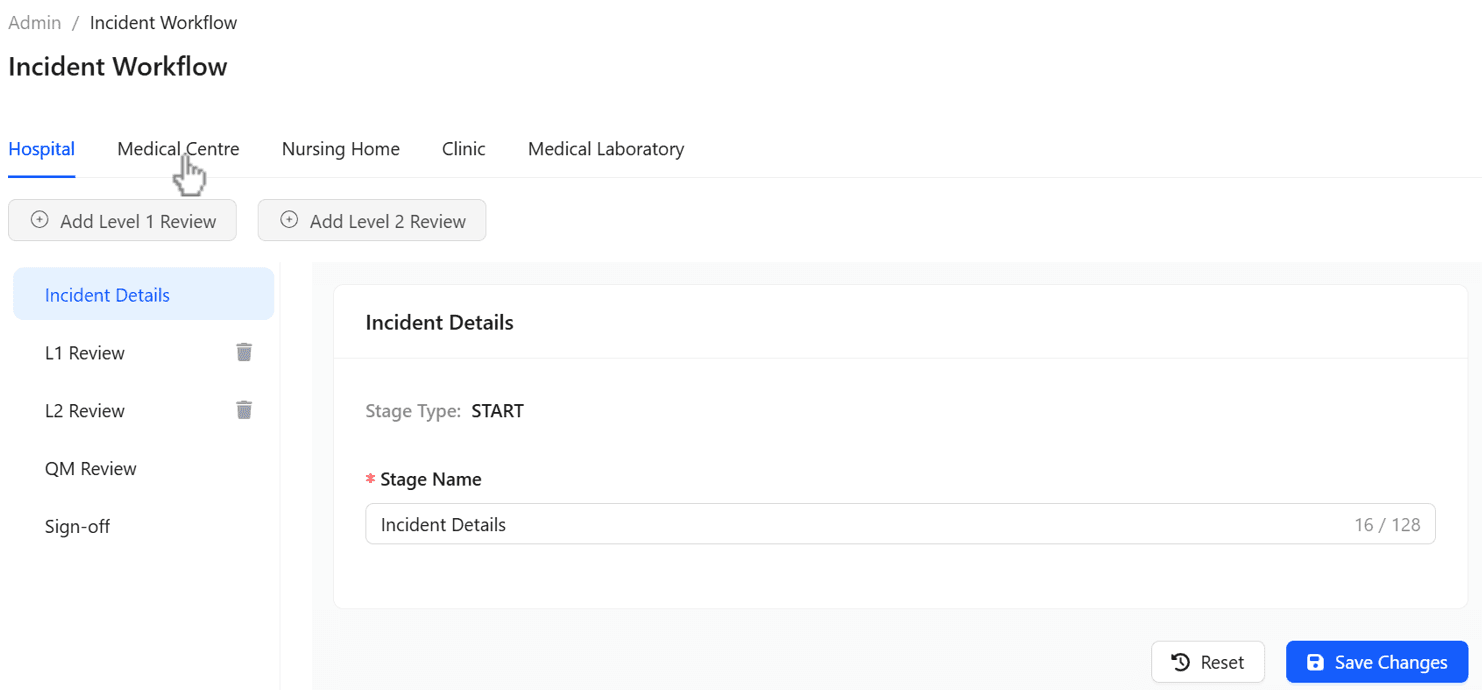
Under Hospital, select Incident Details to rename the workflow stage if required, then Save Changes.
- You can rename stages to match internal terminology.
- Changes apply to all hospital incidents.
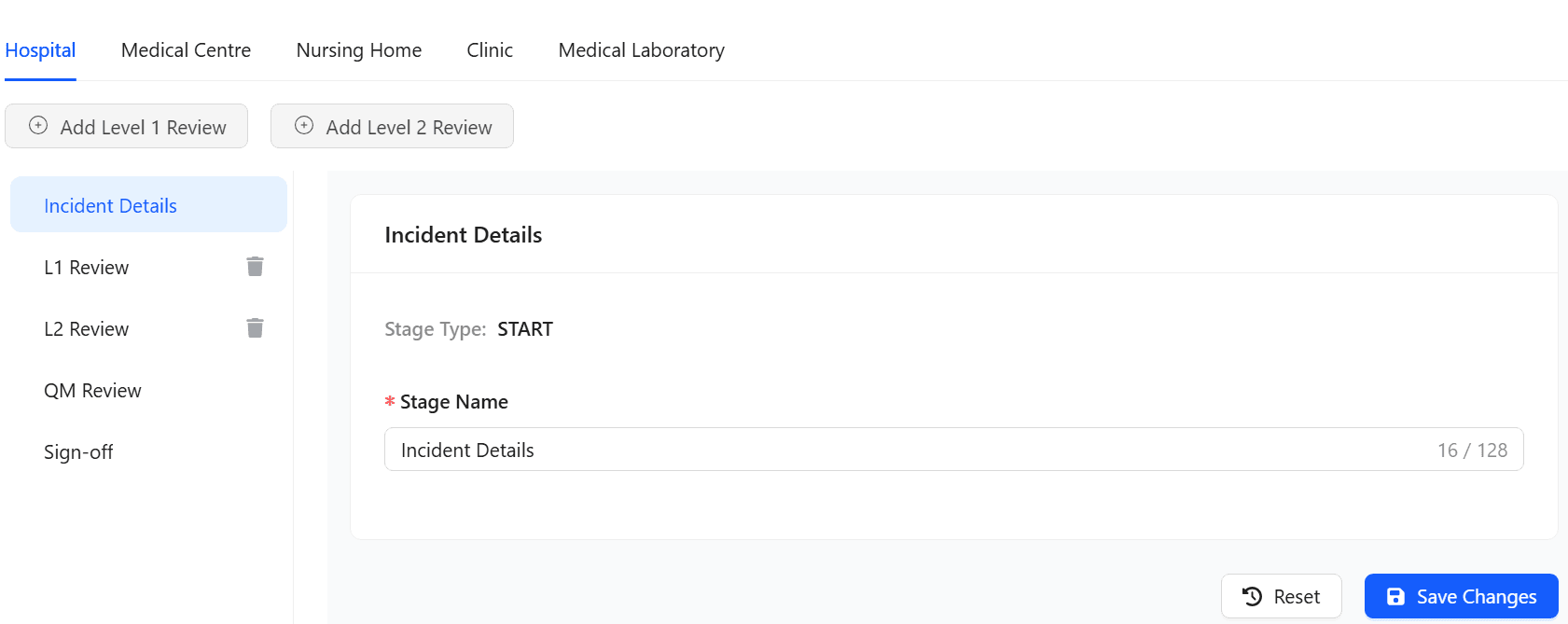
Update review stages (L1, L2, QM, Sign-off)
Select each review stage to rename or remove it based on your hospital workflow:
- L1 Review
- L2 Review
- QM Review
- Sign-off
Removing a review stage will impact approval and oversight in workflows, ensure this change aligns with your governance policy before proceeding.
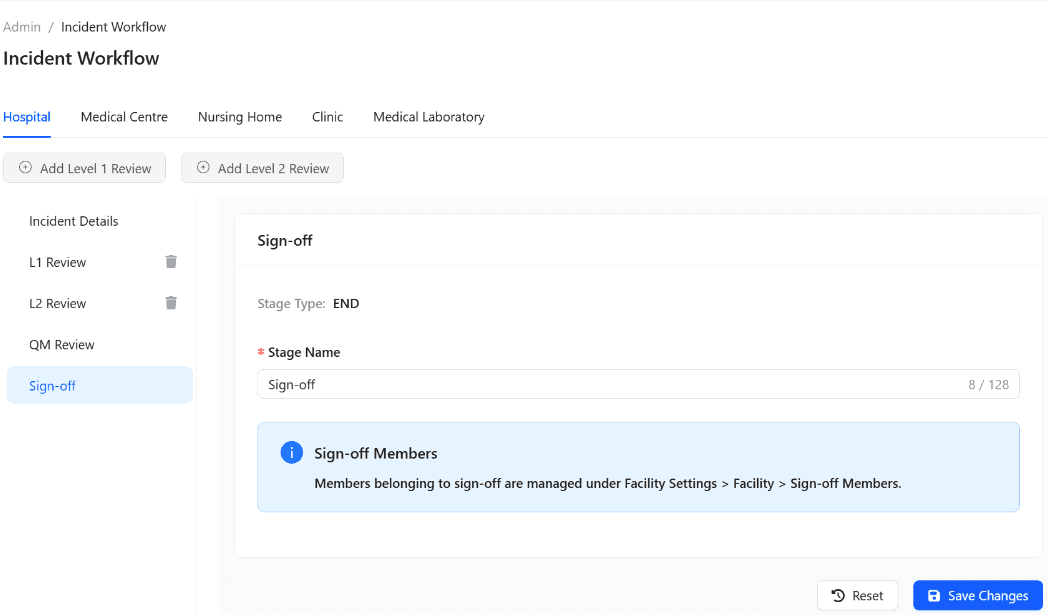
Configure workflow for Medical Centre
Select Medical Centre and customize the workflow stage names as needed.
Configure workflow for Nursing Home
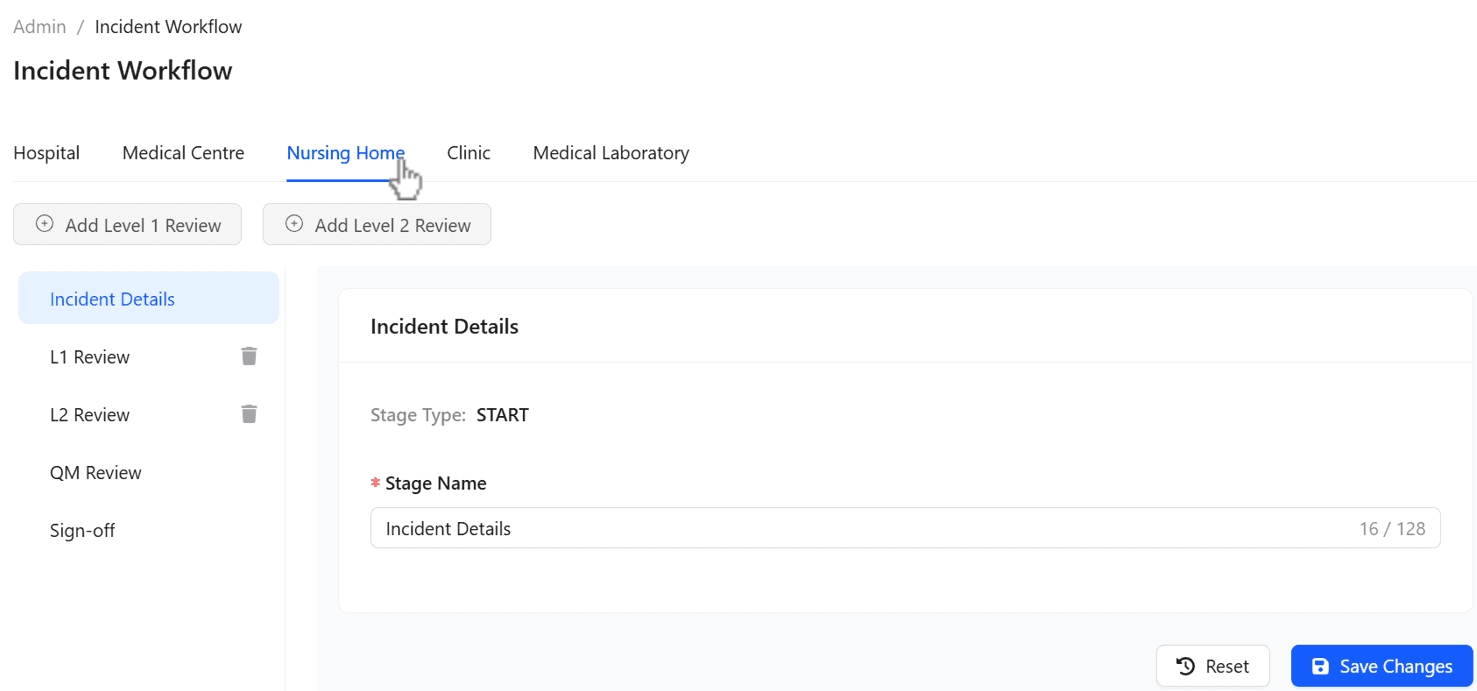
Select Nursing Home to customize the workflow.
- By default, L1 and L2 reviews are not enabled.
- You may add one or two review stages if required by your process.
Configure workflow for Clinic and Medical Laboratory
Repeat the customization for Clinic and Medical Laboratory feature groups.
- By default, these do not include L1 or L2 reviews.
- Add review stages if your workflow requires additional oversight.
Your incident workflow stages are now aligned with each facility type.