Download an Incident
This feature enables exporting the full incident record as a PDF, including details, workflow stages, summaries, and action items. It supports efficient sharing, auditing, or archiving without requiring system access
Who can perform this?
Roles: Any user with access to the Incident
Time to complete
~1–2 minutes
Prerequisites
Access to the Incident module and permission to view the specific incident
Before You Start
Access level required: View access to the Incident - Incident Stakeholder
Download Incident option is available regardless of incident status
Steps
Navigate to Incident Module and open an Incident
Go to the Incident module and select the incident you want to download.
- Why: You must open the incident to access its full details and actions
- Expected result: The selected incident opens with all details visible
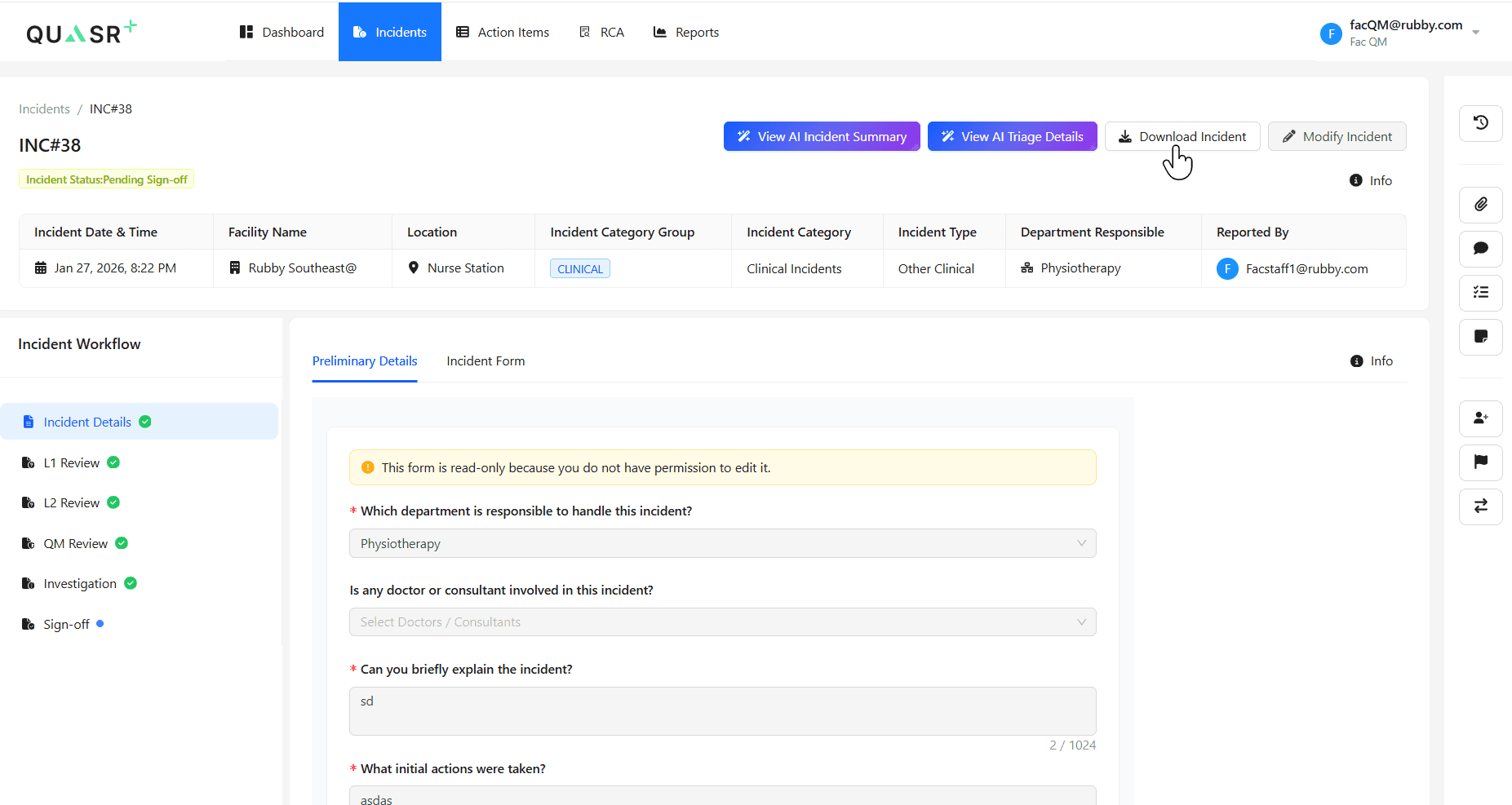
Download Incident
Locate and click the Download Incident option within the incident view.
- Expected result: The system generates a PDF file automatically
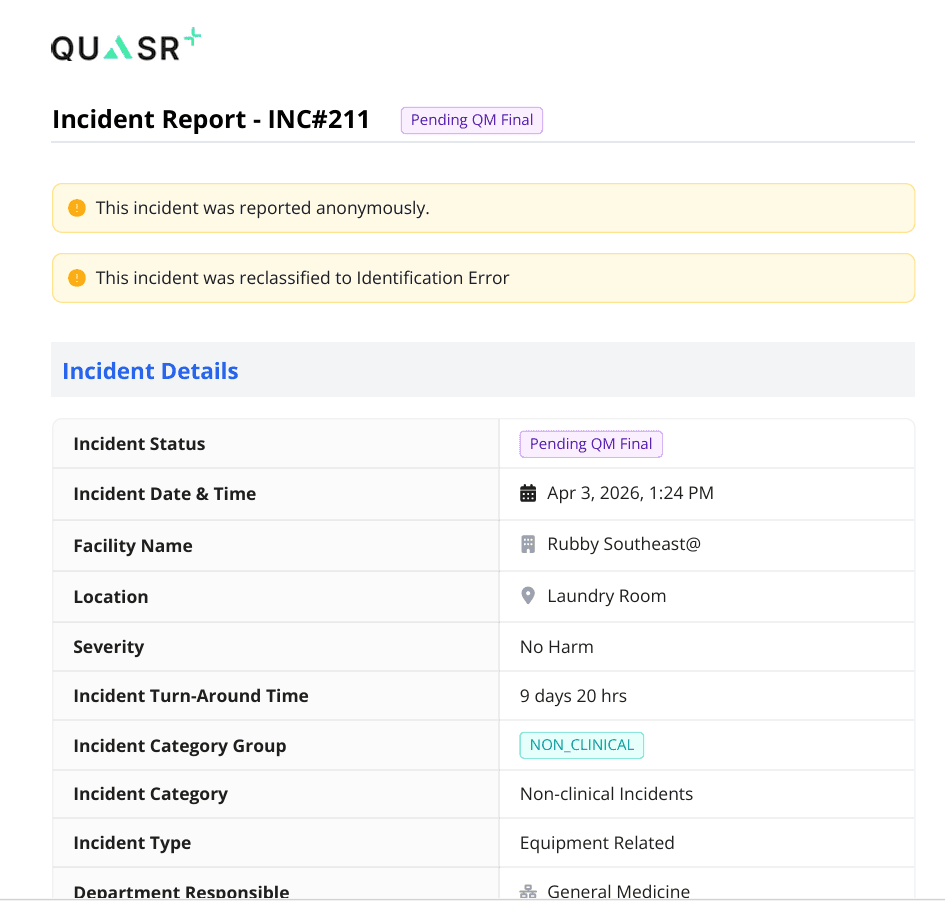
Access the downloaded file
Once generated, the file is downloaded automatically in PDF format and saved to your system’s default downloads folder.
- Expected result: A PDF file containing the full incident record is available locally
The PDF is successfully downloaded and ready for use.
What’s Included in the PDF
The downloaded PDF contains a comprehensive snapshot of the incident, including:
- Incident Details
- Incident Workflow Stages
- Incident Widgets Summary
- Action Items
- Incident History
All relevant information is compiled automatically—no additional configuration is required.
Any user with access to the incident can download it regardless of its status (e.g., L1 Review, QM Review, Closed).
Tips & Best Practices
- Download the PDF after key updates to capture the most recent information
- Use the PDF for audits, reporting, or external sharing
- Ensure sensitive data is handled according to your organization’s policies