Invite Users
Use this workflow to invite users to QUASR+ and assign them the correct access level and roles at the Account, Organisation Unit, or Facility level. Proper role configuration ensures users have access only to the data and features relevant to their responsibilities.
Who can perform this?
Time to complete
Prerequisites
Signed in as Account Admin, email IDs available, and access level and role decisions finalized.
Before You Start
-
Access level required: Account Admin
-
Limitations: Roles and access levels must align with your account’s organisational structure
Prepare the user’s email ID(s) and confirm the appropriate access level and roles before sending invitations.
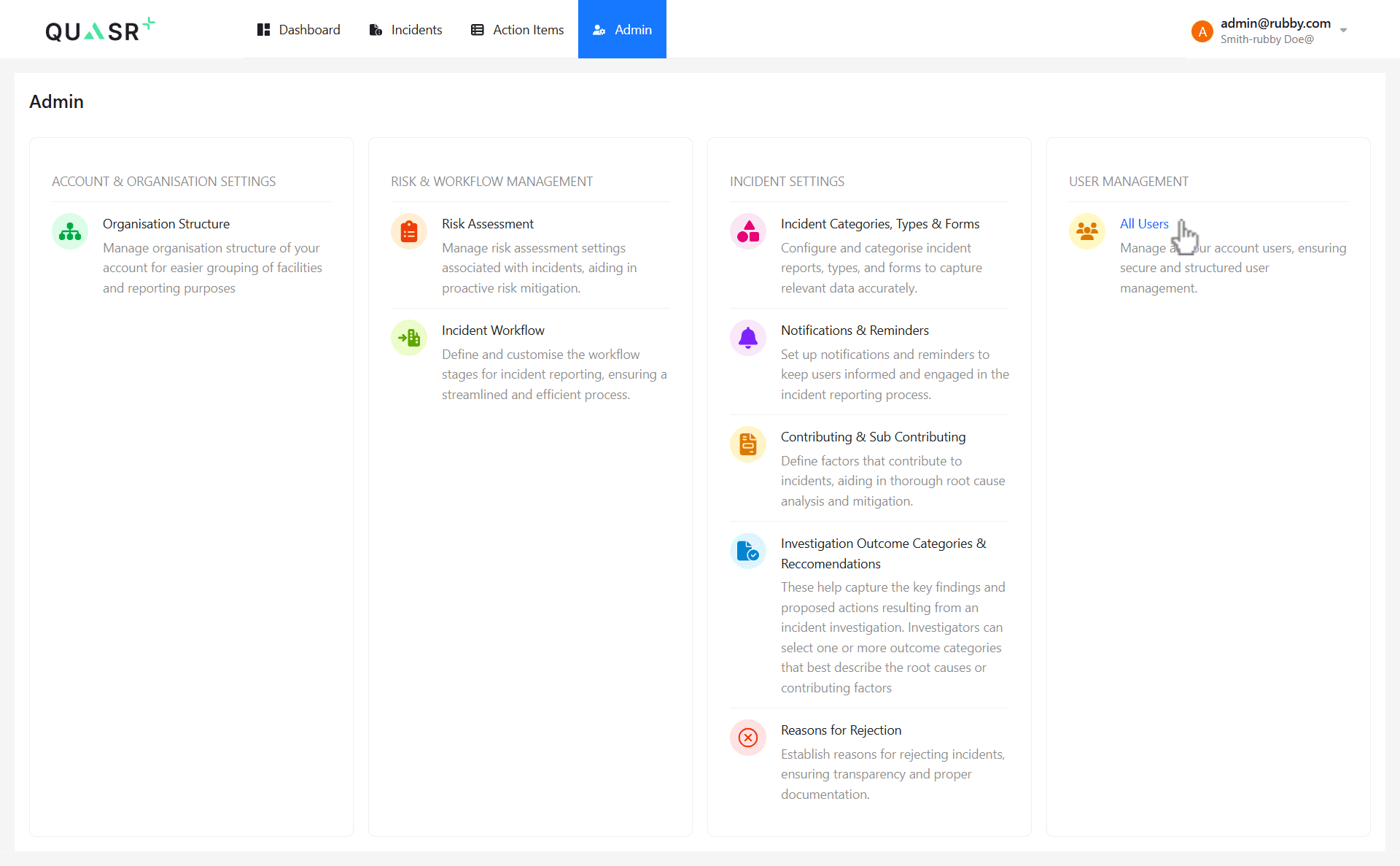
Navigate to Admin → All Users
From the Admin panel, select All Users.
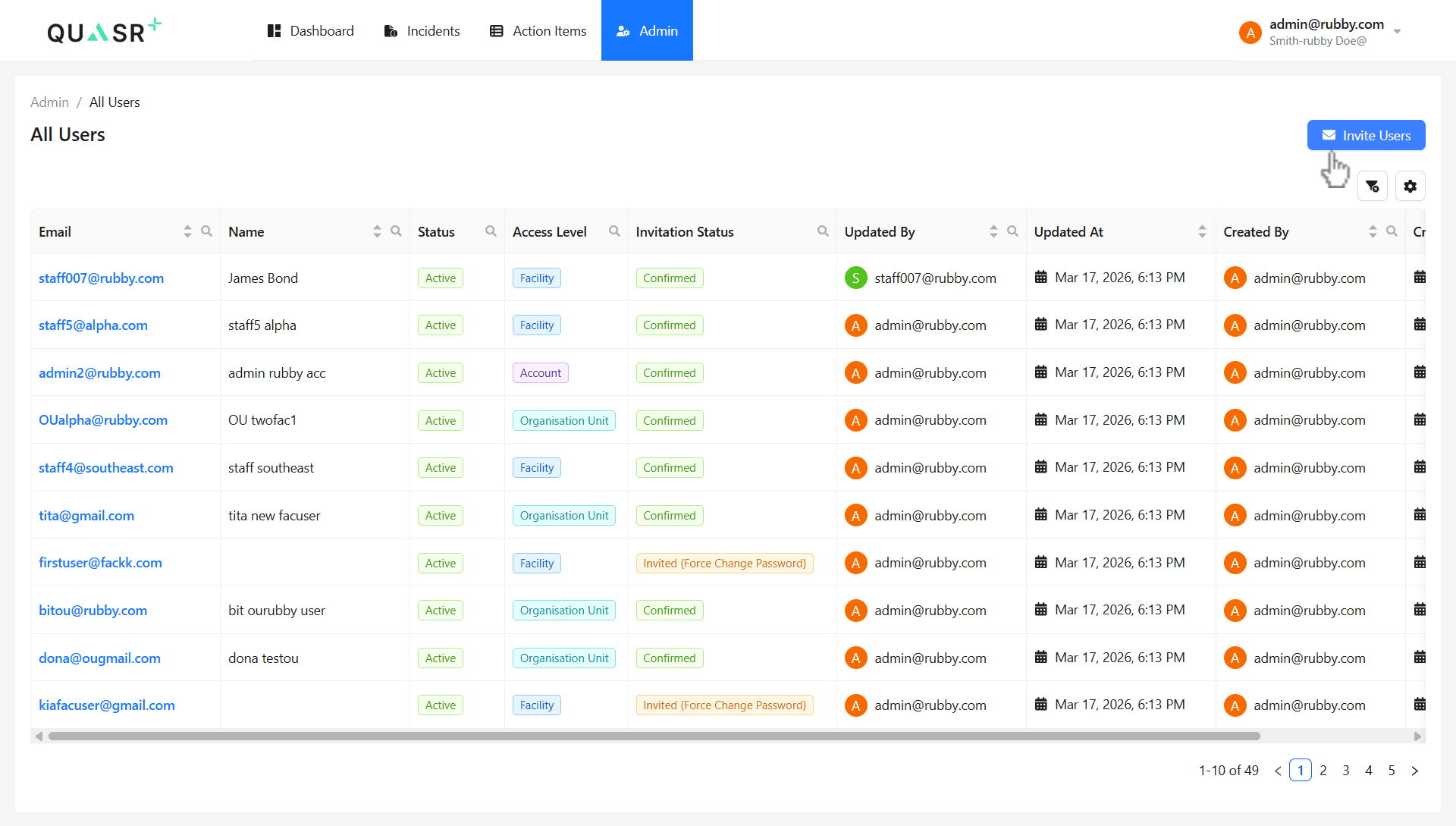
This page allows you to manage existing users and send new invitations. Clikcing on “All Users” open the Users list page opens, displaying all current users.
Invite Users
On the Users page, click Invite Users.
- Expected result: The invitation form opens, allowing you to enter user details and assign access.
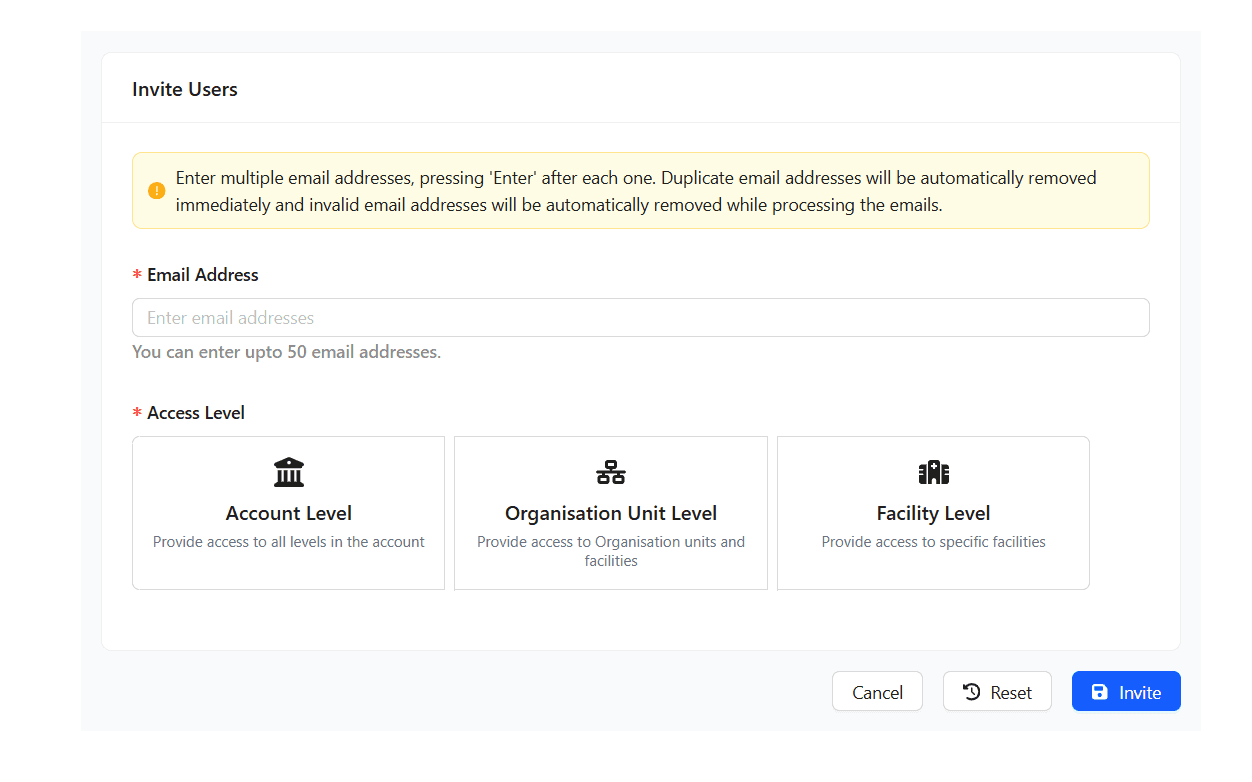
Prerequisite - To have the email ID(s) of the users you want to invite and the understanding of the appropriate Access Level:
- Account Level
- Organisation Unit Level
- Facility Level
Access level determines the scope of visibility and control within QUASR+. Choose the minimum required level to maintain proper governance.
Assign Roles Based on Access Level
After selecting the access level, assign the appropriate role(s) for the user.
Refer here for the list of Roles in QUASR+
| Access Level | Configuration Required | Notes |
|---|---|---|
| Account Level | Select relevant account-level role(s) | Provides access across the entire account |
| Organisation Unit Level | Select Organisation Unit(s) and assign role | Access limited to selected Organisation Units and the Facilities that are mapped directly under the Organisation Unit |
| Facility Level | Select Facility and assign role | Provides access to the facility |
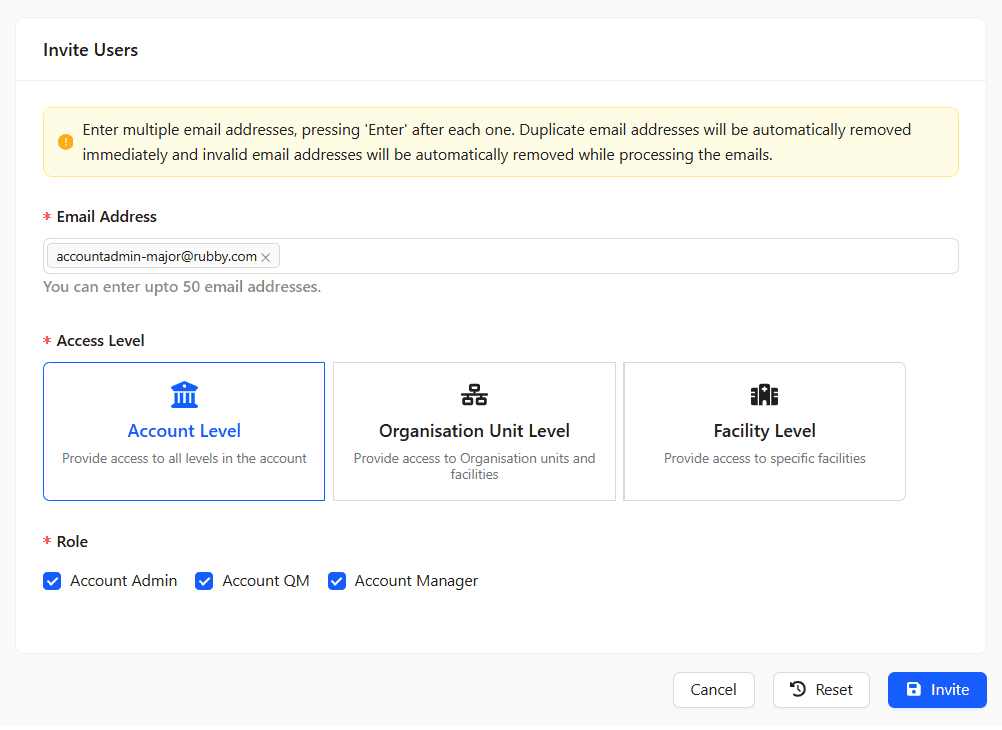
For Account Level access:
-
Enter the correct email address of the user to invite.
-
Assign the appropriate role (e.g., Account Manager).
Configure Organisation Unit Access (If Applicable)
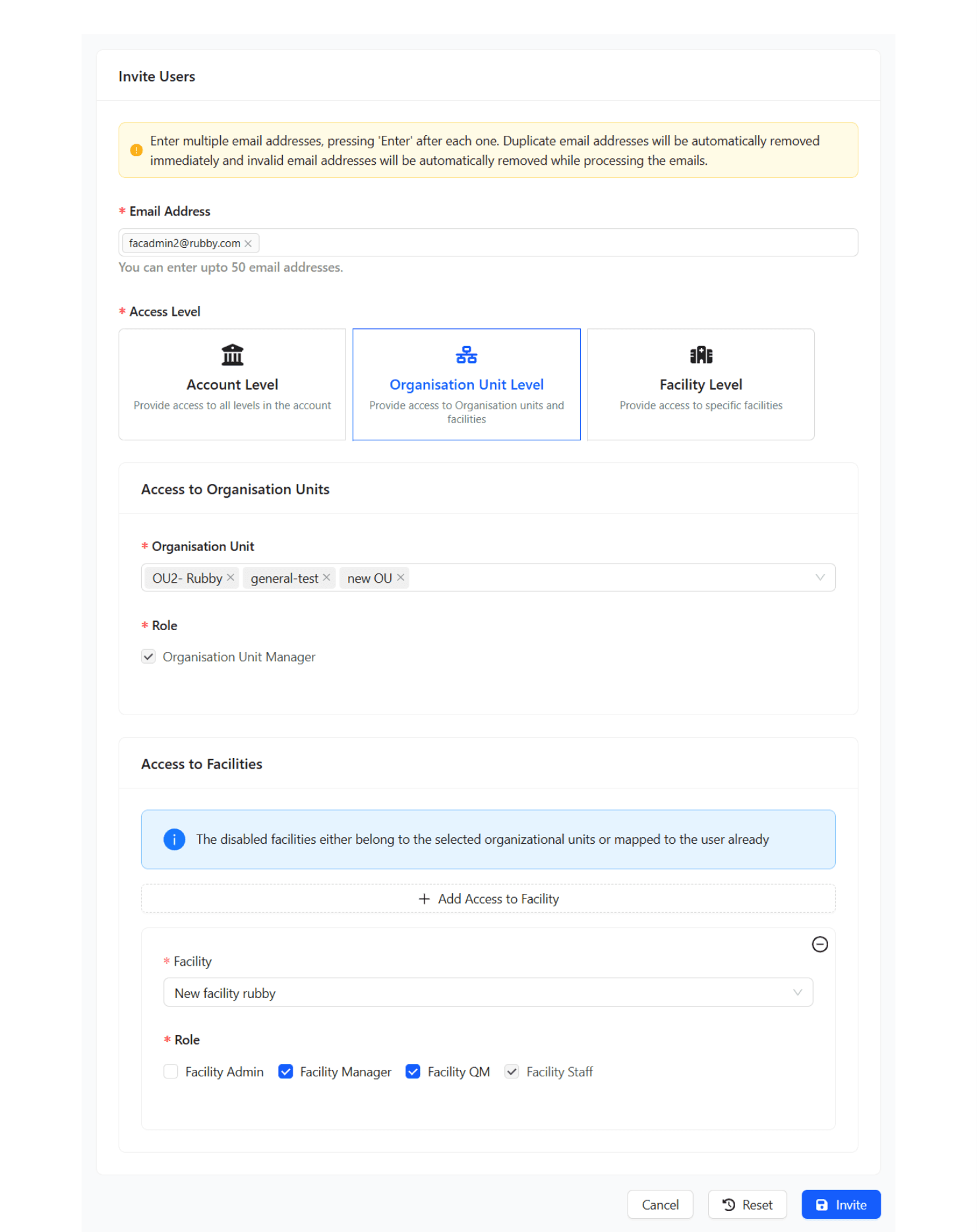
For Organisation Unit Level access:
- Choose the relevant Organisation Unit(s).
- Assign the appropriate role (e.g., Organisation Unit Manager).
The Organisation Unit Manager automatically has Facility Manager privileges for facilities directly mapped under the selected Organisation Unit.
You may also grant access to facilities not directly mapped under the Organisation Unit using the Access to Facilities section and assign facility-level roles accordingly.
Configure Facility-Level Access (If Applicable)
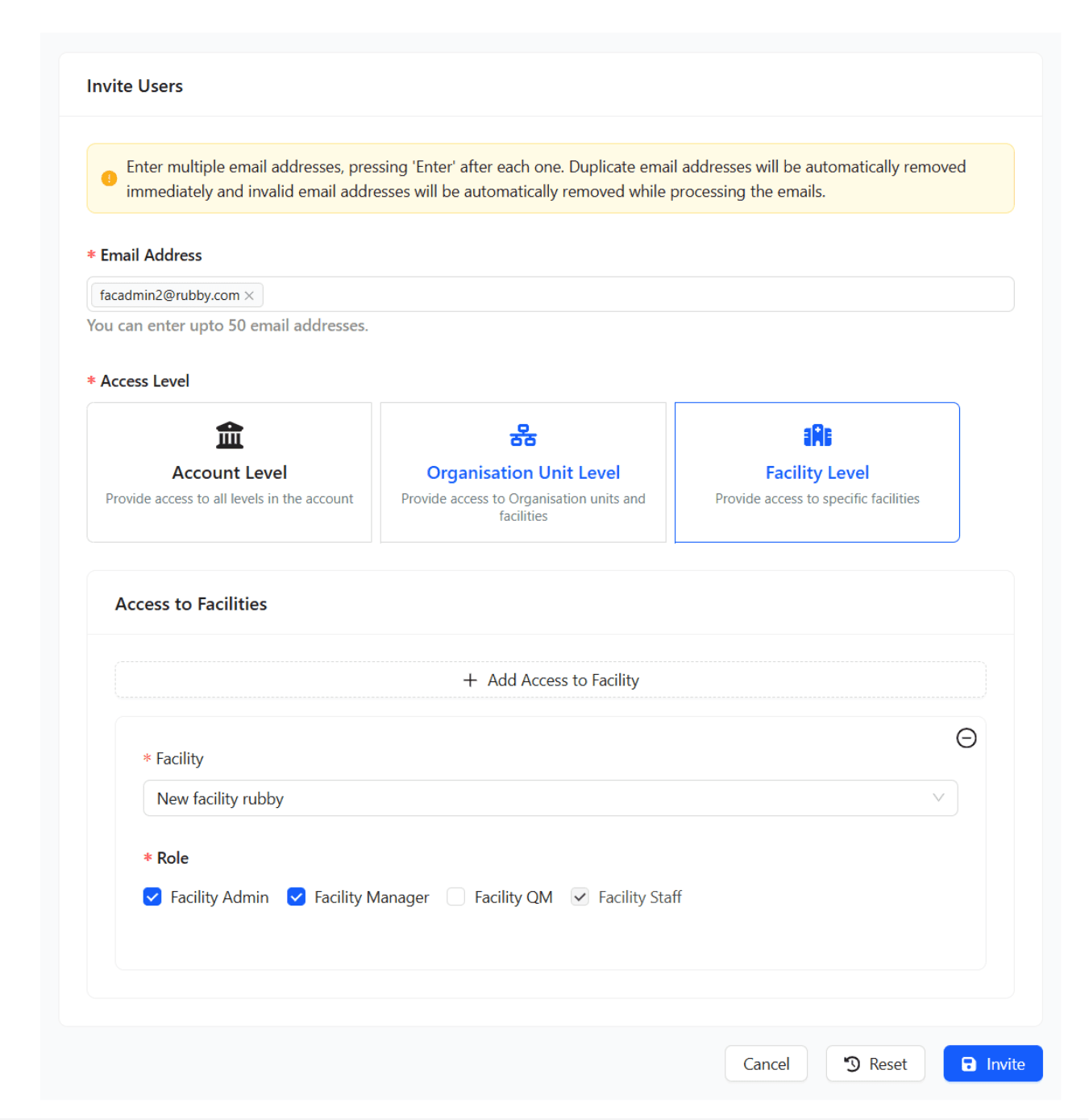
For Facility Level access:
- Choose the appropriate Facility.
- Assign the relevant Facility-level role.
By default, the Facility Staff role is assigned to all Facility-level users unless changed.
Review and Send the Invitation
Carefully review: - Email ID(s) - Selected access level - Assigned role(s) - Selected Organisation Units or Facilities (if applicable) Click Send Invite to complete the process.
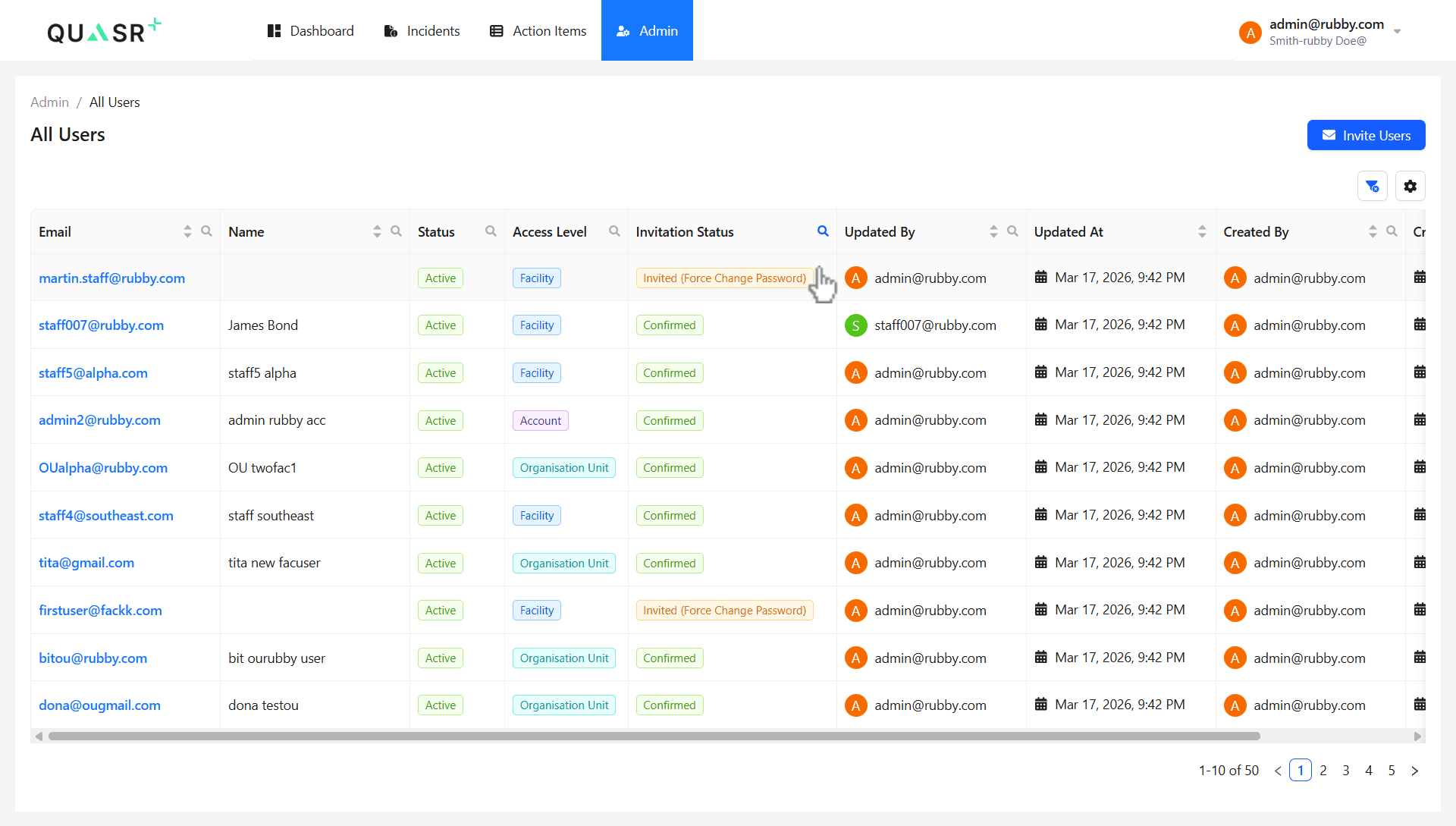
- Expected result: The user receives an invitation email and appears in the Users list with a pending status.
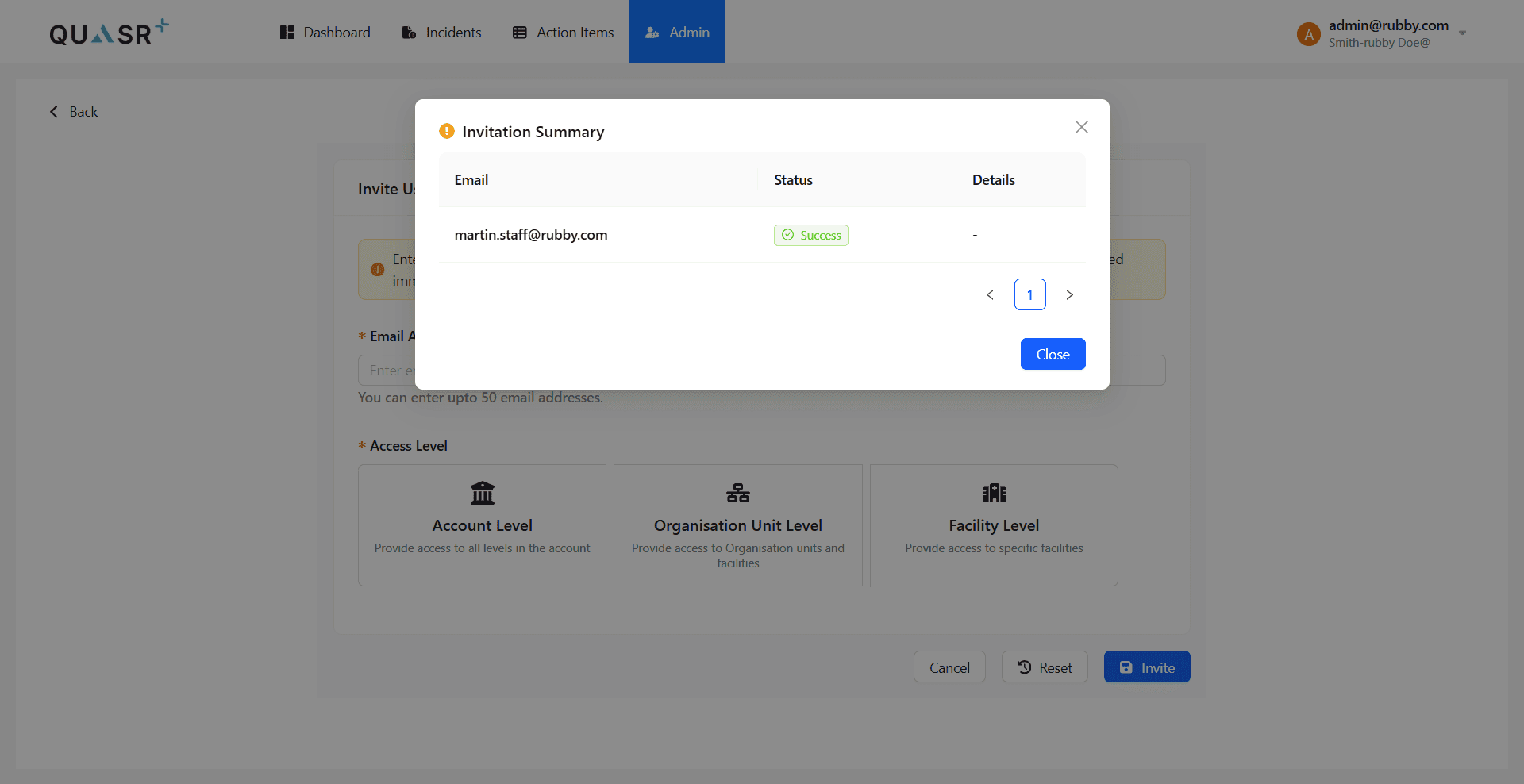
You should see the invited user listed in the system with a status indicating that the invitation has been sent.
Tips & Best Practices
-
Always assign the lowest access level required for the user’s role.
-
Verify email IDs before sending invitations to avoid delivery issues.
-
Use Organisation Unit-level roles for structured access across multiple facilities.