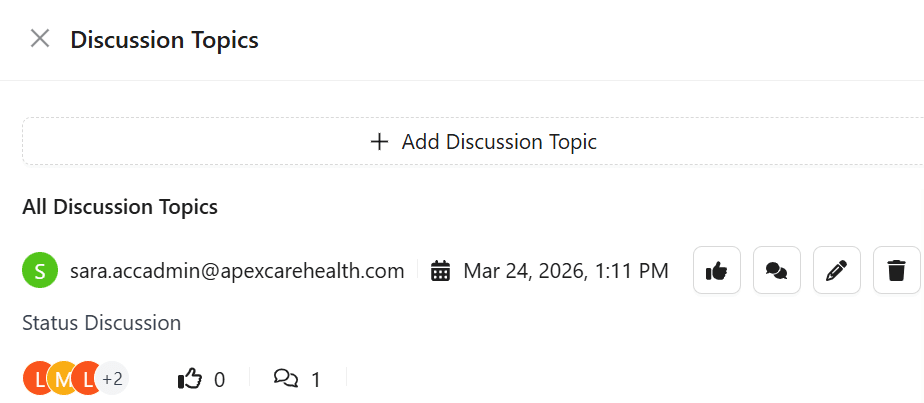
Create Discussion Topic
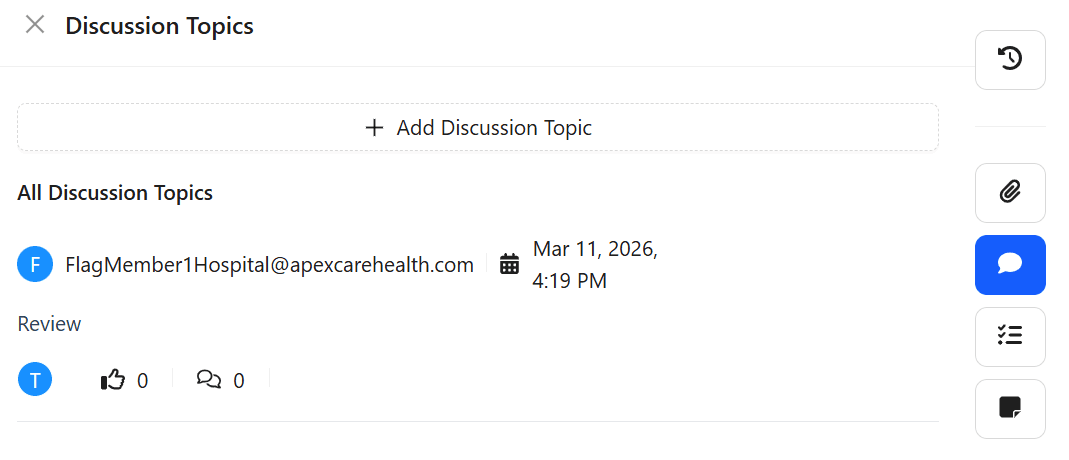
The Discussion Topics widget allows users to start conversations related to an incident. You can invite participants, share updates, and collaborate within the discussion forum.
Steps
Open the Discussion Topics widget
On the right side of the Incidents page, locate the Incident Widgets panel and click the Discussion Topics icon.
- Expected result: The Discussion Topics panel opens.
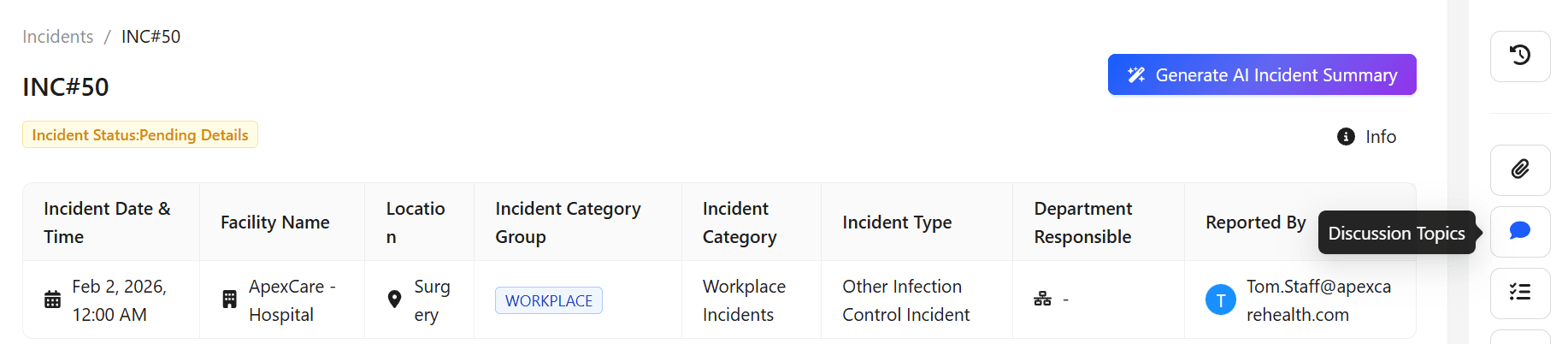
Click Add Discussion Topic
Click the Add Discussion Topic button.
- Expected result: A form appears where you can create a new discussion topic.
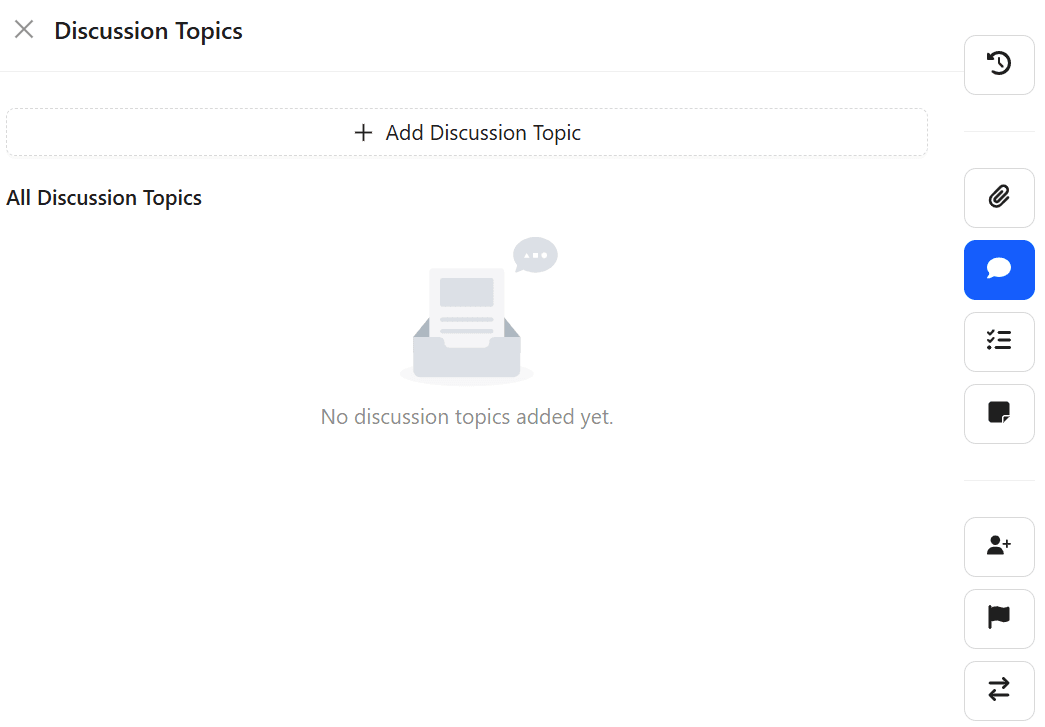
Enter discussion details and save
- Enter the Discussion Topic.
- Add the Participants who should be part of the discussion.
- Click Save.
- Expected result: A new discussion dialogue page appears.

When saved, the system automatically sends an email to the selected participants, giving them access to the discussion forum.
Permissions and Privileges to participants
- Participants can comment on the discussion topic to share their thoughts or updates.
- Participants can edit or delete their own comments if they need to make changes.
- Participants can like or reply to comments to continue the discussion.
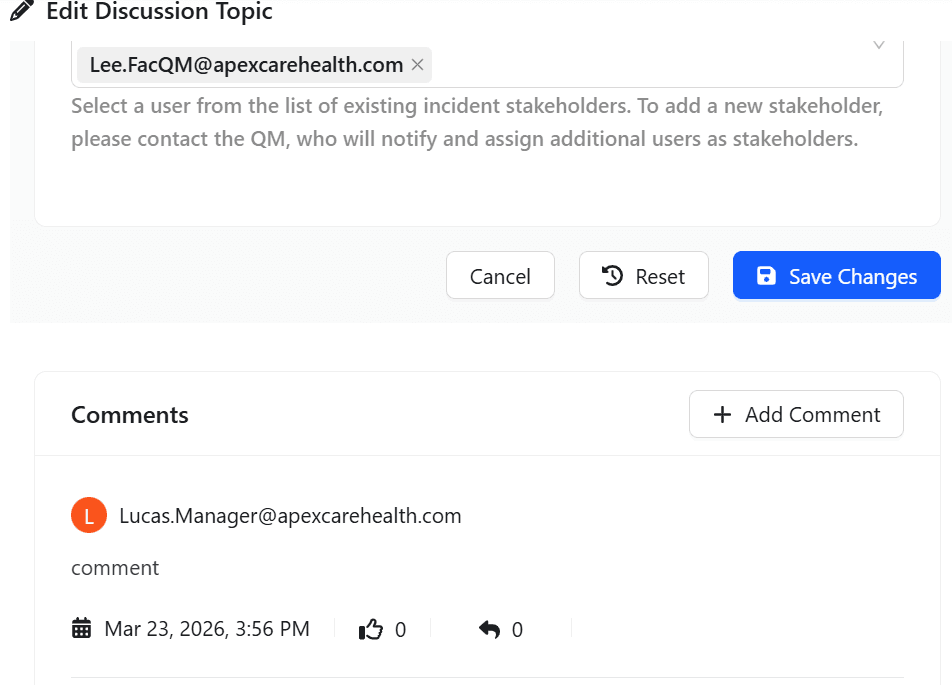
Only the person who created the discussion topic can:
- Edit the discussion topic
- Delete the discussion topic
The privileges to edit, delete, or manage the discussion topic belong only to the creator of the discussion topic and the Facility QM.
When adding participants, select users from the existing list of incident stakeholders. If the required user is not available in the list, contact the QM to have the user added as a stakeholder using the Notify Users widget.