Update User Roles and Access Levels — Deactivate Users
This guide explains how Account Admins, Organisation Unit Managers, and Facility Admins update a user’s access level and roles, remove facility access, and deactivate users in QUASR+. Follow these steps to ensure changes are validated, audited, and communicated to affected users.
Who can perform this?
Time to complete
~2-10 minutes per user update
Prerequisites
Signed in with appropriate admin role; target user exists; email address available
Before You Start
- Access level required: Account Admin for Account/Organisation Unit changes; Organisation Unit Manager for Organisation Unit and nested Facility changes; Facility Admin for Facility-scoped changes.
- Limitations: User email is read-only and cannot be edited.
After any role or access-level change, the system will prompt the affected user to log out and log back in to apply new privileges.
Roles and scope responsibilities (summary)
| Role | Scope / Capabilities |
|---|---|
| Account Admin | Manage Account, Organisation Unit, and Facility access and roles; map users to multiple Organisation Units or Facilities. |
| Organisation Unit Manager | Manage access and roles for their Organisation Unit and all Facilities nested under that Organisation Unit. |
| Facility Admin | Manage roles for users within their Facility; update users only for a single Facility per update batch. |
Quick overview
-
Account Admins can grant broad access across the Account and assign any account roles. Users with Account Manager or Account QM access receive Manager and QM privileges across all Organisation Units and Facilities mapped to the Account.
-
Changing access level moves a user’s scope between Account, Organisation Unit, and Facility. Organisation Unit Managers can manage access for their Organisation Unit and all nested Facilities.
-
Changing roles adds or removes roles at Account, Organisation Unit, or Facility level. Organisation Unit Managers manage roles for their Organisation Unit and its Facilities; Facility Admins manage roles for their Facility.
Steps
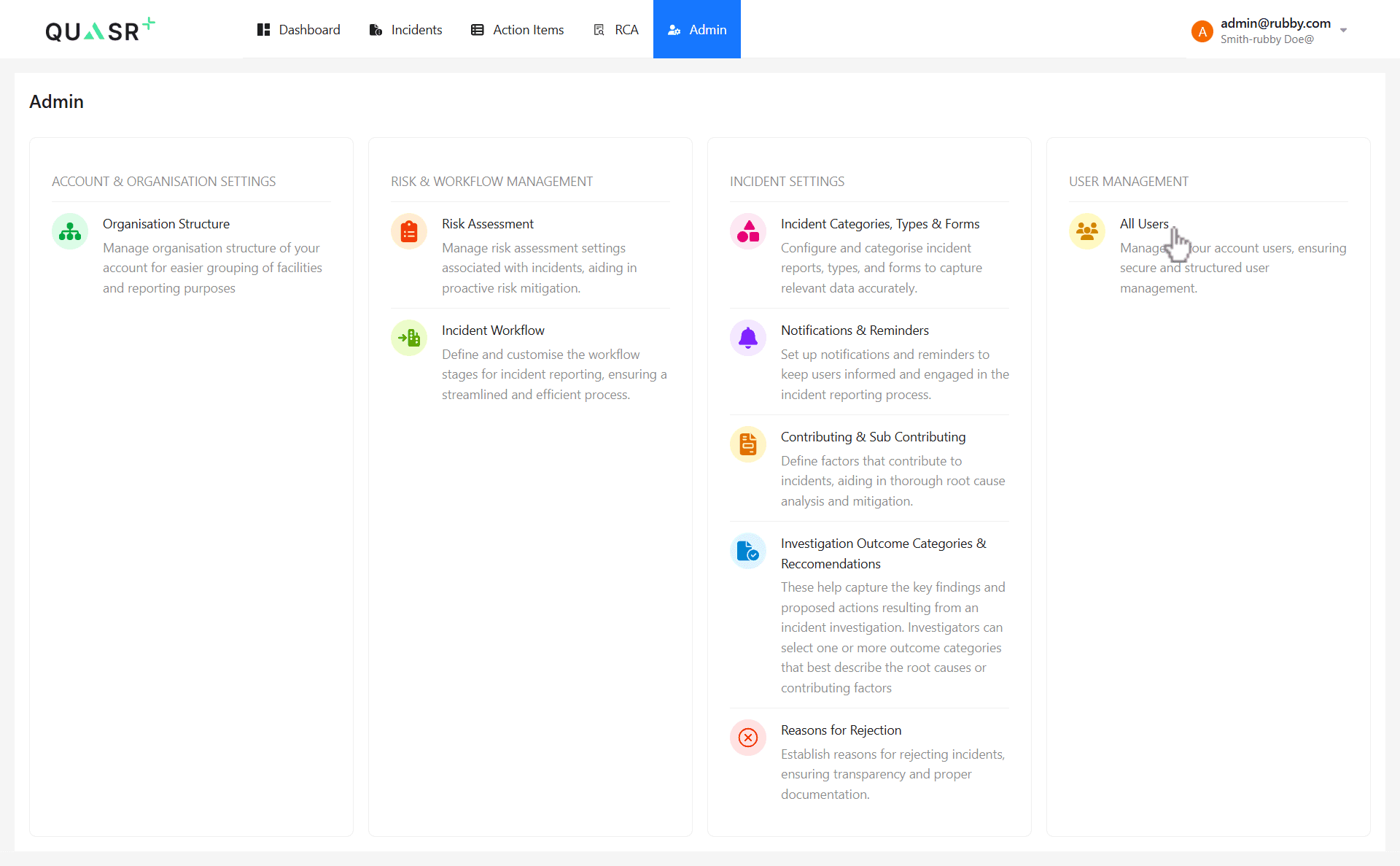
Open All Users (Admin → Account Users)
From the Admin menu, go to Admin → Account Users and select the user you want to update.
- Why: Start from the central user management screen to ensure changes apply account-wide.
- Expected result: The user details panel opens showing email (read-only), current roles, and current access scope.
“Review current user details”
Confirm the user’s email (read-only), current roles, and current access level (Account / Organisation Unit / Facility).
- Why: Verifying the current state prevents accidental misconfiguration.
- Expected result: You understand the user’s existing permissions before making changes.
Choose the target access level
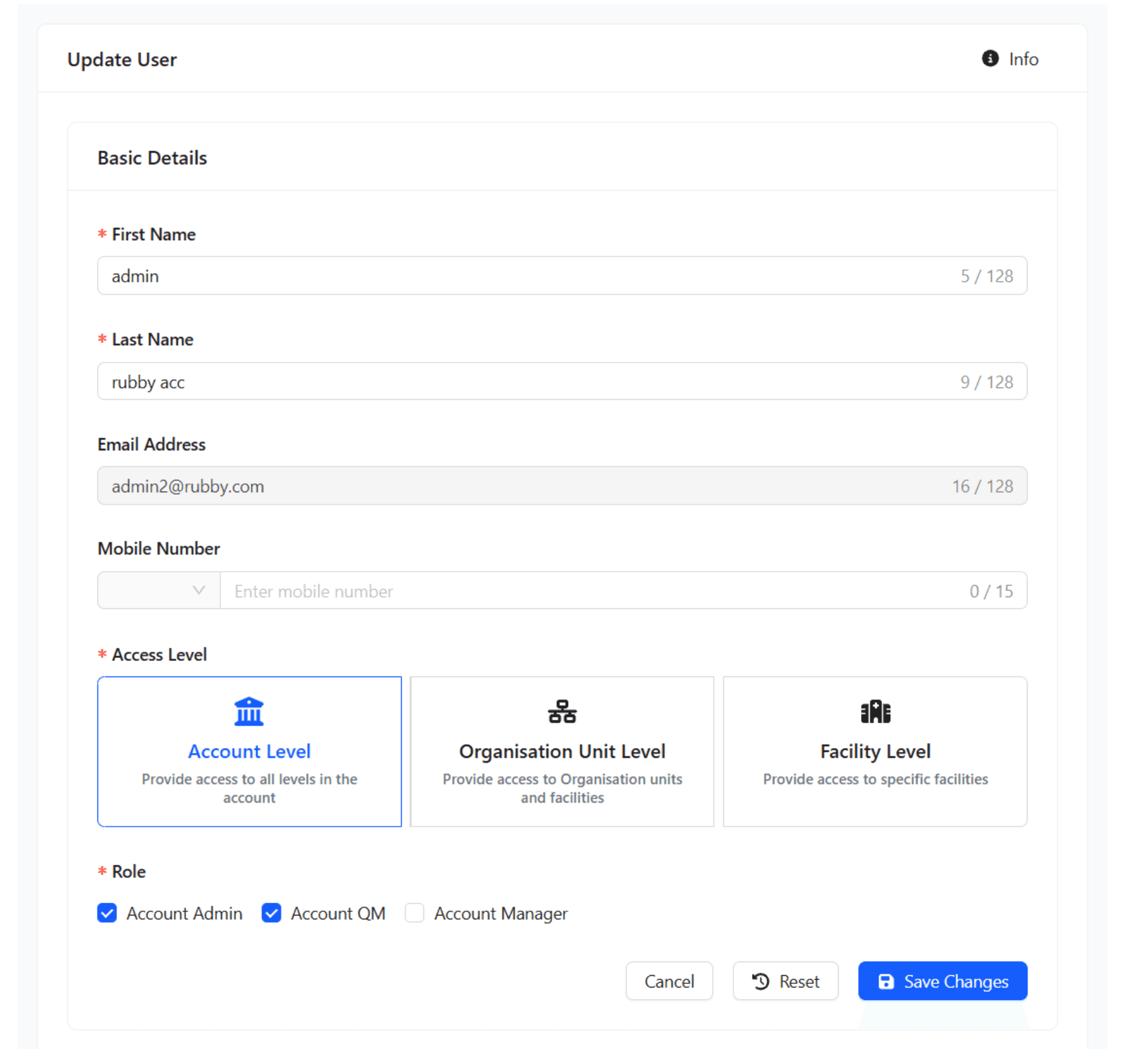
Select the desired access level: Account, Organisation Unit, or Facility. The UI will display controls appropriate to the chosen level.
- Why: Access level determines available assignment controls and validation rules.
- Expected result: The UI shows the controls for selecting Account, Organisation Units or Facilities as needed.
Assign Organization Unit(s)
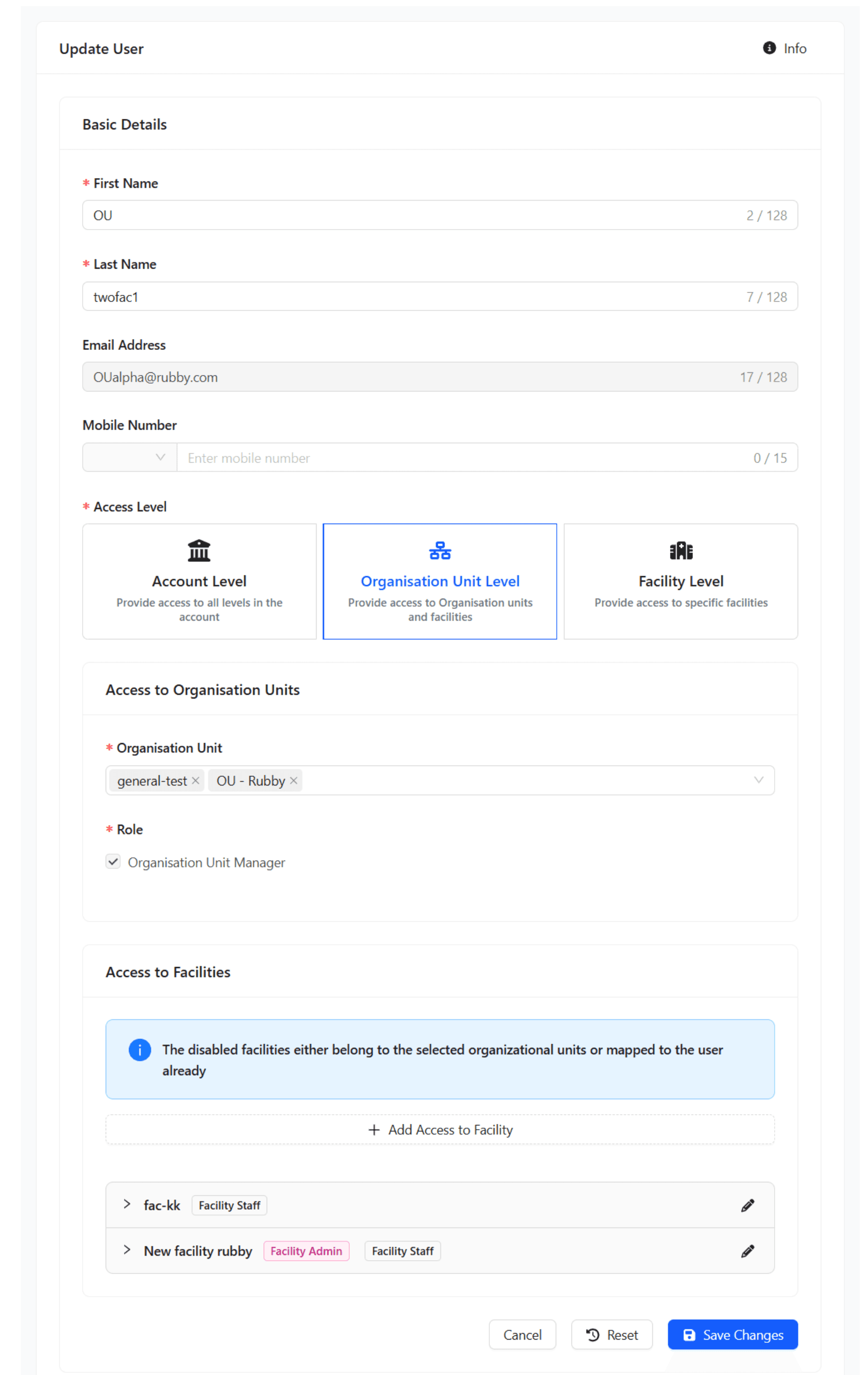
Click Organisation Unit and select one or more Organisation Units.
System behavior:
- Organization Unit Manager role is automatically assigned and locked.
- User gains access to the selected Organisation Unit(s) and all Facilities mapped under those Organisation Unit(s).
- Access to Facilities not mapped under the selected Organisation Unit(s) will remain unchanged unless explicitly removed.
Promoting a user from Facility → Organisation Unit scope triggers a permission recalculation. The system will prompt the user they must log out and log back in to apply changes.
Assign Facility(ies)
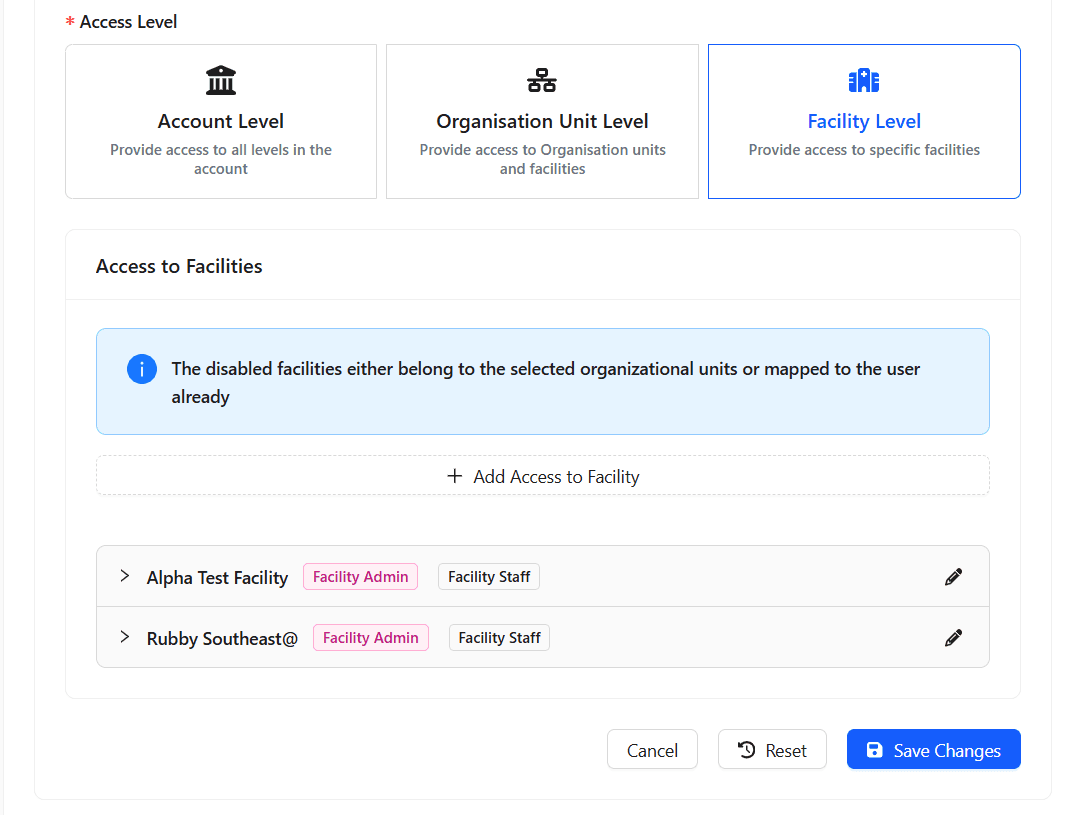
Click Facility and select Facility(ies).
- Account Admins: May add multiple Facilities and assign roles for each.
- Facility Admins: May select only one Facility per update and must assign at least one role for that Facility.
- Default behavior: The Facility Staff role is assigned by default to Facility-level users unless changed.
- Expected result: Selected Facilities and roles appear in the user’s access scope.
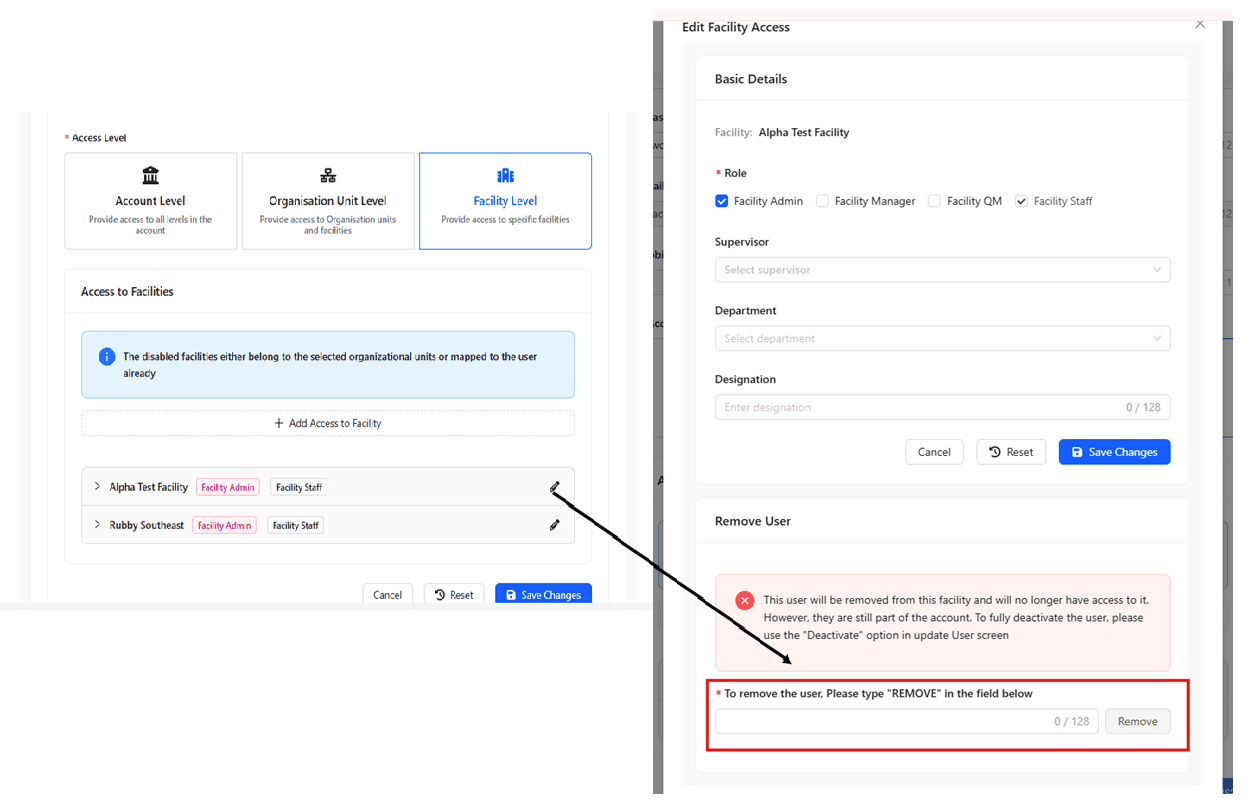
Remove user from a Facility
To revoke a user’s access to a Facility, remove that Facility from the user’s access scope.
- Why: Removing a Facility immediately revokes the user’s permissions for that Facility.
- Expected result: The user no longer appears in Facility-scoped lists and cannot access Facility resources.
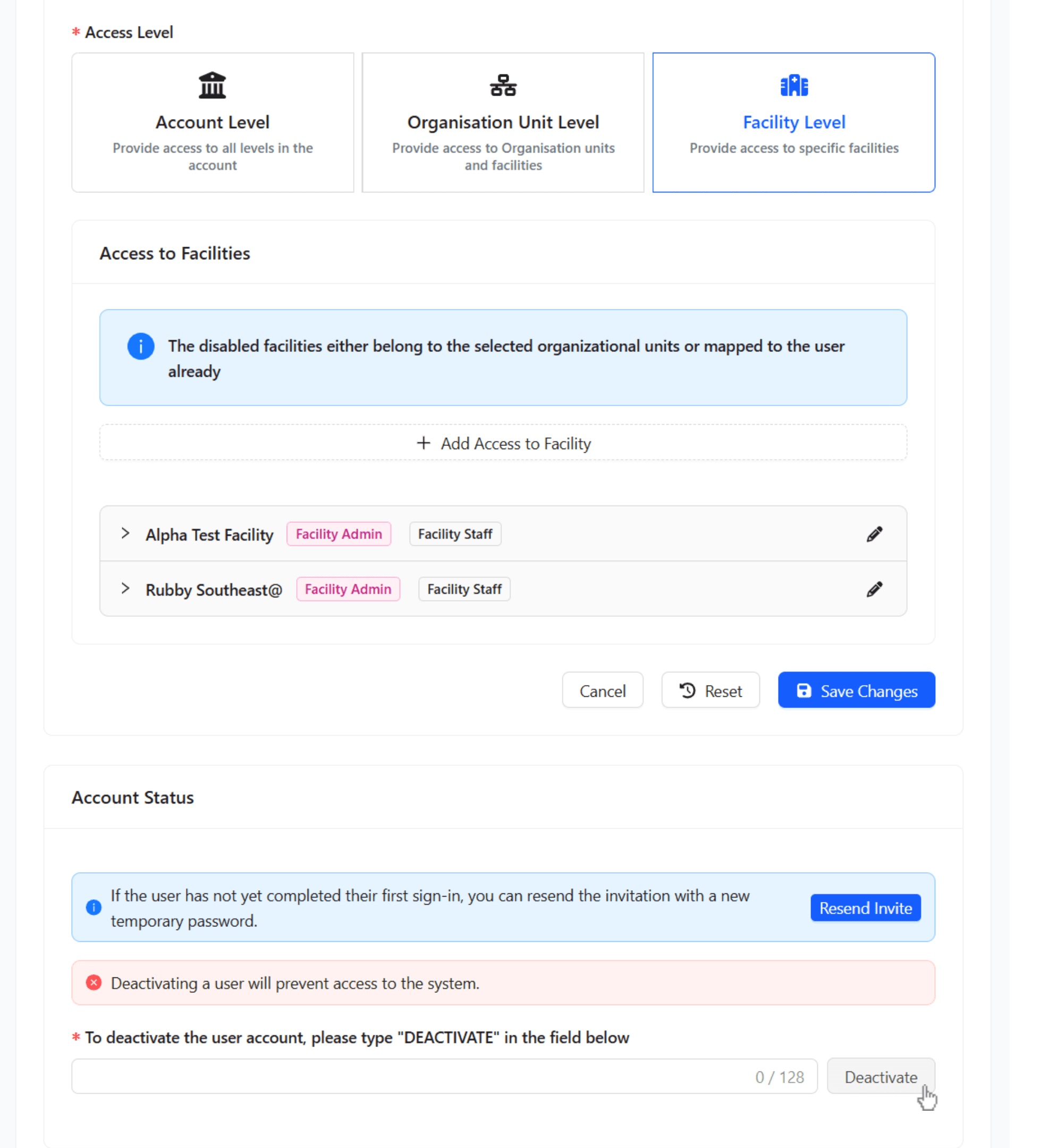
Deactivate a user
To prevent a user from accessing QUASR+, deactivate their account:
- Choose Deactivate user in the user details panel.
- To deactivate the user account, please type “DEACTIVATE” in the field under Account Status
- Effect: Deactivated users cannot sign in or access the system.
- Expected result: User status changes to Deactivated and login attempts are blocked.
Deactivation is reversible only if your system supports reactivation; confirm policy before deactivating an account.
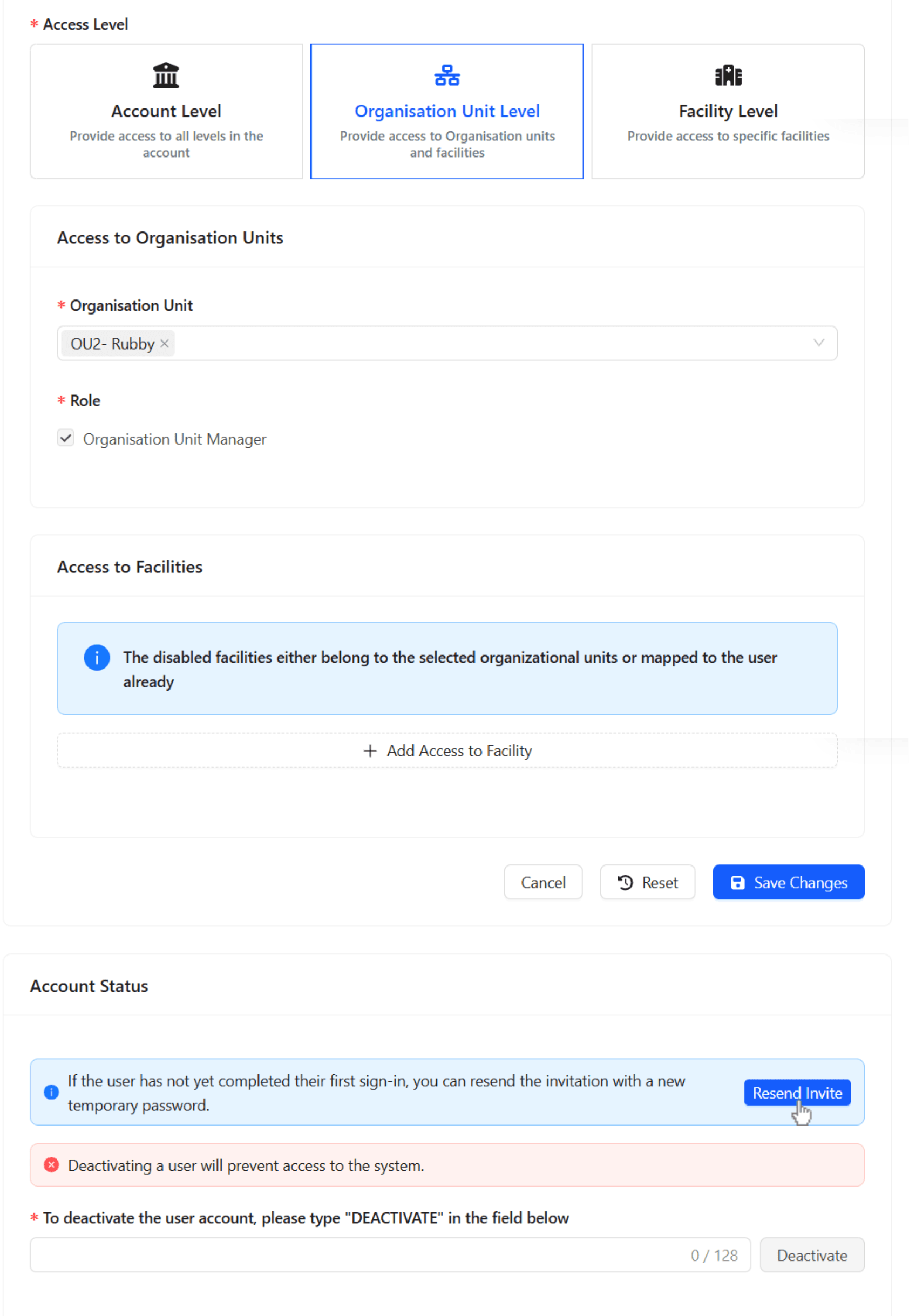
Resend an Invite to a user
If the user has not yet completed their first sign-in, the admin can resend the invitation with a new temporary password.
- Click “Resend Invite”
- The system will automatically send the email Invitation to the user with temporary password
Admins can resend invite only to the users whose Invitation status is “Invited (Force Change Password)”
Form validation and submission
Ensure all required fields and role selections are valid before saving:
- Email is present (read-only).
- At least one scope (Account/Organisation Unit/Facility) is selected when applicable.
- Role selection validated per scope (Facility updates require at least one role).
Post-update behavior and notifications
After a successful update:
- The system prompts the affected user to log out and log back in with the message: “Your Administrator has updated your role. In order to get the new access privileges, please logout and login back.”
- The change is recorded in the Audit Trail with Admin ID, timestamp, previous/new roles and scopes.
- Expected result: User receives email and sees logout prompt; audit entry is created.
Tips & Best Practices
-
Inform users before making broad scope changes so they expect the logout/login requirement.
-
Use Organisation Unit assignments to grant consistent access to all Facilities under that OU.
-
Limit deactivations to users who no longer require access; document the reason.
-
Keep a record of role changes and deactivations for compliance.