Incident Categories, Types & Forms Configuration
Incident Categories, Types and Incident Forms Configuration allows Account Admins to define and customize the questions users must complete when reporting an incident. Proper configuration ensures data consistency, regulatory compliance, and meaningful incident analysis across facilities and incident types.
Before You Start
- Access level required: Account Admin
- Limitations: Question options and conditional questions are available only for Single Selection and Multiple Selection question types.
The system will pre-populate the Incident Categories, Incident Types, and Incident Forms based on Facility type chosen during On-boarding process.
Steps
Navigate to Incident Forms
From the Admin Module, go to Incident Settings and select Incident Categories, Types & Forms.
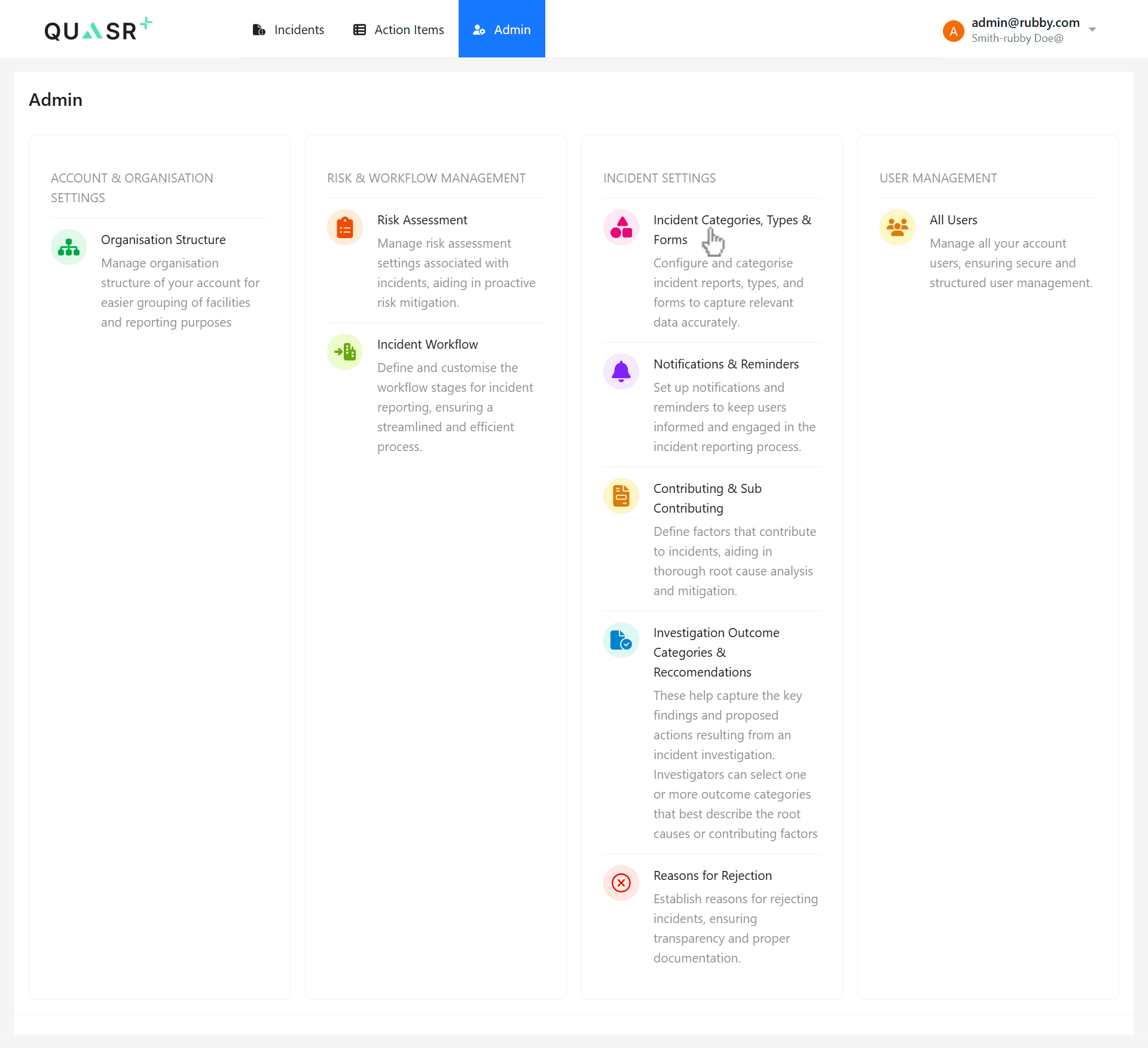
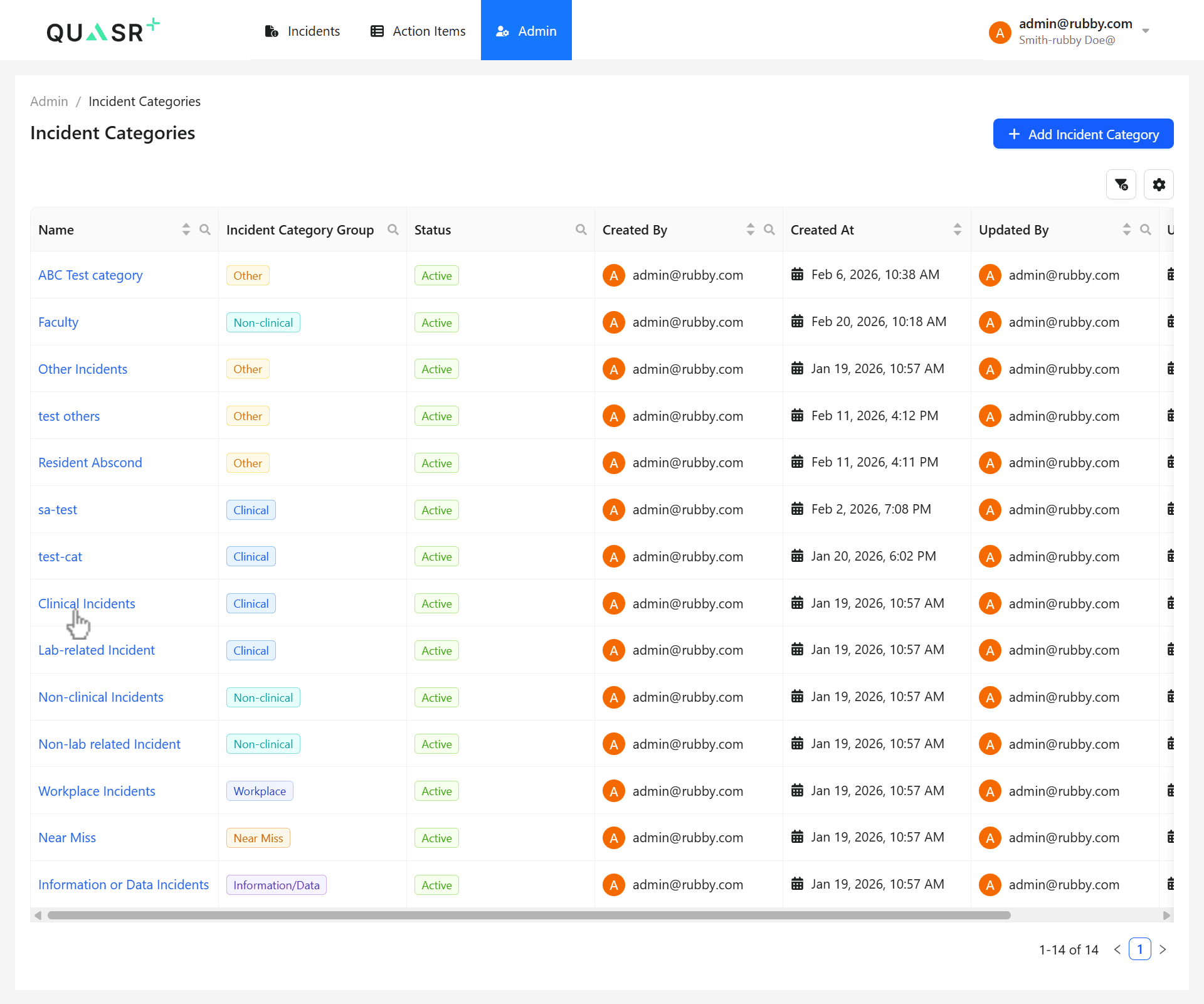
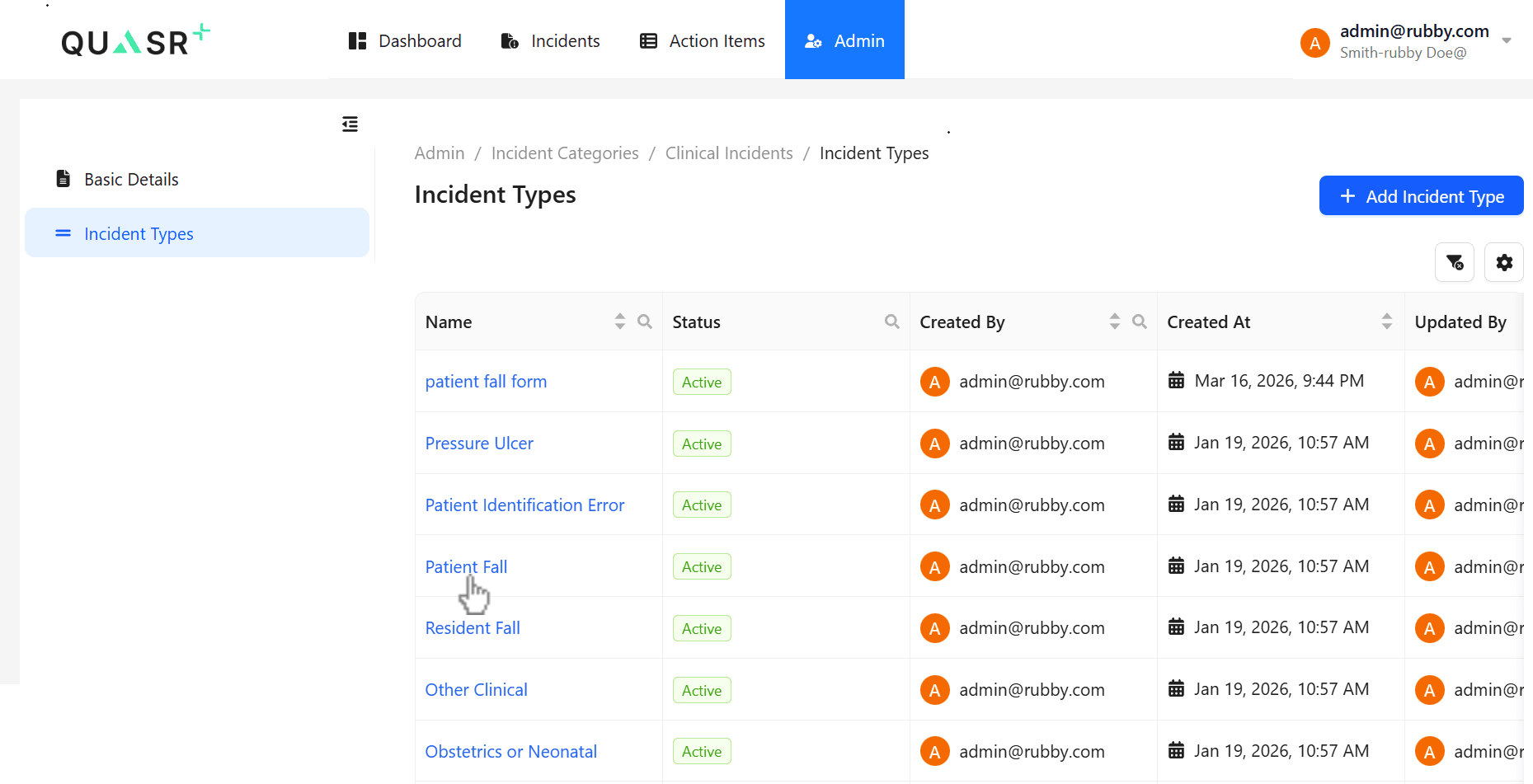
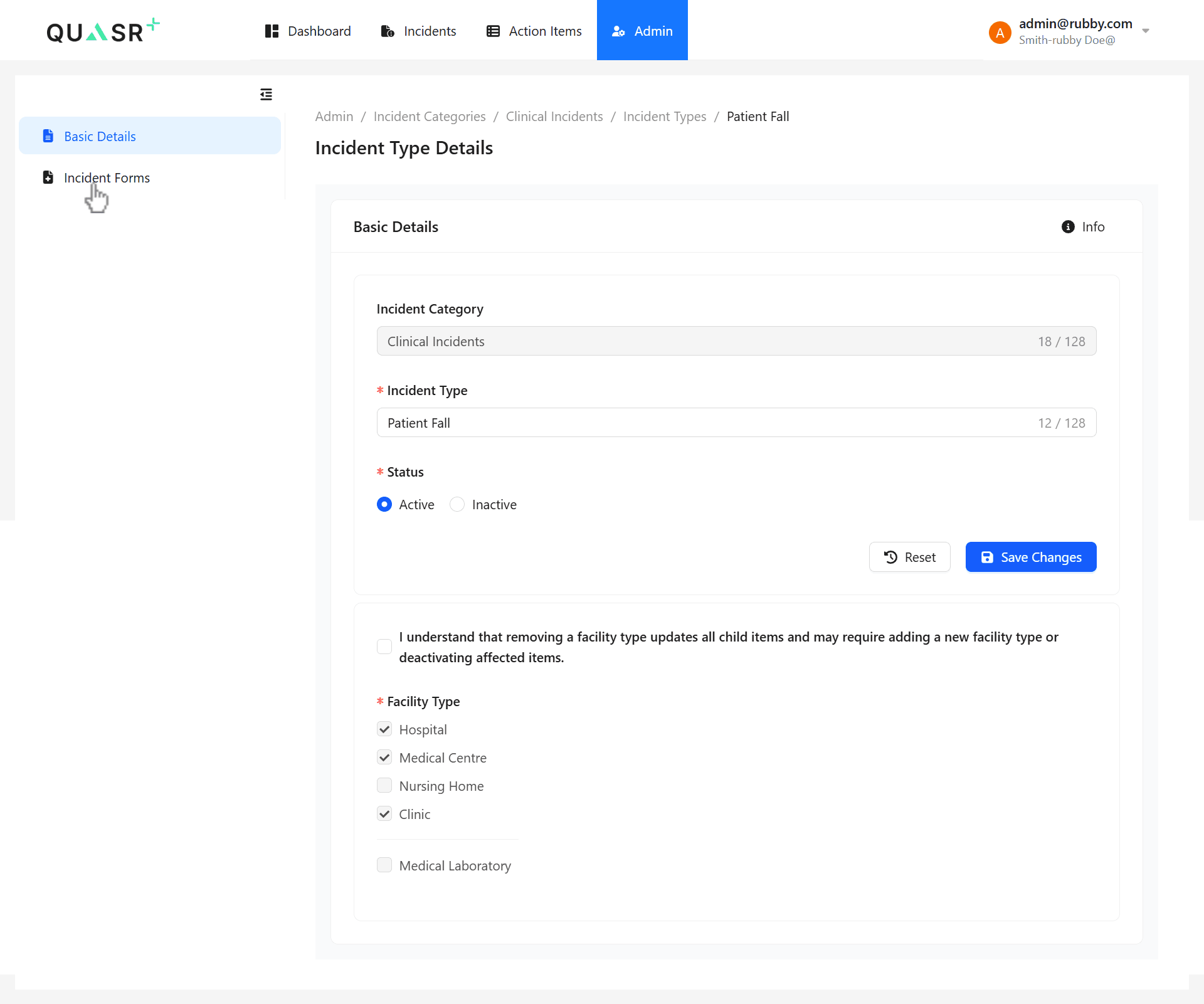
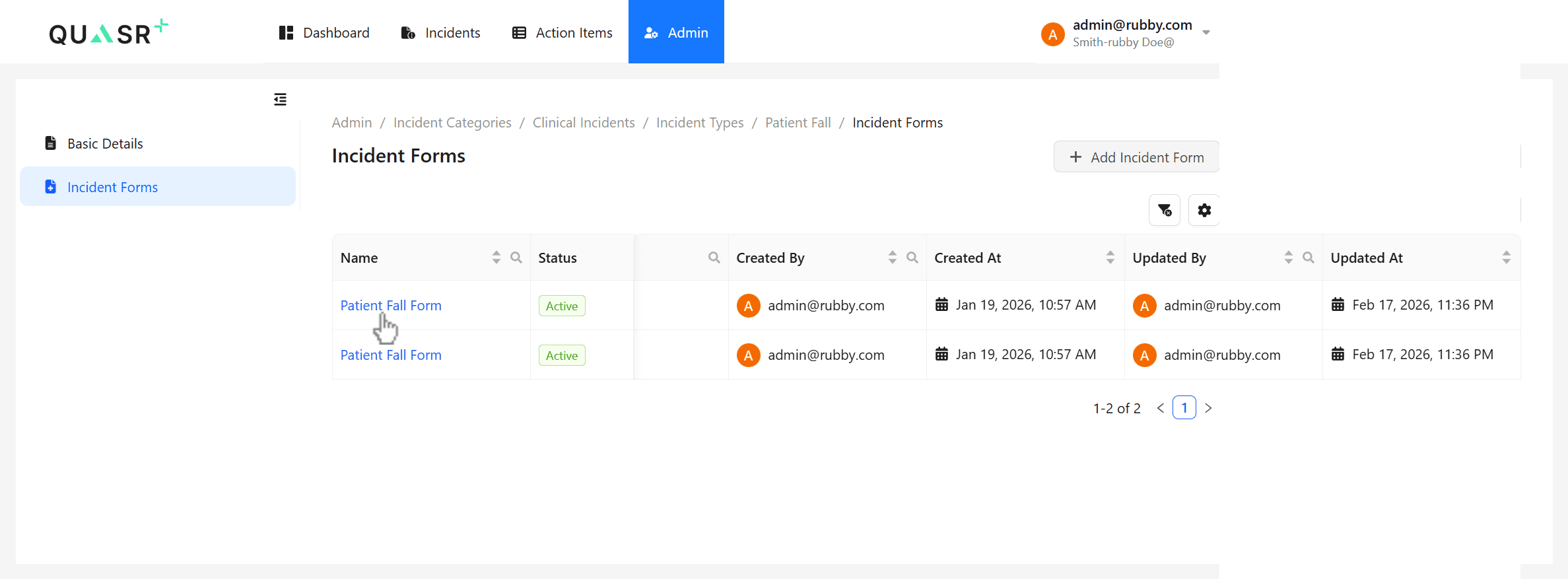
Go to Incident Categories → select an Incident Category (e.g., Clinical Incidents) → open Incident Types → select an Incident Type (e.g., Patient Fall) → click Incident Forms.
Purpose: Incident forms are configured at the Incident Type level.
- Expected result: The system displays the list of incident forms associated with the selected incident type.
Configure an Incident Form
Choose the relevant Incident Form (for example, Patient Fall) based on the Facility Type. Open the incident form and update the Basic Details as required.
- Expected result: The associated incident form opens for configuration. Updated basic details and save successfully.
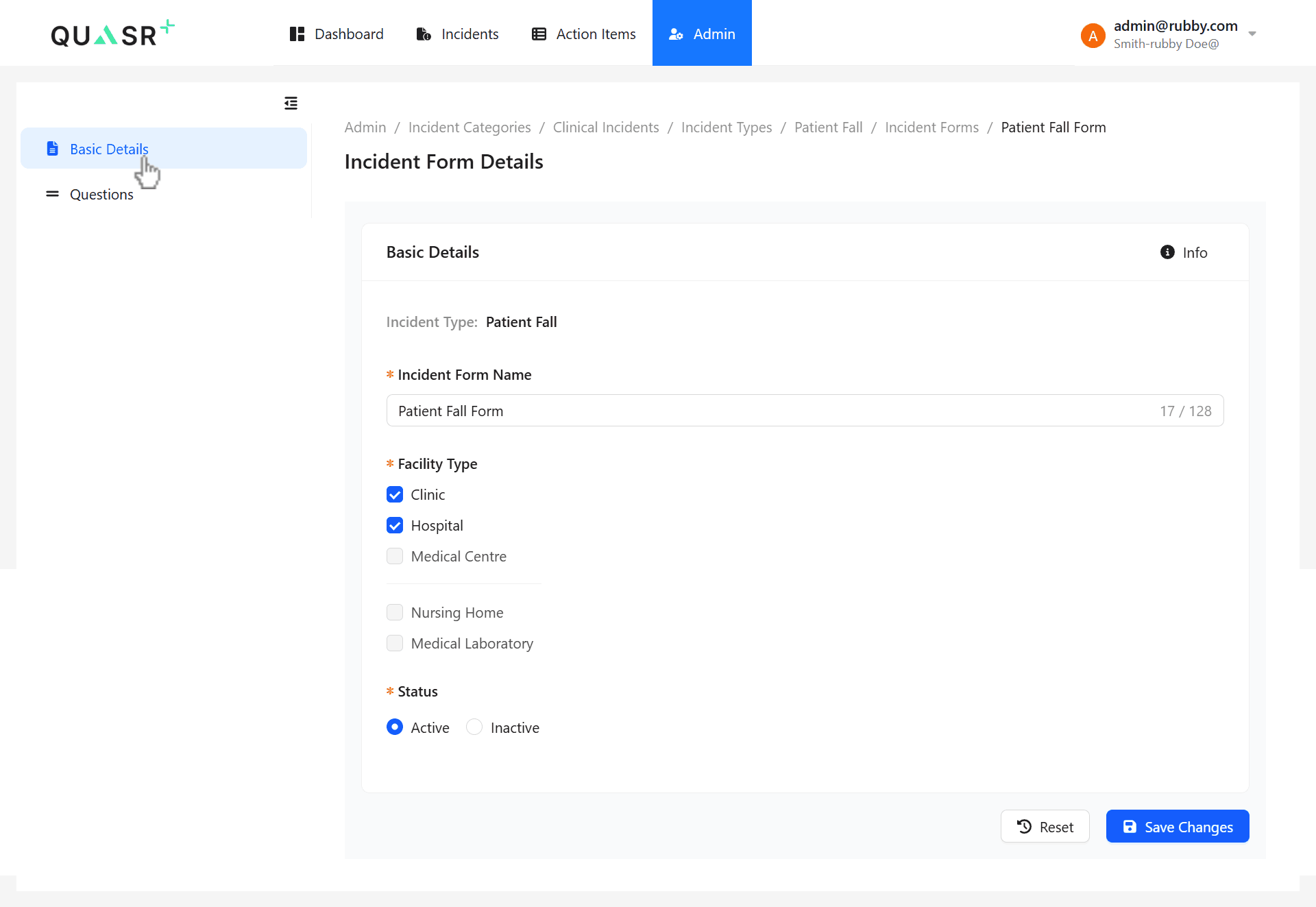
The Facility Type is automatically determined based on the selected Parent Incident Type.
Customize Questions for the Incident Form
Select the Questions tab to customize the form. You can edit pre-configured questions or add new ones.
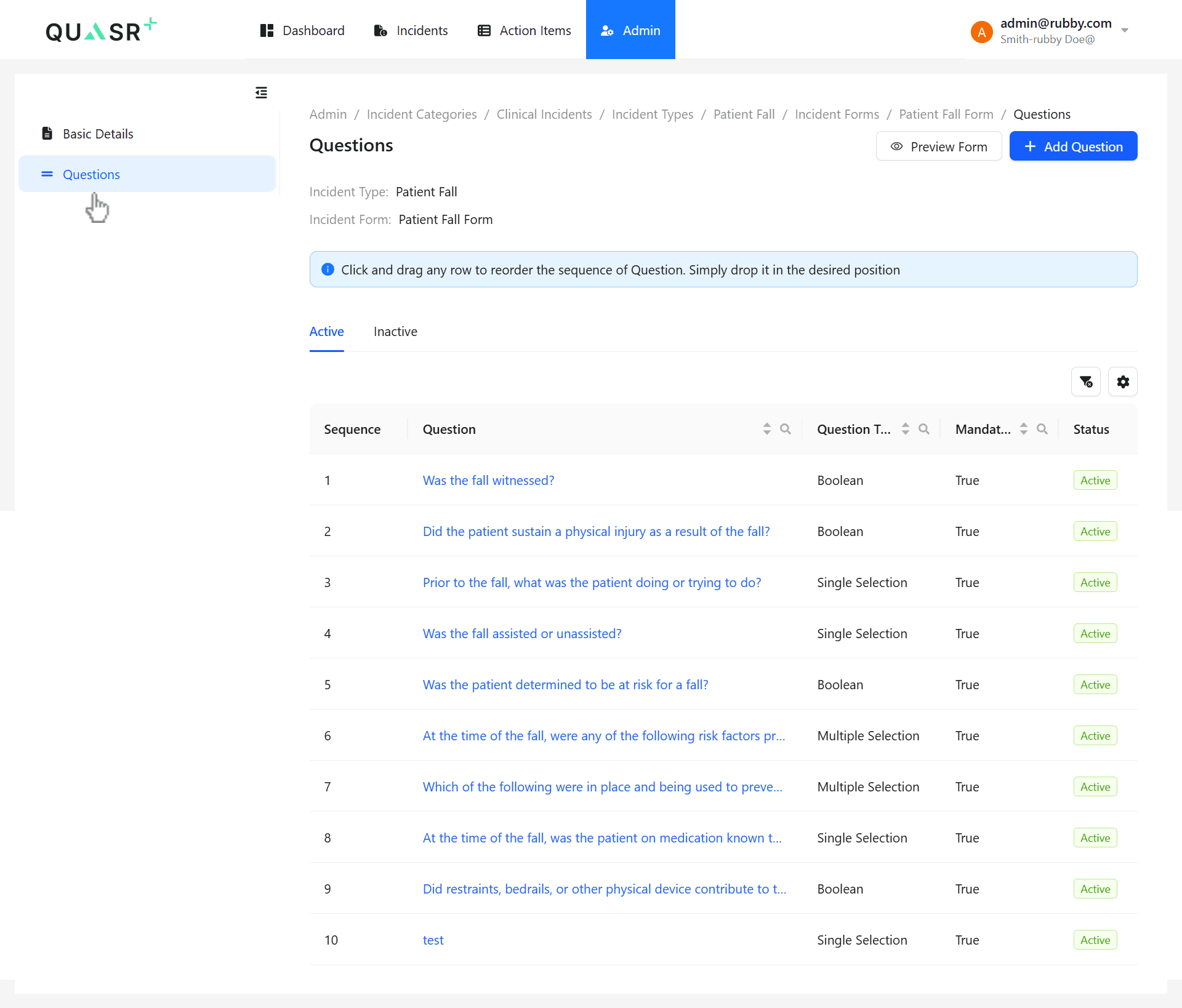
- Why: Tailoring questions ensures relevant data is captured for each incident type.
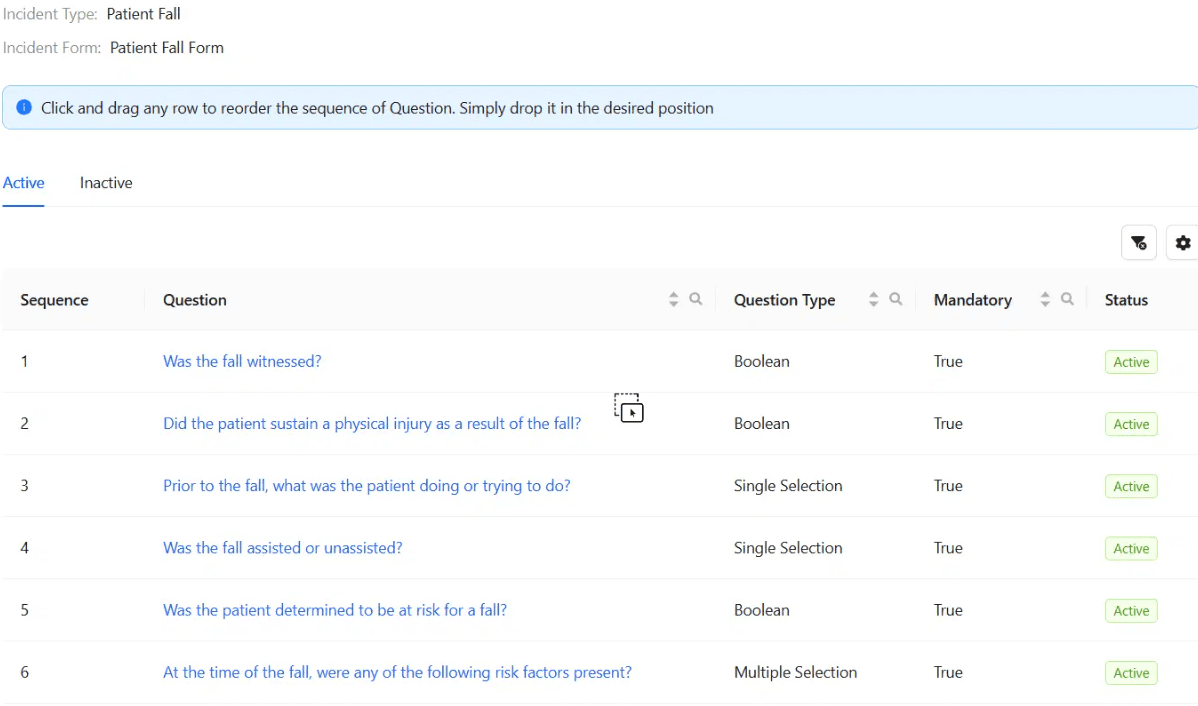
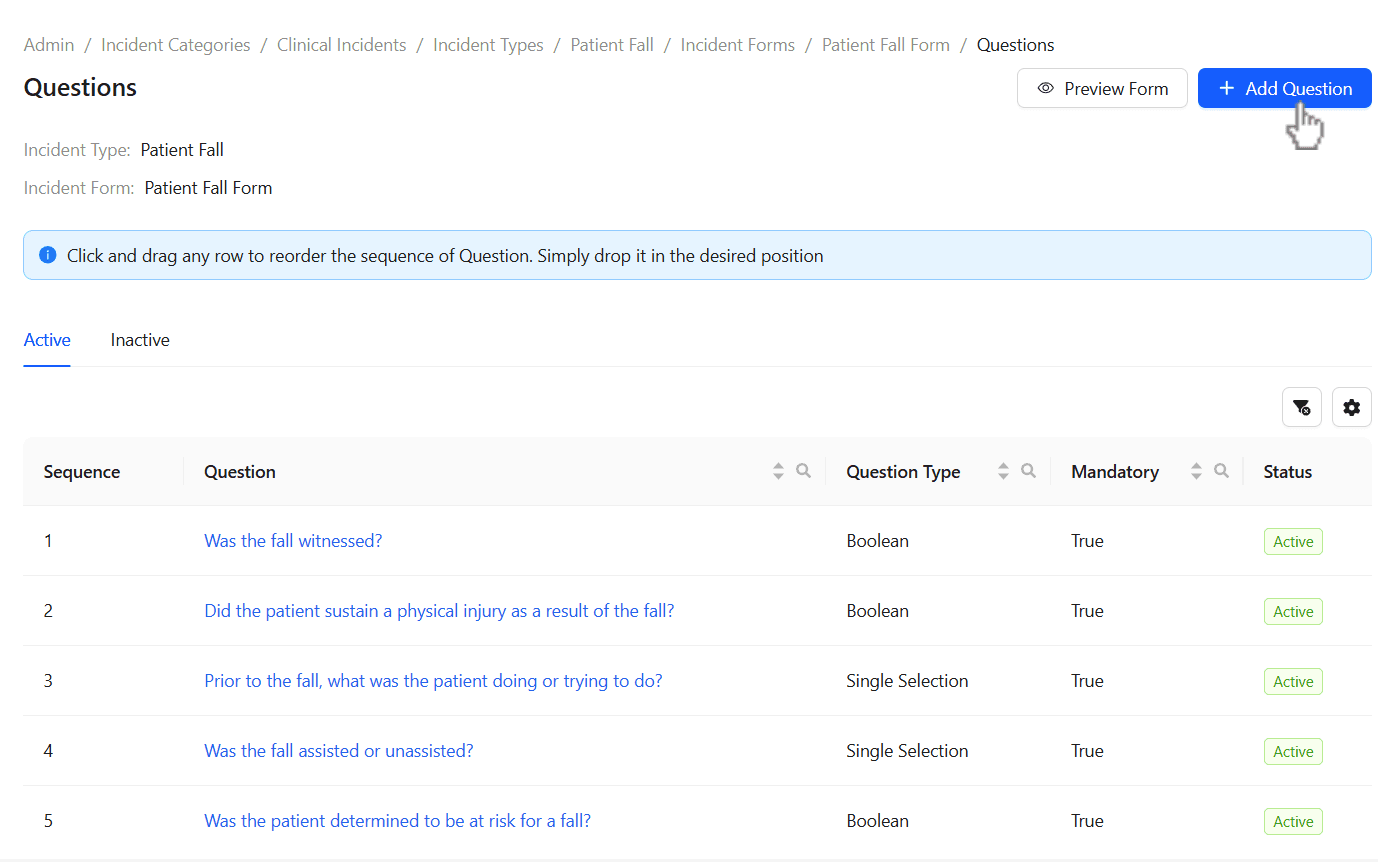
Click +Add Question to Introduce a new Question. Drag and Drop the questions to reorder the Sequence of questions.
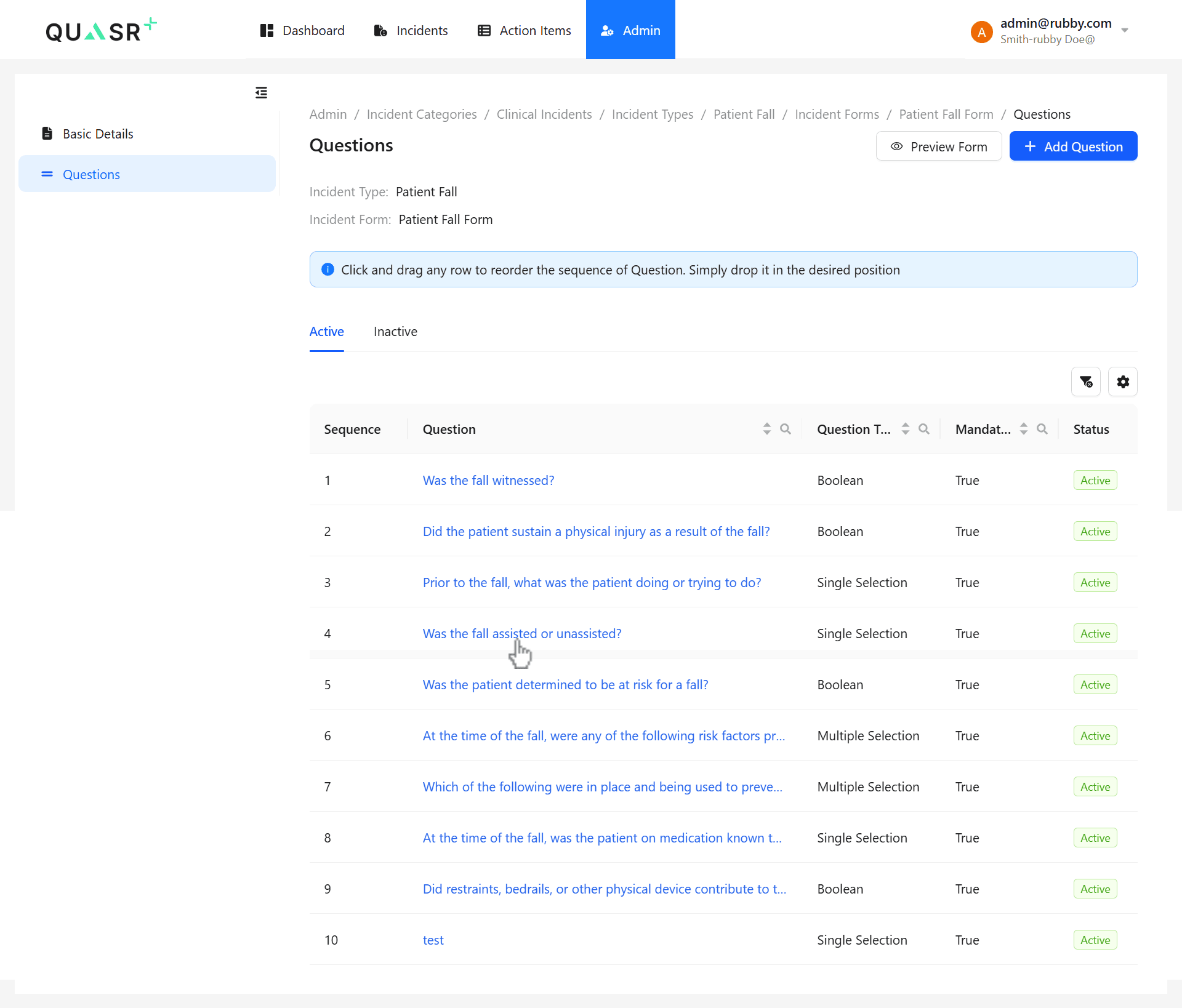
Manage Question Parameters
Use the available controls to manage question behavior:
| Parameter | Description | Configurable |
|---|---|---|
| Add | Add a new question to the form | Yes |
| Reorder | Drag and drop to change question sequence | Yes |
| Mandatory | Require the question to be answered | Yes |
Add Questions and Options
Click + Add Question to introduce a new question.
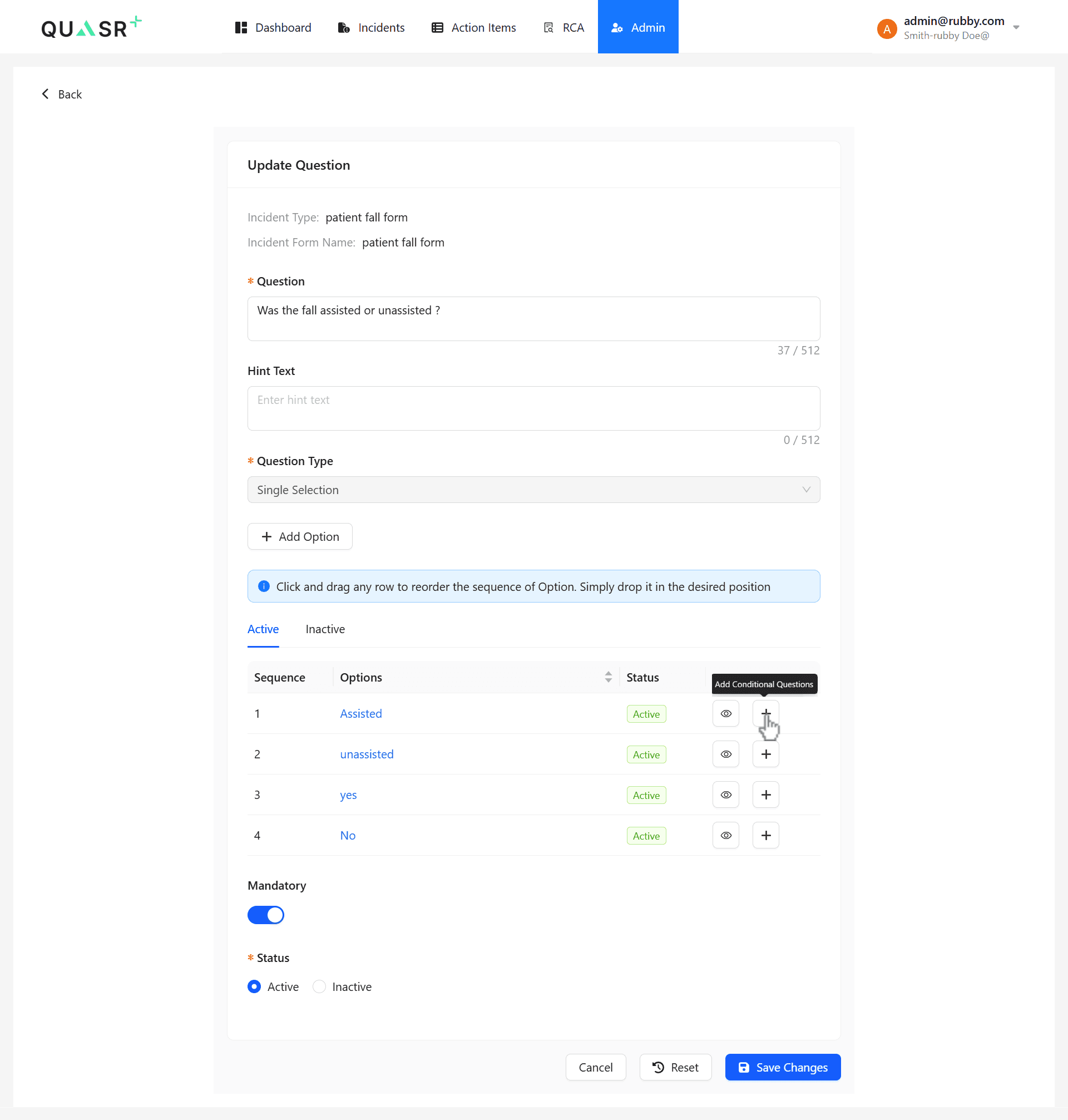
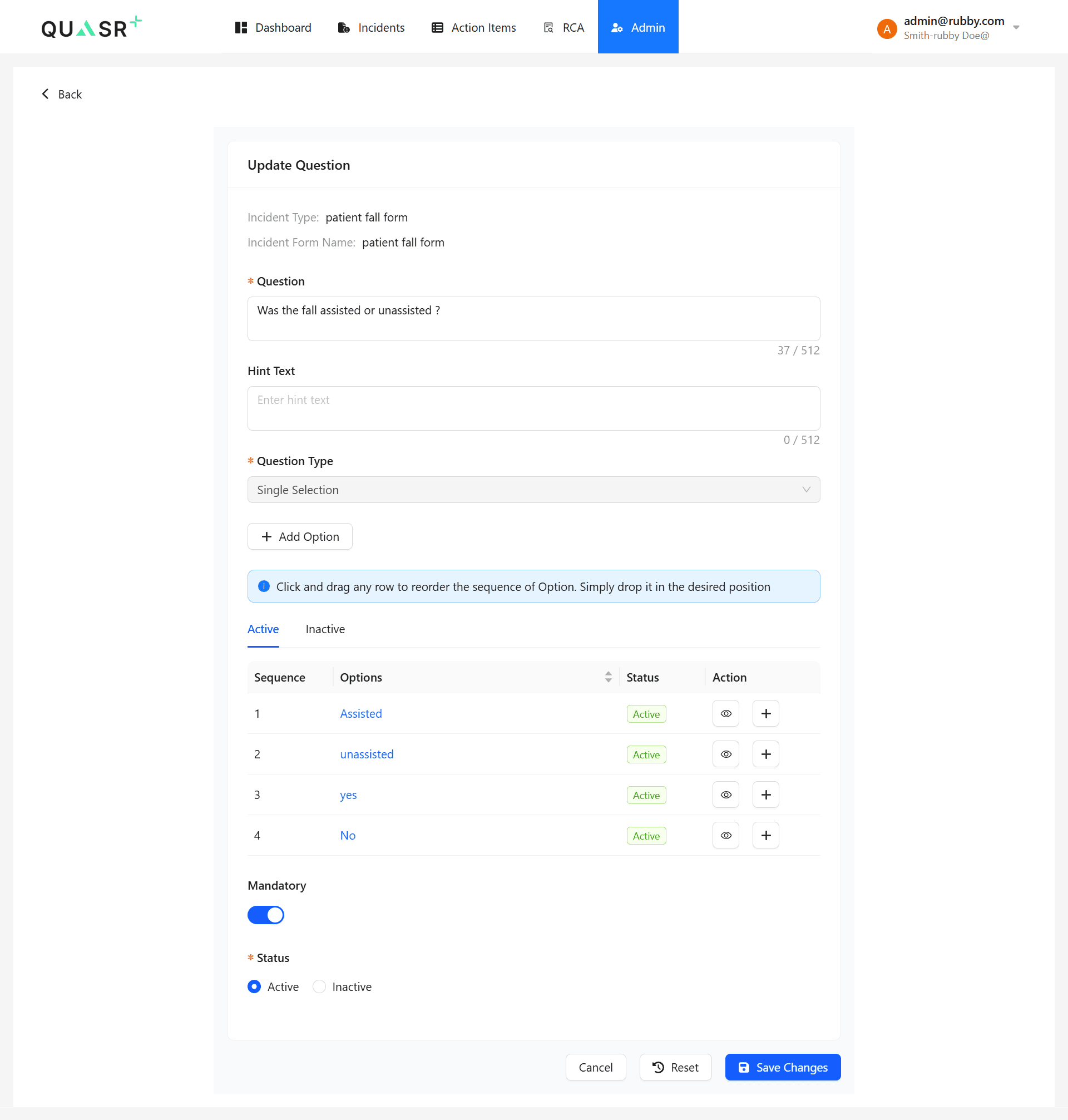
For Single Selection or Multiple Selection question types, click + Add Option to define selectable answers.
Add Conditional Questions
Under a parent question, navigate to Options and select + Add Conditional Questions.
- Expected result: Conditional questions appear only when the selected option is chosen by the user.
Conditional questions are supported only for Single Selection and Multiple Selection question types.
Save Changes
Review all updates and click Save changes.
- Expected result: Review which Incident Type and Form the Question is mapped under, and verify accordingly.
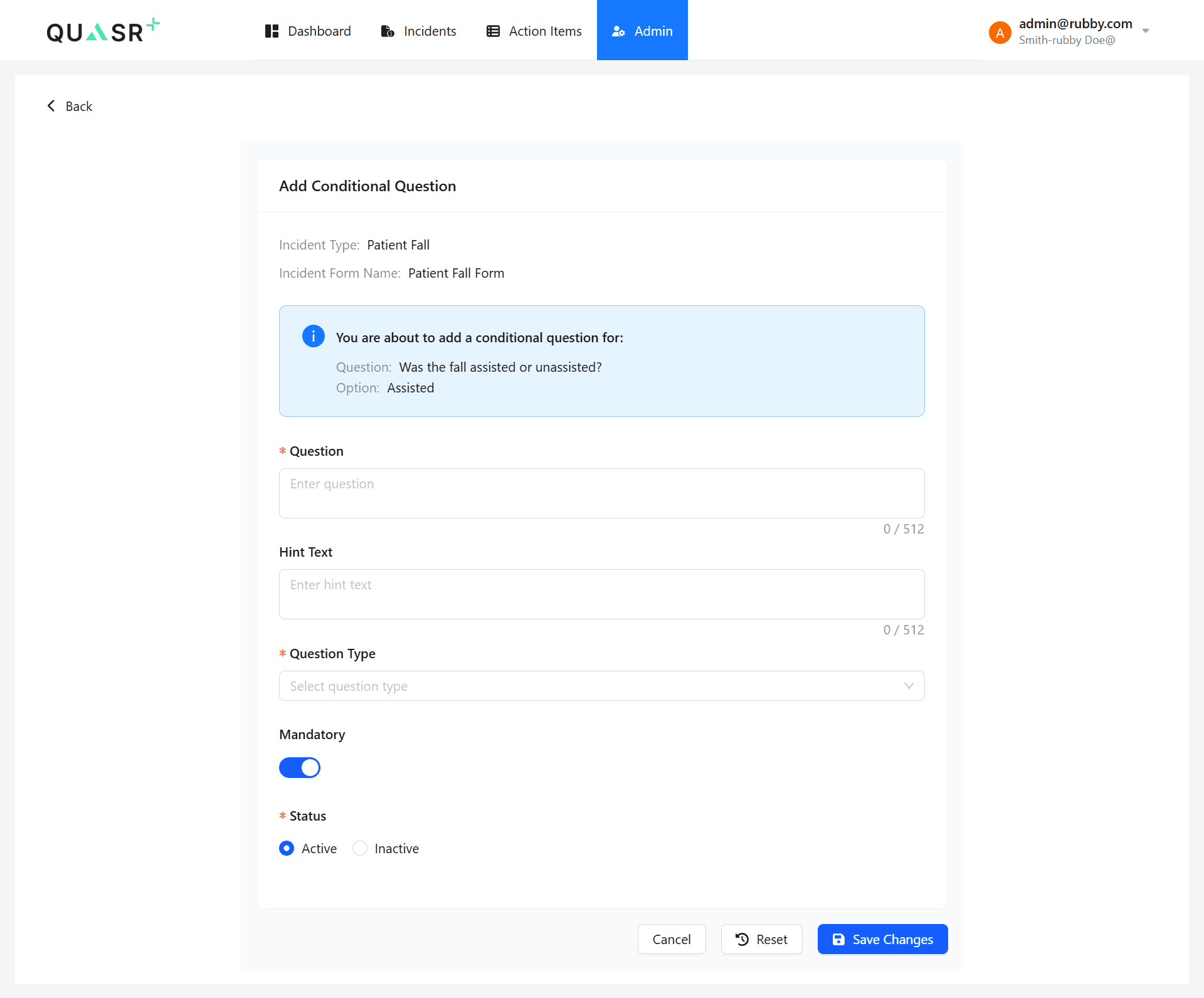
- Expected result: Review which Question and Option the Conditional Question is mapped under.
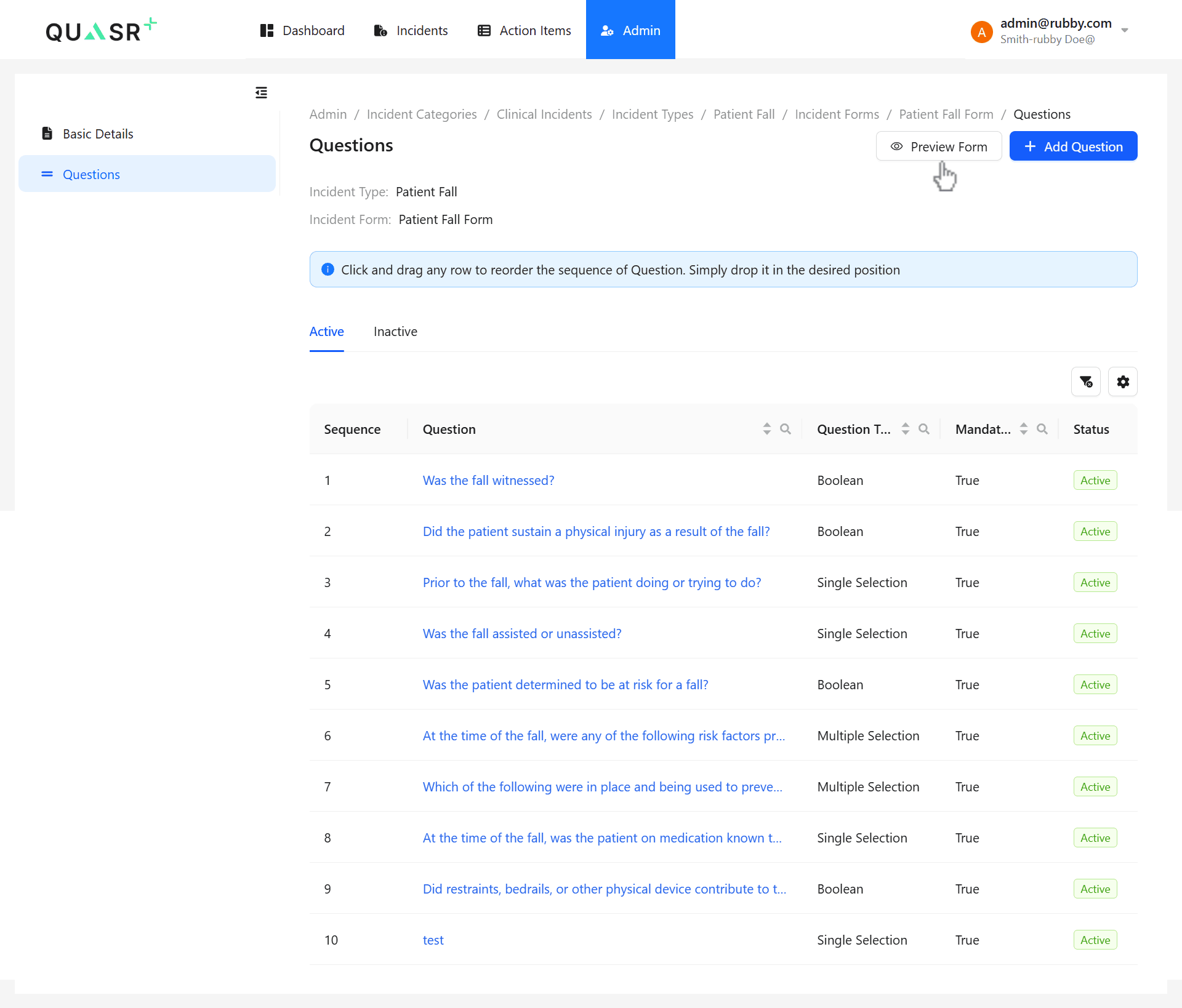
Your incident form configuration is now live and available for incident reporting.
Preview Configuration
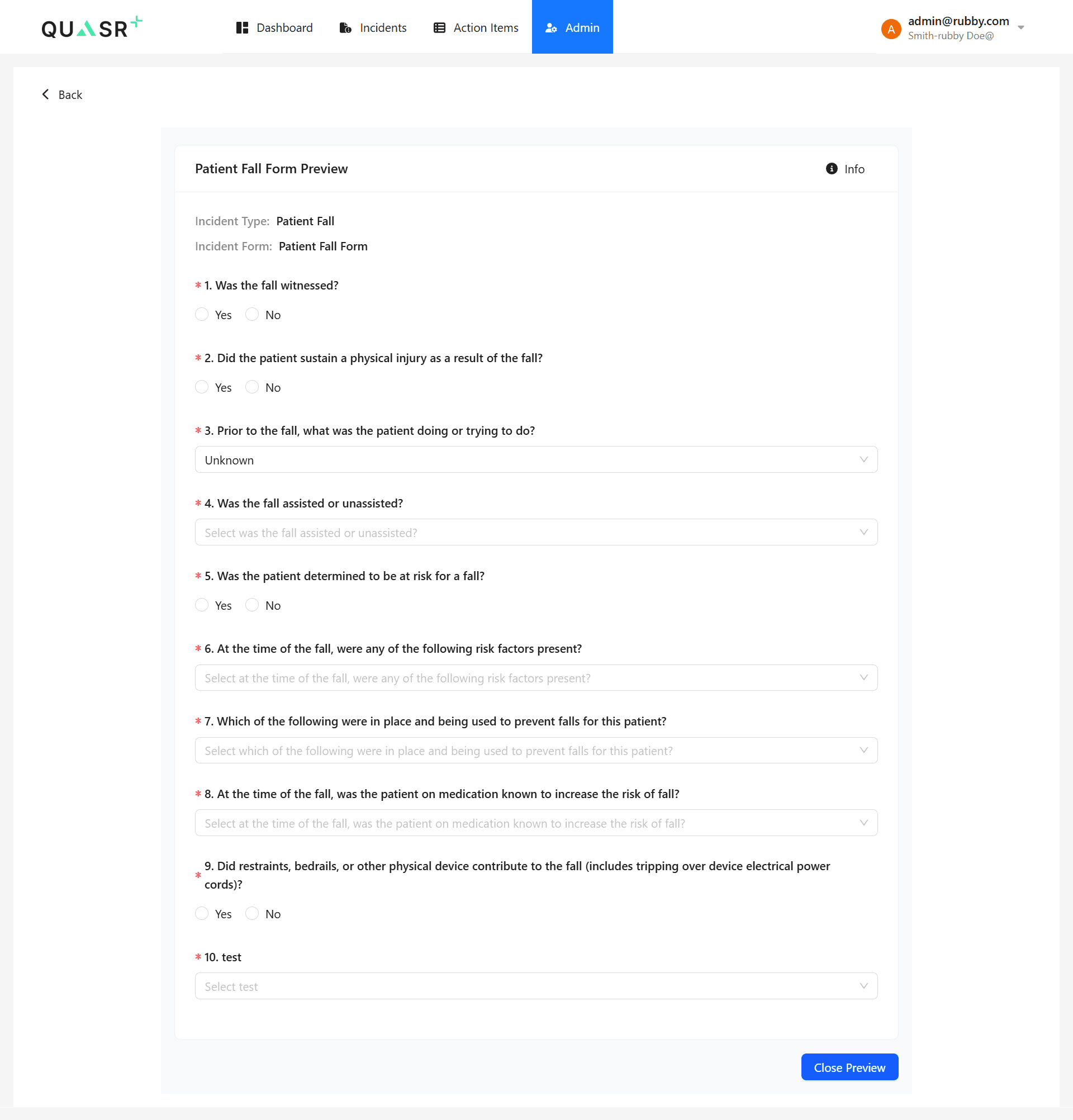
Once customized, click the Preview button at the top-right to see the fully configured Incident Form.
- Expected result: The user should be able to scroll through the full question set and verify formatting, sequence, and visibility rules.
Use the Preview Form option to review all questions exactly as end users will see them. This helps you verify the layout, sequence, and visibility rules before publishing..
Tips & Best Practices
-
The system will pre-populate the Incident Categories, Incident Types, and Incident Forms based on Facility type chosen during On-boarding process.
-
Account Admins can rename or create New Incident Categories , Incident Form and Configure the Questions from scartch.
-
Inactive Incident Categories, Forms, Questions and Conditional questions will no longer be available for selection in the Incident workflow but remain in the system for reference.