Modify Incident
The Modify Incident feature allows you to update key incident details—such as date, time, and category—when they differ from what was initially reported. This ensures the incident record remains accurate before further processing.
Who can perform this?
Roles: Reporter, Facility QM
Time to complete
~2–5 minutes
Prerequisites
Incident must be in Pending Details stage
Before You Start
Access level required: Reporter of the incident or Facility QM
Limitations: Modification is only allowed during the Pending Details stage.Facility cannot be changed after incident creation
You can only modify an incident while it is in the Pending Details stage.
The Modify Incident option is enabled only to the original reporter and Facility QM users.
Open the Incident
Navigate to the Incident list and select the incident you want to modify.
- Why: To access the incident details page where modifications are enabled
- Expected result: Incident details page opens with available actions
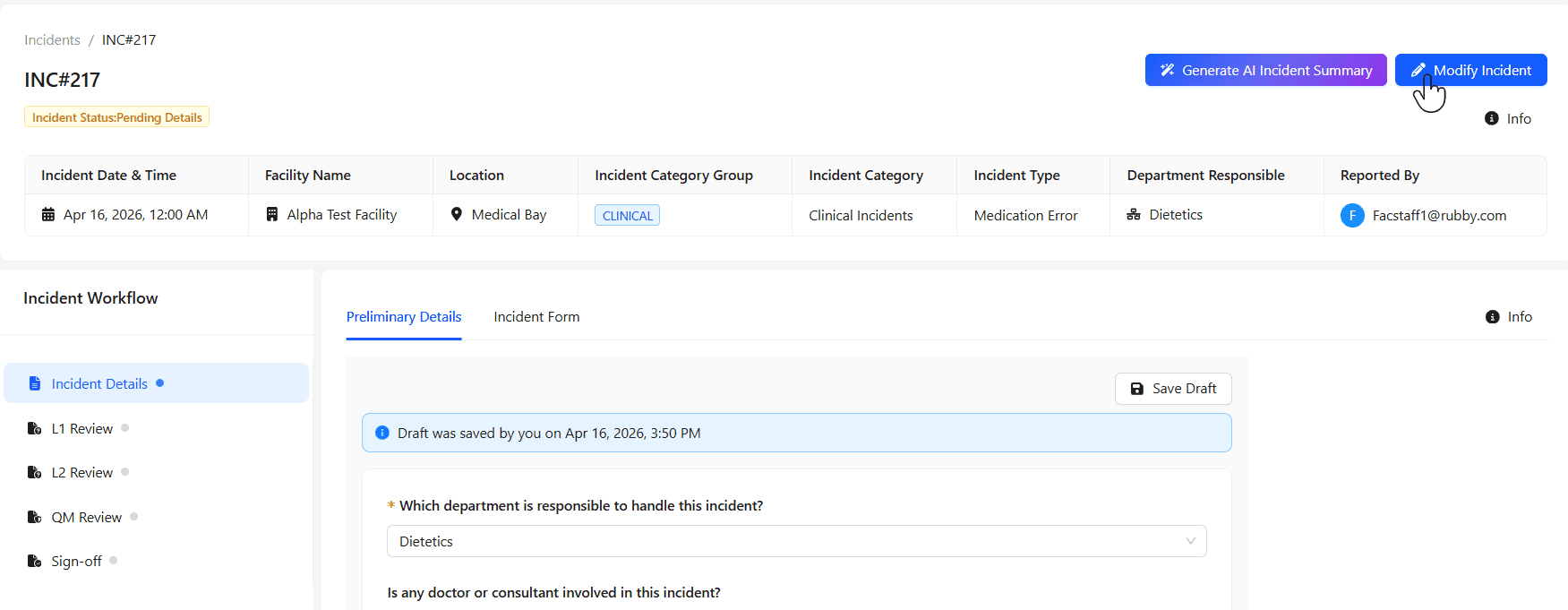
Modify Incident
On the incident details page, click Modify Incident to open the edit window.
- Why: This action enables editing of key incident fields
- Expected result: Modify Incident dialog/window appears
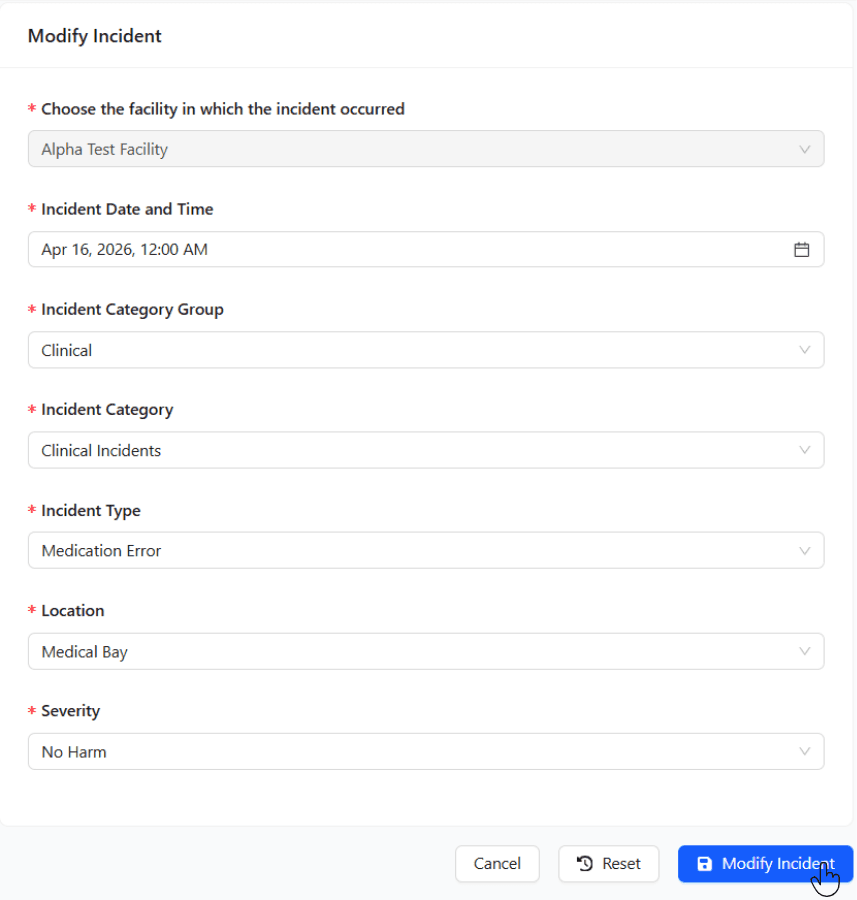
Update required fields
Modify the necessary incident details in the form.
| Field | Description | Required |
|---|---|---|
| Incident Date & Time | Correct the actual occurrence date and time | Yes |
| Category | Select the appropriate incident classification | Yes |
| Other Details | Update any additional editable fields as needed | No |
| Facility | Predefined and cannot be modified | Fixed |
Save changes
Click Modify Incident to apply the updates.
- Expected result: Incident details are updated successfully
The updated incident details are saved and reflected immediately in the incident record.
Tips & Best Practices
- Verify critical fields like date, time, and category before saving
- Ensure updates reflect the actual occurrence, not reporting time
- Only modify incidents early in the workflow to avoid restrictions