Account & Organisation Settings
This guide explains how QUASR+ models organizational hierarchy, Why it matters for reporting and permissions, and how Account Admins can create and manage Organisation Units and Facilities to match their operational structure.
Before You Start
- Access level required: Account Admin for account-level changes; Organisation Unit Manager or Facility Admin for scoped changes.
- Limitations: Only Account Admins can update account-level details and global feature flags.
Plan your hierarchy (flat vs. tiered) before creating Organisation Units and Facilities to avoid rework.
Organizational Hierarchy Overview QUASR+ uses a hierarchical model to control data aggregation and permissions. The three primary levels are:
1. Account (Root) The top-level entity representing your entire organization. Global configurations, templates, subscriptions, and users are managed here.
2. Organizational Unit (Organisation Unit) A logical grouping used to organize Facilities (for example, Northeast Region or Surgical Division). An Organisation Unit can be mapped directly under the Account or nested under another Organisation Unit.
3. Facility (Entity) A Facility represents a business entity such as a Clinic, Hospital, or Medical Centre. In QUASR+, a Facility is the business entity (not a specific physical site). Facilities can be mapped directly to the Account or under an Organisation Unit.
Choose a flat mapping (Account → Facility) for small organizations and a tiered mapping (Account → Organisation Unit → Facility) for regional or divisional structures.
Mapping Logic at a Glance
| Mapping Rule | Description |
|---|---|
| Account → Facility | Best for small organizations where each Facility reports directly to the Account. |
| Account → Organisation Unit → Facility | Best for regional management where multiple Facilities are grouped under a divisional head. |
| Organisation Unit → Organisation Unit | Supports complex parent-child nesting (e.g., Country → State → Region). |
Role Definitions
QUASR+ adapts its interface based on your assigned role. Click the Link below to know about the Roles
Refer here for the list of Roles in QUASR+
Steps
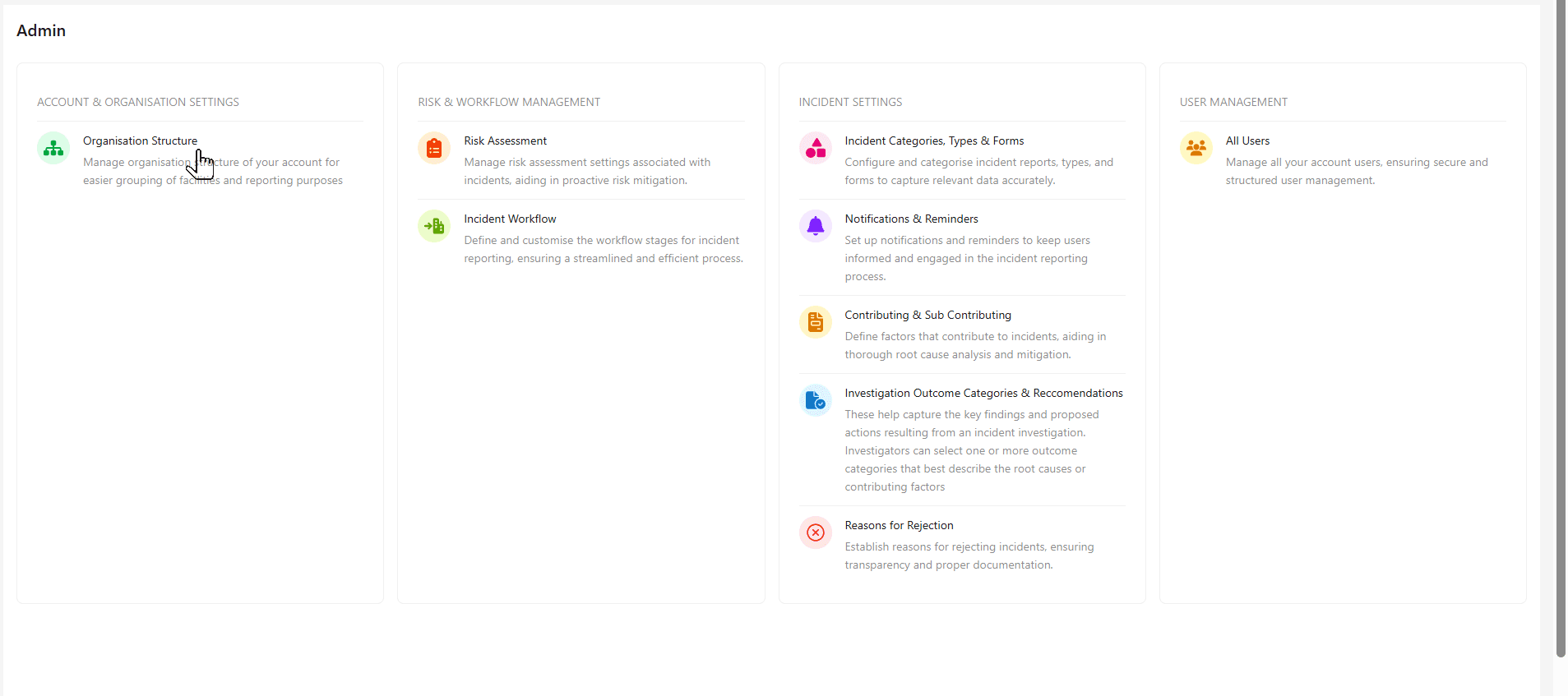
Navigate to Admin → Organisation structure
From the Admin menu, select Organisation structure to open the organisation drawer.
- Why: This is the central place to create and manage Account, Organisation Units, and Facilities.
- Expected result: The Organisation drawer opens showing the Account and any existing Organisation Units/Facilities.
View or update Account details
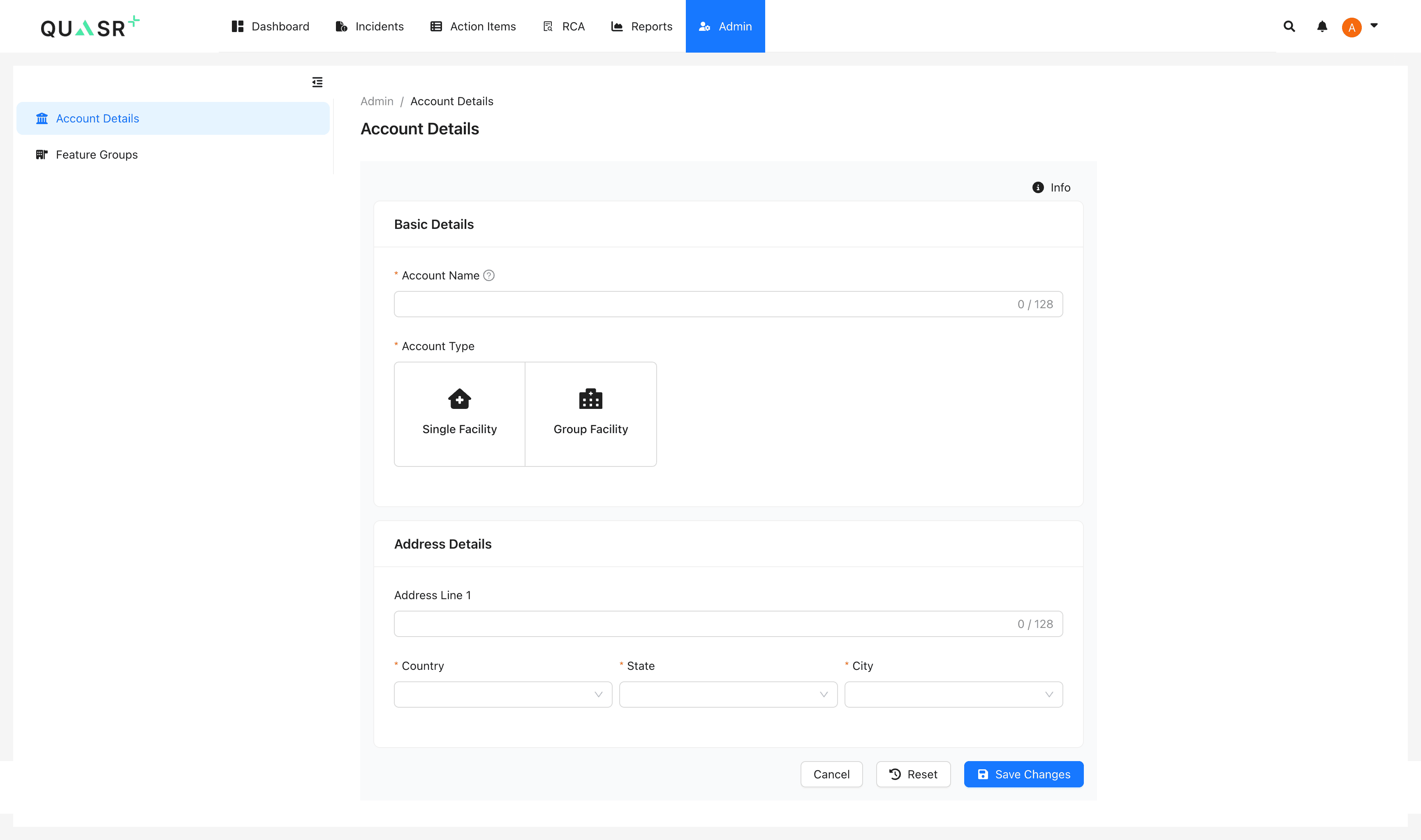
Click the Account entry in the drawer to view or edit account-level details. Only Account Admins can update these fields.
- Why: Account-level settings apply globally across all Organisation Units and Facilities.
- Expected result: Account details panel opens with editable fields and global options.
Create Organisation Units and Facilities
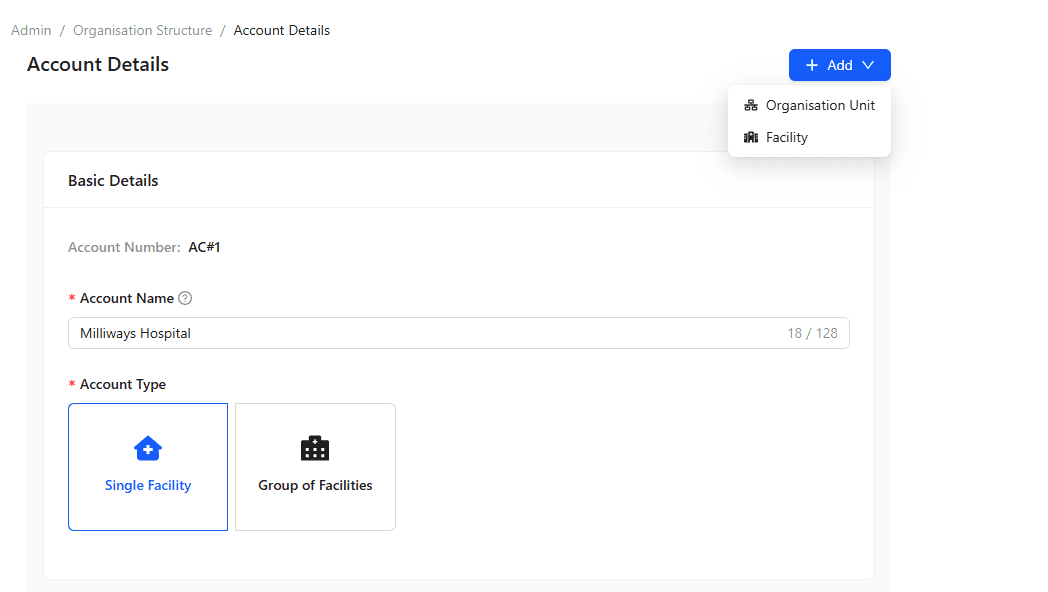
From the Account details page, create new Organisation Units or add single/group Facilities. Provide a name and mapping details for each item.
- Why: Organizing Facilities under Organisation Units enables regional reporting and scoped permissions.
- Expected result: New Organisation Units and Facilities appear in the hierarchy and are available for mapping.
Field Description Required Name Unique name for the Organisation Unit or Facility Yes Parent Select Account or parent Organisation Unit for mapping
Yes Type Facility type (Hospital, Clinic, etc.) Yes
Configure account-level feature flags
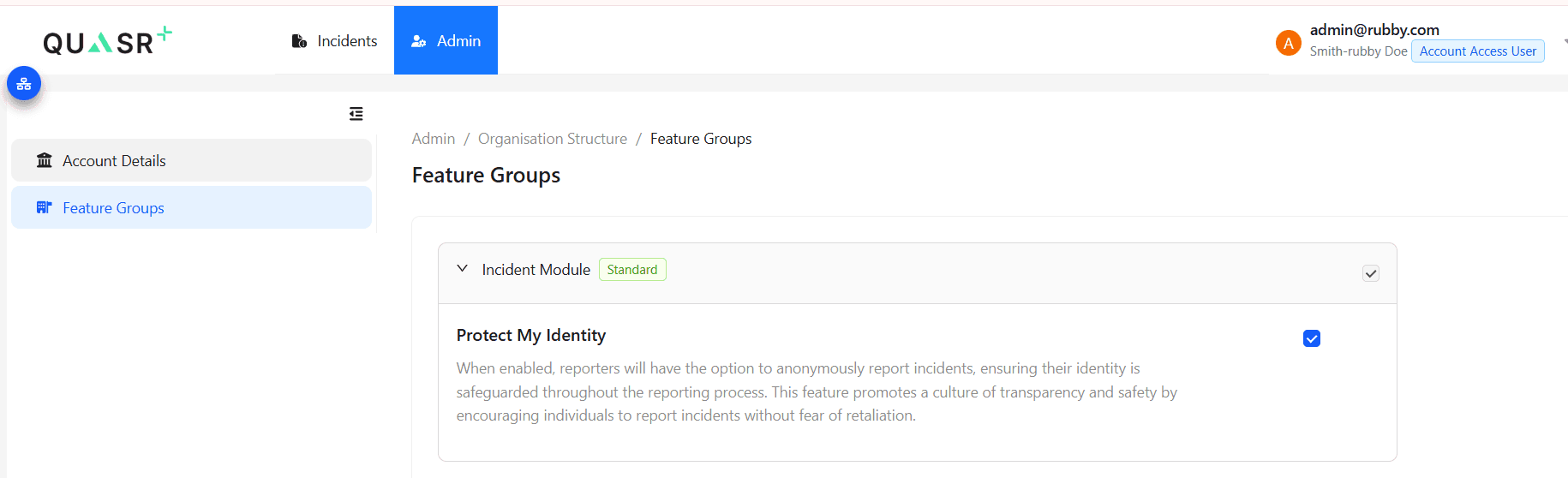
On the Account page, update feature groups and global flags (for example, Protect my Identity) by checking or unchecking the relevant options.
- Why: Account-level flags propagate to all mapped Organisation Units and Facilities.
- Expected result: Protect my Identity Feature changes apply across the account hierarchy and allows users to Report Incident Anonymously
Changing global flags affects all Organisation Units and Facilities; confirm impact before saving.
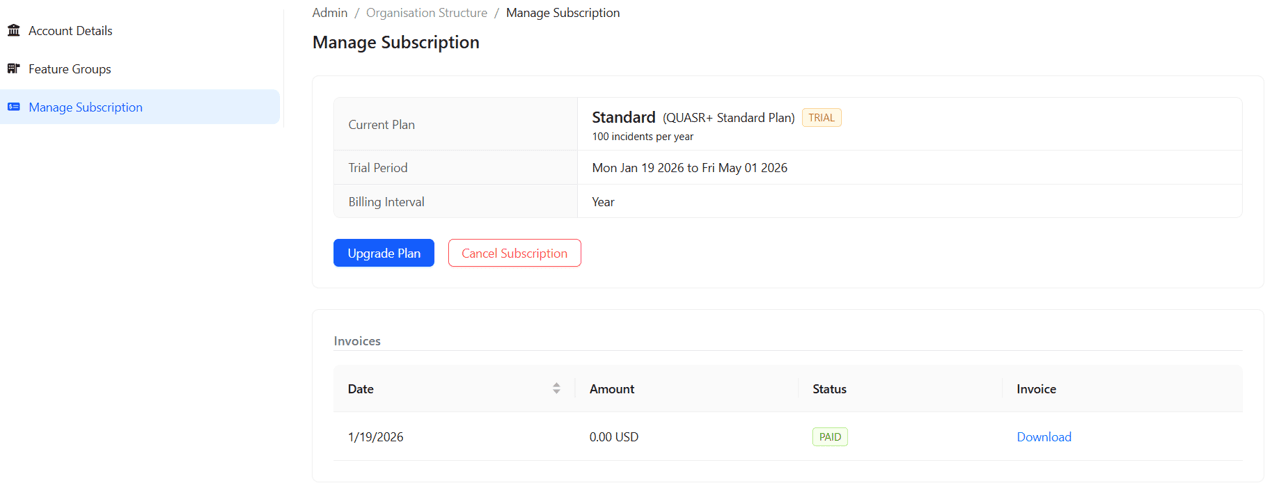
Manage subscriptions and invoices
Account Admins can view subscription details and download past invoices from the Account page.
- Why: Centralized billing and subscription management simplifies account administration.
- Expected result: Access to billing history and invoice downloads.
Tips & Best Practices
-
Design your hierarchy before creating entities. Decide whether a flat or tiered structure best fits reporting and governance needs.
-
Use descriptive names for Organisation Units and Facilities to make reporting and permissions easier to manage.
-
Limit account-level changes to Account Admins and document any global flag changes to stakeholders.
-
Map Facilities consistently (either directly to Account or under Organisation Units) to avoid reporting gaps.