Contributing & Sub Contributing Factors
Contributing and Sub Contributing Factors allow you to capture structured reasons behind incidents, enabling accurate root cause analysis, meaningful trend reporting, and stronger corrective actions across QUASR+
Who can perform this?
Time to complete
Prerequisites
Signed in with admin permissions
Before You Start
- Access level required: Admin access
- Limitations: Changes affect organization-wide incident analysis and reporting
If your organization uses role-based access controls, ensure you are logged as an Account Admin before proceeding.
Steps
Navigate to the Admin Module
Open the QUASR+ and navigate to Admin module. From the Admin module menu, click Contributing & Sub Contributing.
- Why: All contributing factor configurations are managed centrally in the Admin module.
- Expected result: The Admin dashboard is displayed.
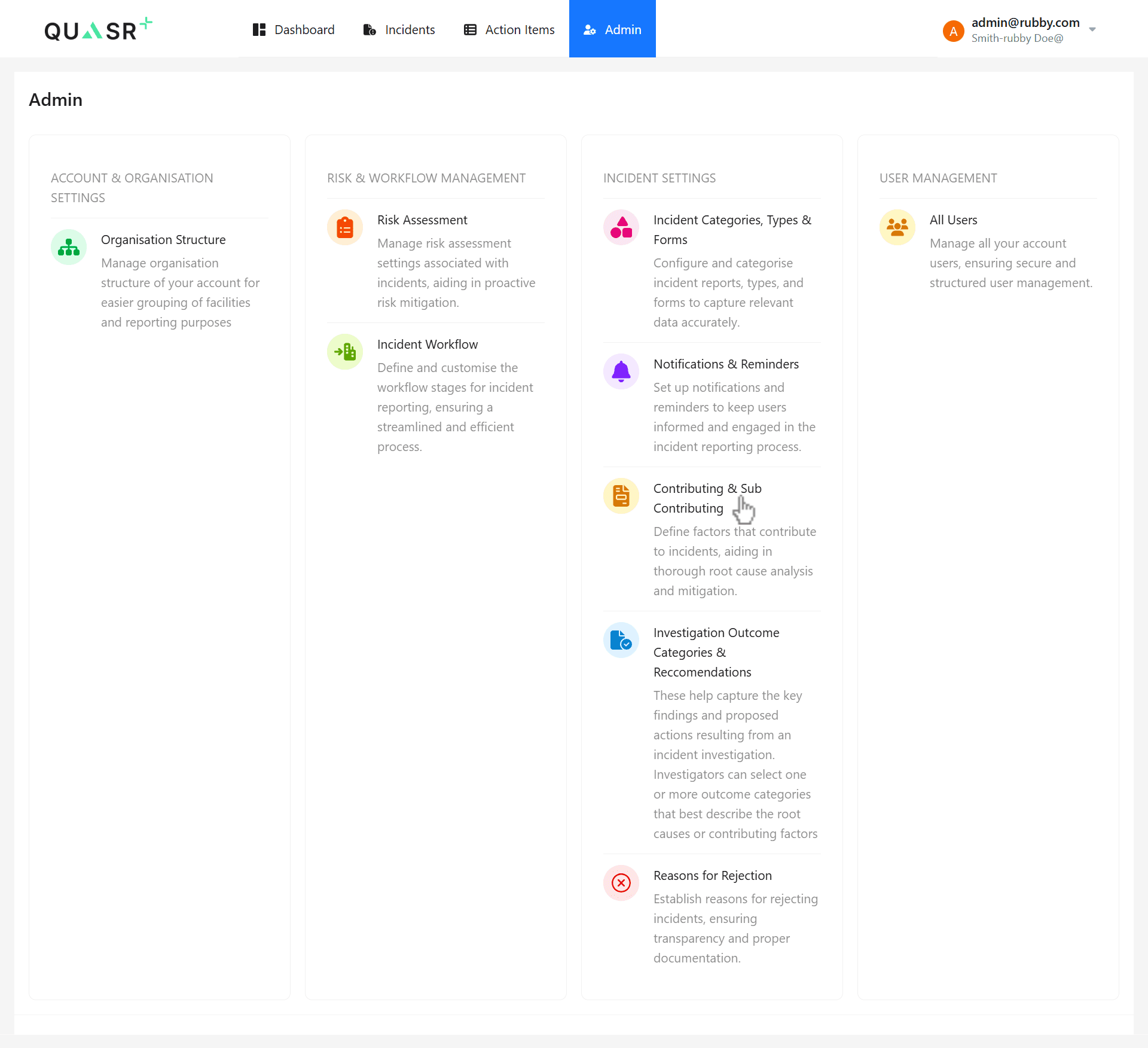
Open Contributing & Sub Contributing Factors
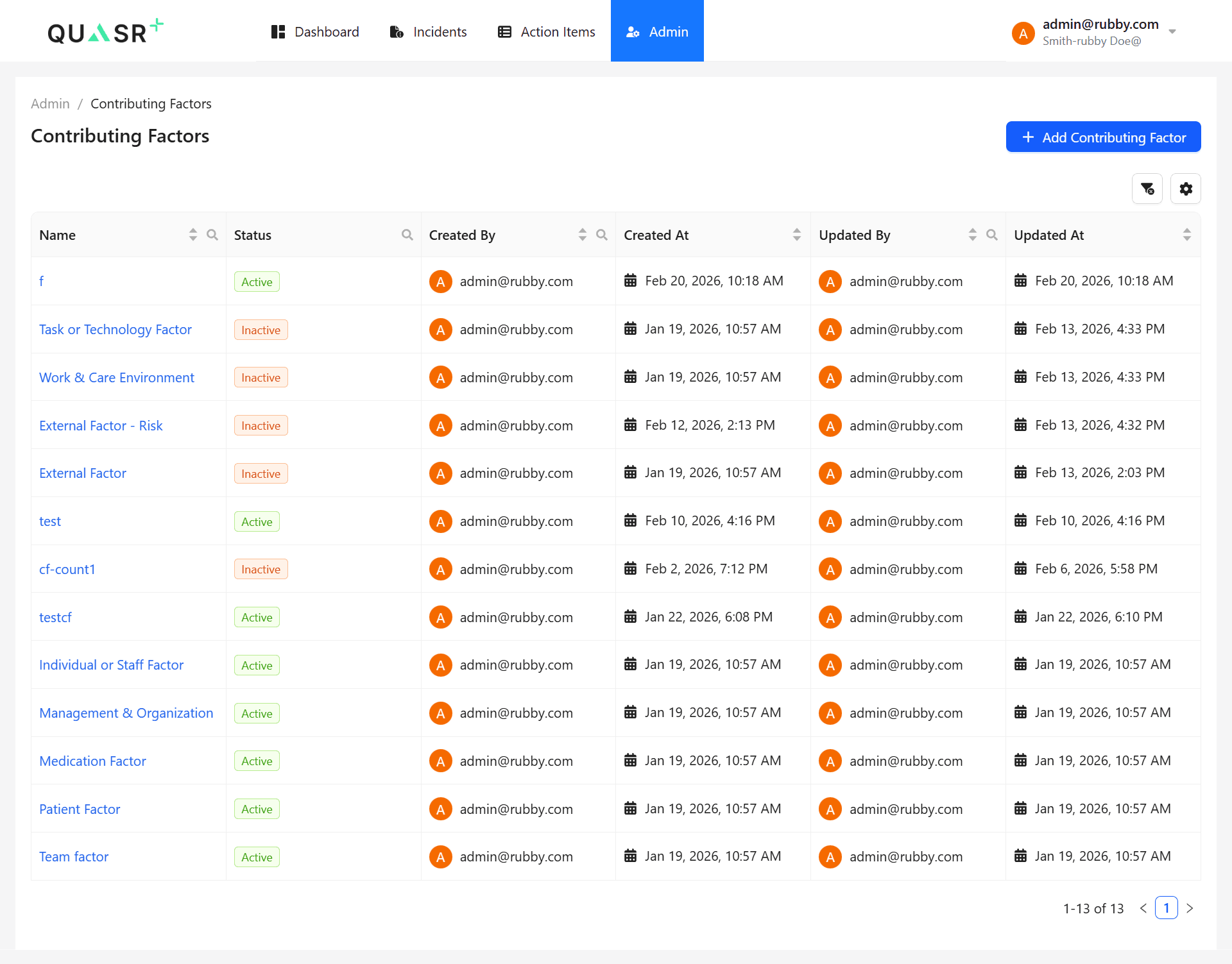
List view of the Contributing & Sub Contributing.
- Expected result: The list view of existing Contributing Factors is displayed.
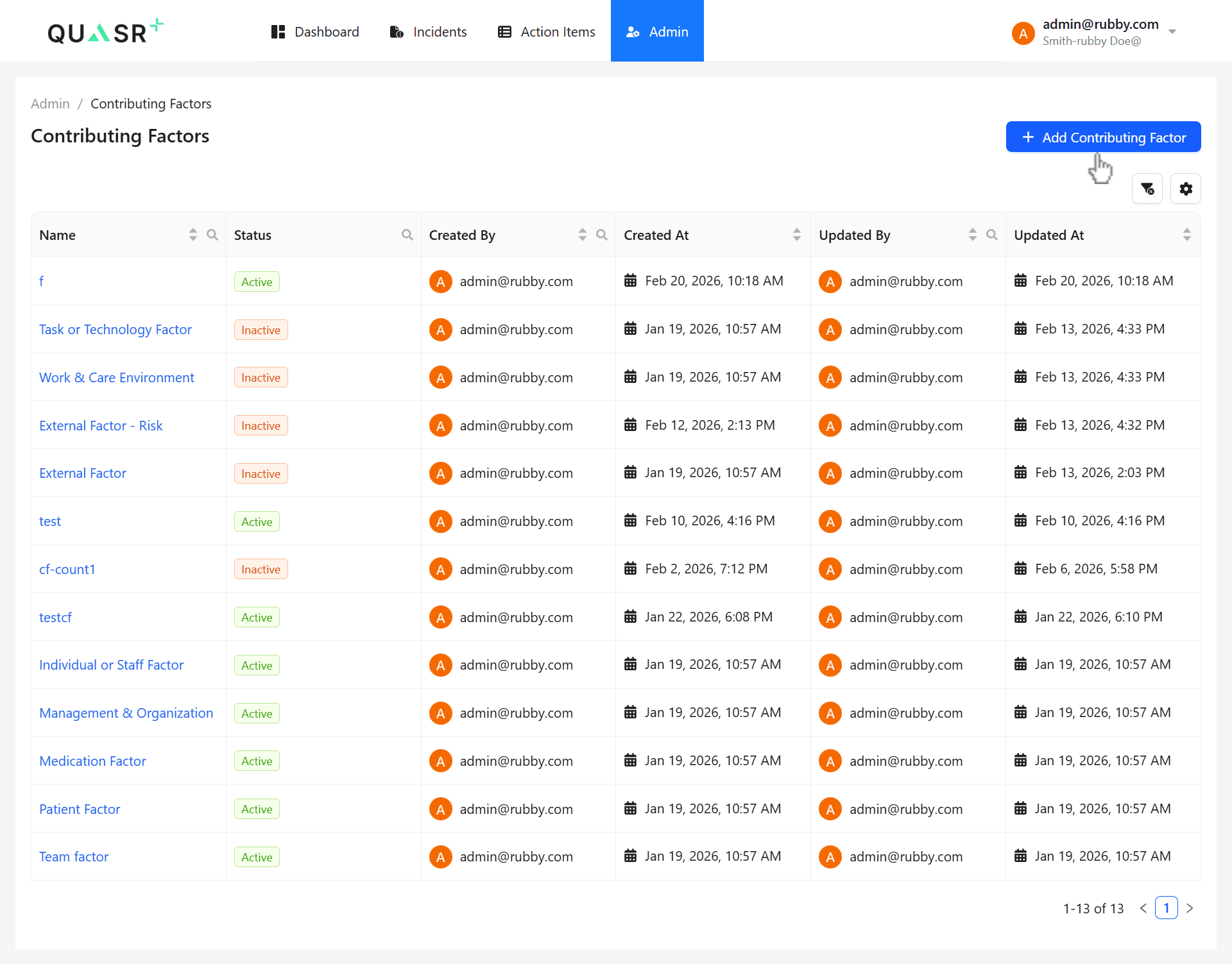
Add a New Contributing Factor
- Click on +Add Contributing Factor to create a new Contributing Factor.
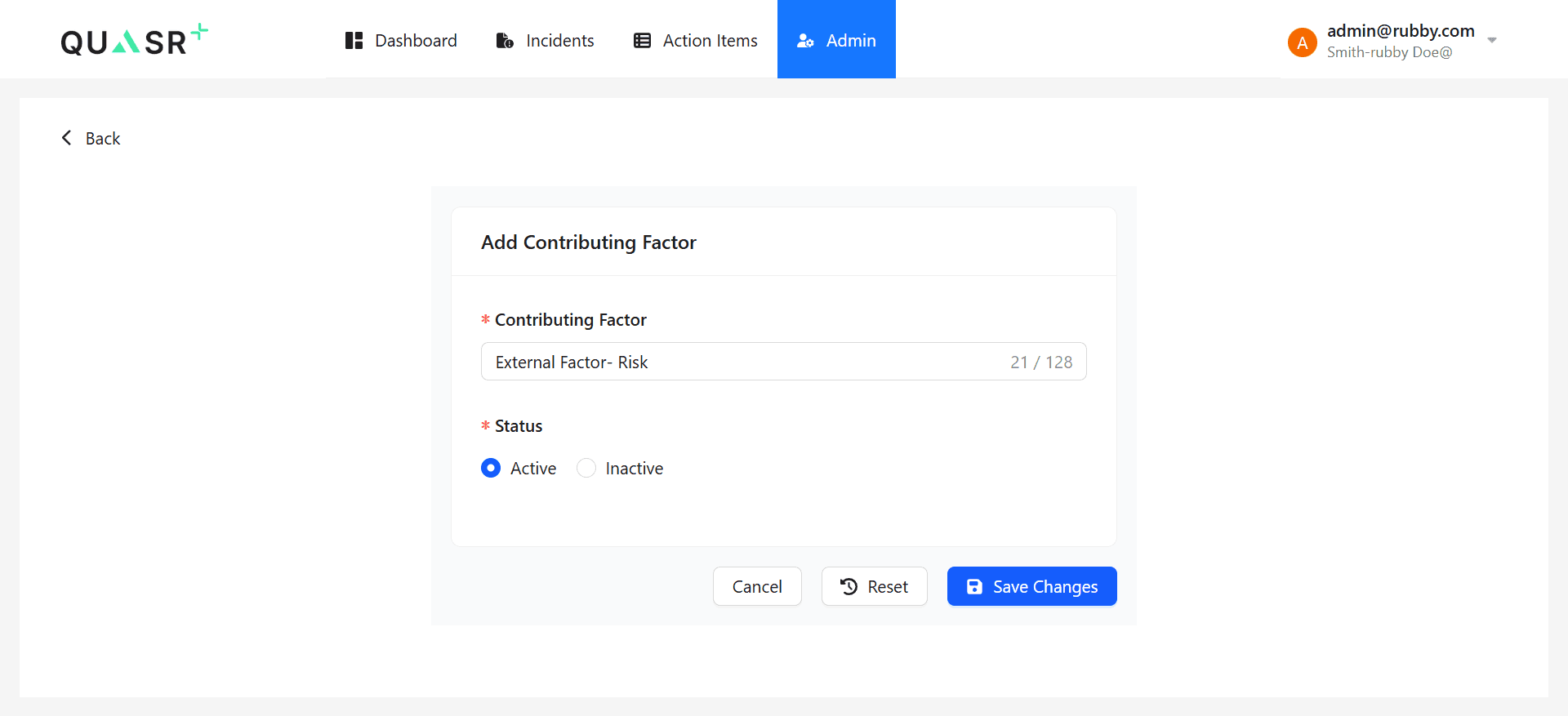
Enter Contributing Factor Details and Save
The Add Contributing Factor form opens. Enter a Name for the Contributing Factor, choose the appropriate Status, and click Save changes.
- Expected result: The Contributing Factor is saved successfully.
Use clear, standardized names to ensure consistency in incident classification and reporting.
Add a Sub Contributing Factor
To add a new Sub-contrubuting Factor, click on the exsisting Contributing Factor from the list to manage its Sub Contributing Factors.
- Expected result: The selected Contributing Factor details page opens.
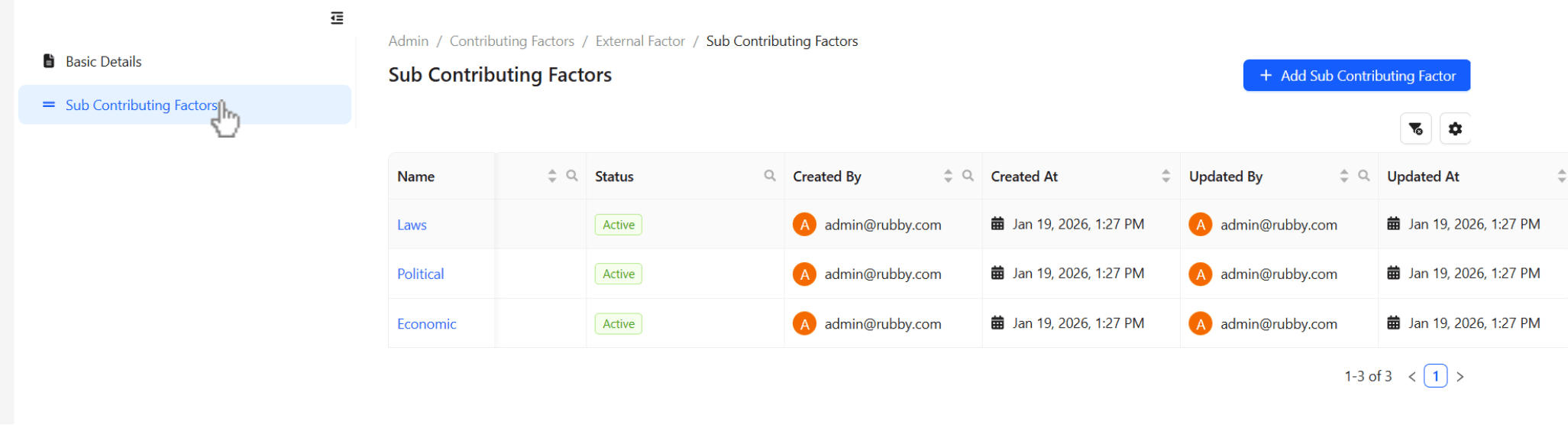
Click Add Sub Contributing Factor to add a new Sub-contributing Factor.
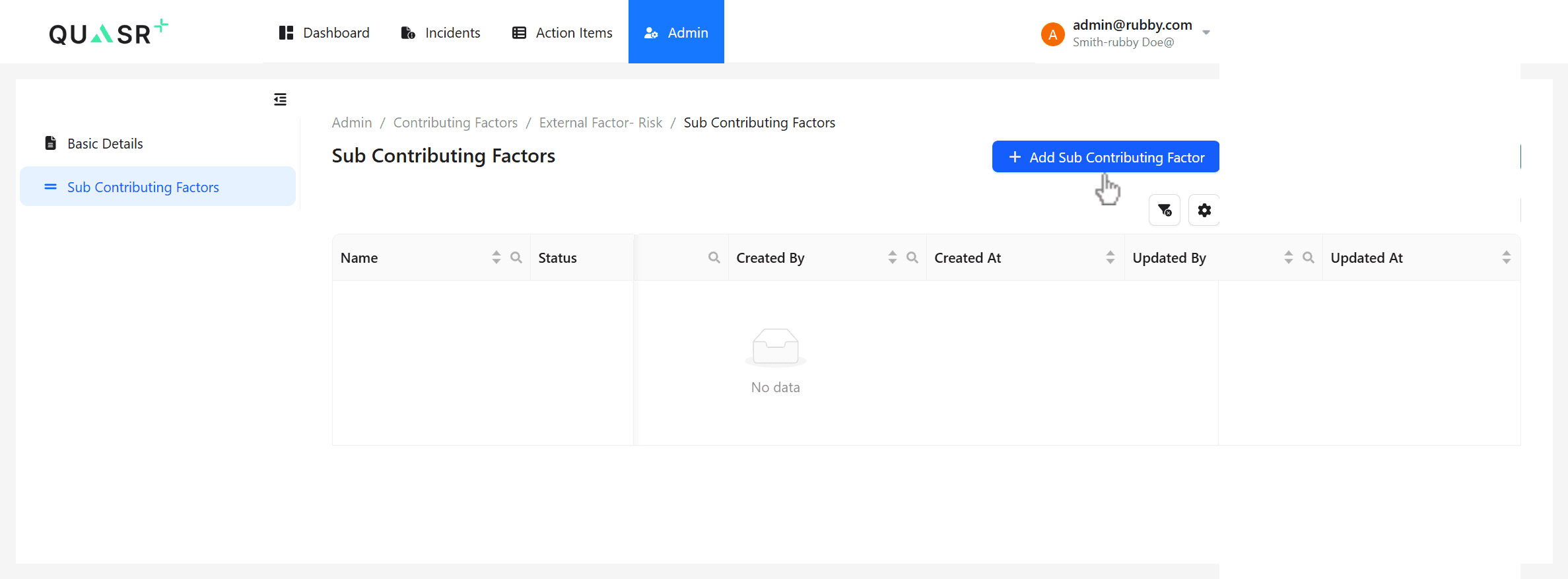
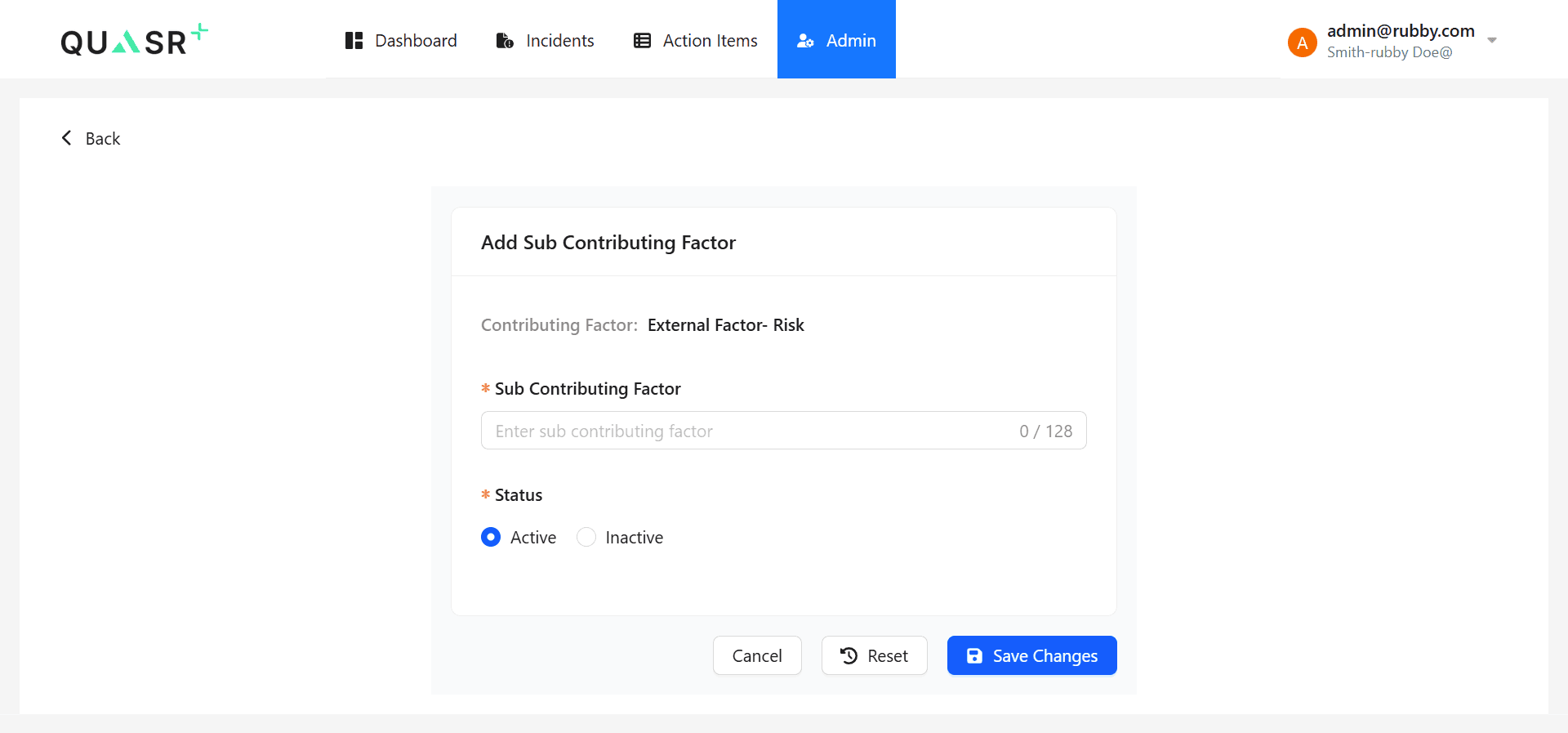
Enter Sub Contributing Factor Details and Save
Provide a Name, select the Status, and click Save changes.
- Expected result: The Sub Contributing Factor is saved and linked to its parent Contributing Factor.
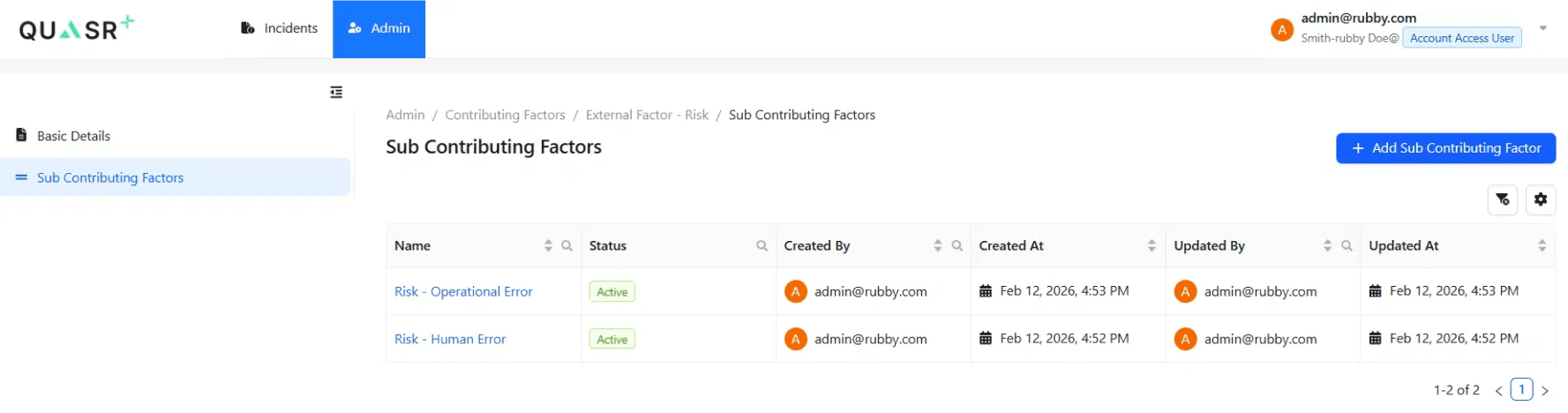
Return to the Sub Contributing Factors List
Click Back to return to the Sub Contributing Factors list view for the selected Contributing Factor.
- Expected result: The Sub Contributing Factors list view is displayed.
Tips & Best Practices
- Use consistent terminology aligned with your organization’s incident taxonomy.
- Keep factor names concise and specific to avoid ambiguity.
- Review contributing factors periodically to maintain relevance.