Manage Facility
This guide explains how to view and update a Facility in QUASR+. It covers Facility details, inviting and managing users, assigning supervisors, managing doctors and sign-off members, and configuring divisions, departments, locations, and incident flags so your Facility is ready for reporting and workflows.
Before You Start
- Access level required: Facility Admin to manage Facility-scoped items; Organisation Unit Manager or Account Admin for broader changes.
- Limitations: Email addresses for invited users are required and cannot be changed after creation
Facility overview
A Facility in QUASR+ represents a business entity such as a Clinic, Hospital, or Medical Centre. Facilities can be mapped directly to the Account (flat structure) or under an Organisation Unit (tiered structure). Facility-level configuration controls local users, clinical staff, sign-off members, and location/department structure.
In QUASR+, a Facility is the business entity—not a specific physical site. Use Facilities to scope reporting and permissions.
Steps
Open Organisation structure and select the Facility
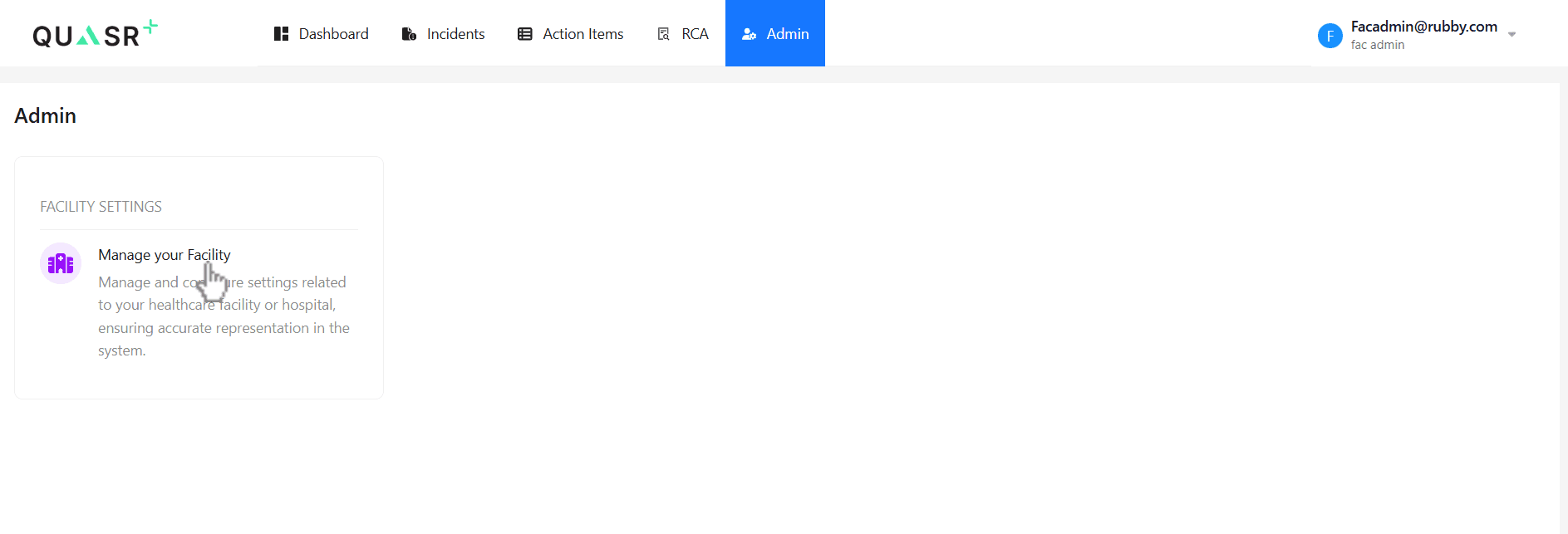
From the main navigation, open the Facility Admin module in QUASR+ click on Manage your Facility.
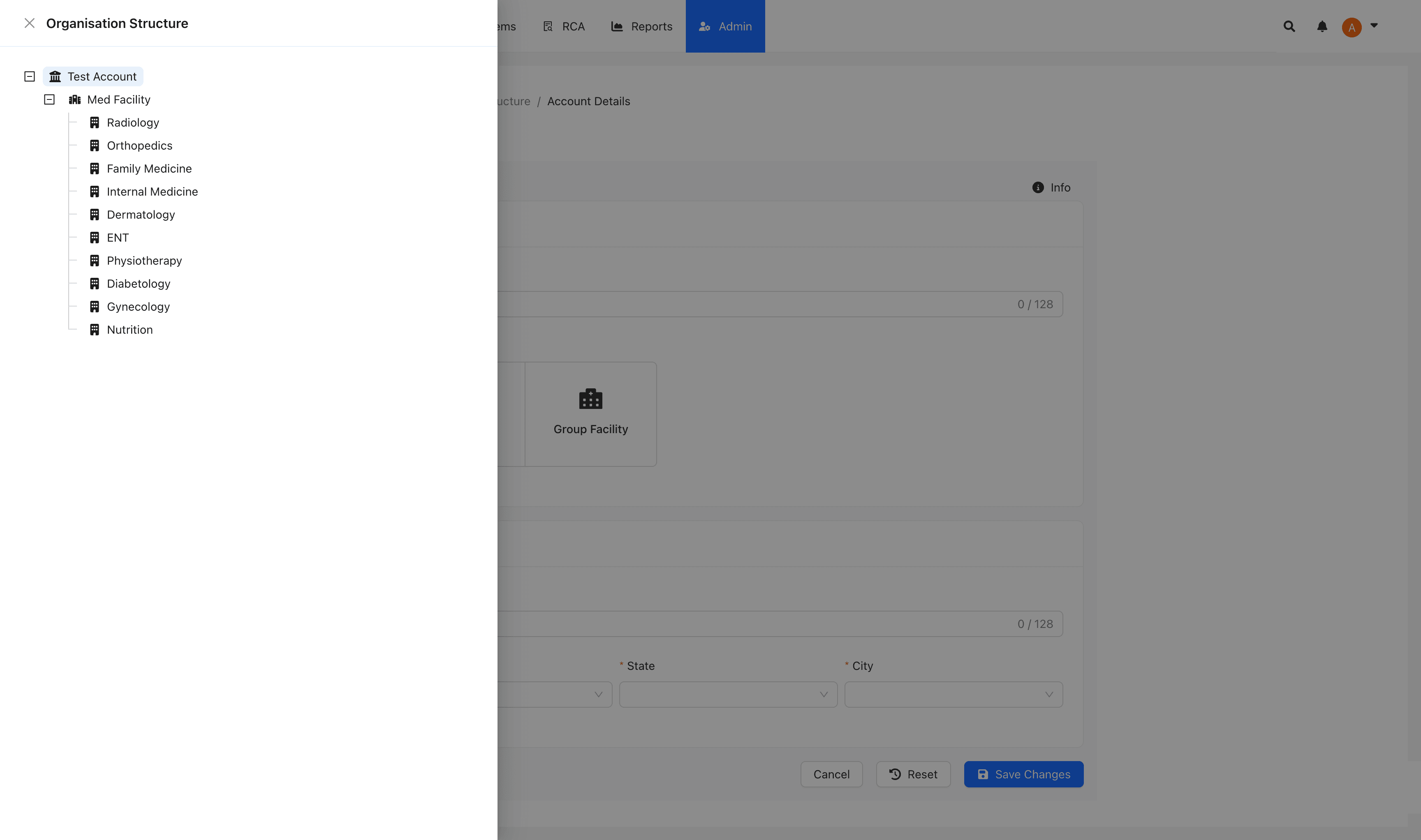
From Organisation structure drawer, click the Facility you want to view or manage.
- This opens the Facility details panel where you can configure users, divisions, departments, and other settings.
View or update Facility details
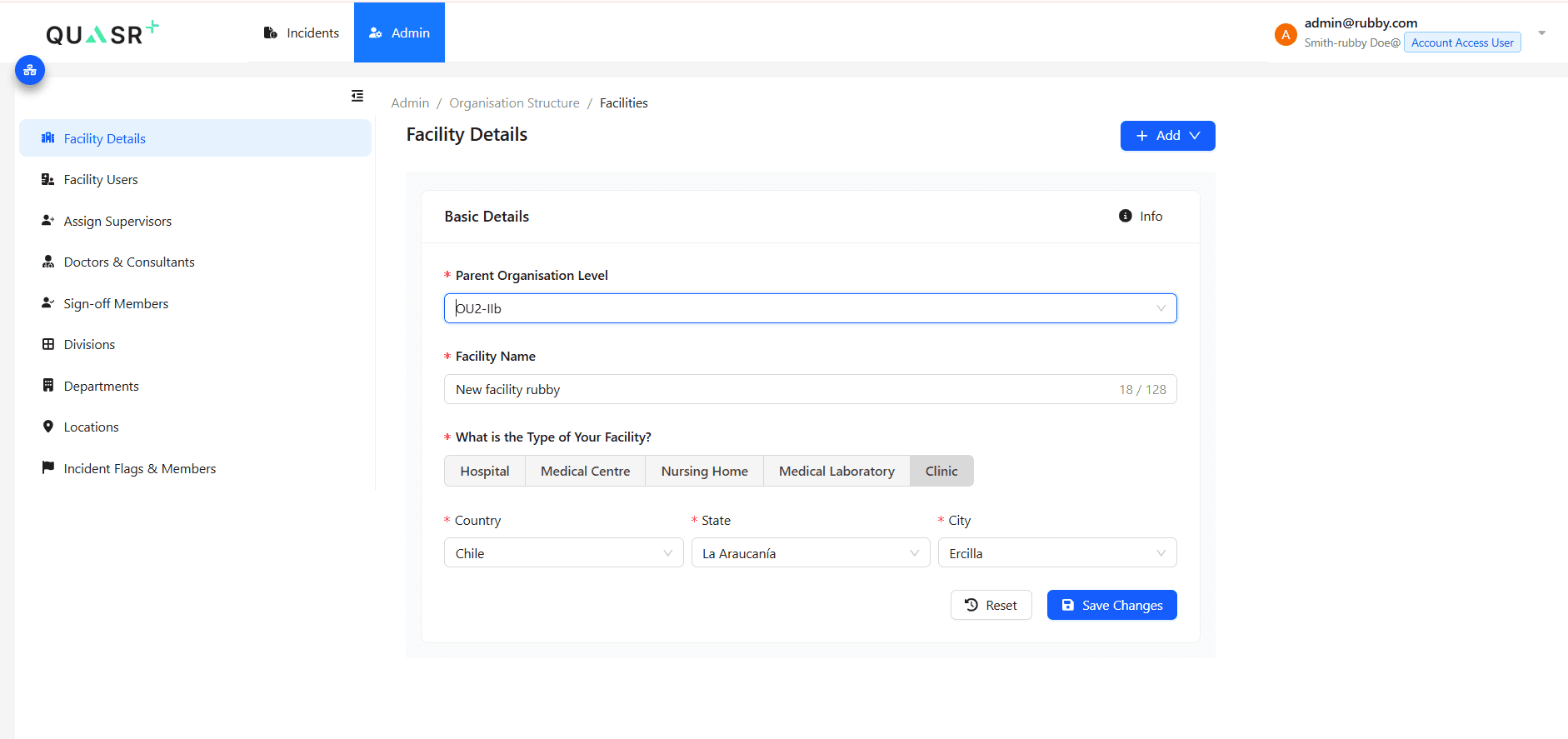
On the Facility Details tab, review and update editable fields (name, description, status). Account Admins and Facility Admins can create Divisions or Departments not included in onboarding.
- Why: Keep Facility metadata current for accurate reporting and user assignment.
- Expected result: Changes are saved and reflected across the Facility configuration.
| Field | Description | Editable |
|---|---|---|
| Parent Organisation Level | Parent for the Facility | Yes |
| Description | Name of the Facility | Yes |
| Type of Facility | Facility Type | No |
| Country, State, City | Geo Details | Yes |
Invite Facility users
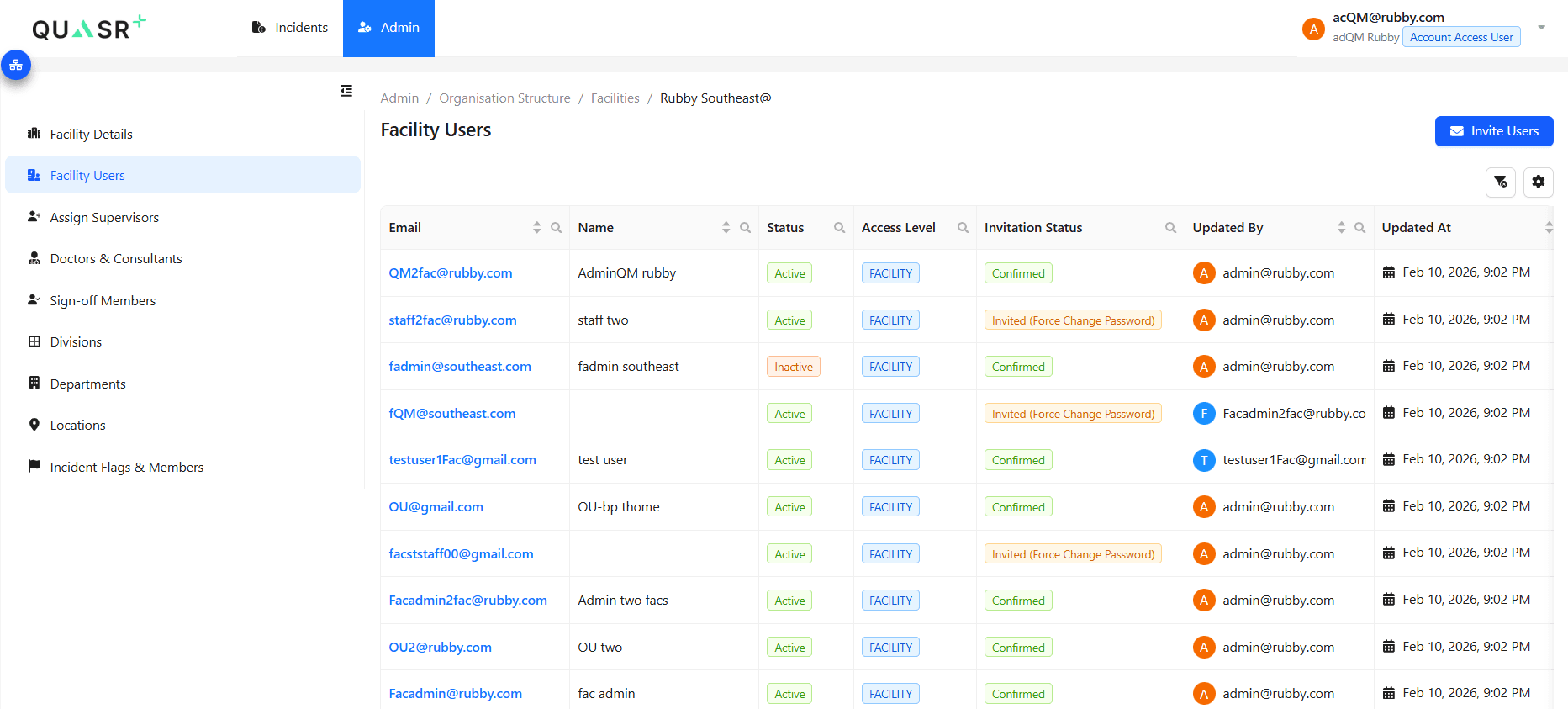
Go to the Facility Users tab and click Invite Users. Enter one or more email addresses (comma separated) and select roles. By default, invited users receive the Facility Staff role.
- Why: Grant access to staff who will report incidents, review, or perform Facility tasks.
- Expected result: Invitations are sent; invited users appear in the Facility Users list once accepted.
You must have the users’ email addresses before inviting them. Email addresses cannot be changed after the user is created. An Invitation to the same email address cannot be sent again !
Update Facility user details and roles
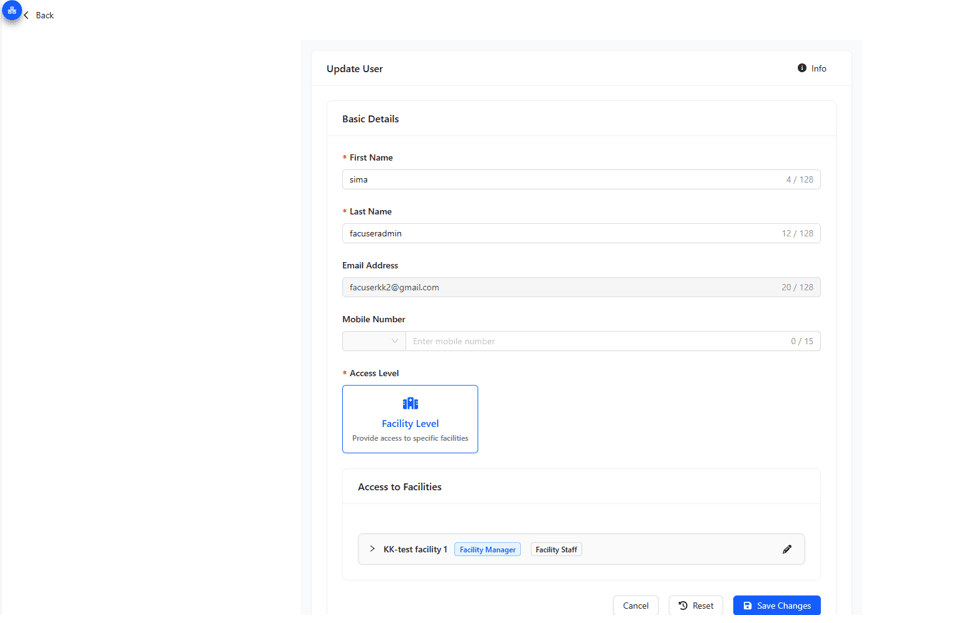
Select a user from Facility Users to view or update their details, roles, and access levels. Note that the user’s email cannot be edited.
- Why: Keep user roles and access aligned with responsibilities and segregation of duties (SoD).
- Expected result: Role changes are applied immediately and reflected in permissions.
Facility Admins, Organisation Unit Managers, and Account Admins can update user roles depending on scope and permissions.
Assign supervisors and reportees
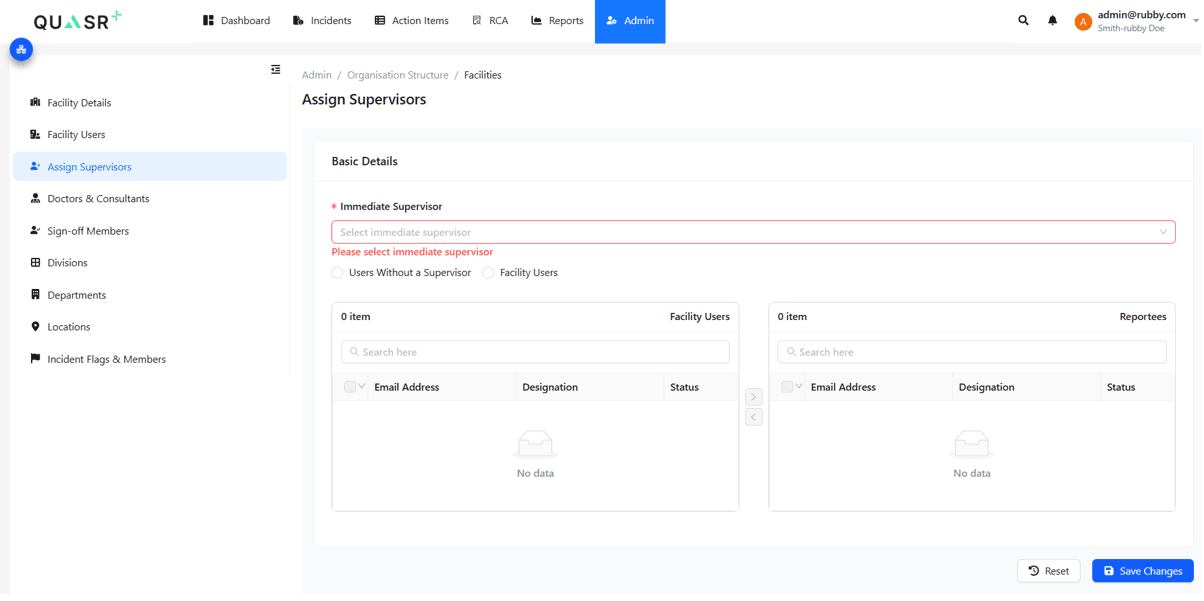
Open the Assign Supervisors tab. Select an existing supervisor or create a new one. Then, assign users by moving them from the Facility Users list to the Reportees panel using the arrow controls. Use the available filters to display either Users Without a Supervisor or all Facility Users, as needed.
- Why: Supervisory relationships drive L1 review routing and reporting hierarchies.
- Expected result: Selected users are assigned to the chosen Immediate Supervisor.
An user can have only one Supervisor and to help the administrators quickly identify Users Without a Supervisor : Will list the user who are not mapped to any Supervisors Facility Users : Will list all users under the Facility
Add or manage Doctors & Consultants
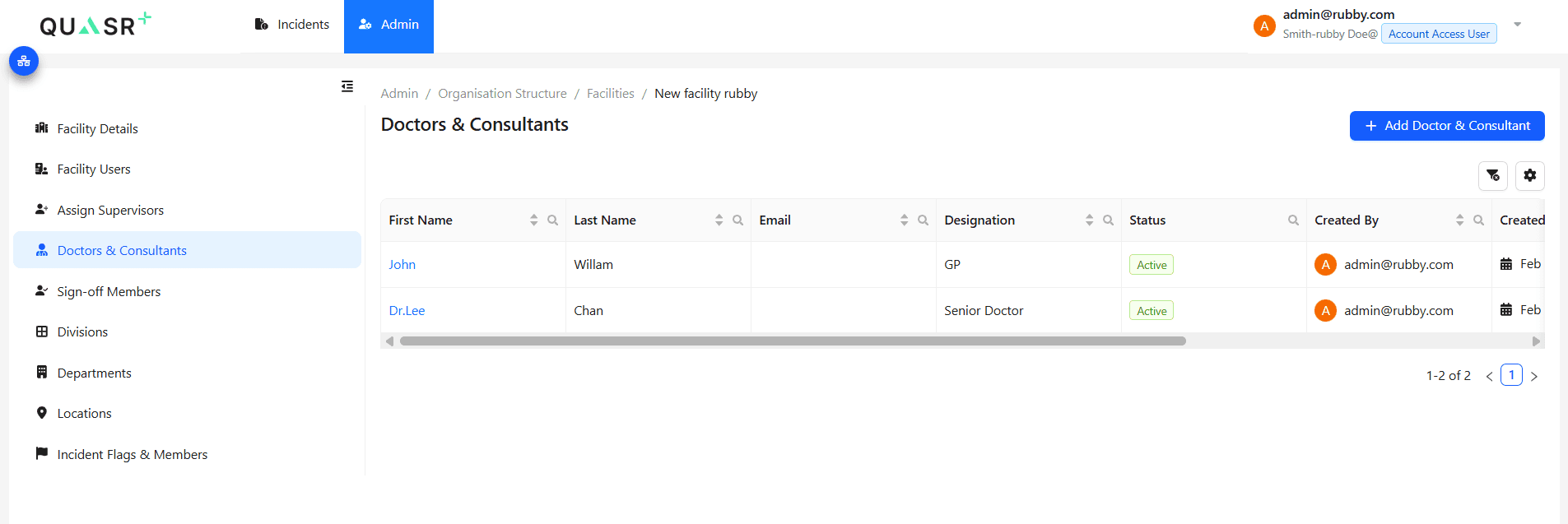
Navigate to Doctors & Consultants and click + Add Doctors & Consultants to create a new record. Fill all mandatory fields, set Status to Active, and click Save Changes. To edit, select an existing record and update fields.
- Why: Maintain an accurate list of clinical staff for incident attribution and workflows.
- Expected result: Doctors and consultants appear in the Facility directory and can be selected in forms.
Configure Sign-off Members
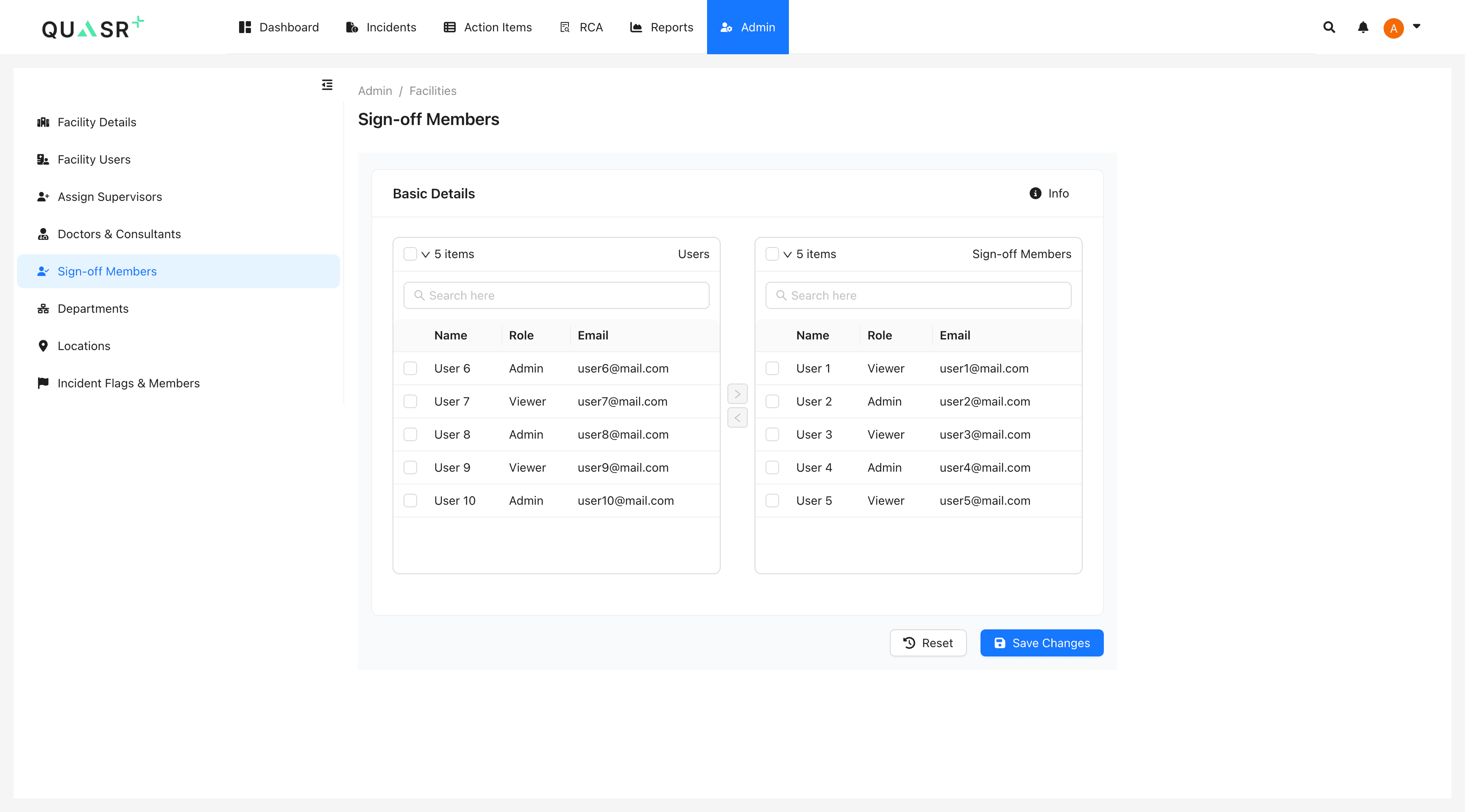
Open the Sign-off Members tab. Move users from the Facility Users list to the Sign-off Members panel using the arrows to add them. These users are authorized to approve incidents for the Facility.
- Why: Sign-off members provide final approval for incident closures.
- Expected result: Nominated sign-off members are available during QM review and final sign-off workflows.
Only nominate users who are authorized to approve incidents; sign-off members have final closure authority.
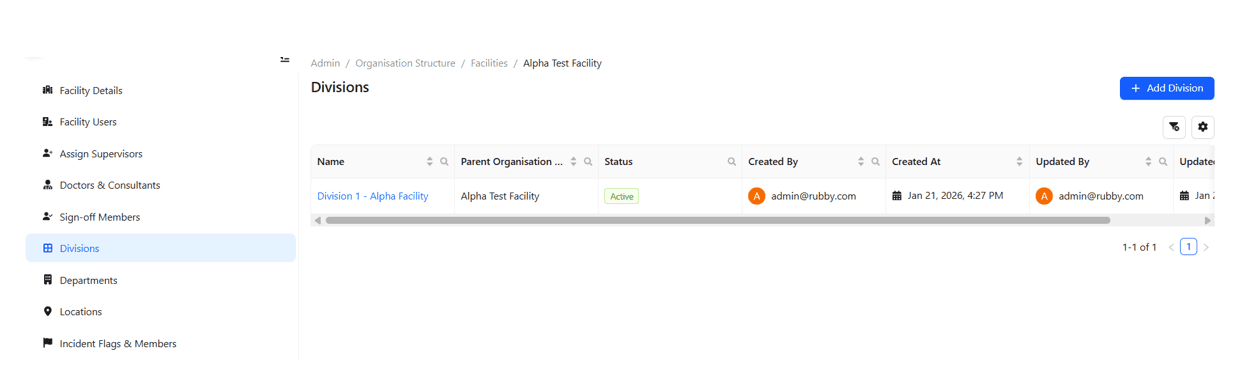
Create and manage Divisions
Use the Divisions tab and click + Add Division to create a new Division. Fill mandatory fields, set Status to Active, and save. Click an existing Division to view or edit it.
- Why: Divisions help group departments and clinical services for reporting.
- Expected result: Divisions are added to the Facility structure and available for mapping.
Divisions can be mapped directly under the Facility or Organisation Unit or Account in the Organisation structure.
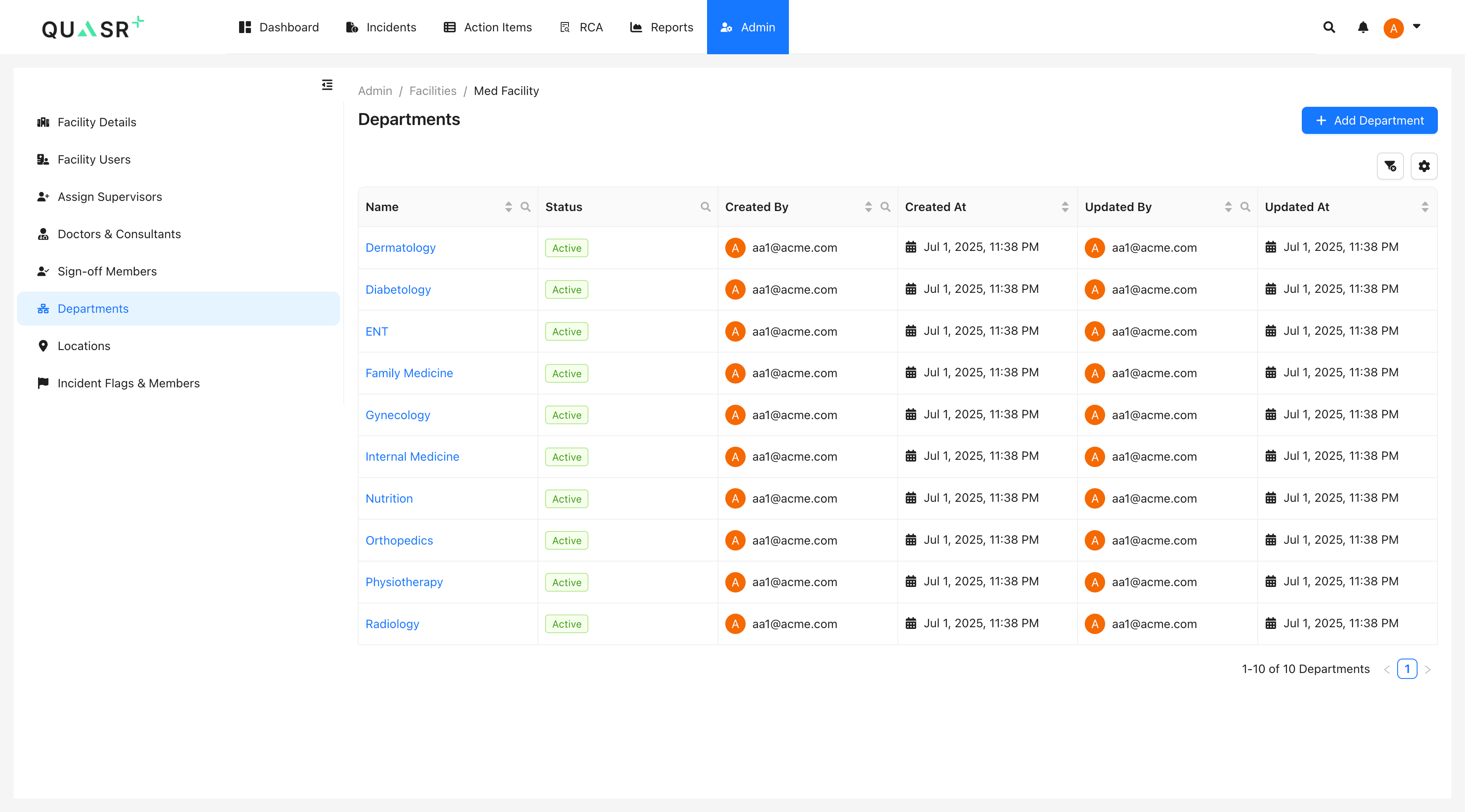
Create and manage Departments
Open the Departments tab. Onboarding may pre-populate departments; Account Admins can rename, remove, or edit them. Click + Add Department to create a new one, complete mandatory fields, set Status to Active, and save.
- Why: Departments provide finer-grained organization for workflows and reporting.
- Expected result: Departments are visible in forms and reporting filters.
Onboarding creates a default set of departments. Edit these only if necessary to match your organization’s structure.
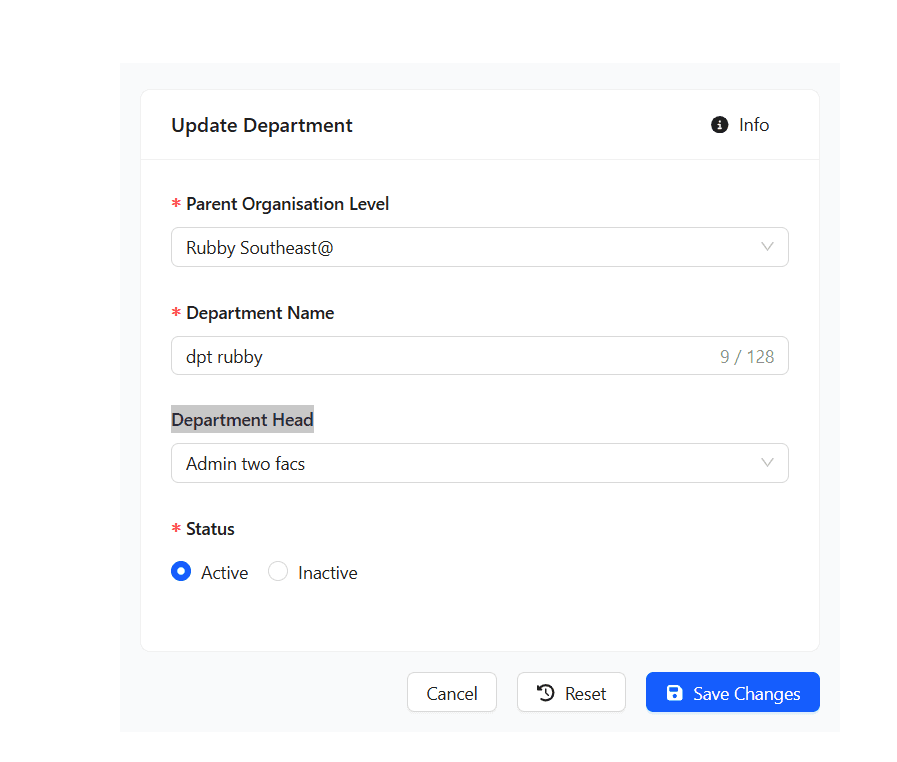
Assign Deparment Heads
Open the Department from the Department List view and Assign Department Head.
- Why: Assigning Department Heads relationships drive L2 review routing and reporting hierarchies.
- Expected result: The selected user is assigned as the L2 reviewer for the department to which the incident has been reported.
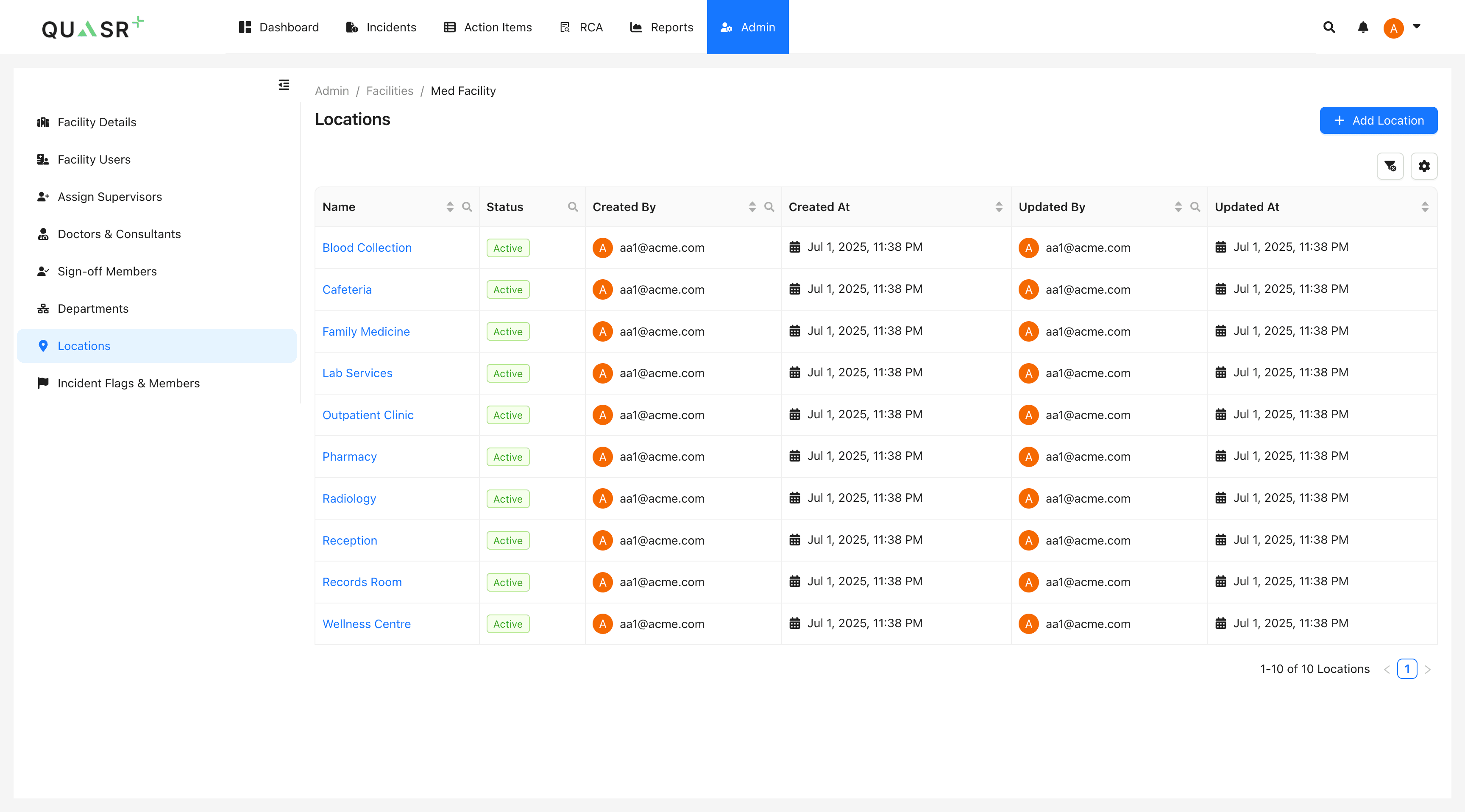
Create and manage Locations
Use the Locations tab to add or edit Locations. Click + Add Location, complete required fields, set Status to Active, and save. Onboarding may include default locations that you can rename or remove.
- Why: Locations help specify where incidents occurred and support location-based reporting.
- Expected result: Locations are available in incident forms and reports.
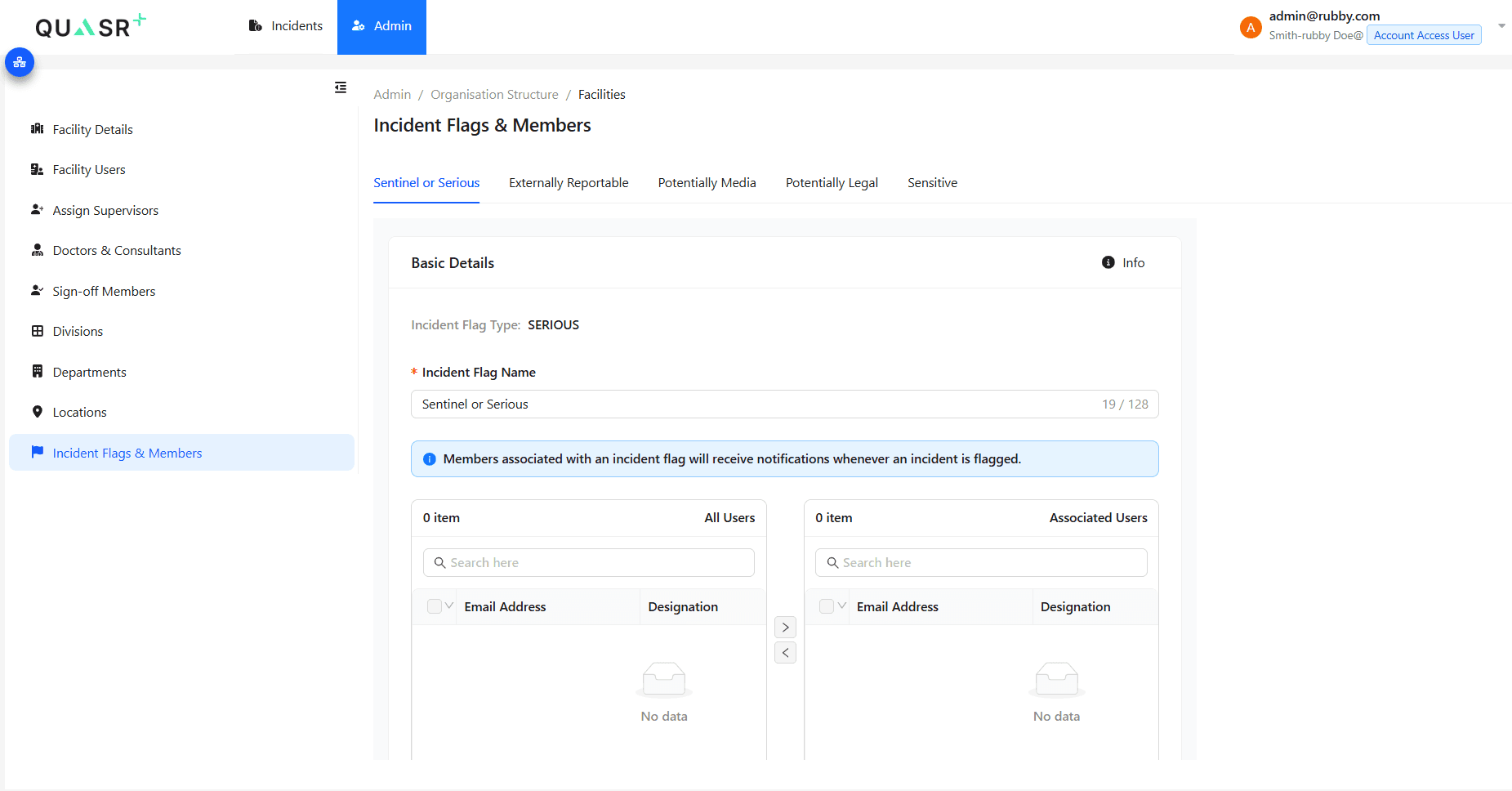
Configure Incident Flags & Members
Open Incident Flags & Members to view default flags (e.g., Sentinel or Serious, Externally Reportable, Potentially Media, Potentially Legal, Sensitive). Rename flags if needed and assign users who should receive notifications for each flag by moving them from All Users to Associated.
- Why: Flags trigger notifications and special handling for high-priority incidents.
- Expected result: Flagged incidents notify the associated users as configured.
Tips & Best Practices
-
Collect user email addresses before sending invitations. Invitations require valid email addresses, and these cannot be modified later.
-
Assign supervisors promptly to ensure that L1 review routing functions automatically.
-
Assign Department Heads promptly to ensure that L2 review routing functions automatically.
-
Restrict sign-off members to authorized approvers to maintain proper governance.
-
Use Divisions and Departments to reflect your clinical structure for clearer and more accurate reporting.