Incident Reporting, Review, Sign-off and Closure
This guide explains how to report an incident, complete L1/L2/QM reviews, run investigations, and obtain final sign-off so incidents are accurately recorded and closed in QUSAR+. It ensures consistent classification, timely reviews, and traceable outcomes.
Before You Start
- Access level required: Role with incident-reporting permissions (Reporter, Supervisor, QM, etc.).
- Limitations: Draft incidents are accessible only to the creator and Facility QMs.
Ensure you’re logged in before starting and should have access to Incidents module
Steps
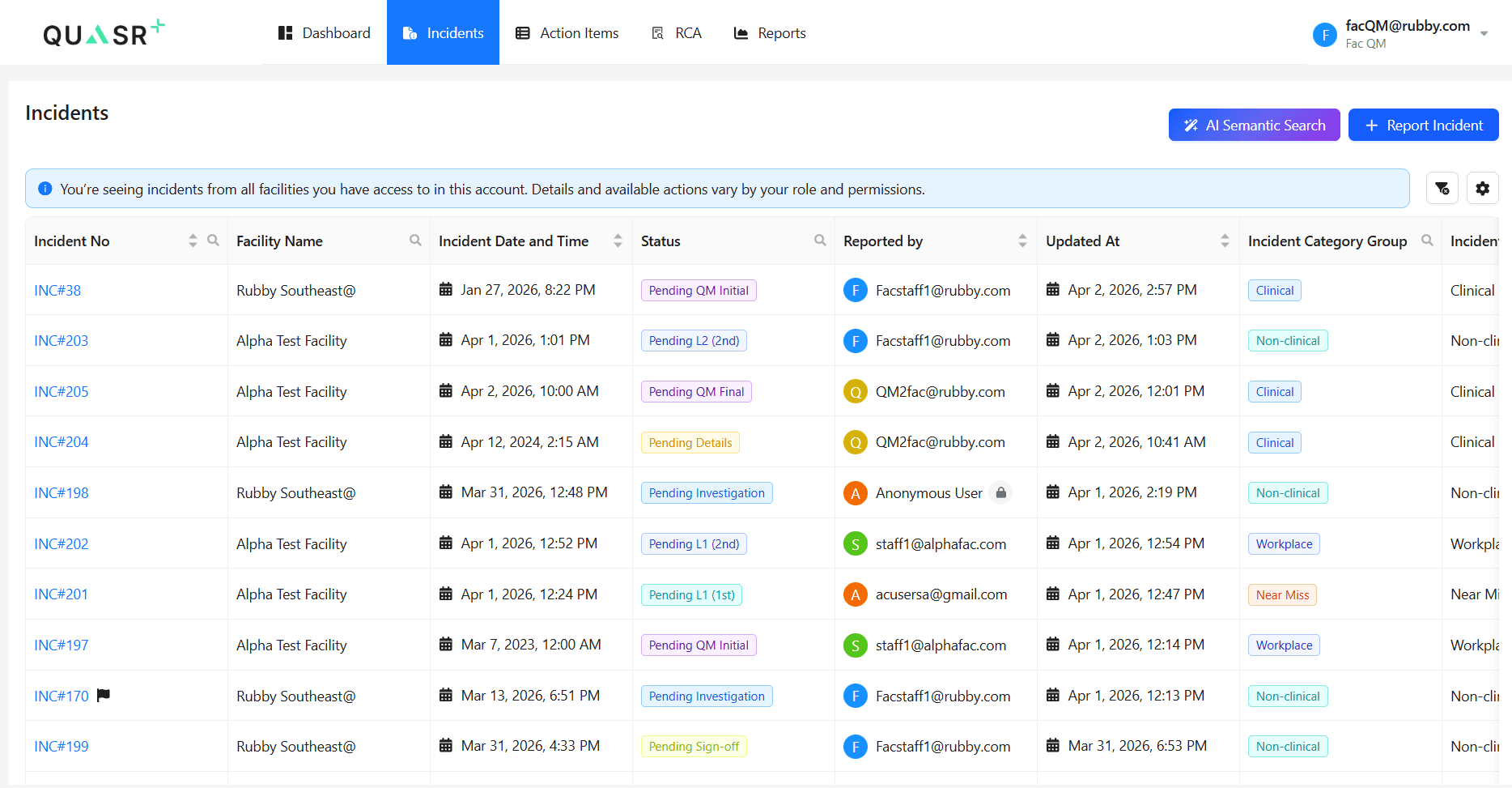
Navigate to Incident → Report an Incident
Open the Incident menu and select + Report Incident.
- Why: Start a new incident record tied to the correct Facility.
- Expected result: The incident creation form opens.
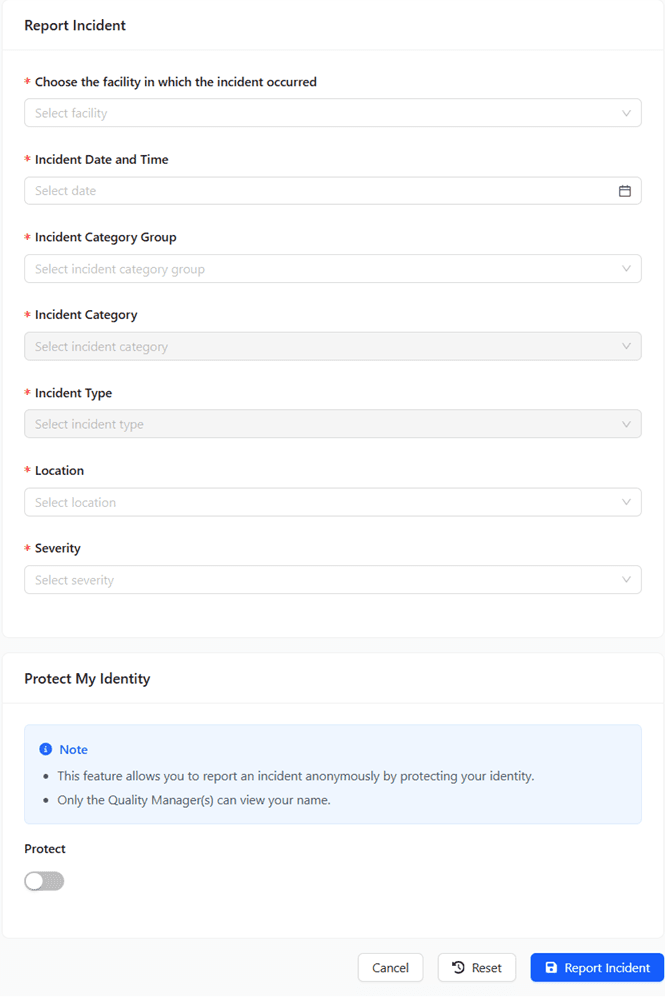
Select Facility (if applicable) and Start the Report
If you belong to multiple Facilities, choose the appropriate Facility from the selector. Then complete the initial fields (Date, Time, Incident category group, Incident category, Incident type, Location).
- Facility selection determines available forms, workflows, and reviewers.
- The form is scoped to the selected Facility and its templates.
Protect Identity (Optional) - Report anonymously
Toggle Protect My Identity to report anonymously.
- Why: Use when the reporter prefers not to disclose personal details.
- Expected result: Reporter details are hidden from standard views; system retains necessary metadata for routing.
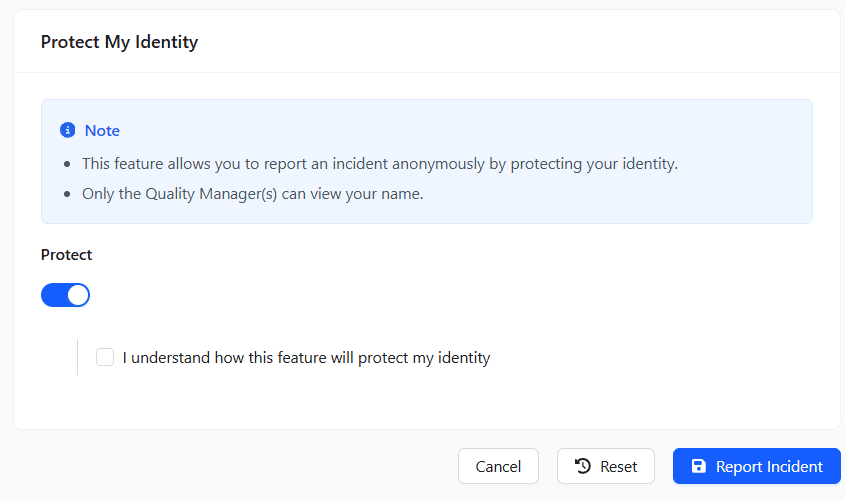
Anonymity hides reporter details from most users but does not prevent required follow-up by QMs.
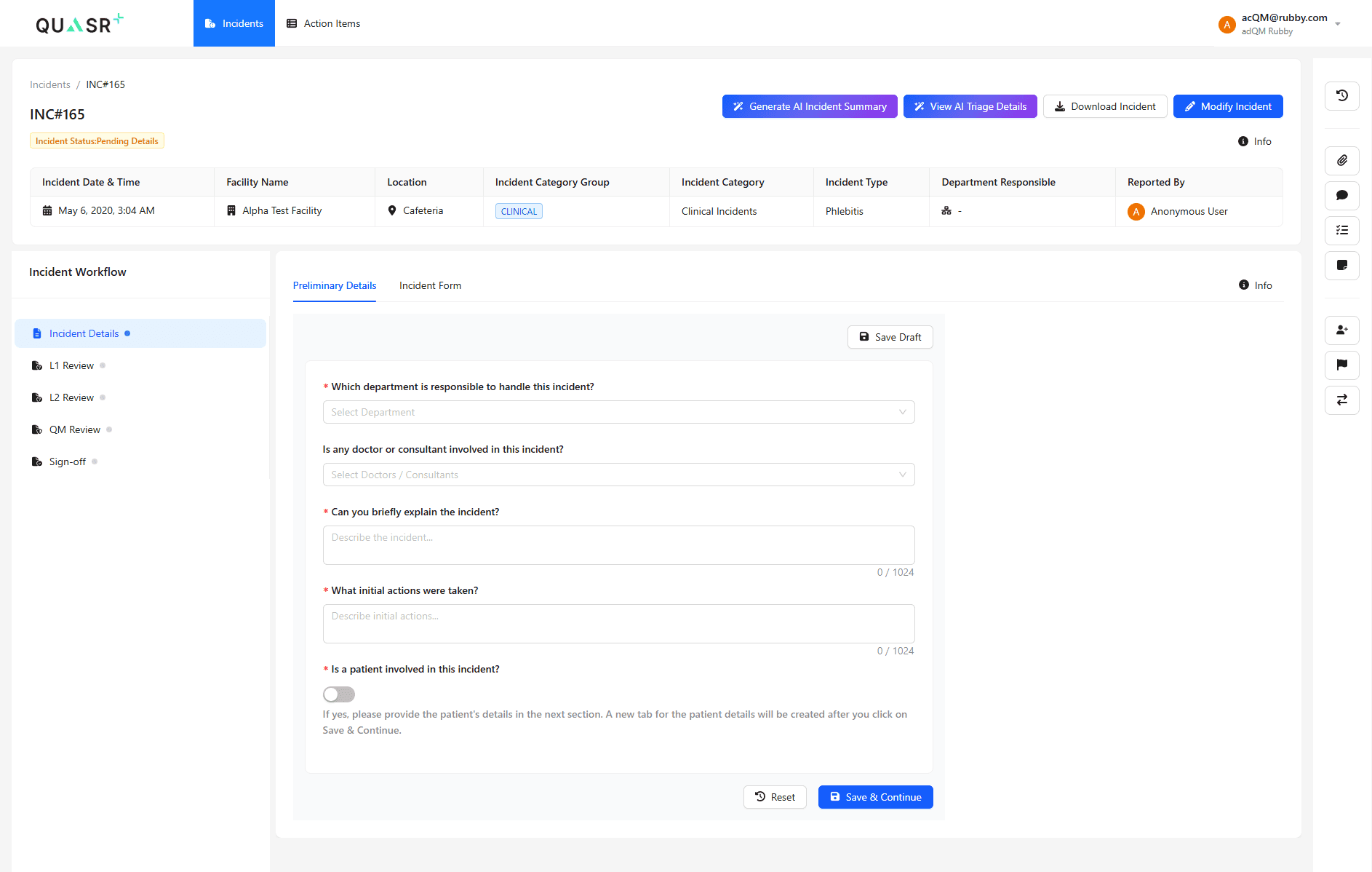
Complete Preliminary Details and Patient Involvement
Enter preliminary incident details and complete the Incident Form. If a patient is involved, toggle Is a patient involved in this incident? and fill patient fields.
- Accurate classification and patient data ensure correct workflows and reporting.
- Patient fields appear and can be saved.
Fill Incident Form, Save Draft or Submit
Complete all required questions and attachments. Use Save Draft if you need to return later; otherwise Submit to report the incident.
- Drafts allow incremental work; submission triggers review workflows.
- Submitted incidents generate an Incident Number and enter the review pipeline.
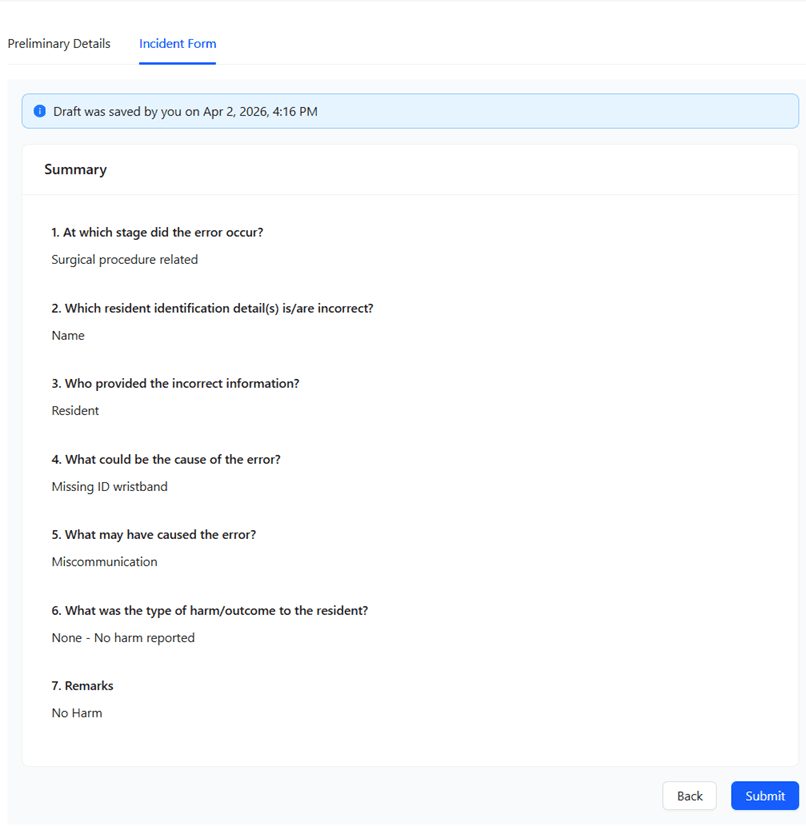
The Save Draft option is available only before submission. Drafts are visible only to the creator and Facility QMs.
L1 Review (Immediate Supervisor)
Who: Immediate supervisor of the reporter.
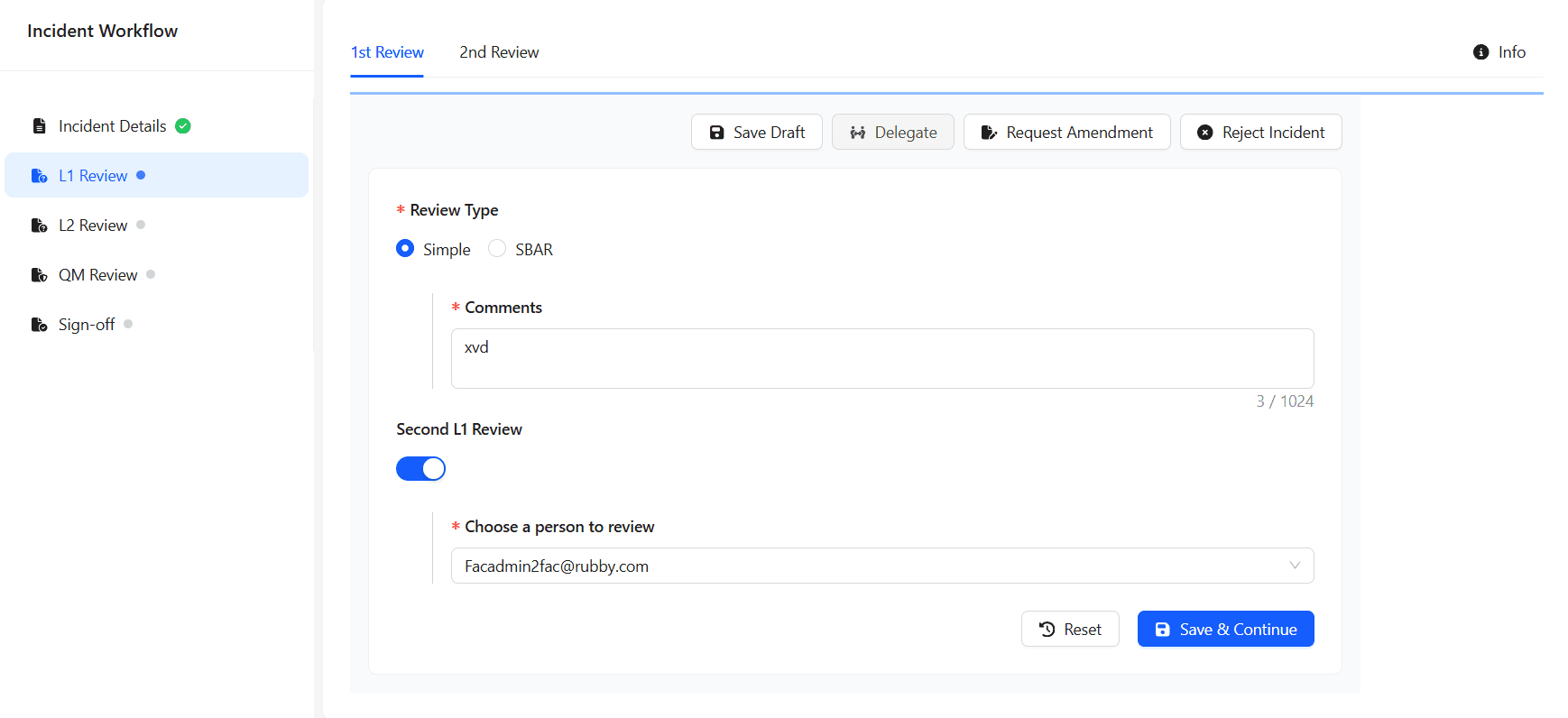
Action: Open the incident and perform the L1 review. Choose Simple or SBAR review type. Verify incident details, confirm incident type, and ensure required evidence is attached.
-
Critical Step: Validate the accuracy and completeness of the incident before forwarding. Confirm the incident category and type are correct.
-
Expected result: L1 review recorded and incident routed to L2 or next step.
A second L1 reviewer can be added by toggling Second L1 Review and selecting another Facility user.
L2 Review (Department Head)
Who: Department head for the reported area.
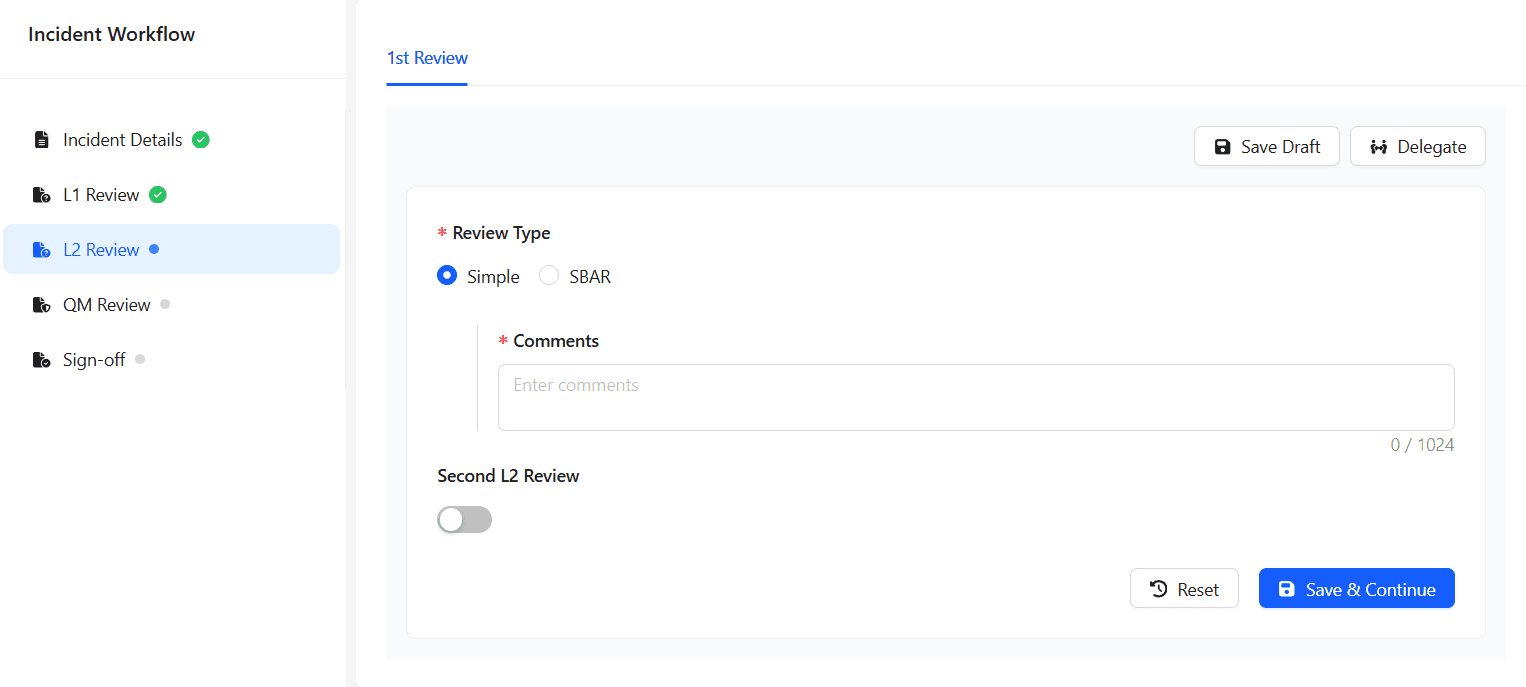
Action: Perform the L2 review using Simple or SBAR. Verify departmental context, add comments, and update classification if needed.
- Expected result: L2 review recorded and incident routed to Facility QM.
A second L2 reviewer can be added by toggling Second L2 Review and selecting another Facility user.
QM Review (Facility Quality Managers)
Who: Facility QMs for the respective Facility.
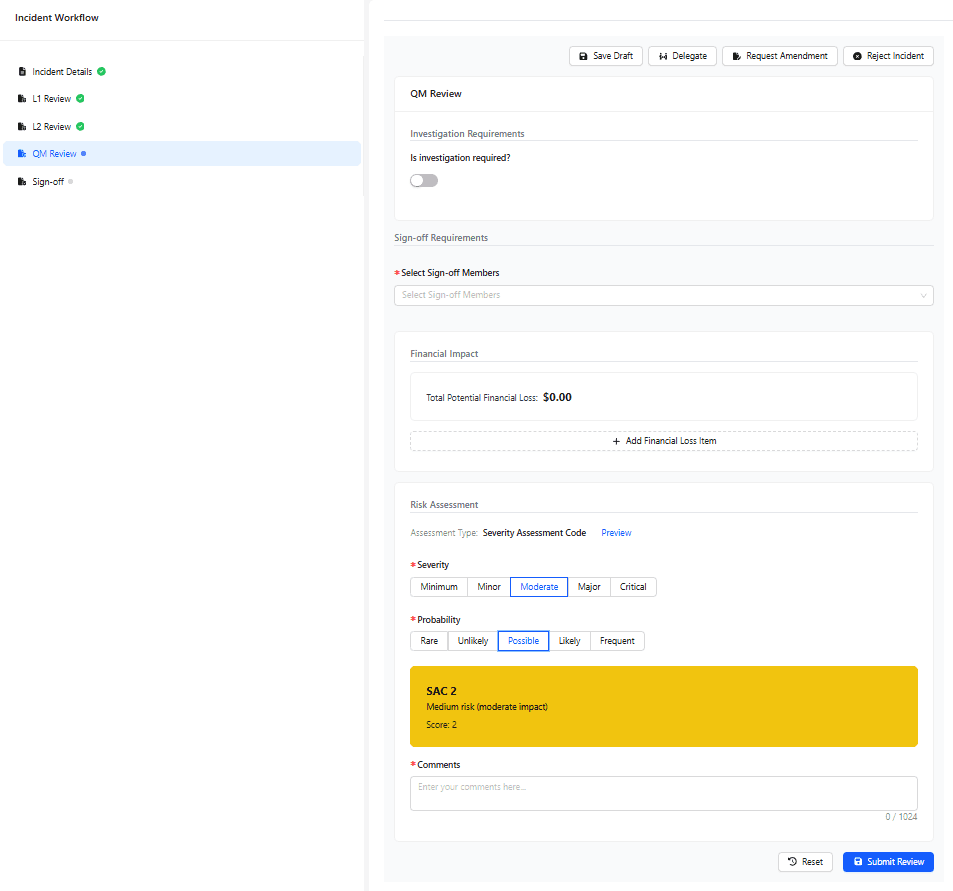
Action: Complete the QM review by adding:
- Sign-off members (select nominated sign-off members for the Facility)
- Financial Impact (if any)
- Risk Assessment
- Comments
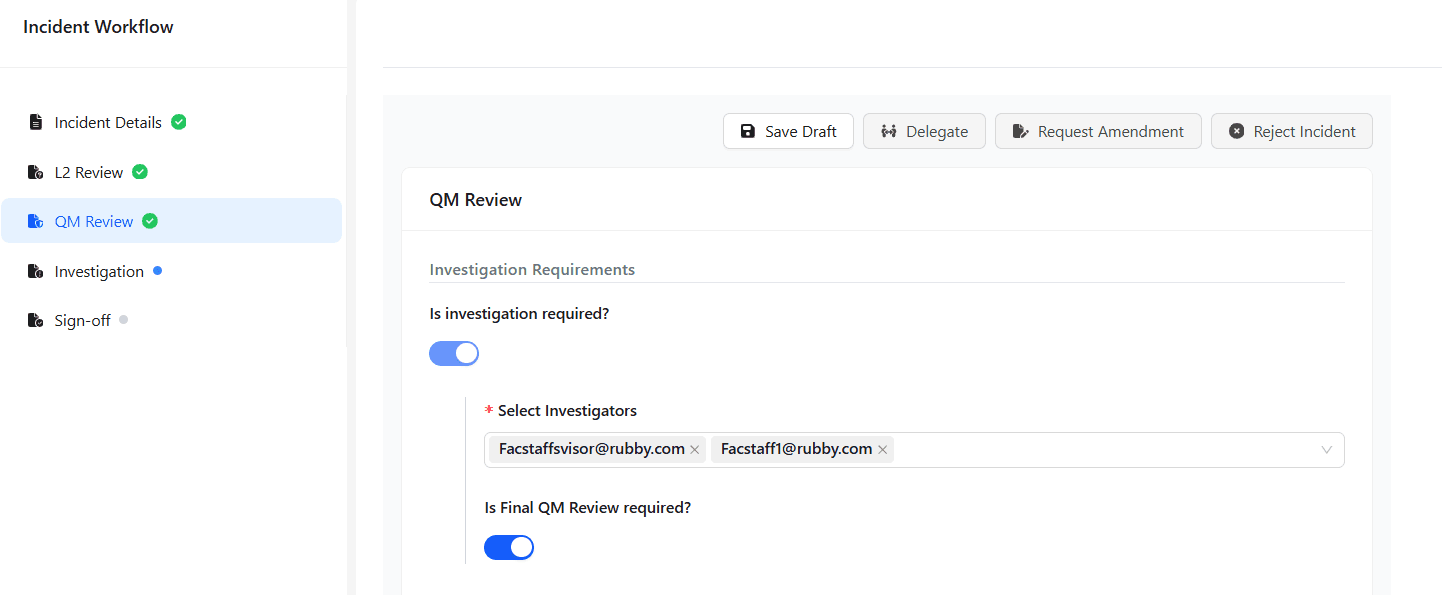
- Investigation decision: Toggle Is investigation required? to start an Investigation workflow.
- Expected result: QM review recorded; if investigation is required, the incident enters the Investigation workflow; otherwise it proceeds toward Final QM and Sign-off.
Selecting Is investigation required? initiates the Investigation workflow and delays final sign-off until investigation and Final QM review are complete.
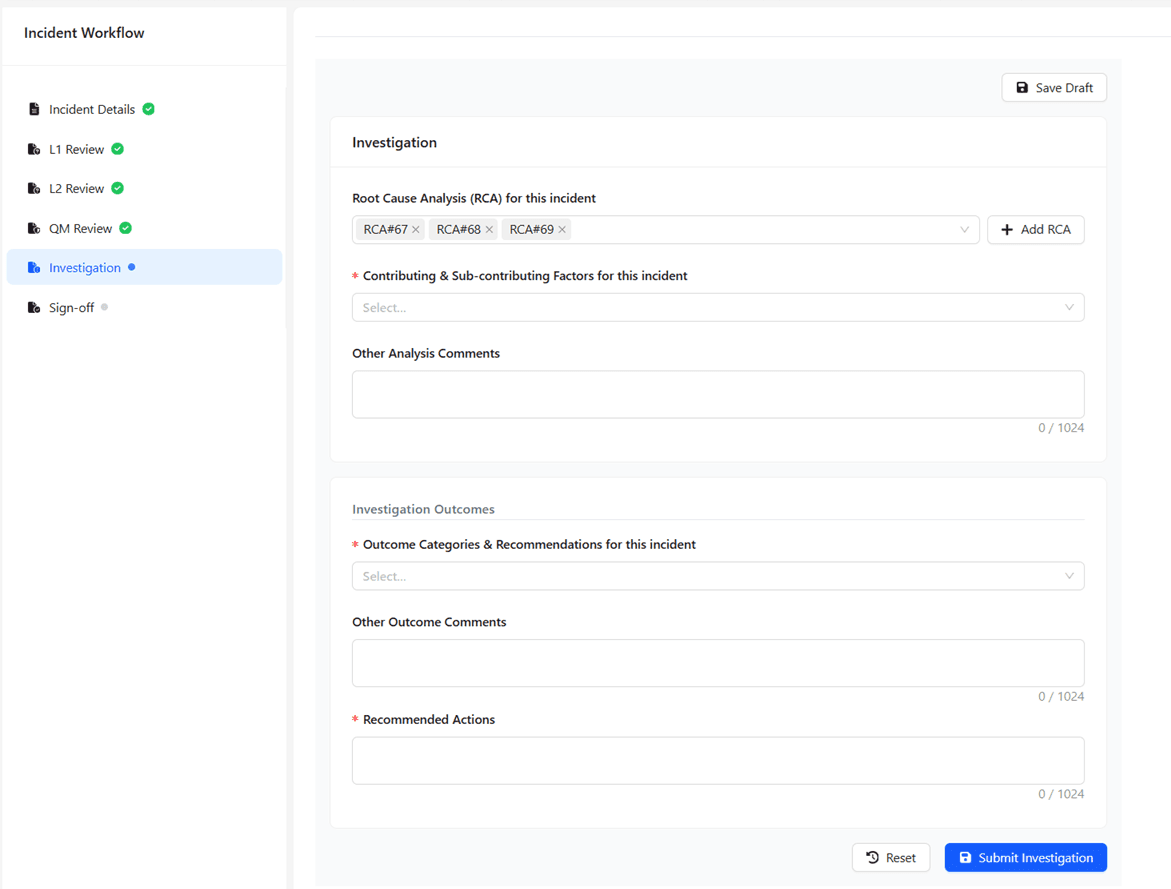
Investigation (If Required)
Investigation is optional. During the QM Review stage when the QM turns on Is investigation required? and chooses the investigators, the Investigation stage will be activated
The Investigators list shows all users from the same facility, and the QM can select more than one.
-
Conduct the investigation and document all findings.
-
Update the Contirbuting Factors,outcomes and recomendations based on the investigation.
-
Create a new RCA from the Investigation stage or link an existing open and active RCA record (optional).
-
Submit the Final QM Review for sign‑off once the investigation is complete.
Expected result: Investigation details are attached and Final QM review is ready for sign-off.
Final QM Review (optional)
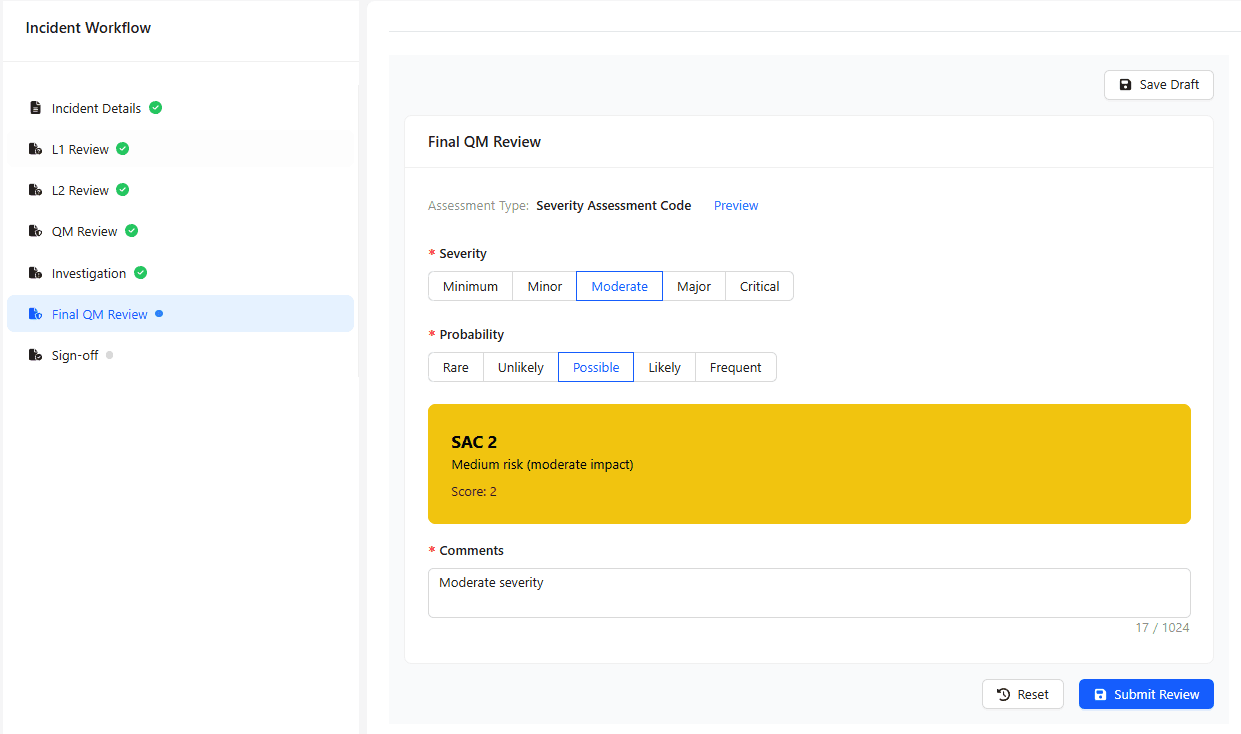
Final QM review is optional. During the QM Review stage When the QM turns on Is Final QM Review required? Final QM review stage will be activated
Who: QMs (Facilility and Account QMs)
Action: Add final risk assessment, outcomes, and comments. Submit the incident to the nominated Sign-off members for final closure.
- Expected result: Incident is routed to Sign-off members.
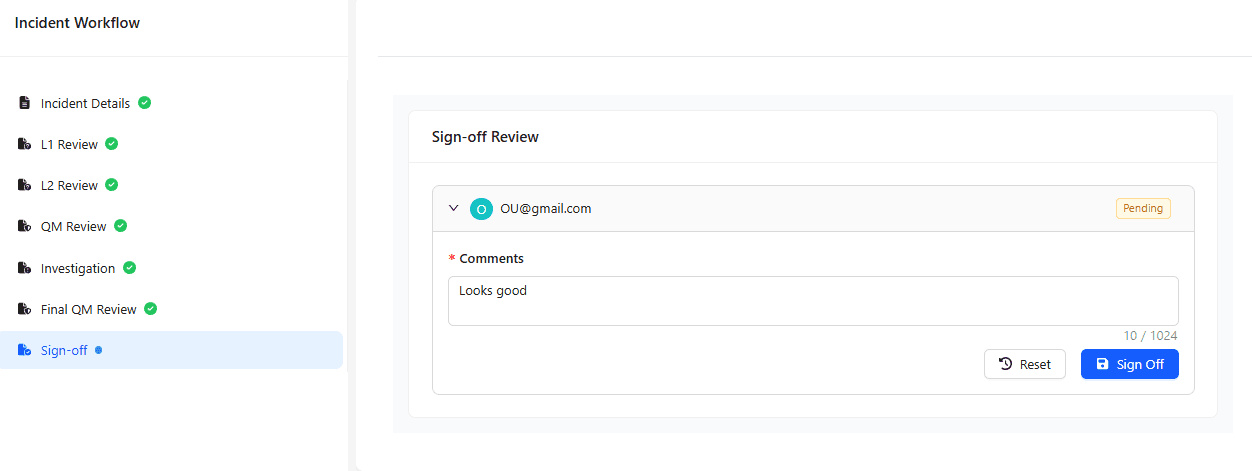
Sign-off and Closure
Who: All nominated Sign-off members for the Facility.
Action: Each sign-off member reviews the incident and provides sign-off. Once all required sign-offs are complete, the incident status changes to Closed.
- Expected result: Incident status = Closed and the record is finalized.
After all sign-offs are recorded, the system automatically moves the incident to Closed status.
Explore Incident Features & Intelligence
Incident Actions
Modify and Download Incident- coming soon
AI in Incident Workflow
Smart AI Assistance - coming soon
Incident Widgets
Quick access to Fast, Focused Incident Insights