Invited User Sign-In and Account Setup
When you are invited to QUASR+, you must sign in using the verification code or temporary password sent to your email. During your first login, you will update your password and complete your basic profile details. Your landing page, menus, and available modules will automatically adjust based on the roles assigned to you.
Who can perform this?
Roles: Invited Users (any role assigned by Account Admin)
Time to complete
Prerequisites
Invitation email received with verification code or temporary password
Before You Start
- Access requirement: Invited user with a valid invitation email
- Email requirement: Use the same email address that received the invitation
Each email address can be associated with only one root Account in QUASR+. However, a user may have multiple roles and permissions within that account.
Open the QUASR+ Sign-In Page
Open the QUASR+ sign-in link provided in your invitation email.
- Expected result: The QUASR+ login page opens.
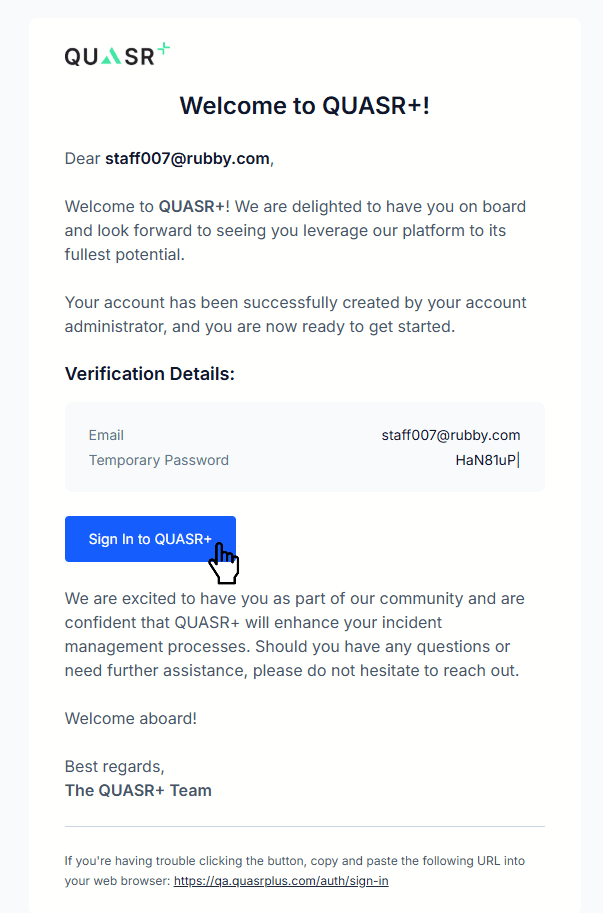
Sign In Using Temporary Credentials
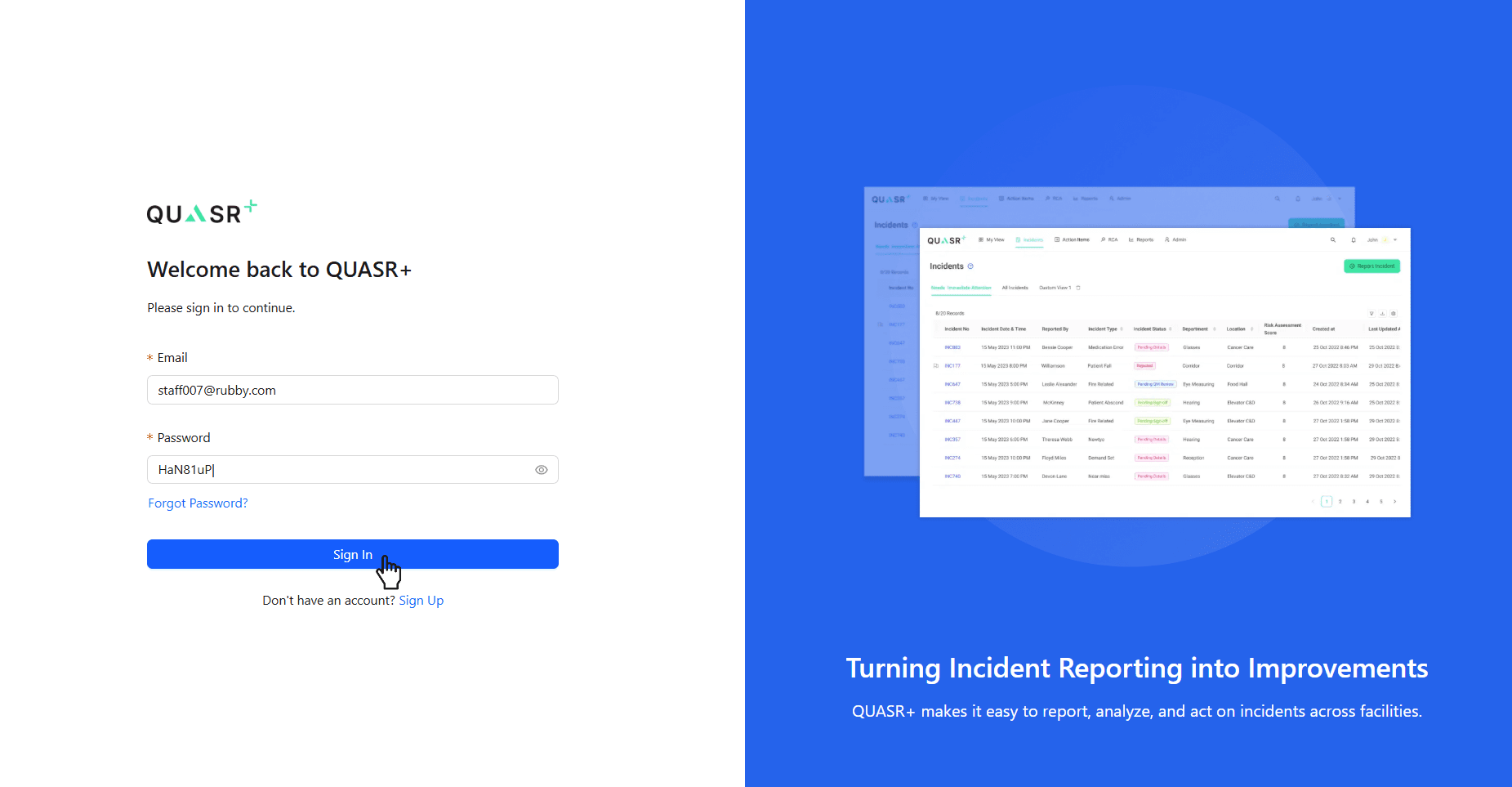
Enter the temporary password or verification code sent to your email.
After successful authentication, the system will prompt you to create a new password.
- Important: Choose a secure password that meets the system requirements.
Temporary credentials are valid only for initial access. You must update your password during your first login.
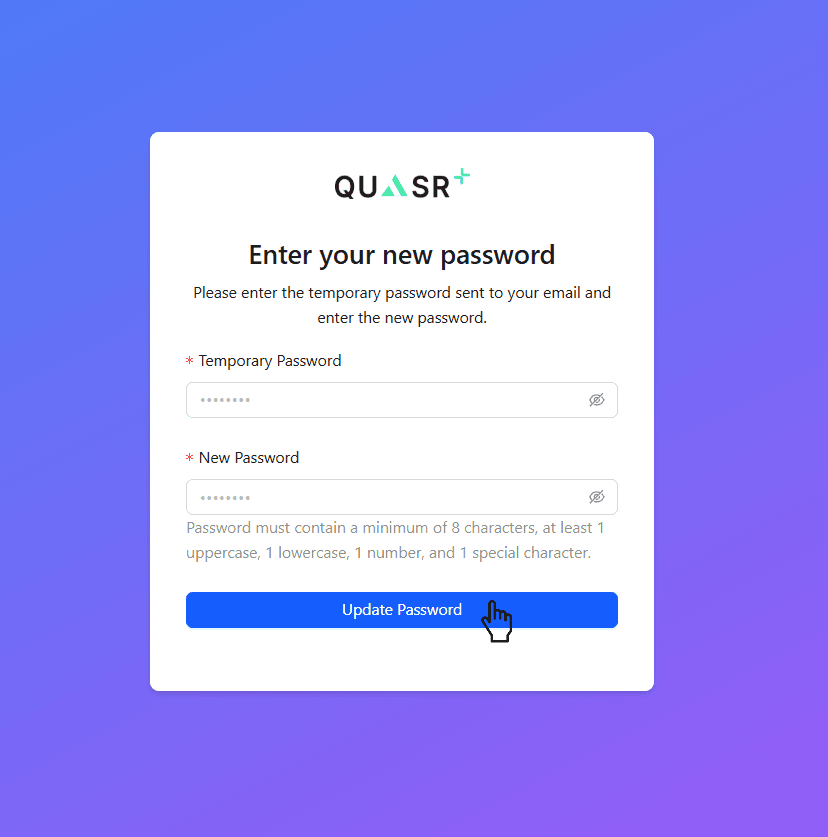
Complete Your Profile Details
After updating your password, you will be prompted to enter your basic profile information.
Fill in the following fields:
| Field | Description | Required |
|---|---|---|
| First Name | Your given name used for identification in the platform | Yes |
| Last Name | Your family name used across reports and activity logs | Yes |
| Role | Select the role that best represents your responsibilities in the system | Yes |
If you are unsure which role applies to you, select “Other” and continue. Your administrator can update the role later if needed.
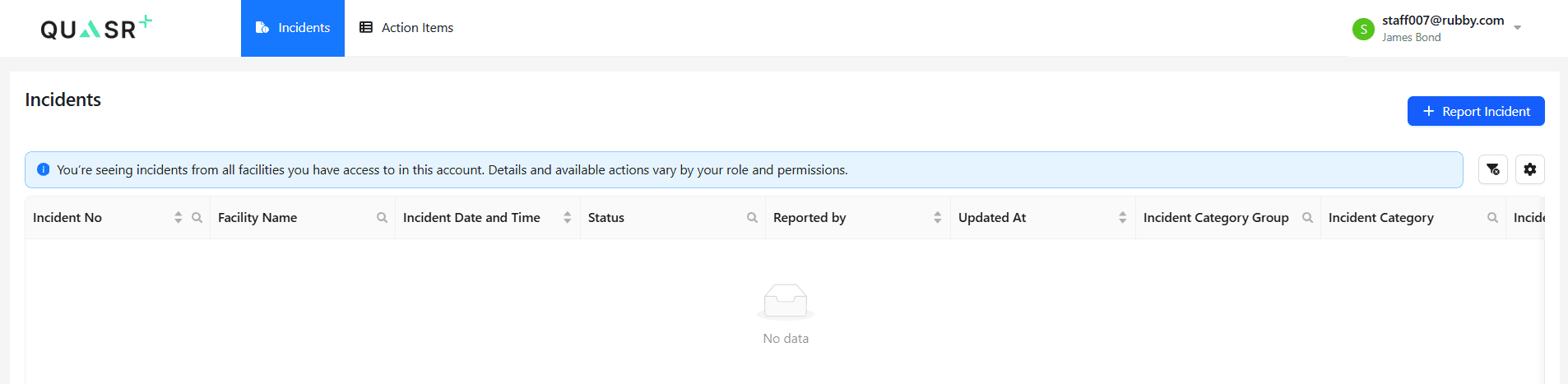
Access your QUASR+ landing page
Once your profile information is saved, your account setup is complete.
The system will automatically redirect you to your dashboard or landing page, which is configured based on your assigned role.
- Expected result: You can now access the modules available to your role.
Your account is now active and ready to use.
Tips & Best Practices
- Always sign in using the same email address that received the invitation.
- Keep your password secure and avoid sharing it with others.
- Your menus, views and system access depend on the roles assigned to you.
- If you require additional permissions, contact your Account Administrator.
Troubleshooting
| Issue | Likely Cause | Fix |
|---|---|---|
| Unable to sign in | Incorrect temporary password or verification code | Recheck the email and try again |
| Password reset fails | Password does not meet requirements | Use a stronger password |
| Cannot access expected modules | Role not assigned or limited permissions | Contact your administrator |
Choose Your Journey
To help you get up and running quickly, please choose the path that best matches your role.
I am a Facility Admin
Start here if you are managing a facility. You will handle user invitations, facility configuration, and department setup.
All Other Users
Start here to report an Incident, understand the workflow, and discover the available features, widgets, and AI capabilities in the Incident process.