AI Semantic Search
AI Semantic Search in QUASR+ helps you locate incidents faster by understanding the meaning and context of your search terms. Instead of relying only on exact keyword matches, it analyzes incident summaries, descriptions, workflow details, reviews, and actions to return the most relevant results across your data.
Who can perform this?
Roles: Facility QMs
Who can access?
Premium Plan users only
Prerequisites
Signed in to QUASR+, access to the Incident module, Premium plan subscription
Before You Start
Access level required: Incident module access
Availability: Premium plan customers only
Search scope: Incident summaries, descriptions, workflows, and reviews
If an incident is marked as Sensitive, AI automatically redacts restricted, confidential, and sensitive data in search results.
Steps
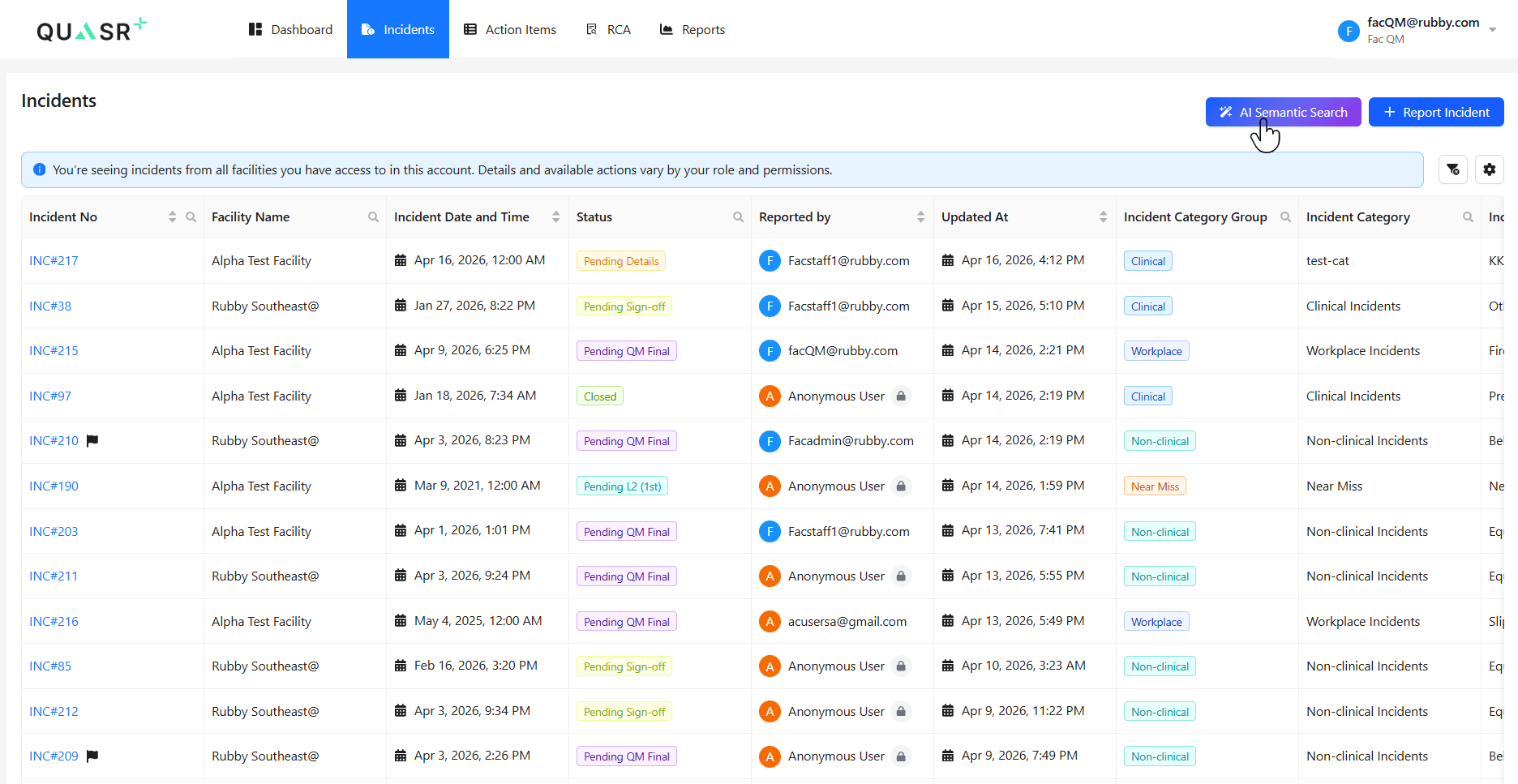
Launch AI Semantic Search
From the main navigation, go to Incident and open the specific incident record from the Incdients list. Select the AI Semantic Search option from the Incident page.
- Why: This opens the AI-powered search interface.
- Expected result: A search input area with suggested queries is displayed.
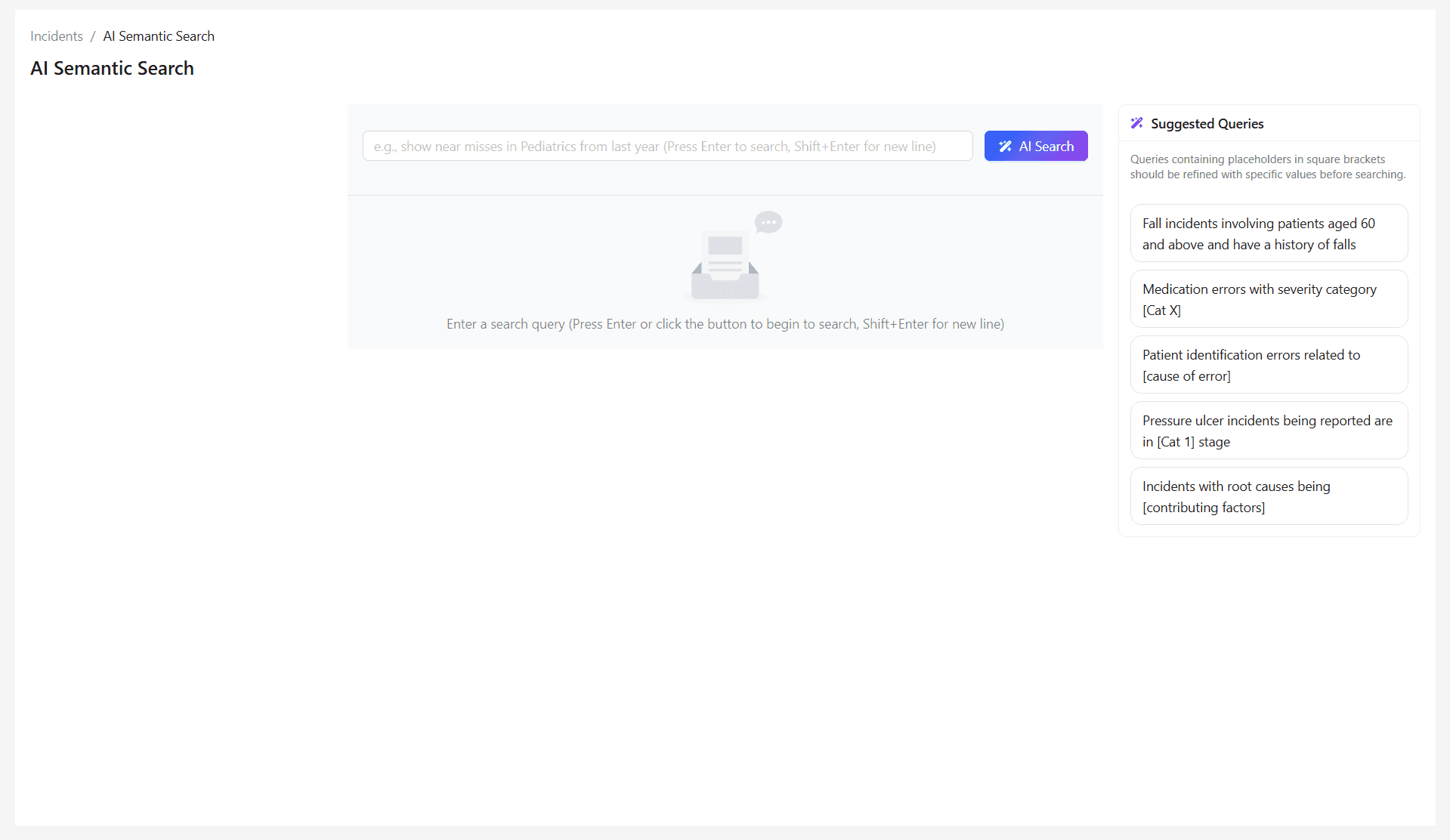
Enter your search query
Type a natural-language search phrase describing what you need to finds.
Examples:
- Show me all incidents with PendingL1 status
- Show me all incidents from a General Medicine department
- Patient identification errors related to [cause of error]
Why: Semantic search understands meaning, not just exact keywords.
Expected result: Matching incidents are returned based on relevance.
Use suggested queries to refine results
Review and select the recommended search suggestions, or adjust your wording for better results.
- Why: Suggested queries can improve relevance and help narrow broad searches.
- Expected result: Updated results that better match your intent.
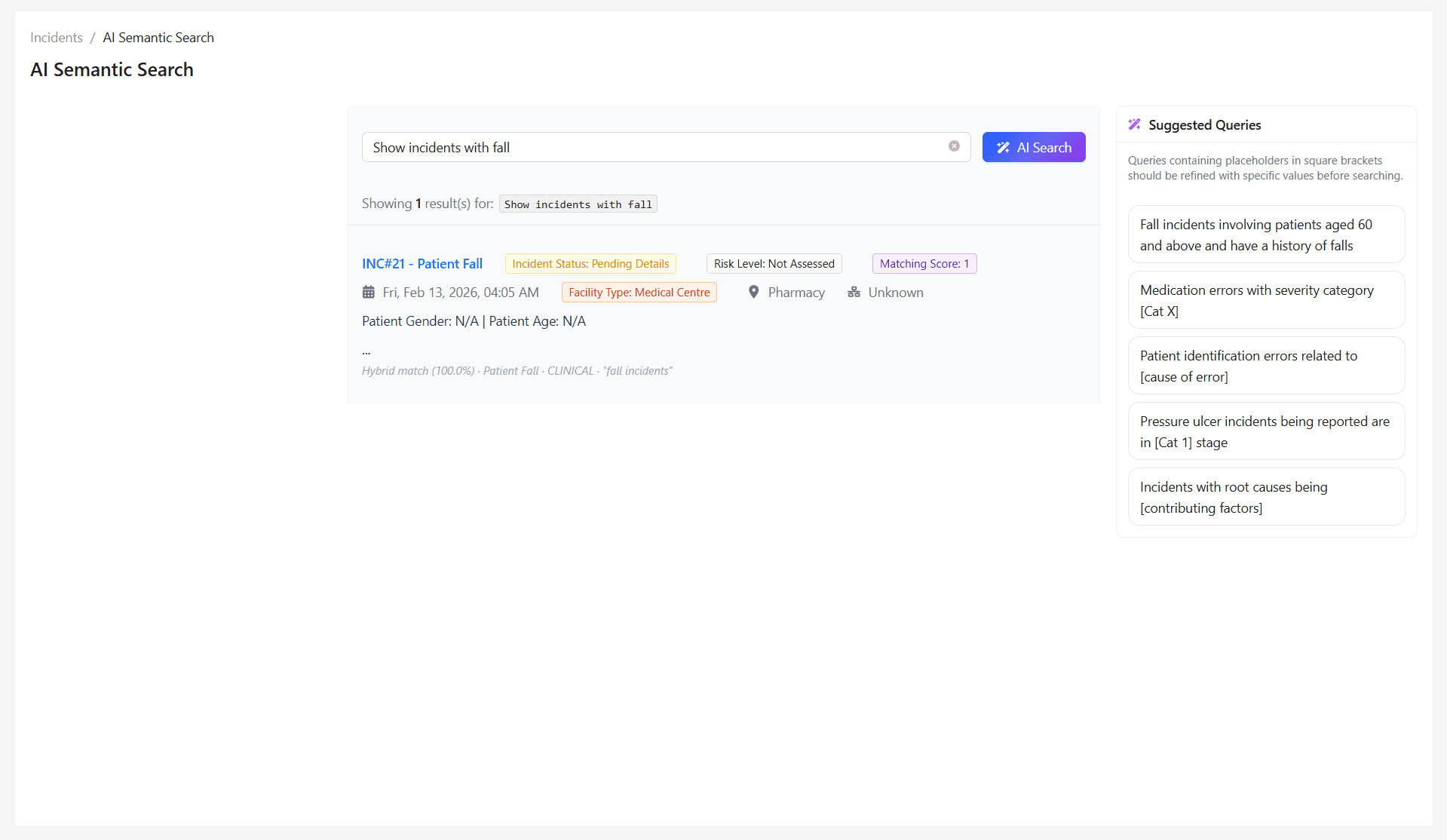
Well-phrased searches typically return faster and more relevant results.
Tips & Best Practices
- Use clear business terms instead of abbreviations where possible.
- Search using outcomes, issues, or patterns rather than exact incident titles.
- Try broader searches first, then refine using suggested queries.
- Use time periods or categories when looking for trends.
- Keep wording consistent with terminology used in your organization.
Troubleshooting
| Issue | Likely Cause | Fix |
|---|---|---|
| No relevant results | Query too vague or too narrow | Rephrase using clearer terms or broader wording |
| Too many results | Search is too broad | Add specific filters, dates, or incident types |
| Search option unavailable | Plan or permissions limitation | Confirm Premium plan and user access |
| Redacted information shown as hidden | Incident marked Sensitive | Expected system behavior |