Investigation Outcome Categories & Recommendations
This workflow allows you to define investigation outcome categories and add structured recommendations under each category. Standardizing outcomes and recommendations helps ensure consistent investigation closure, clear corrective actions, and better reporting across facilities.
Who can perform this?
Time to complete
Prerequisites
Signed in with admin permissions
Before You Start
- Access level required: Admin module access
- Limitations: Outcome categories must exist before recommendations can be added
The configuration or changes will apply to all Facilities under the account and cannot be set up specifically for individual Facilities.
Steps
Navigate to Incident Forms Navigate to Investigation Outcome Categories
From the main navigation, open the Admin module in QUASR+ click on Investigation Outcome Categories & Recommendations.
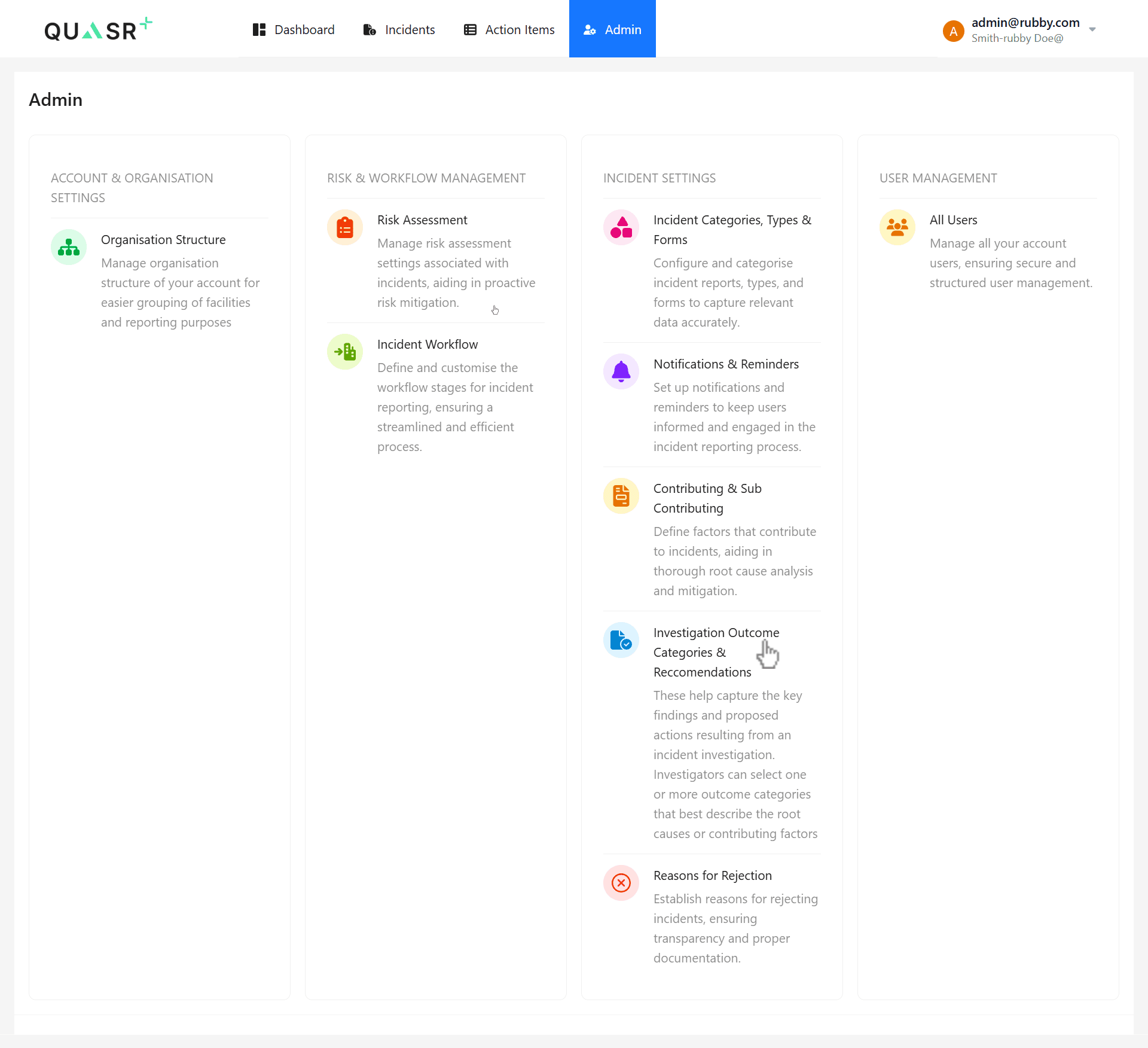
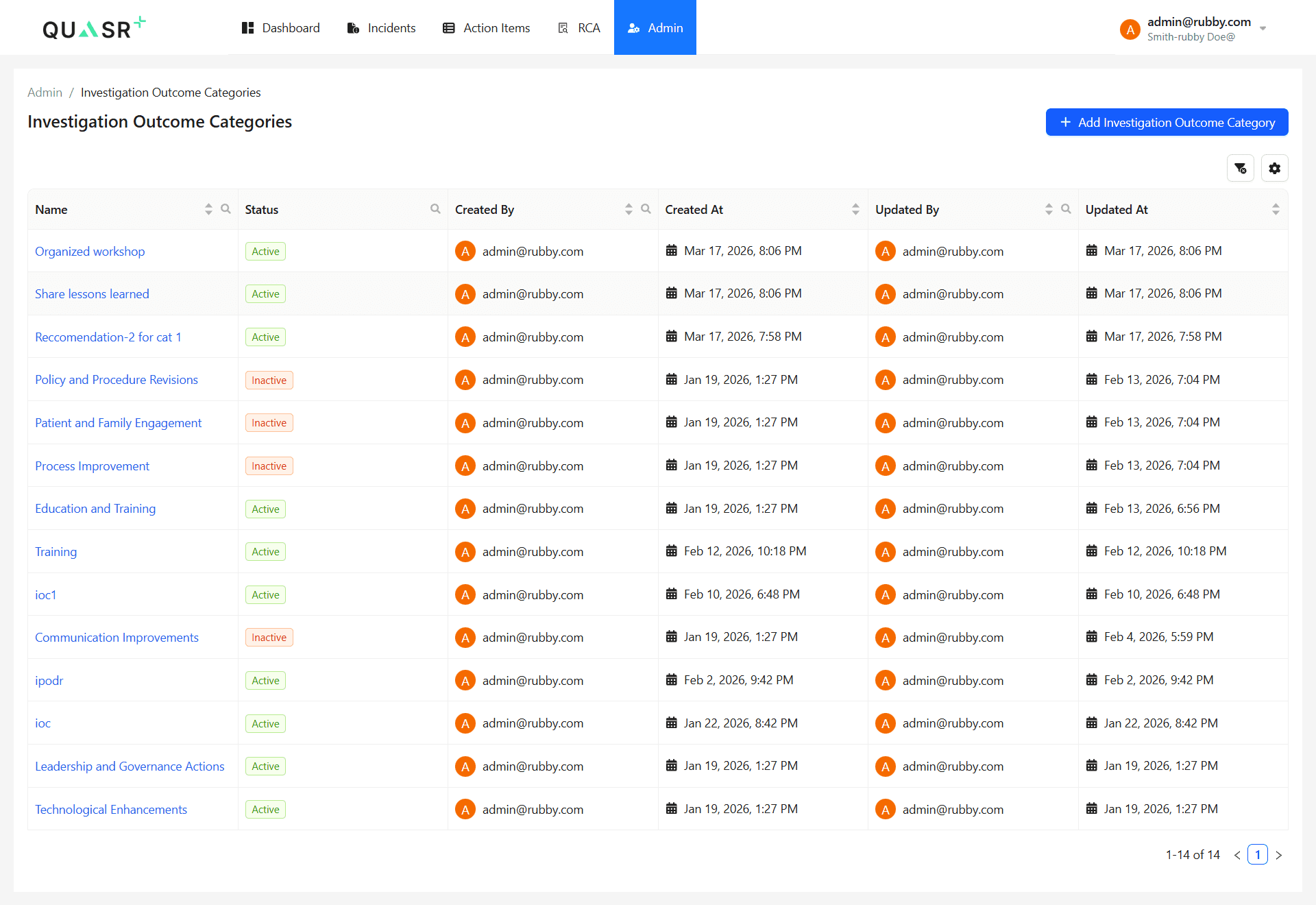
Review existing outcome categories
Review the list view to see all configured Investigation Outcome Categories.
- Why: This helps you avoid creating duplicate categories.
- Expected result: A list of all existing outcome categories.
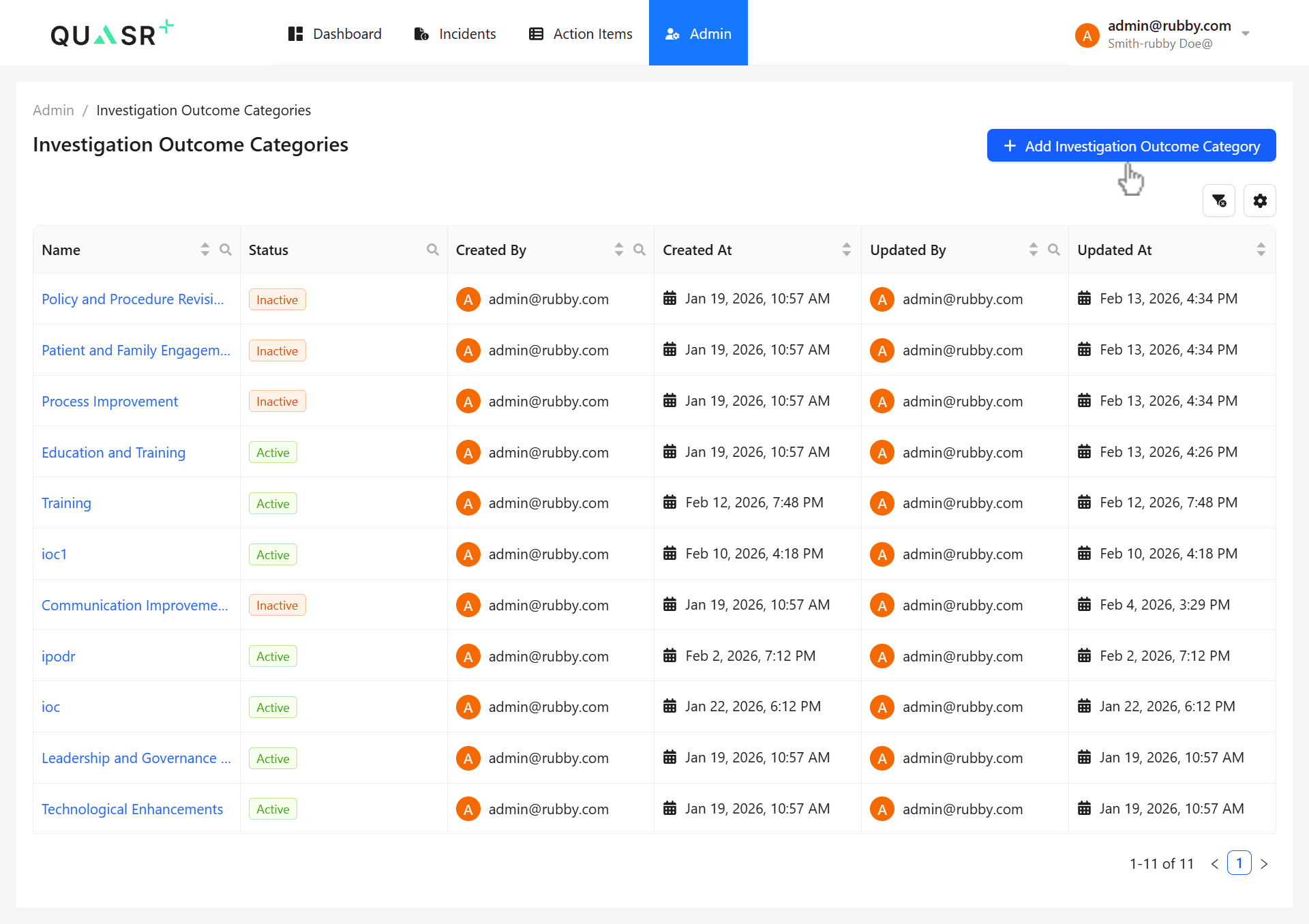
Add a new Investigation Outcome Category
Click Add Investigation Outcome Category, enter a category name, and save.
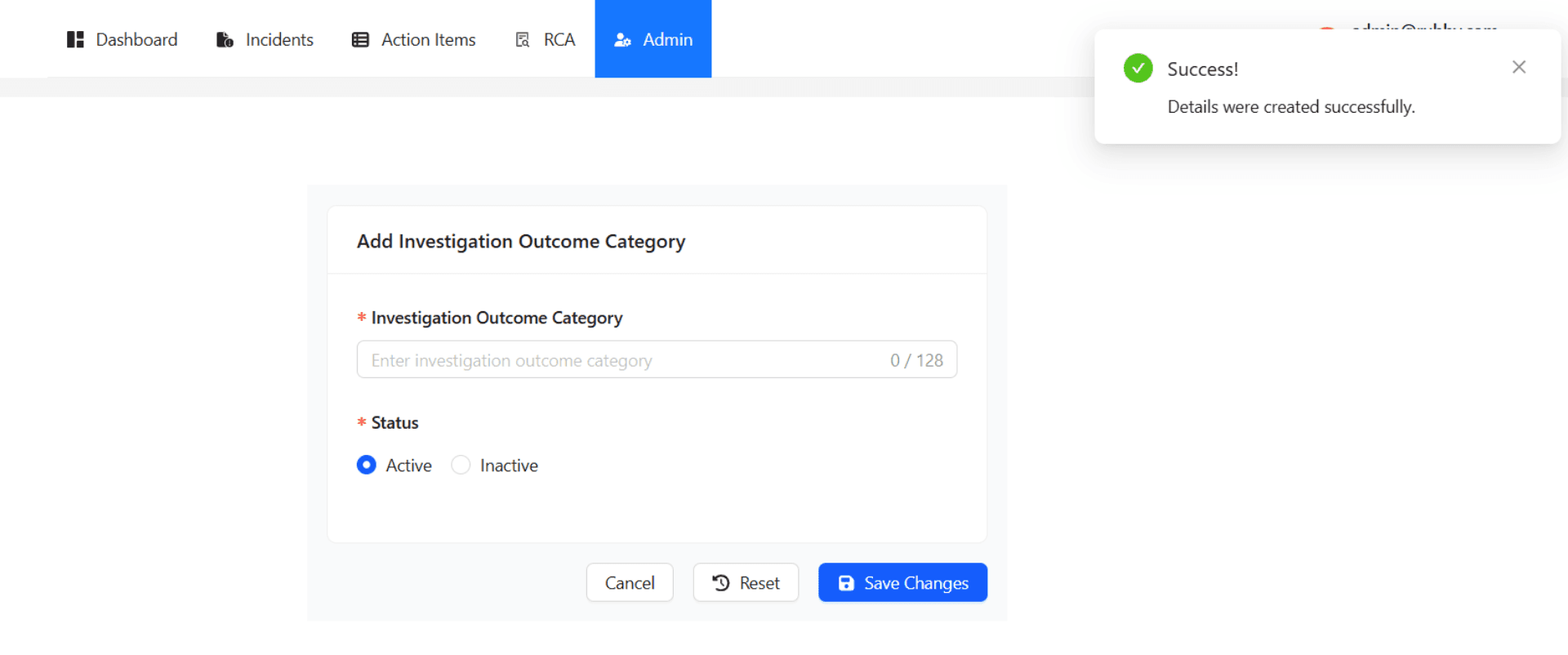
Enter a category name, status and click Save Changes to create the category.
A confirmation toast indicates the details were created successfully.
Open a category to manage recommendations
From the list view, click the category name you want to manage.
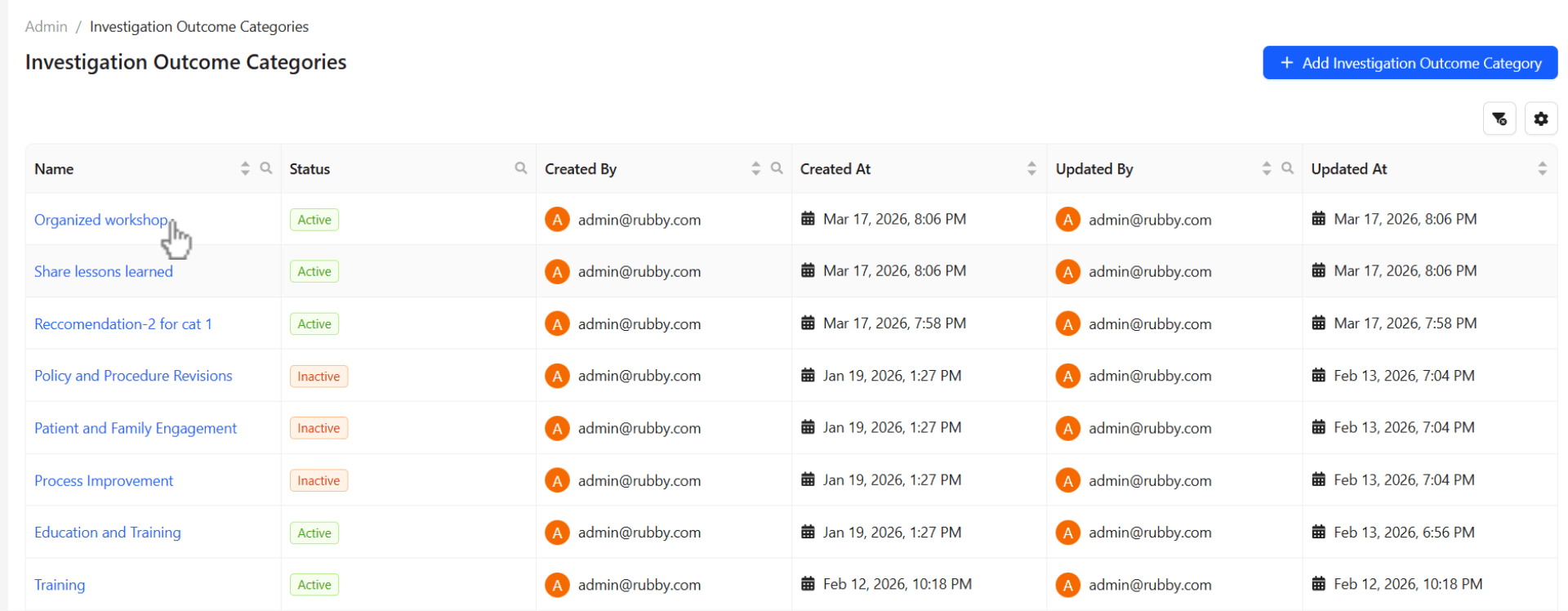
- Expected result: The category details page opens.
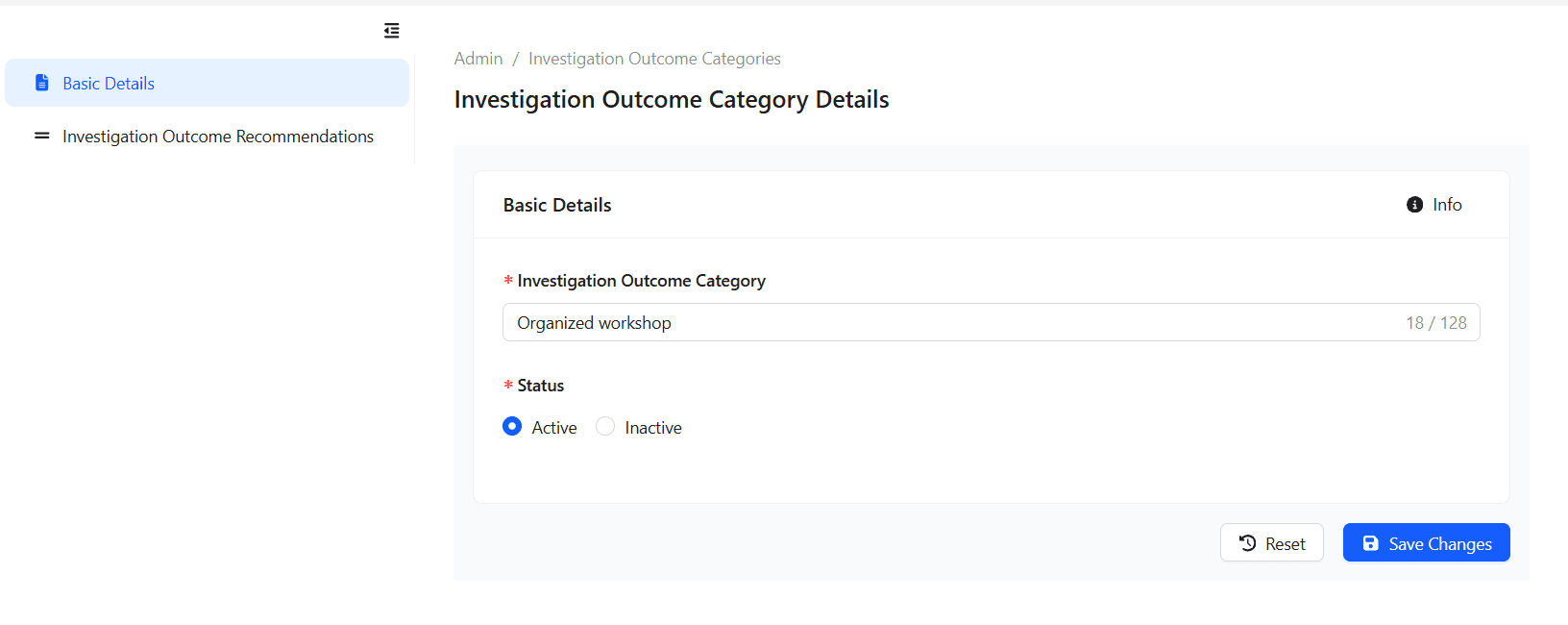
Navigate to Investigation Outcome Recommendations
Within the category details, navigate below “Basic Details” and open the Investigation Outcome Recommendations section.
- Why: Use Outcome Recommendations to define the suggested actions or conclusions for this outcome and to configure it.
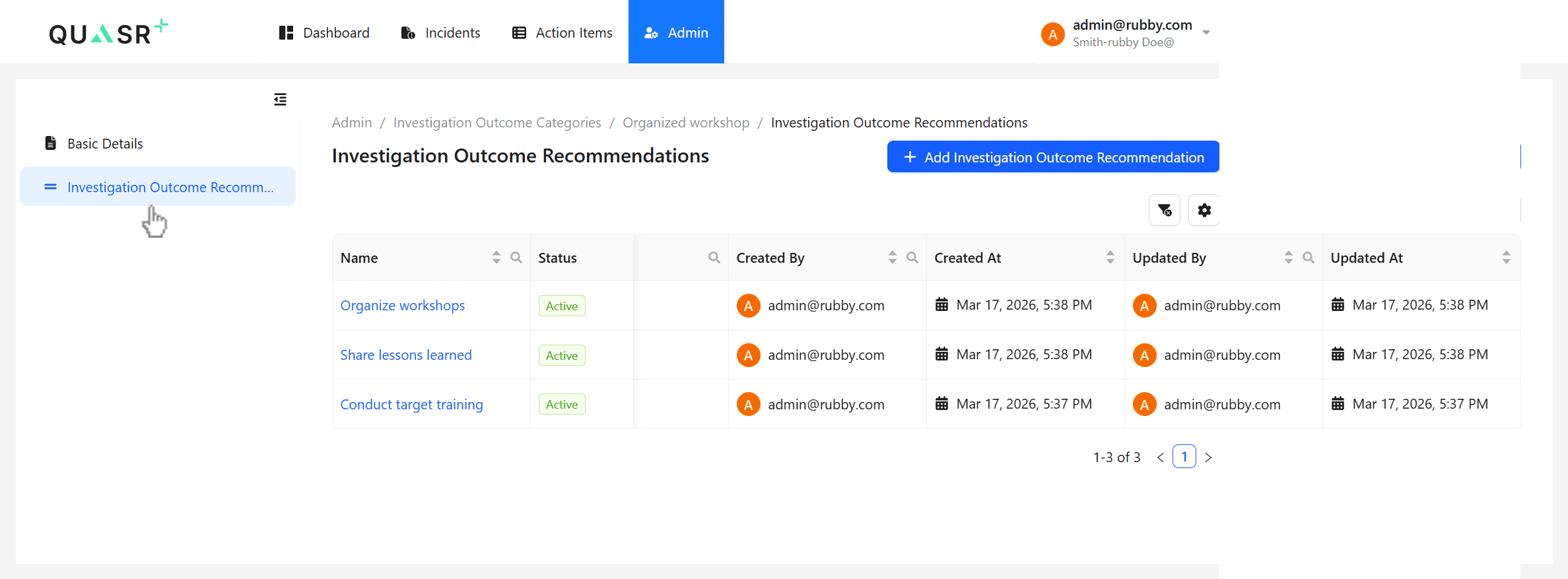
Add an Investigation Outcome Recommendation
Click Add Investigation Outcome Recommendation.
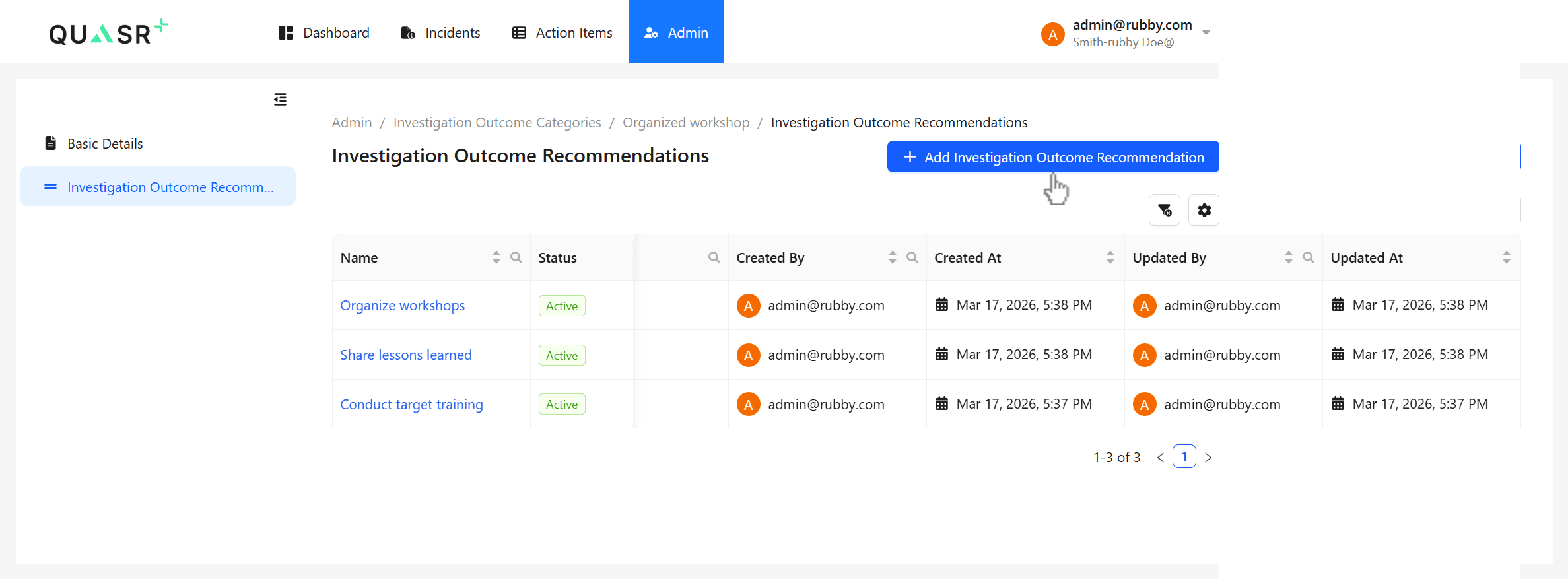
Add the details of the Investigation Outcome Recommendation that you want to introduce. Complete the details, and save.
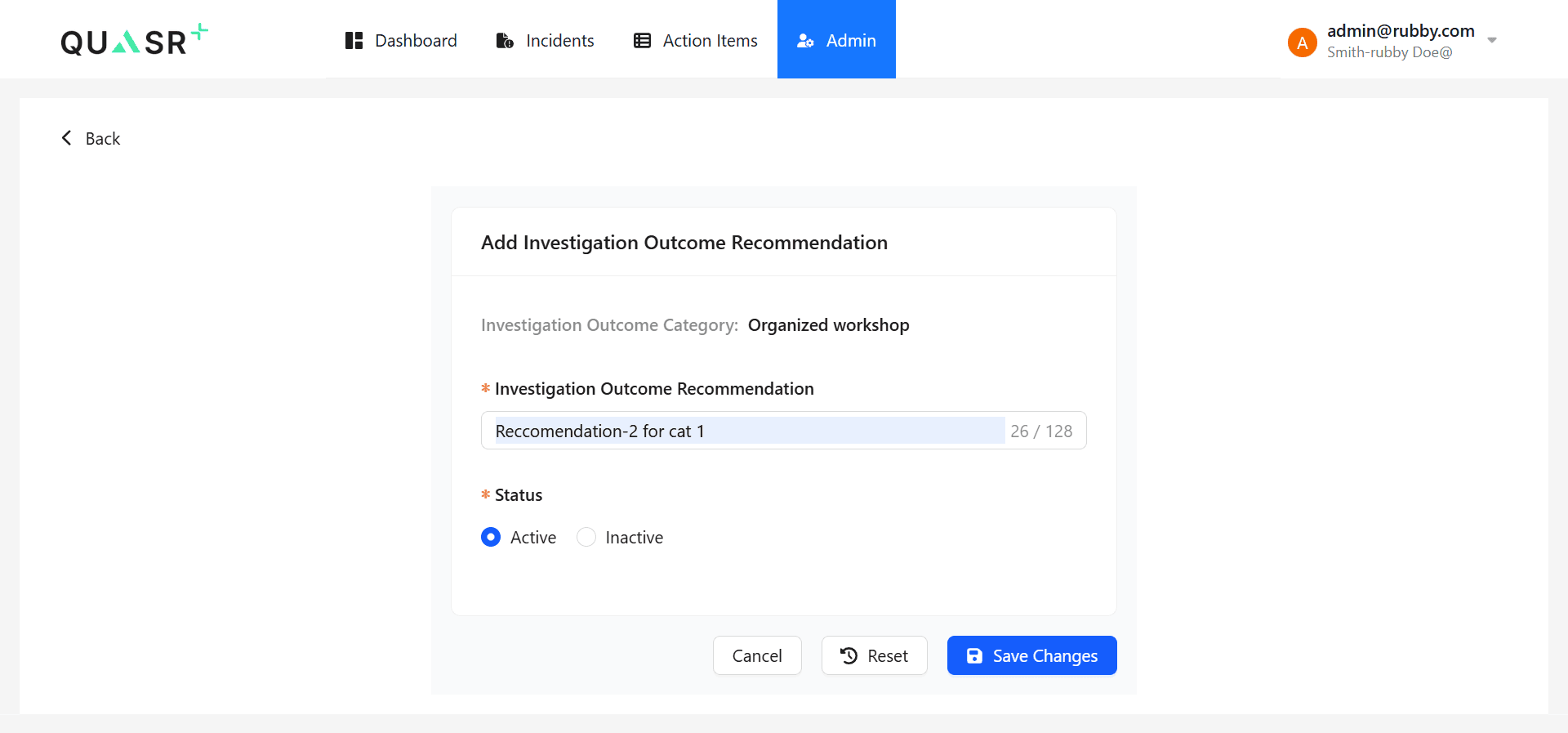
| Field | Description | Required |
|---|---|---|
| Recommendation | Description of the recommended outcome or action | Yes |
| Status | Defines whether the recommendation is active or inactive | Yes |
Return to the categories list
- Click Back to add more recommendations under the same category.
- Select an existing recommendation to edit its name or status, then save.
- Refer to Step 4, to edit the basic details or the status.
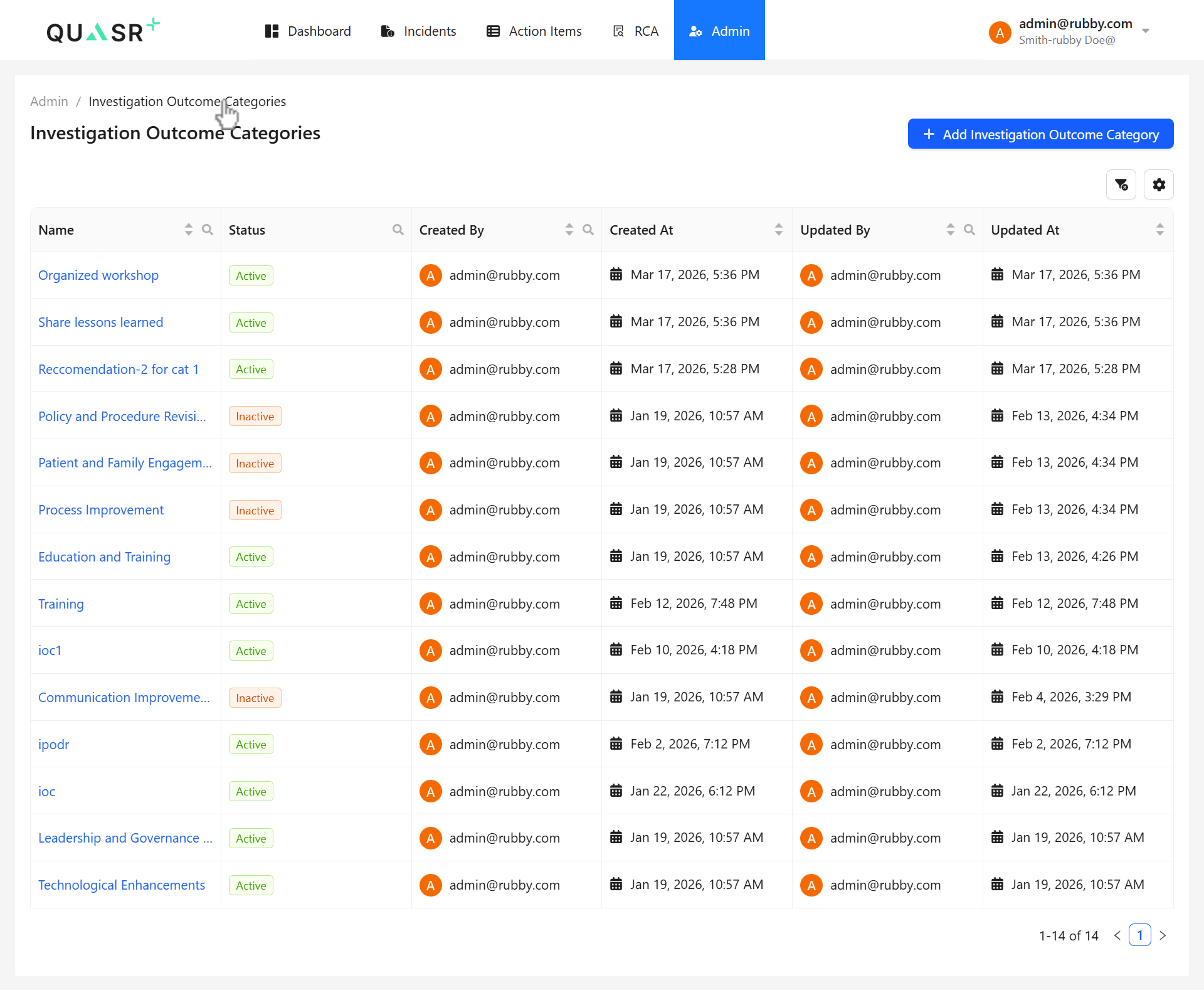
Use Investigation Outcome Categories breadcrum to return to the main list view.
- Expected result: The list shows all categories with their associated recommendations available under each category.