Initial Account Configuration
Setting up your organization details correctly ensures that all subsequent reports, dashboards, and workflows reflect your facility’s unique structure.
Overview
Who:
Account AdminTime:
~5 minutesPrerequisites:
Verified account, logged into QUASR+Before You Start
- Access level required: Account Admin
Have your organization’s official address details handy.
Steps
Choose Subscription Plan
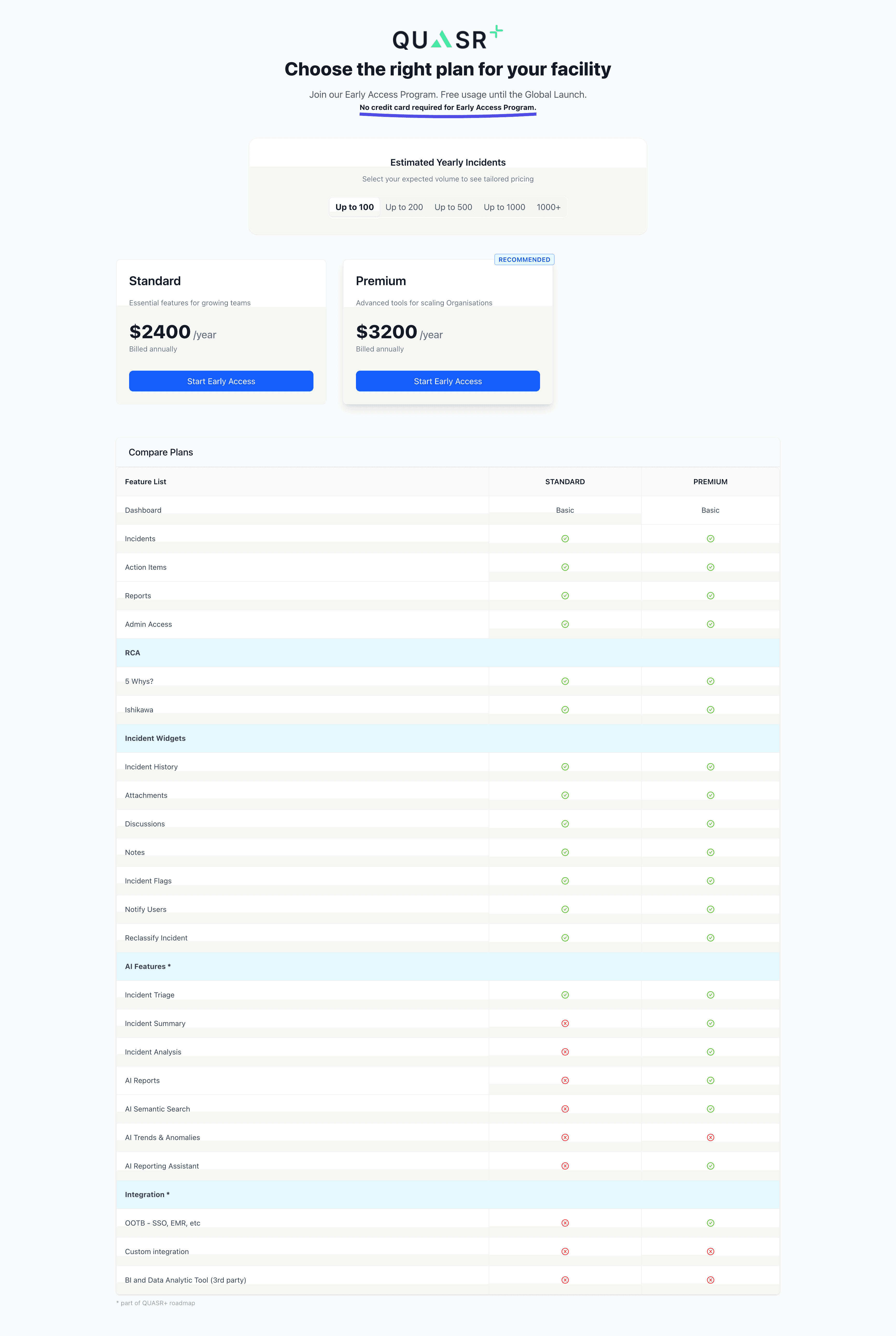
Upon first login, you will be directed to the subscription selection page. No payment is required for the Early Access Program.
- Select Estimated Yearly Incidents: Choose the volume range that best matches your account’s expected reporting (e.g., Up to 100, Up to 1000). This helps tailor the system’s capacity.
- Select Plan: Choose between Standard and Premium.
Recommendation: Select the Premium plan to evaluate the full suite of AI features, including Incident Summarisation, Analysis and Semantic Search. You can change plans at any time.
Confirm Subscription
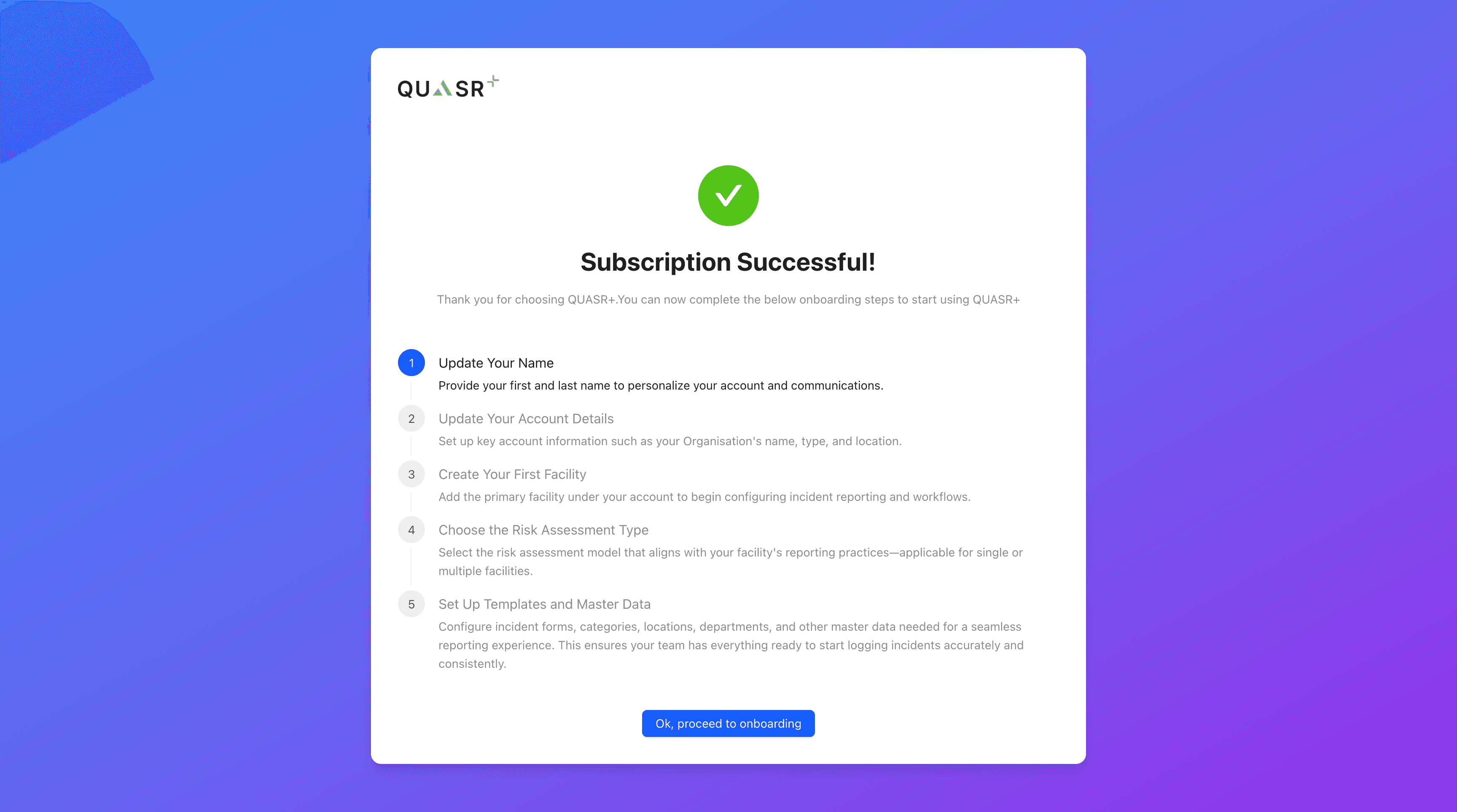
After selecting your plan, you will see a Subscription Successful confirmation screen. This outline the immediate next steps for setting up your account.
- Action: Click Ok, proceed to onboarding to begin the setup wizard.
Complete Onboarding Wizard
The wizard will guide you through 5 key steps to configure your account.
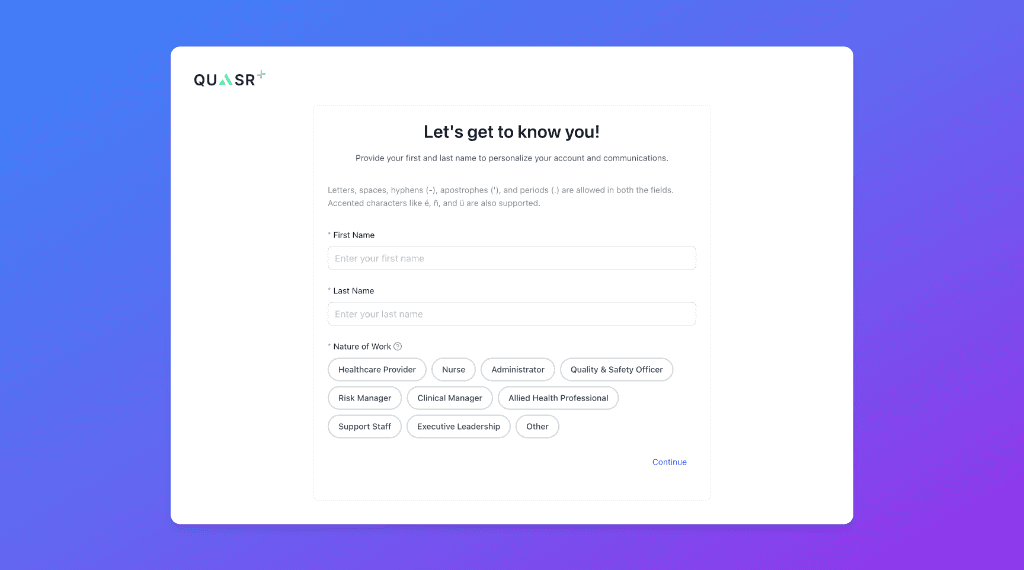
Update Your Name
Provide your personal details to personalize your account.
- Fields: First Name, Last Name.
- Nature of Work: Select your role (e.g., Administrator, Quality & Safety Officer, Risk Manager).
Update Account Details
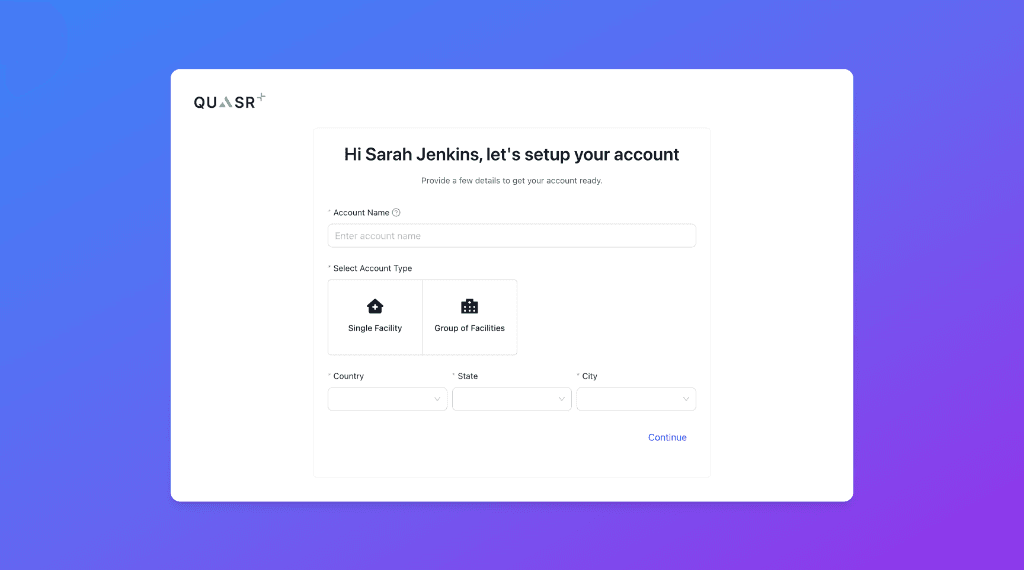
Set up the key details for your organization.
- Account Name: The official name of your organization.
- Account Type:
- Single Facility: If you manage just one hospital or site.
- Group of Facilities: If you manage a chain or network of hospitals.
- Address: City, State, and Country.
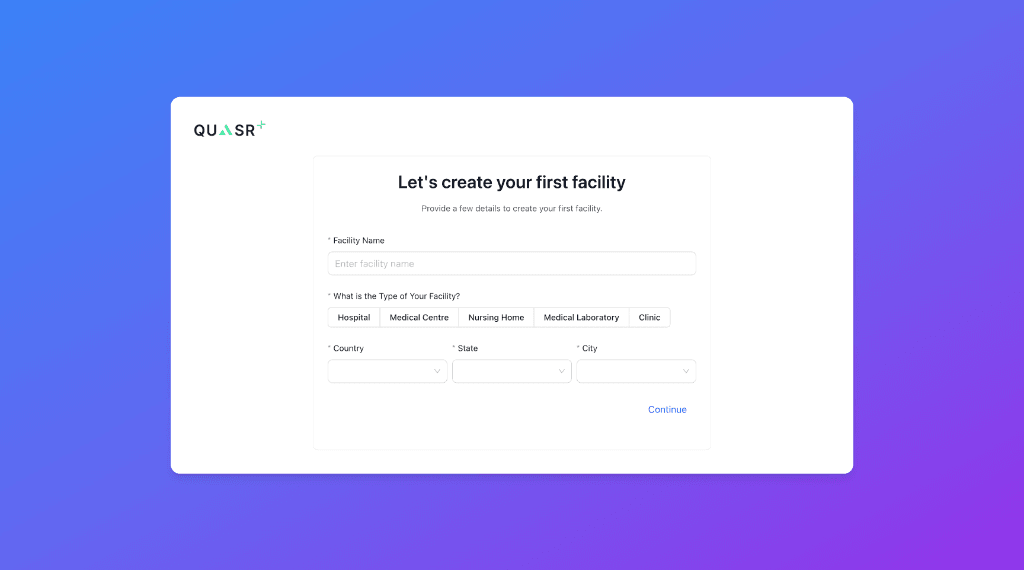
Create Your First Facility
Define the primary facility where incidents will be reported.
- Facility Name: e.g., “General Hospital - Main Campus”.
- Type: Select the facility type (e.g., Hospital, Medical Centre, Nursing Home).
- Location: Country, State, and City.
Choose Risk Assessment Type
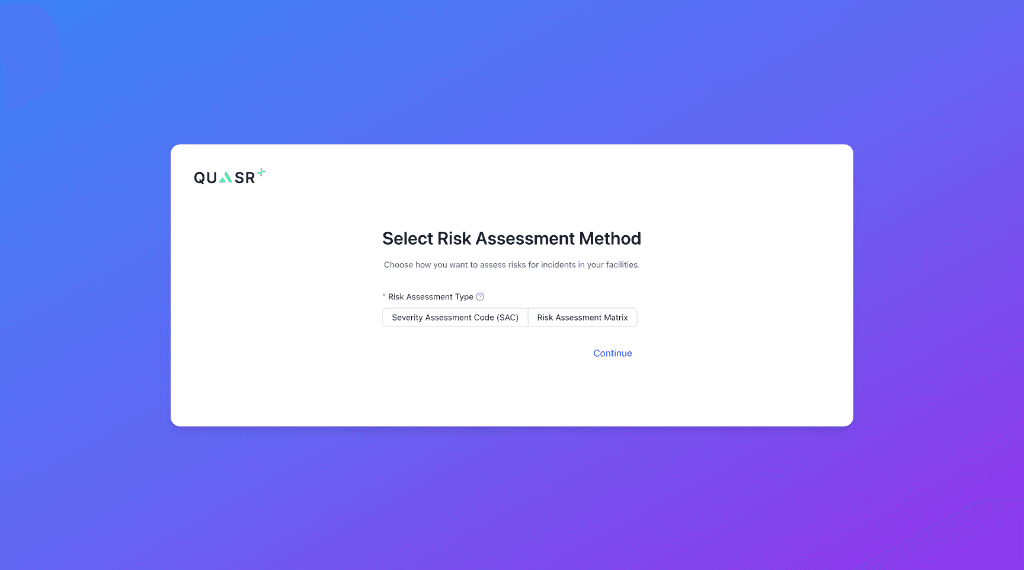
Select the risk model that aligns with your facility’s reporting practices.
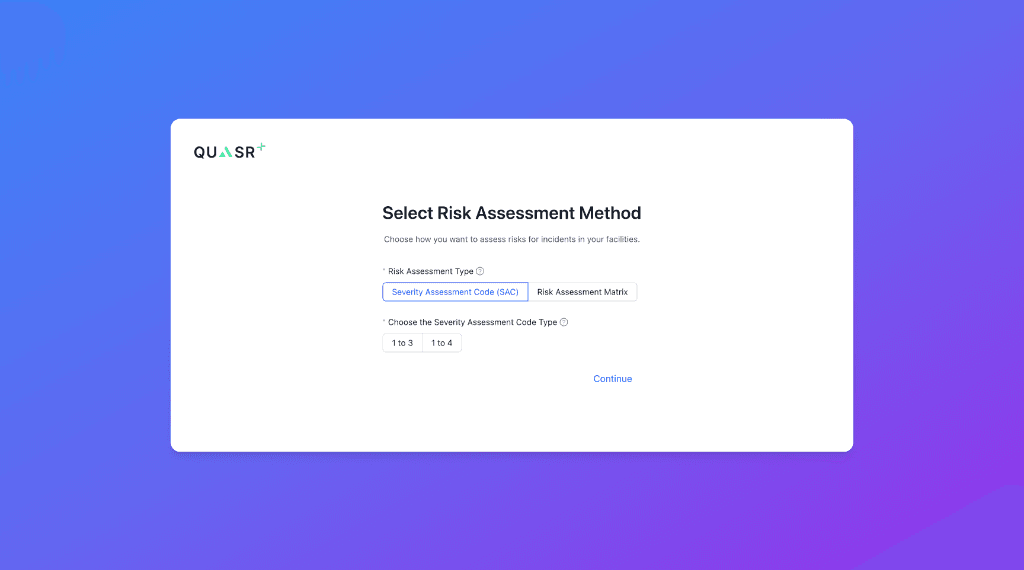
- Method: Choose between Severity Assessment Code (SAC) or Risk Assessment Matrix.
- Configuration: If SAC is selected, choose the specific scoring type (e.g., 1 to 3 or 1 to 4).
Set Up Templates & Master Data
The system automatically configures essential templates and master data based on your selected risk assessment approach.
- Global Settings: Configures risk assessments, incident workflows, incident categories, incident types, incident forms and notification & reminder settings for the entire account.
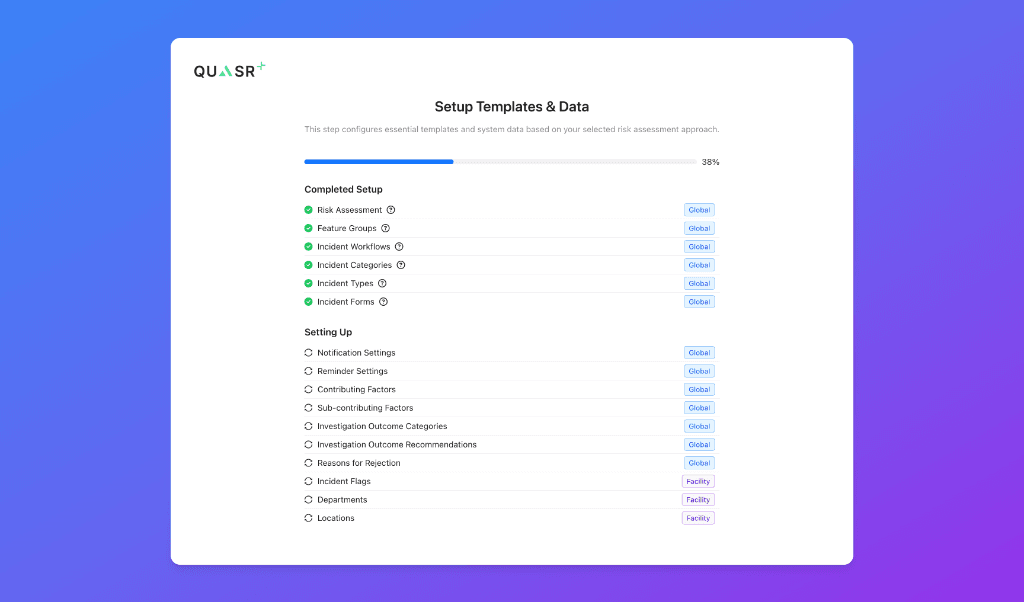
- Facility Settings: Sets up facility-specific data like departments, locations and incident flags.
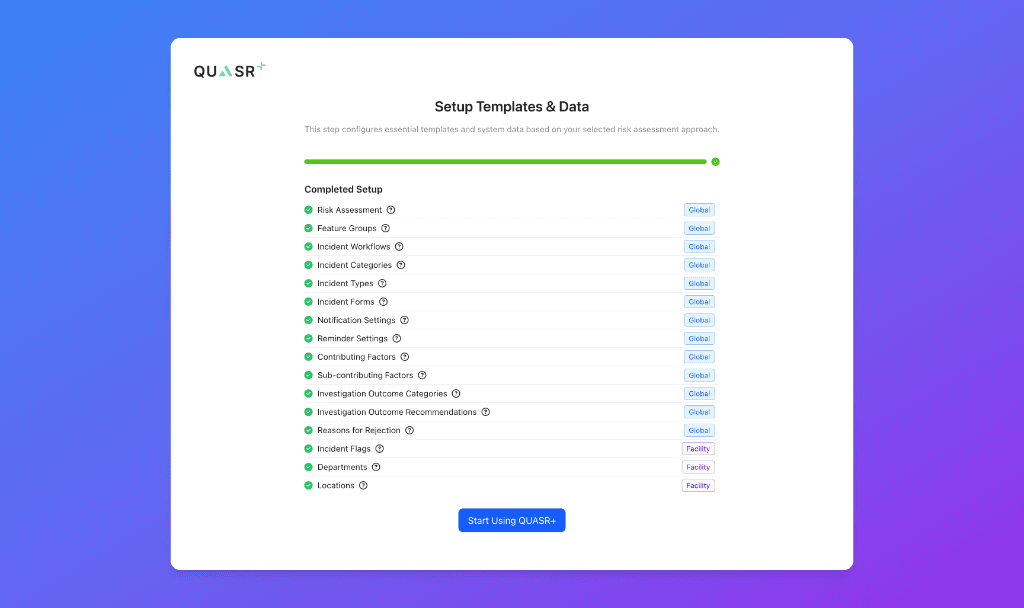
Finish & Access Settings
Once the setup is 100% complete, click Start Using QUASR+. You will land on the Admin Settings page with your account fully configured.
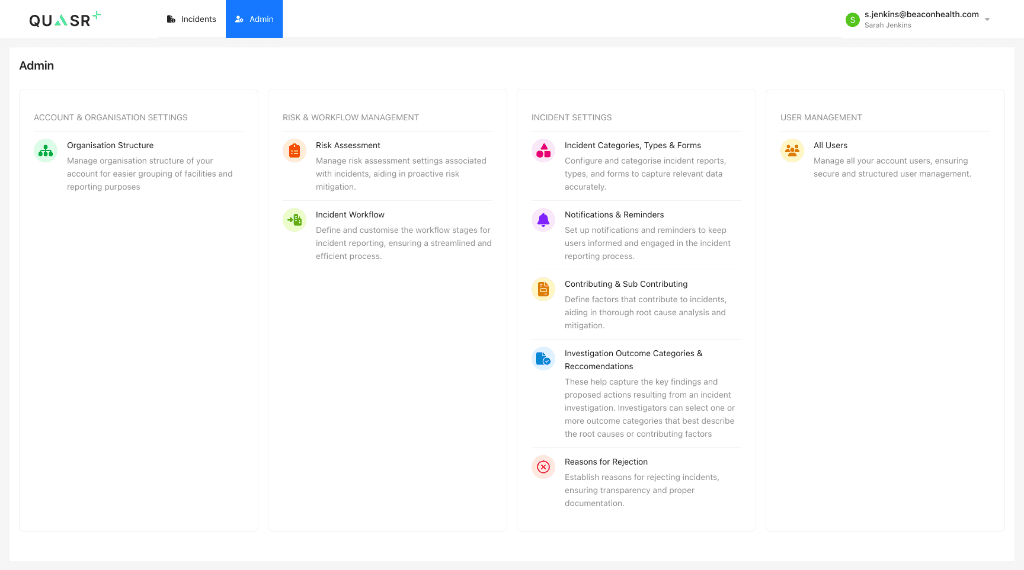
Critical Next Steps
Incident Workflows:
For your facility types (single/group)Risk Assessment:
Parameters, scores, and outcomesIncident Forms:
Configure forms for reporting