Incident Flags
The Incident Flags feature allows authorized users to mark an incident for special attention based on its severity or nature, ensuring appropriate visibility and handling. This feature is available only to QMs, who can apply one or more flags to an incident as required.
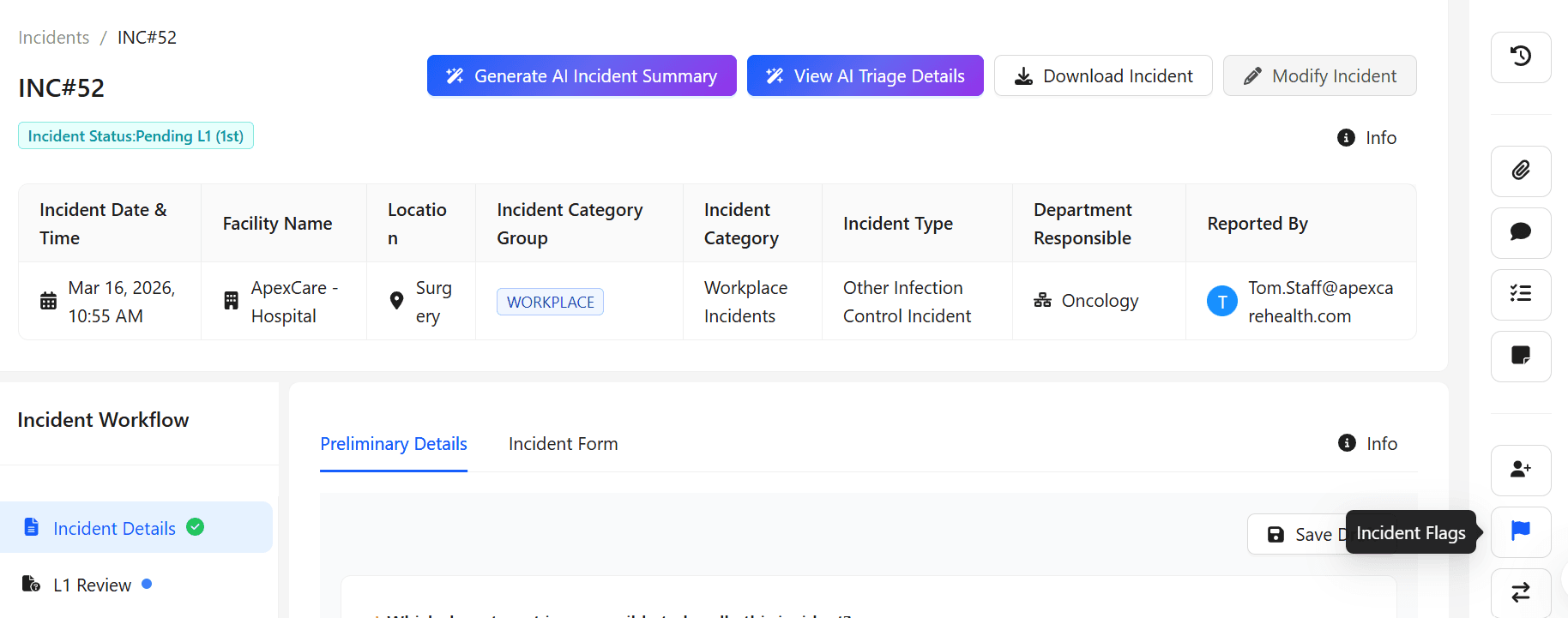
An incident flag is used to highlight incidents that require special attention, escalation, or broader visibility. These are not routine incidents; instead, they represent critical situations that may involve legal, regulatory, or public impact.
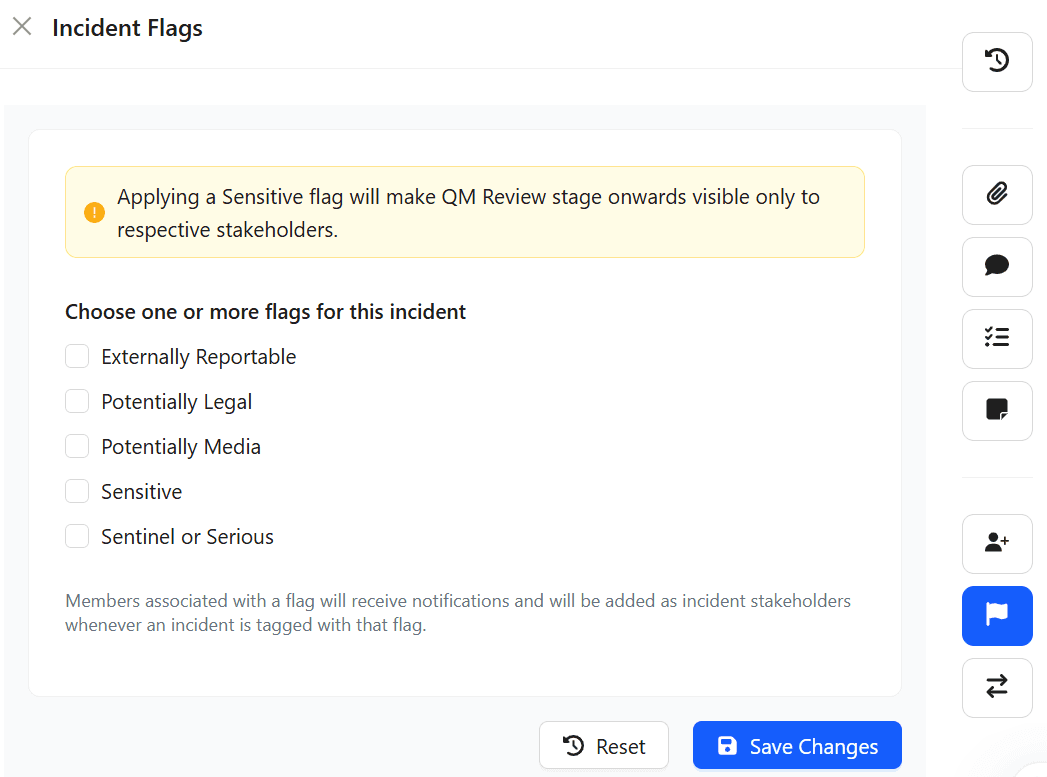
The following types of incident flags are available:
External Reportable: Indicates incidents that must be reported to external authorities.
Potentially Legal : Refers to incidents that may involve legal action or require legal notification.
Potentially Media : Marks incidents that have been exposed to media or public platforms.
Sensitive: Identifies incidents involving confidential or highly sensitive information.
Sentinel or Serious: Highlights severe incidents such as death or major medical events requiring immediate attention.
These are classified as Incident Flags, which are used to highlight critical incidents and draw the viewer’s attention. Once an incident is flagged, it becomes prominently visible and requires immediate attention.
Marking an Incident as a Flag
- Open the required Incident.
- Select one or more applicable flags for the incident.
- Multiple flags can be applied at the same time, and an incident can have multiple flags associated with it.
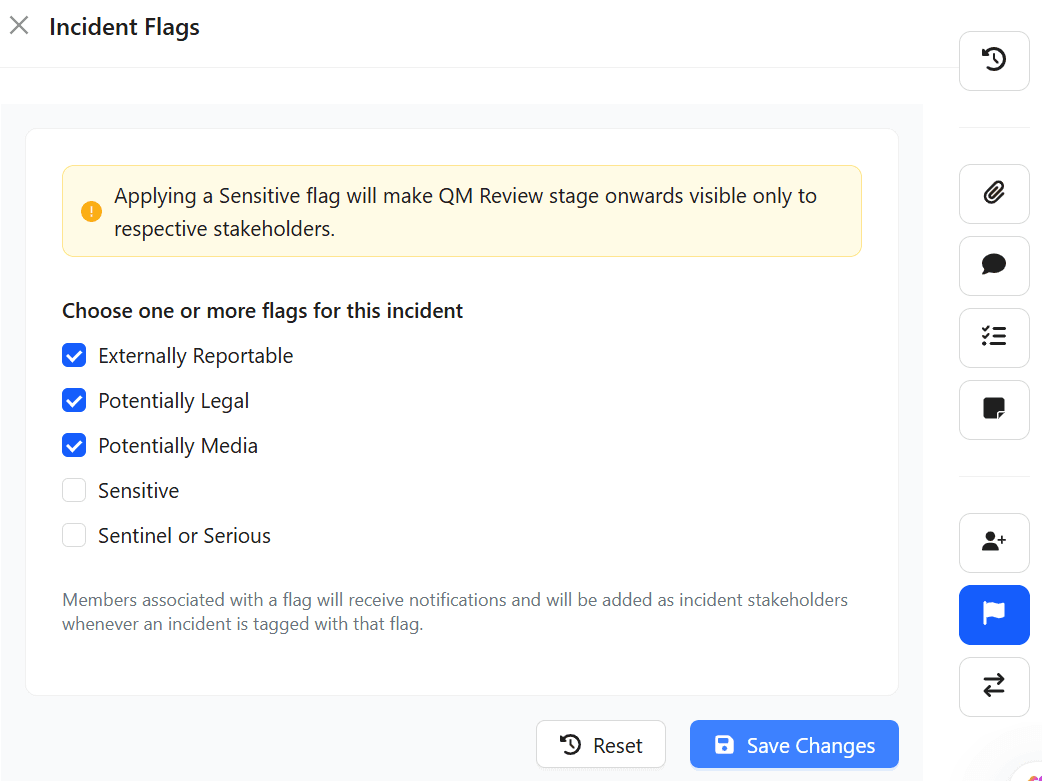
Click Save Changes to apply the selected flags.
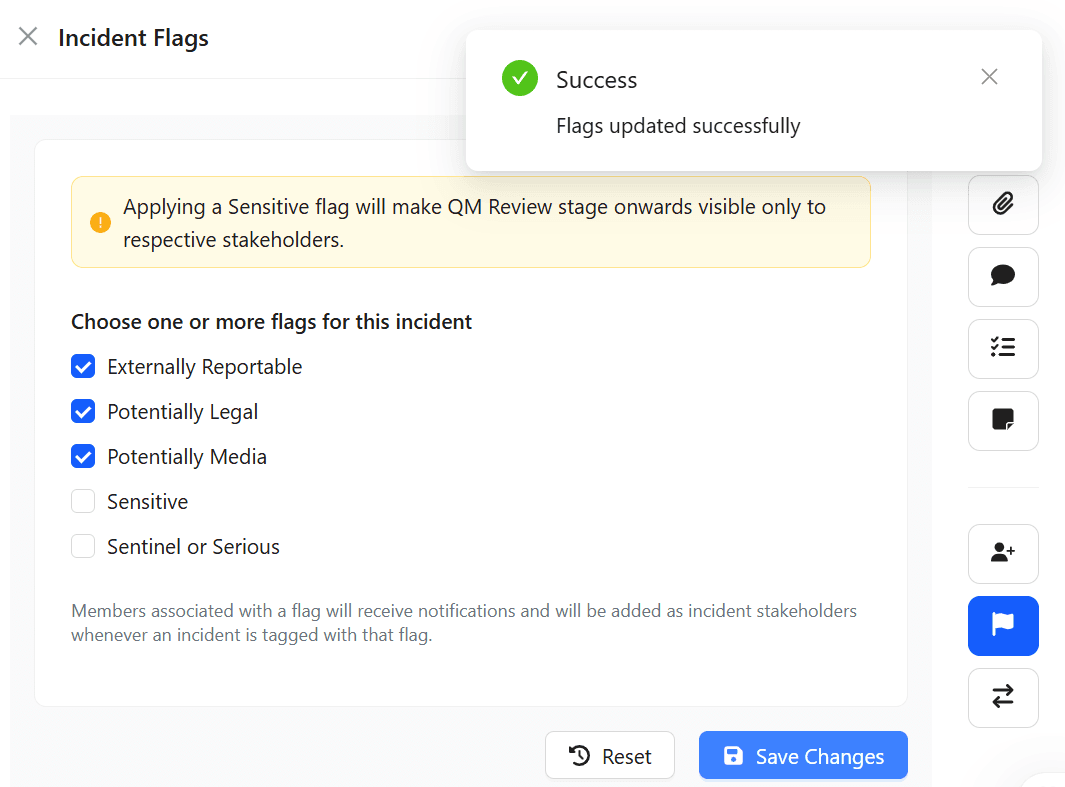
Once the incident is flagged, a flag icon will appear on the incident widget. Hovering over the icon will display the type and details of the applied flag.
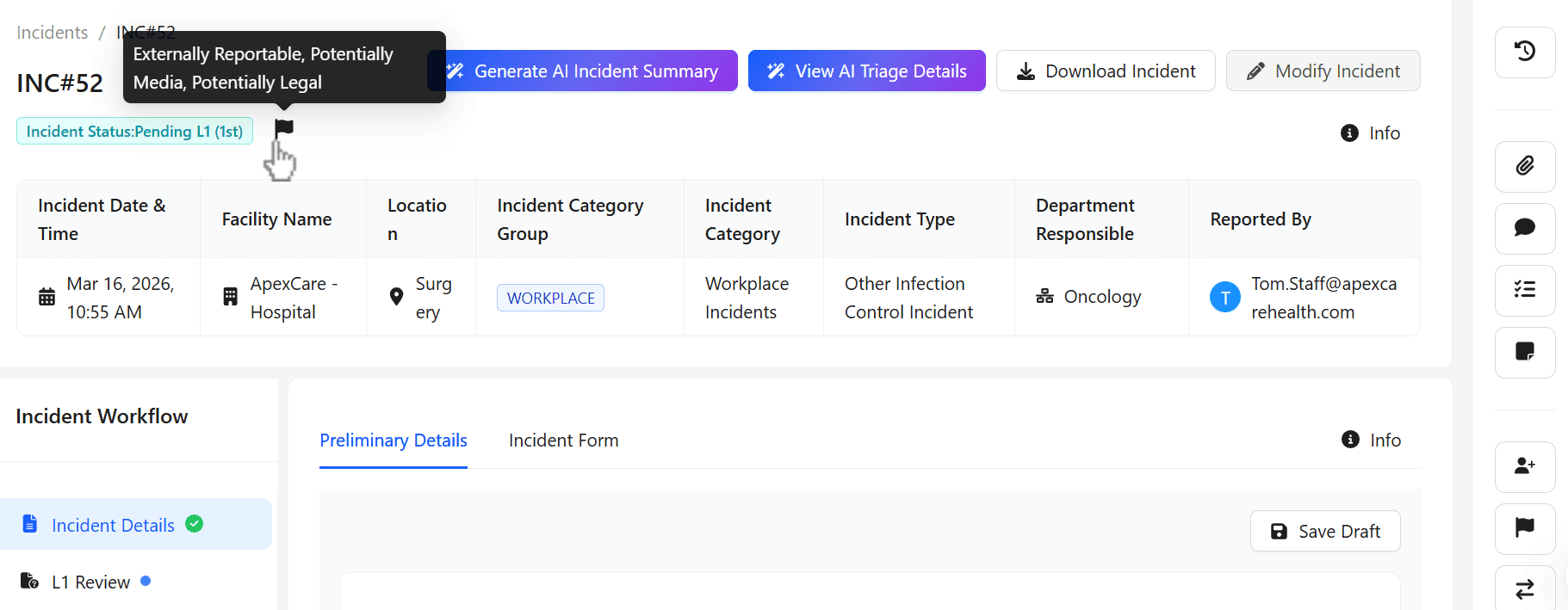
Incident Flag - Access and Visibility
When an incident is marked as Sensitive, access to its details is restricted. Only authorized users like QMs can view full information.
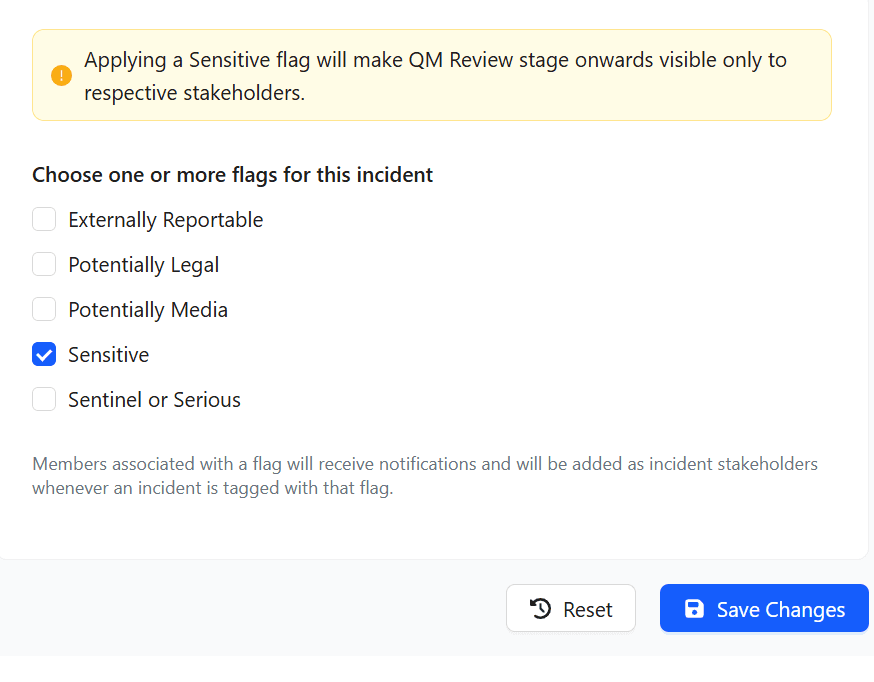
Marking an Incident as Sensitive
Select Sensitive. Click Save Changes to apply the update.
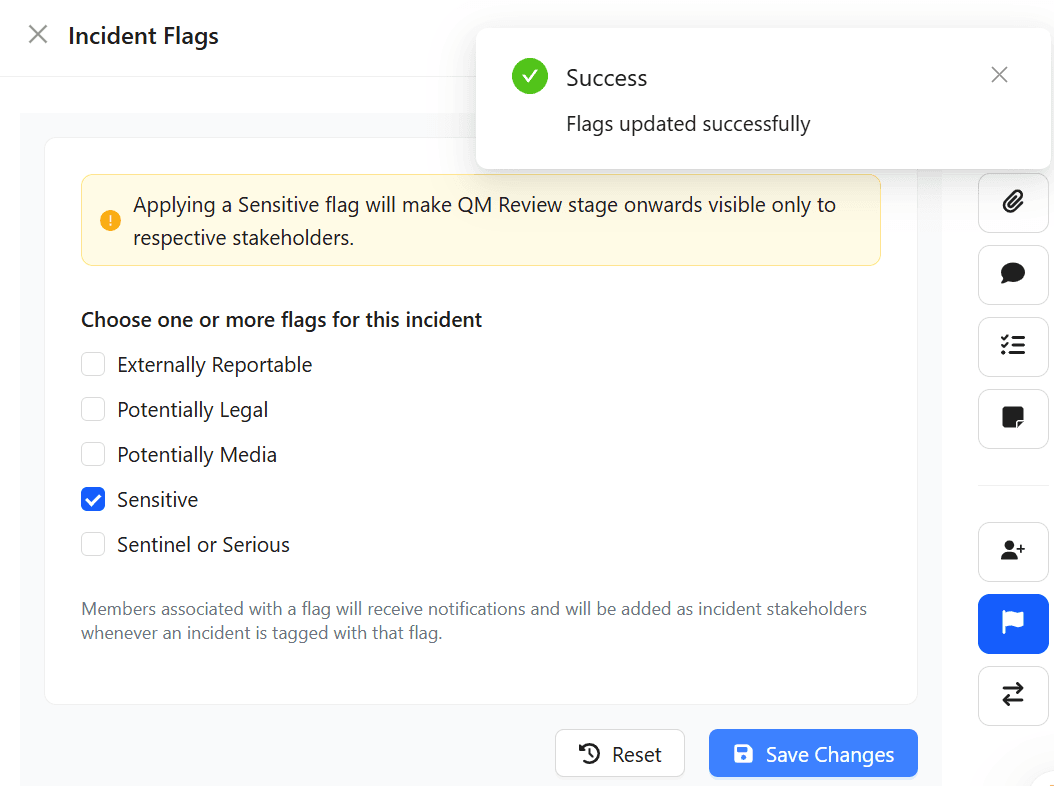
Once the incident is marked as Sensitive, a flag icon will appear on the incident widget. Hovering over the icon will display the type and details of the Sensitive incident flag.
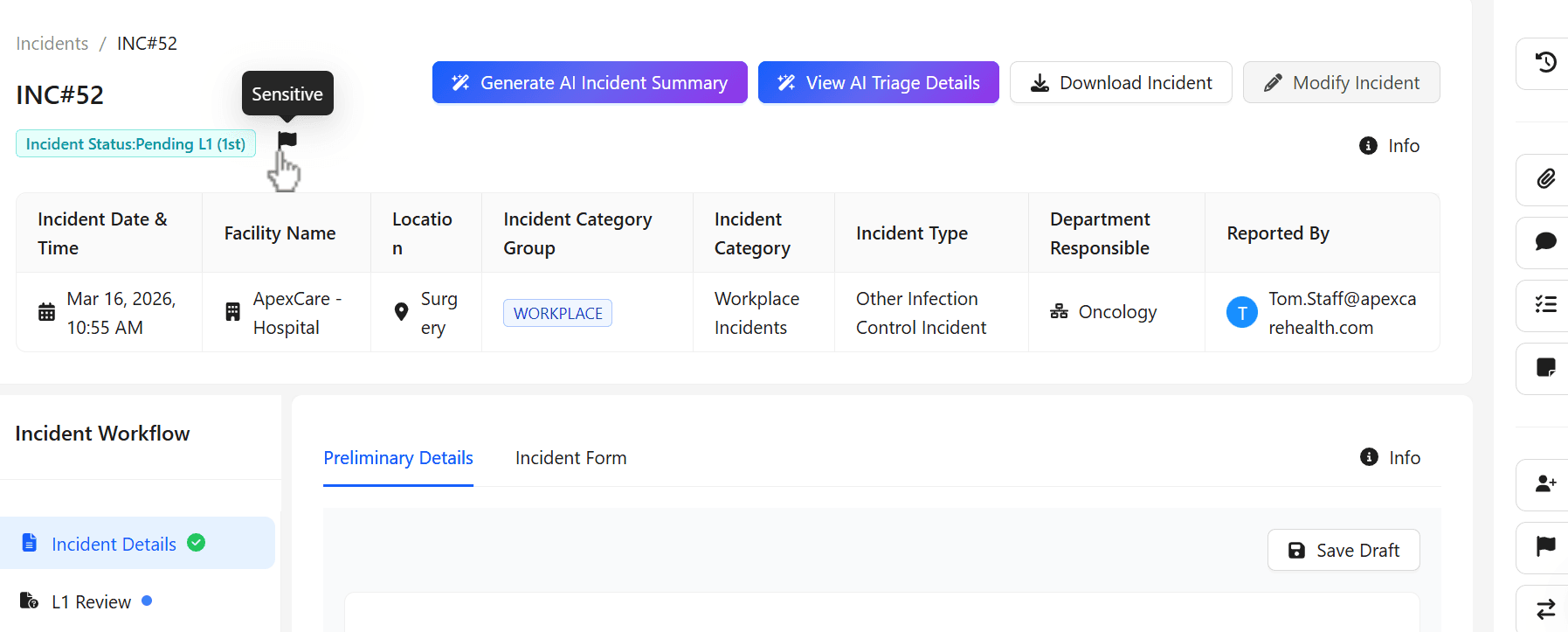
When an incident is marked as Sensitive, only limited information is visible to users. Access to detailed information is restricted based on user roles and permissions. However, users with appropriate privileges (such as QMs) can view the details entered in the incident form, while other users may have restricted or no access to this information.
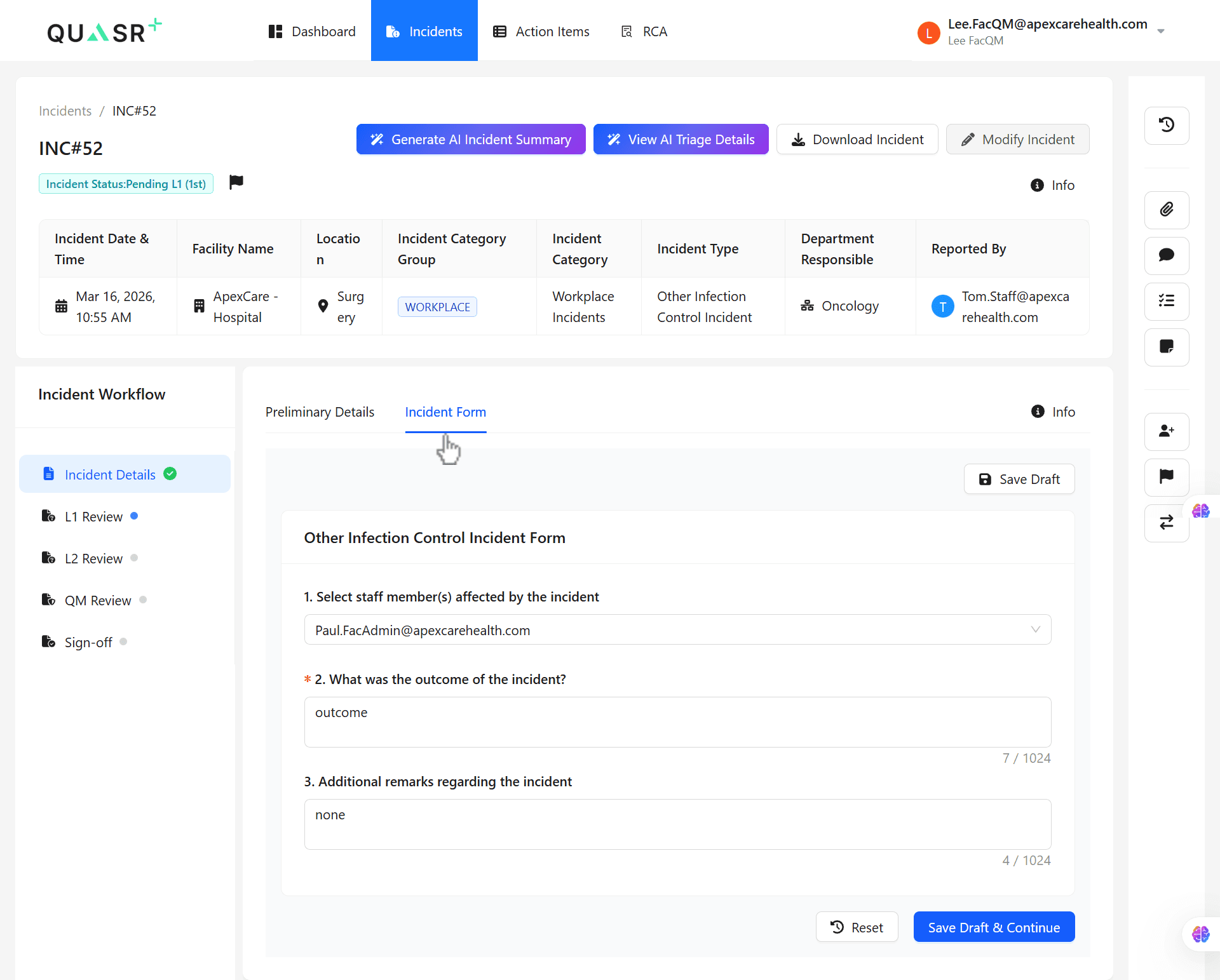
If a user logs in as a Notify User, they will have limited access to the information provided in the incident form. For incidents marked as Sensitive, certain details will not be visible to them.
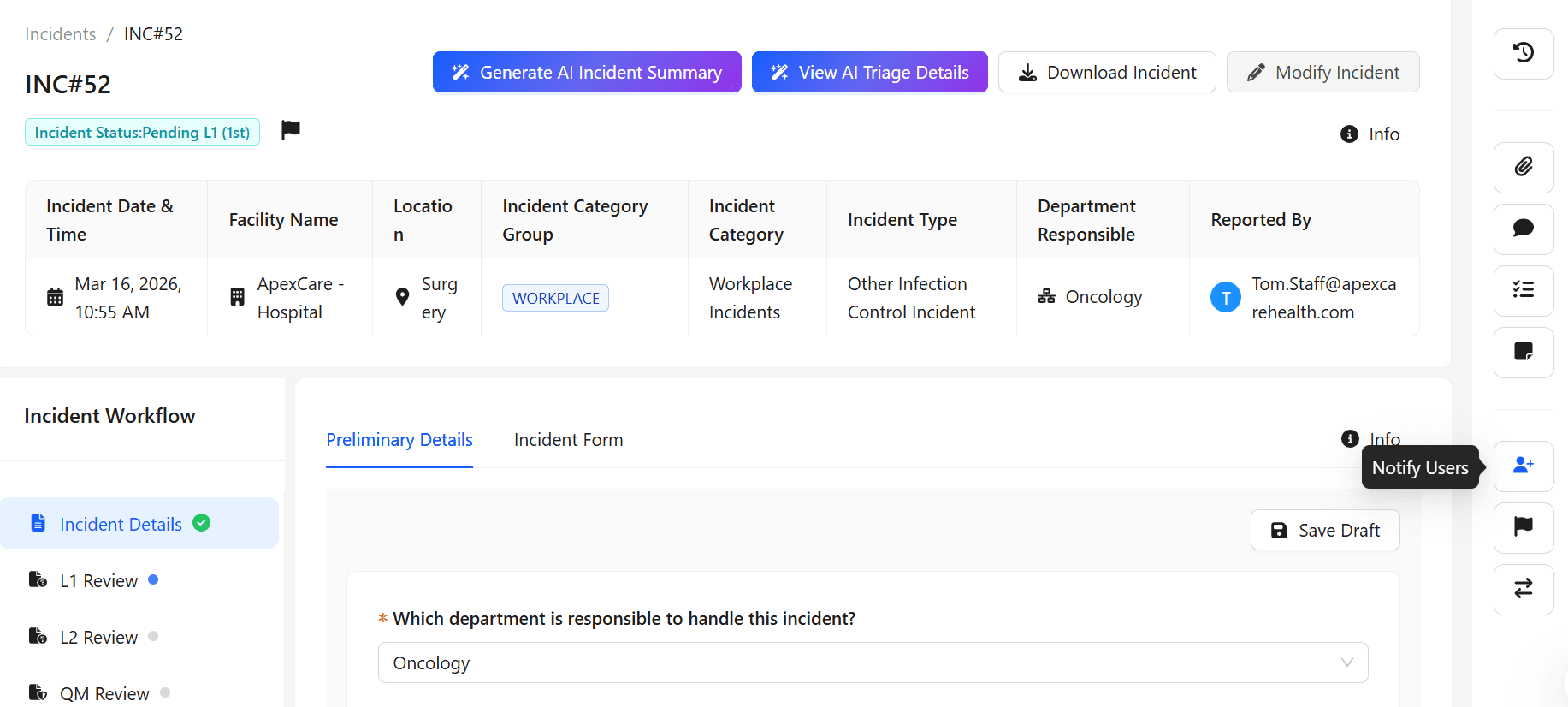
In such case, the system displays a message indicating that they do not have permission to view the information due to the sensitivity of the incident. Additionally, access may be restricted beyond specific stages of the incident review cycle.
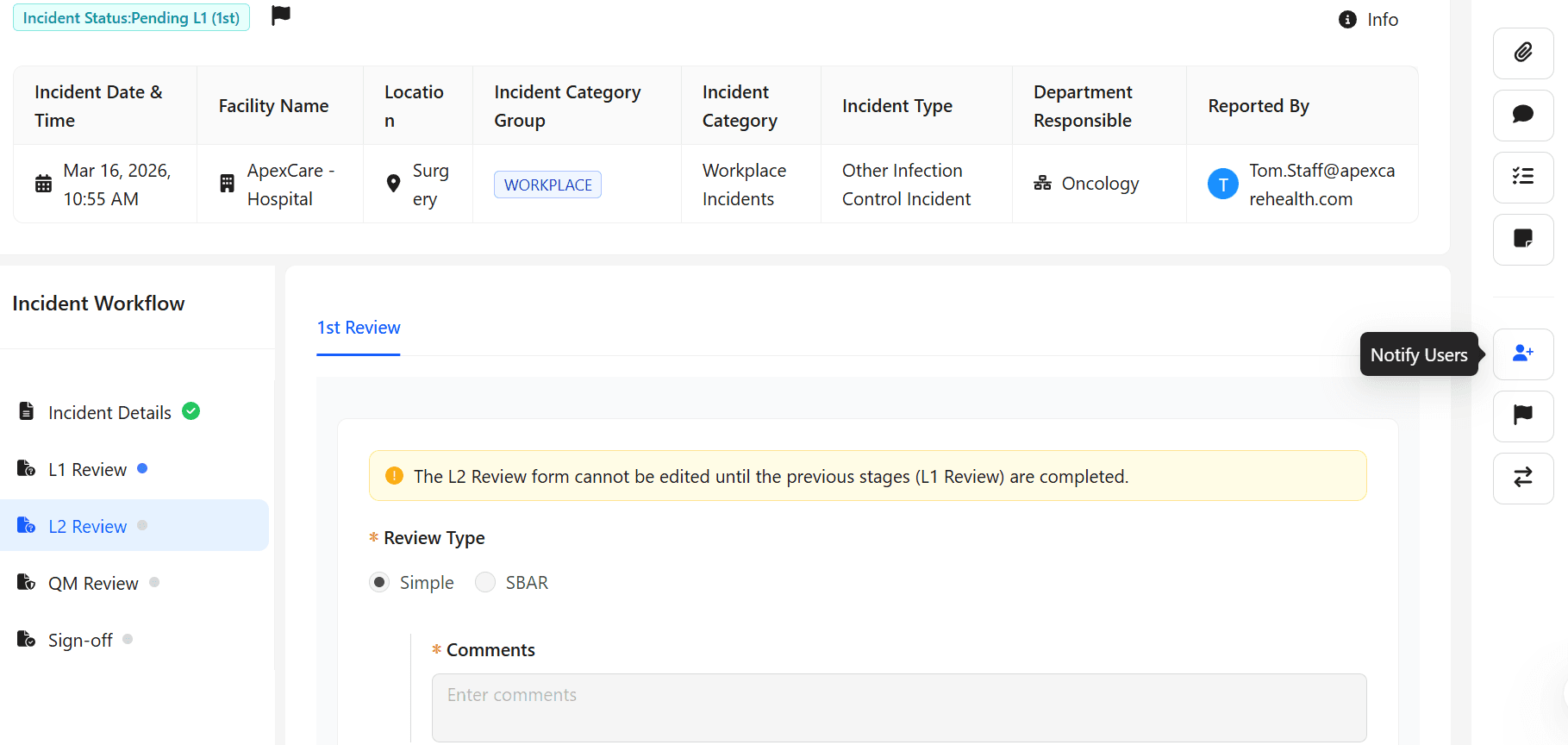
Also, for incidents marked as Sensitive, a significant access of the information is restricted after the L1 reiview stage.
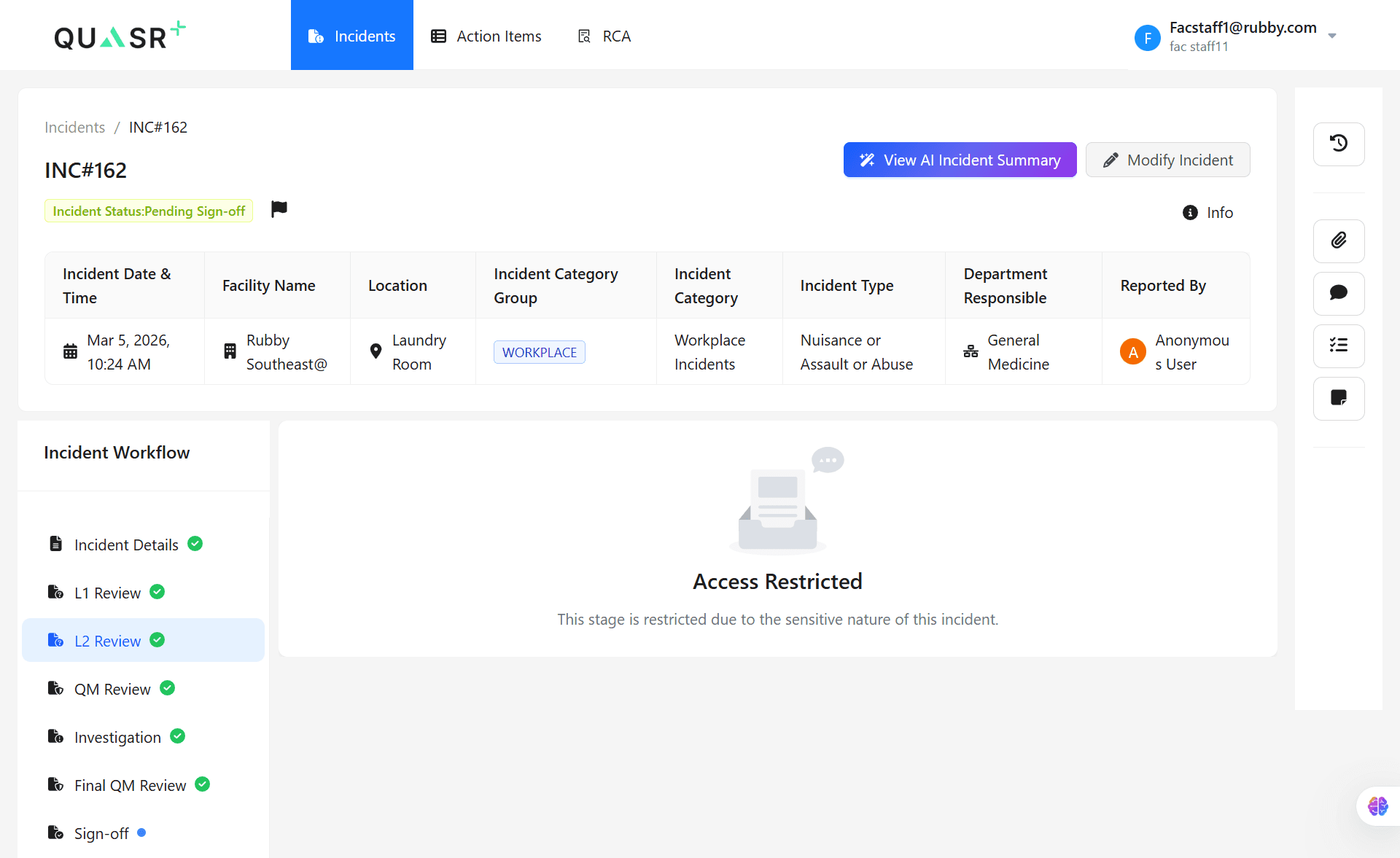
The access may be restricted, and users may no longer be able to view incident details due to the sensitive nature of the case. Many incident stakeholders will have limited permissions and may not be able to view the incident beyond certain stages.
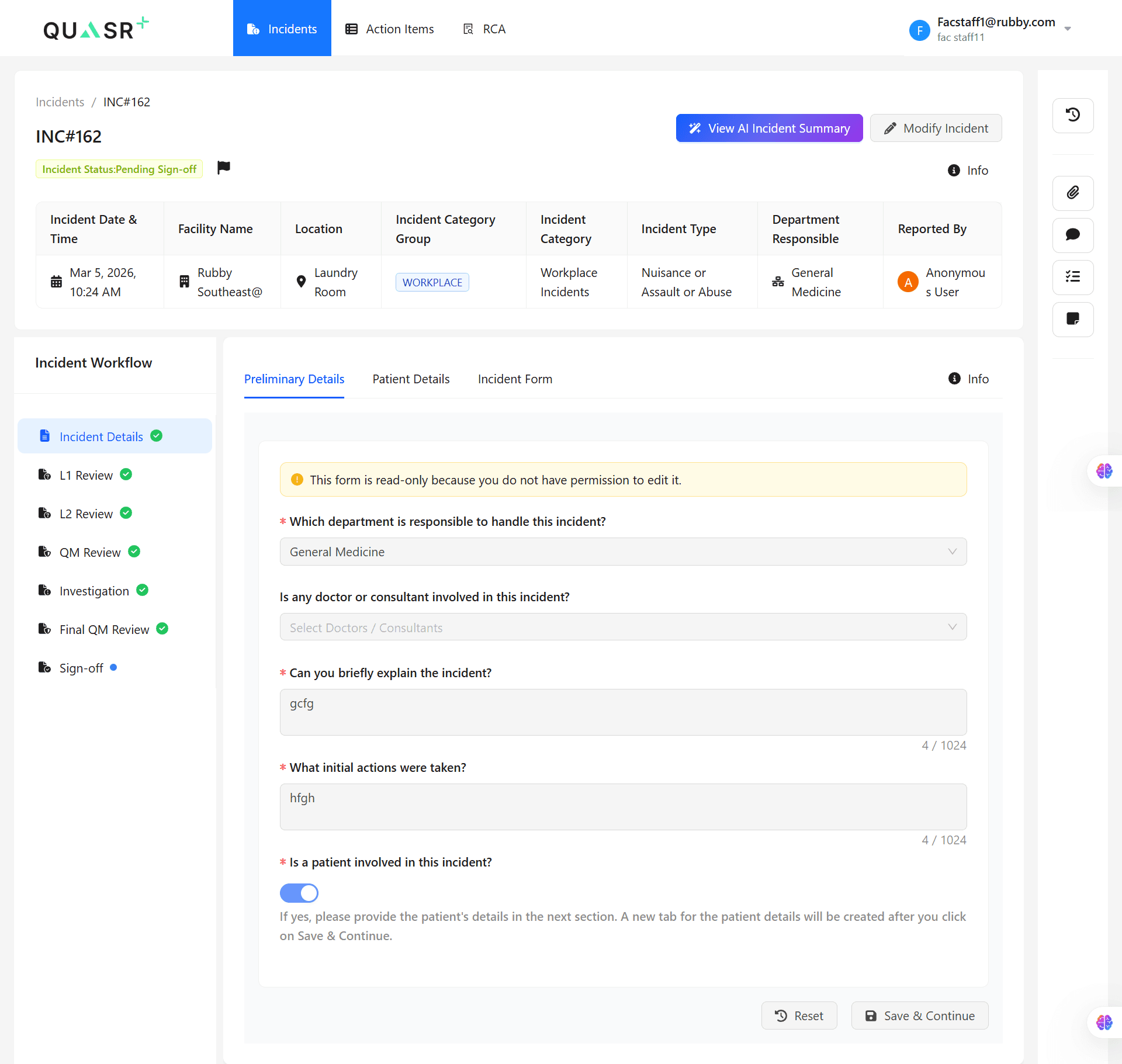
In case of Sentinel/Serious:- The incident stakeholders can continue to access and view other pages of the incident, as they have the necessary permissions.
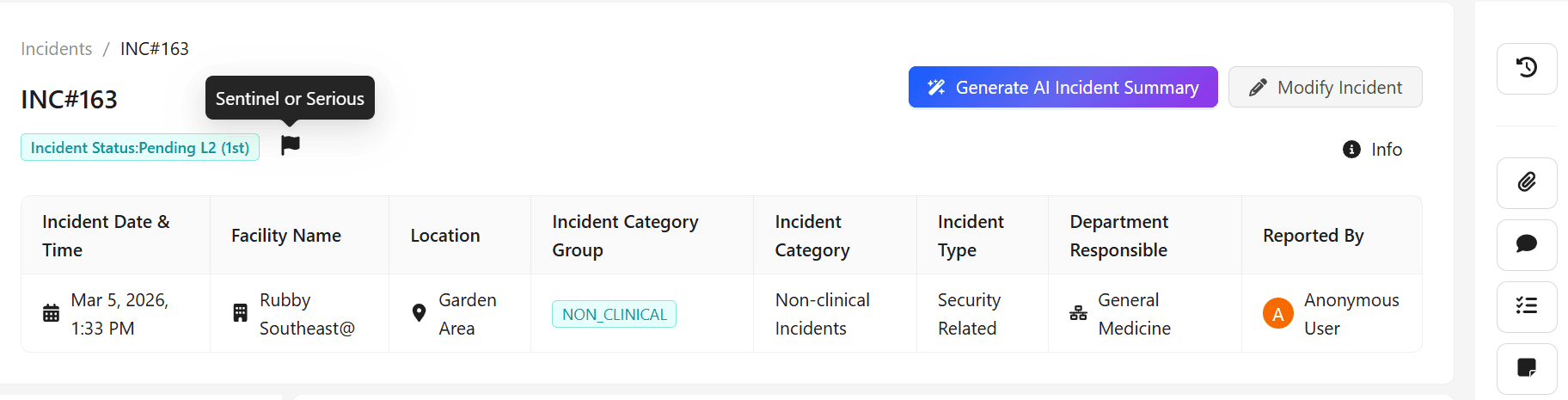
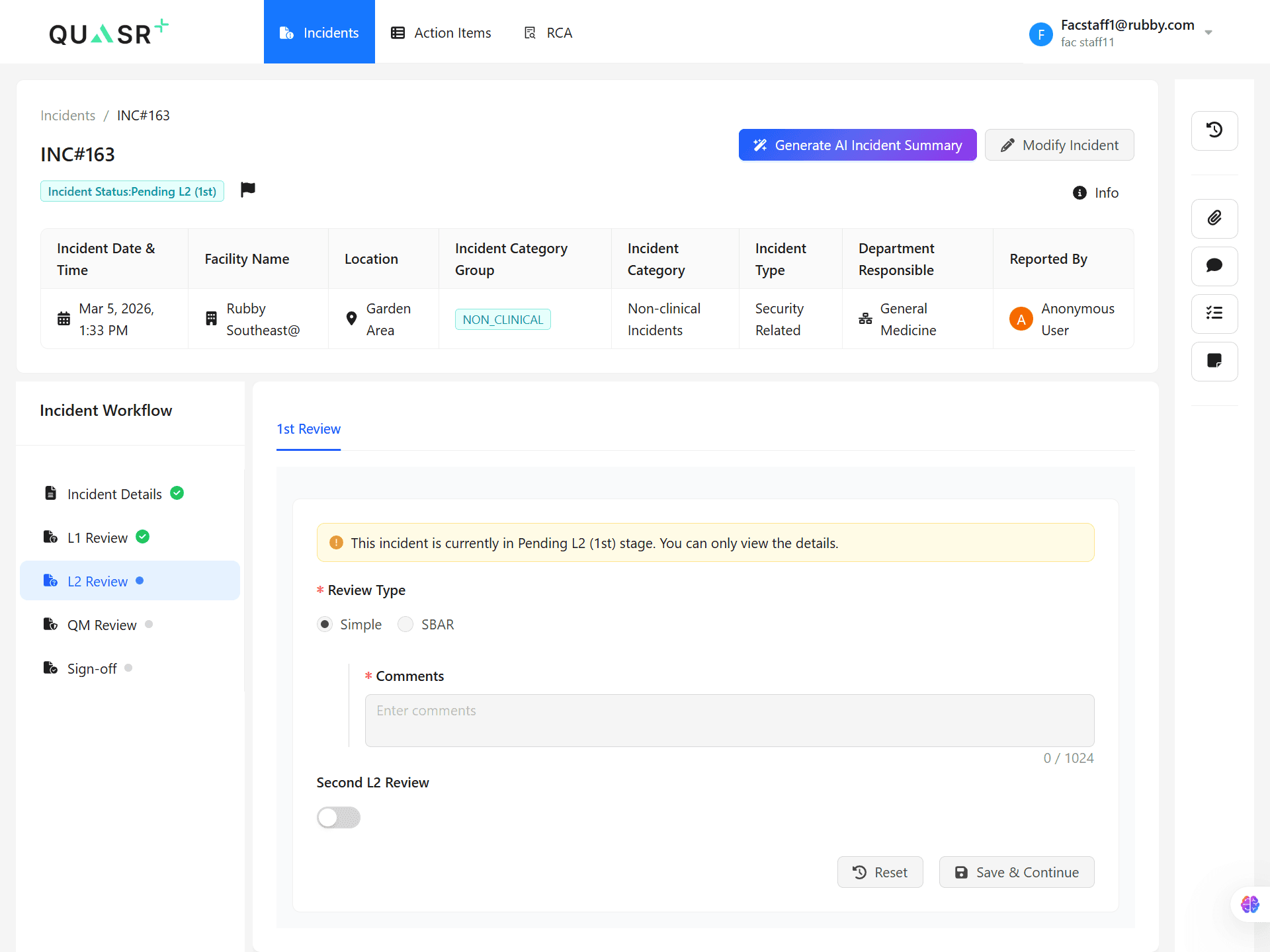
Once an incident is flagged, a set of reviewers, known as Incident Flag Reviewers, assigned based on the organization’s structure. Each flag type may have a separate set of reviewers, or all flags may share the same set of reviewers. These reviewers are notified whenever an incident is flagged.
Managing Incident Flag Reviewers (Flag Members)
Navigate to Manage Facility Level.
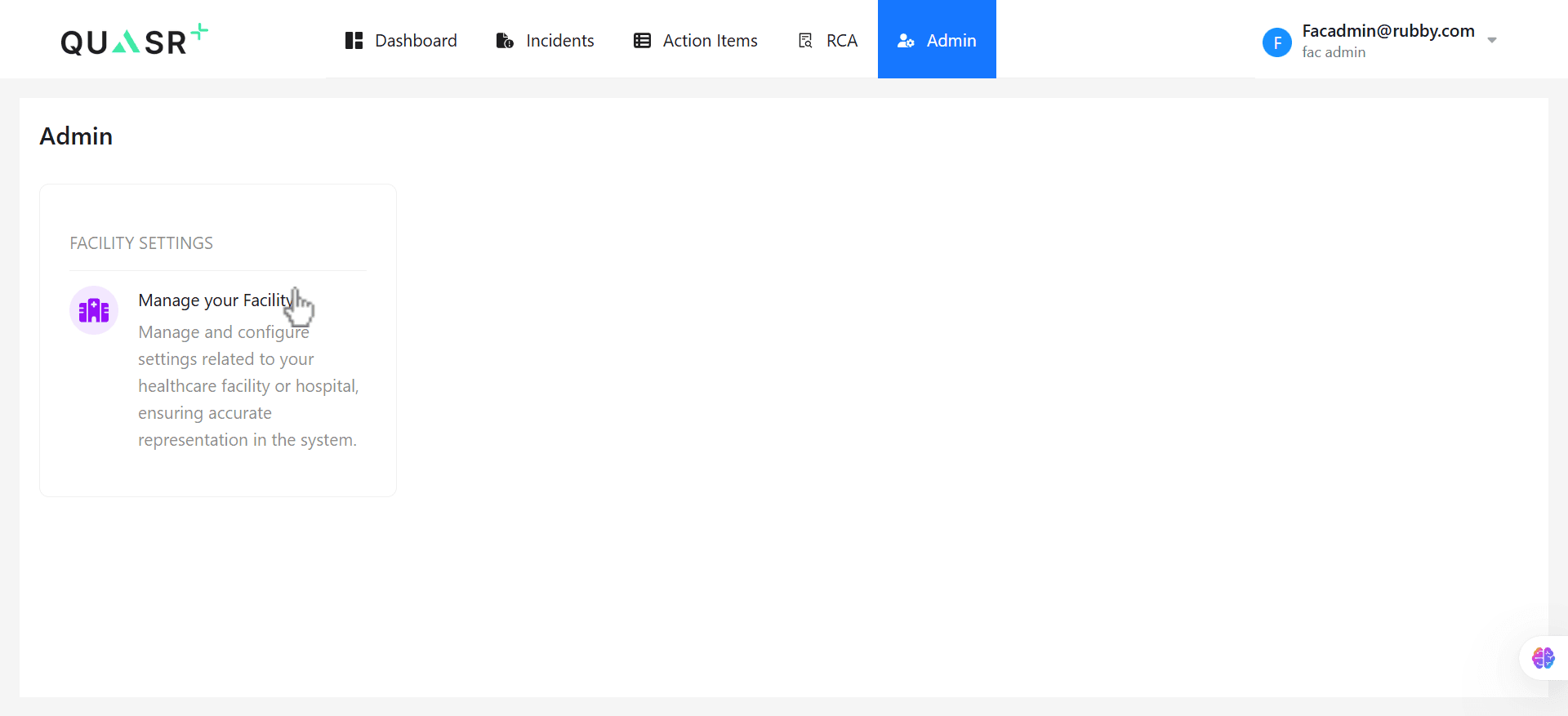
- Refer to Configure Incident Flags & Members for more information on managing incident flags and members.