Action Items
Action Items help track tasks that must be completed to resolve or investigate an incident. Each action item is assigned to a responsible user and its progress can be monitored until completion.
Steps
Open the Action Items widget
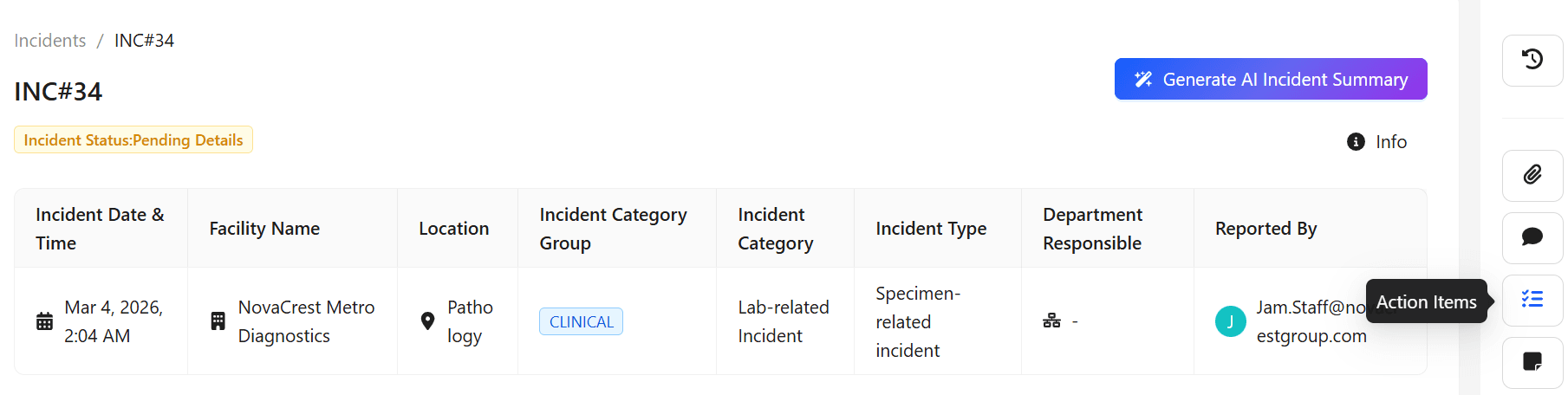
Open the incident, then navigate to the Incident Widgets panel on the right side and click Action Items.
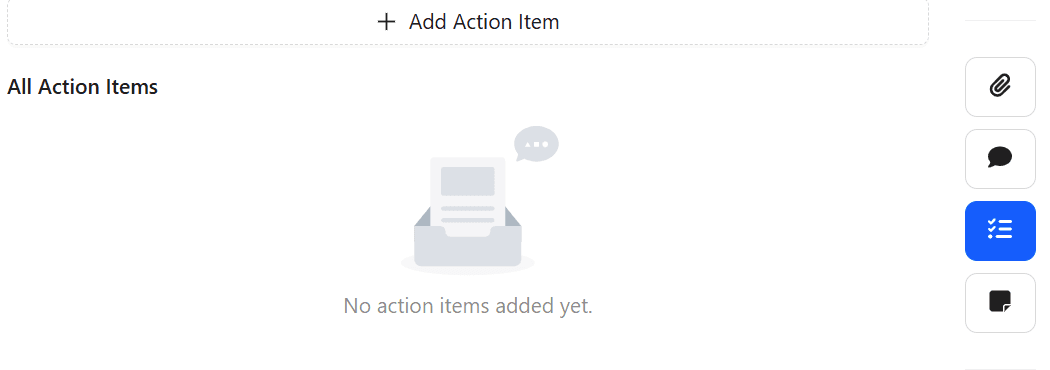
- Click Add Action Item.
- A dialog box opens where the action item details can be entered.
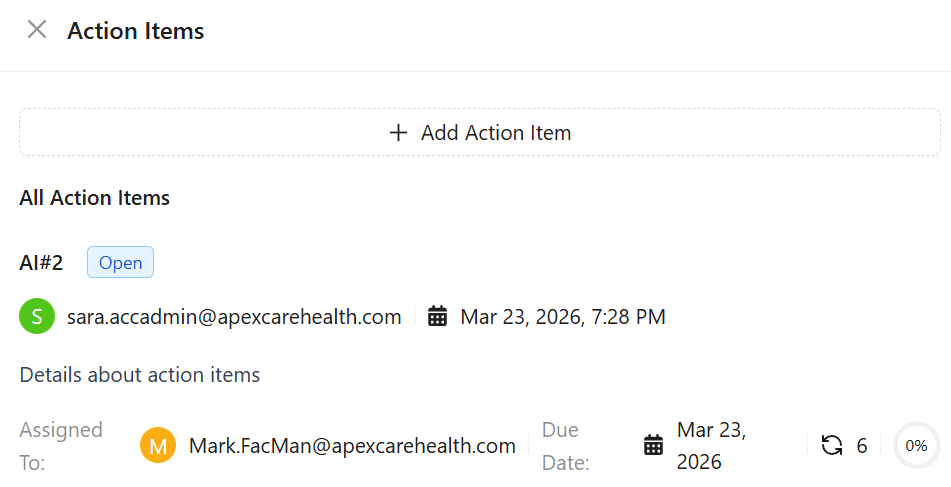
Enter action item details
Provide the required information in the form fields.
- Select the User Responsible from the list of incident stakeholders.
- Only one user can be assigned to an action item (single selection).
- Click Save.
Expected result: The action item is created and assigned to the selected user. The progress of the action item can now be tracked.
Edit or Delete an Action Item
- The owner can update the action item details and progress. The status is automatically updated based on the progress percentage.
- The Facility QM also has permission to edit or delete the action item.
Updating vs Progressing an Action Item
There are two types of updates available:
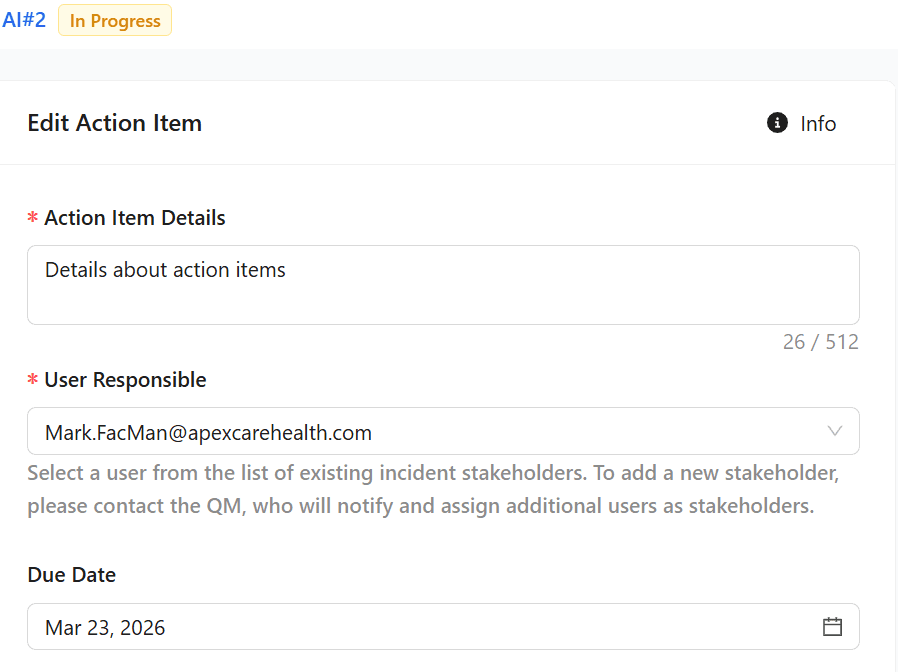
- Update Action Item – Modify the action item details.
- Update Progress – Record the progress made towards completing the action item.
The Owner, the Assignee, and the Facility QM can update the progress of the action item.
Progress Rules
The progress percentage can be increased or decreased at any stage. The action item status is automatically updated based on changes in the progress percentage. Even if the progress has reached 100%, users can still reduce it when necessary to reflect changes in the action item.
Action Item Progress Update
Action item progress is based on the completion percentage. The system automatically update the status as the percentage changes. The action item owner or assignee can increase or decrease the progress at any time.
Steps to Update Action Item Progress
Navigate to the Action Item widget.
Hover over Update Progress and click.
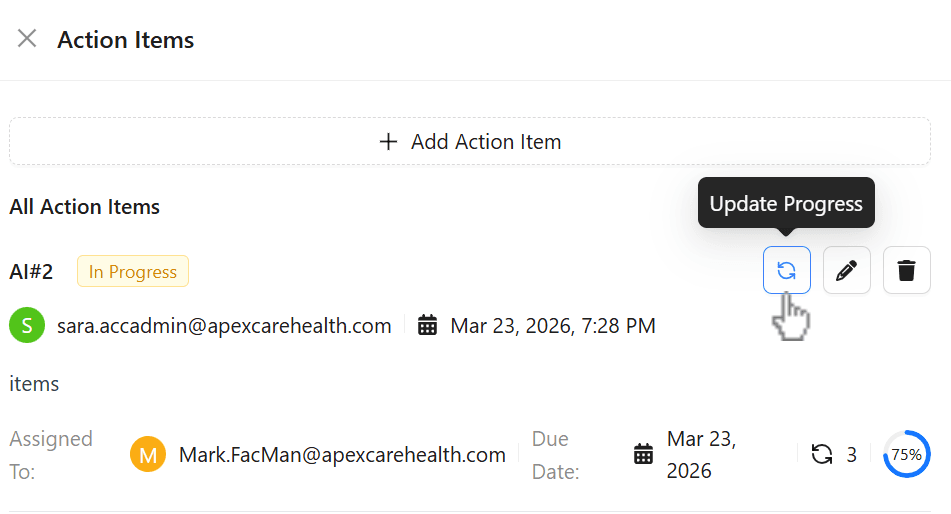
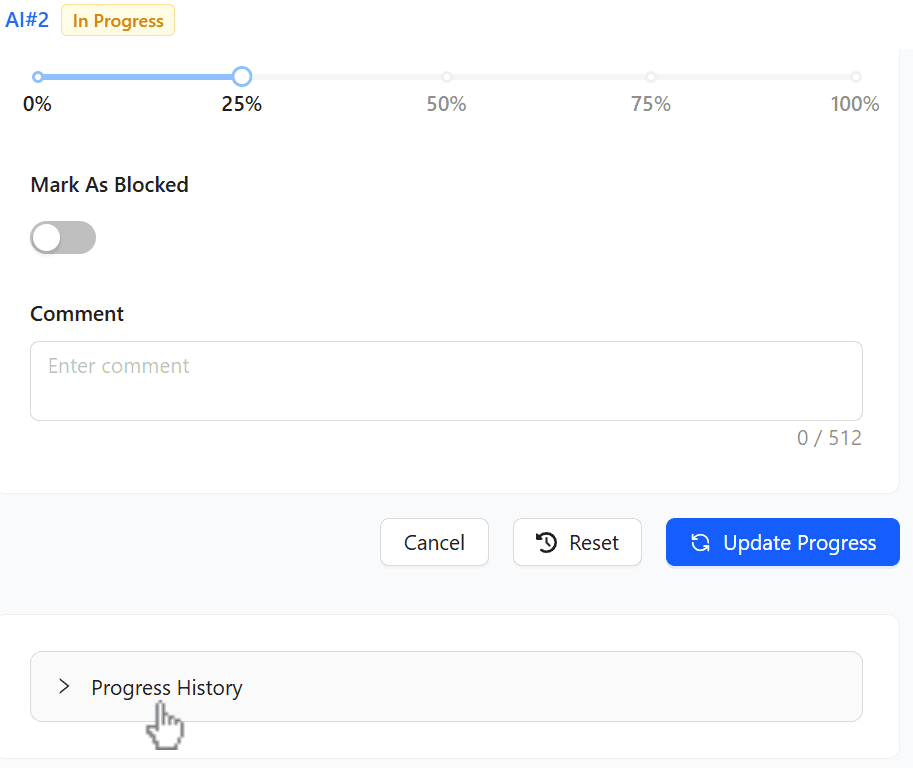
In the Update Progress window, adjust the progress percentage as required.
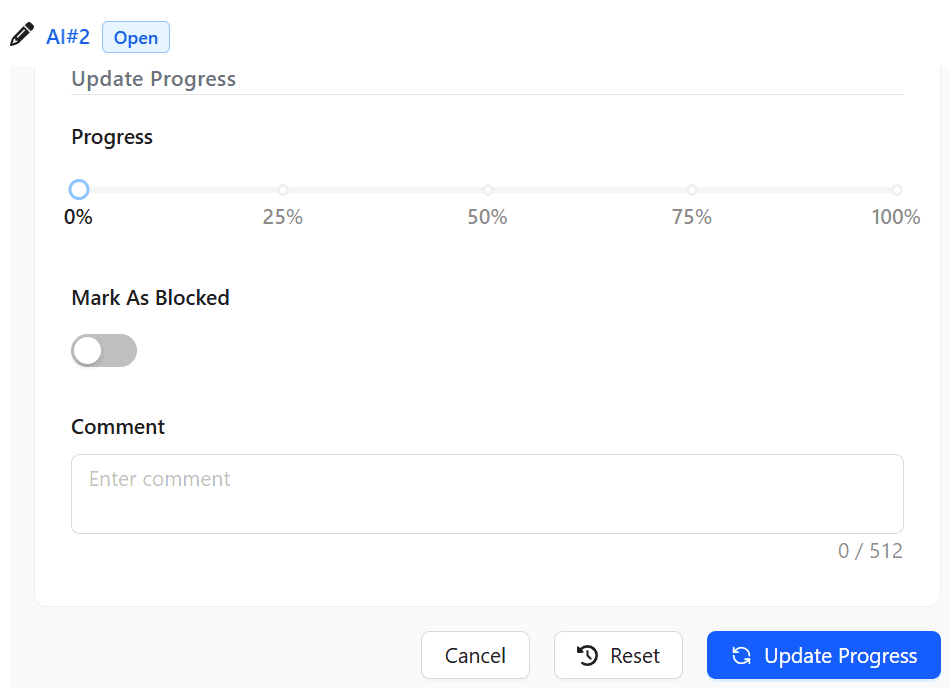
Expand the Progress History to view the history
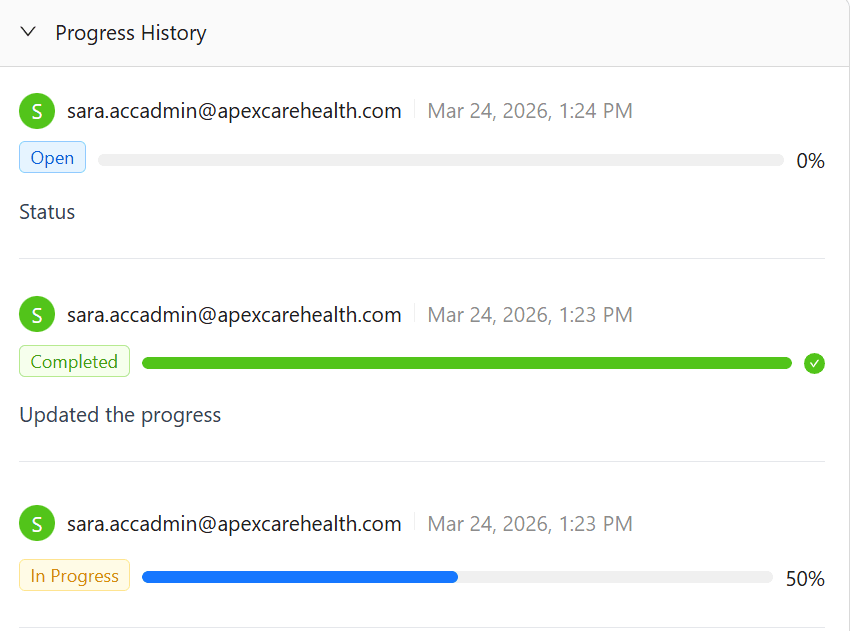
Note:- Any Incident stakeholder can view the progress history updates.
Add a comment (optional), then click Update Progress to apply the changes. The progress will be updated, and the status will be adjusted automatically.
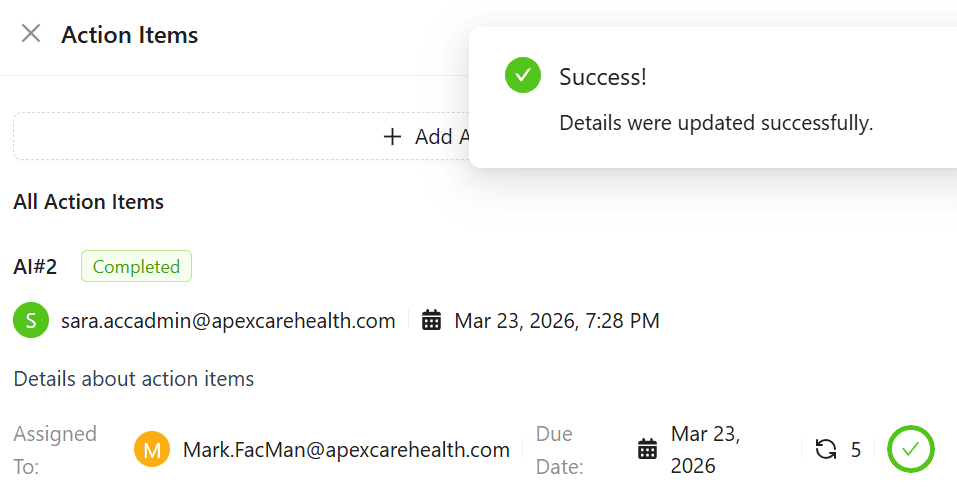
Automatic Status Update : When the progress percentage is updated, the system automatically updates the action item status accordingly.
Completion Status : Progress updates are independent of completion status. Users can adjust the progress at any stage, both before and after the action item is marked as complete.
Comments in Action Items
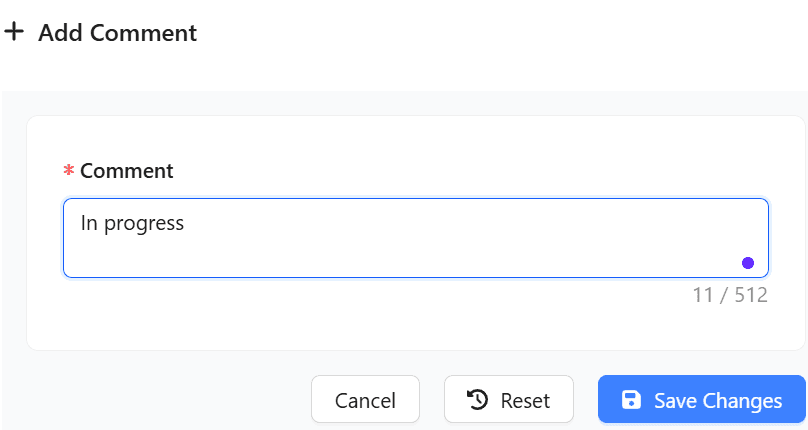
Adding a comment during a progress update is optional. Users can add a comment later if it was not added initially. If a comment has already been added, it can be edited by the user who created it.
Steps to Add or Edit a Comment in an Action Item
Navigate to the Action item and click Edit.
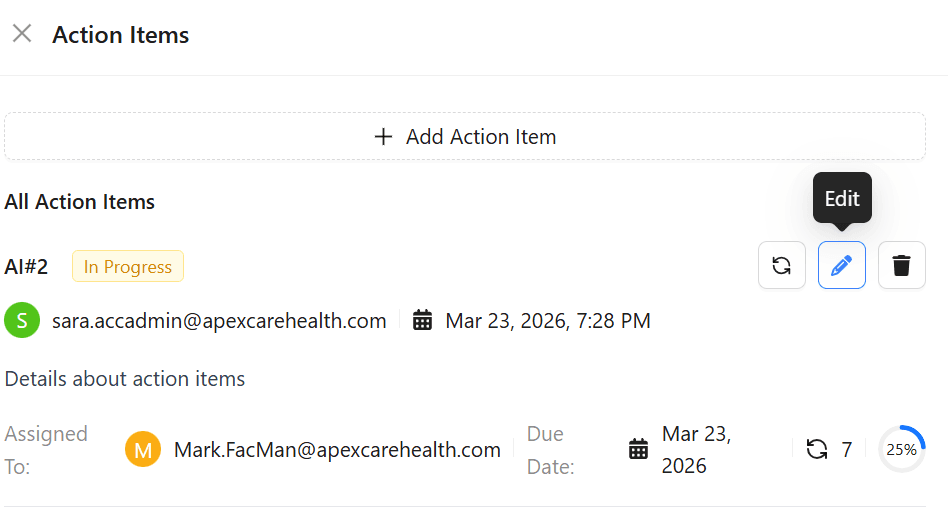
The Edit Action Item screen will appears.
Scroll down and select Progress History.
Enter the required progress entery:-
To Add a comment, enter the comment if none exists.
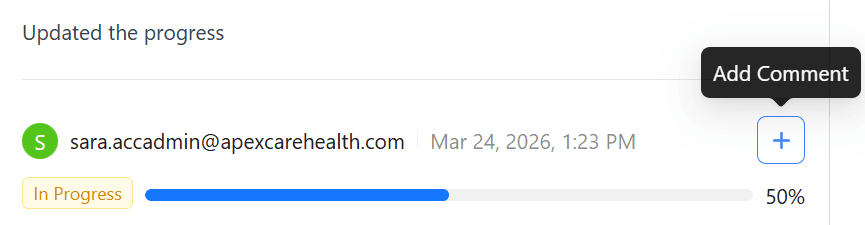
To Edit a comment, update the existing comment.
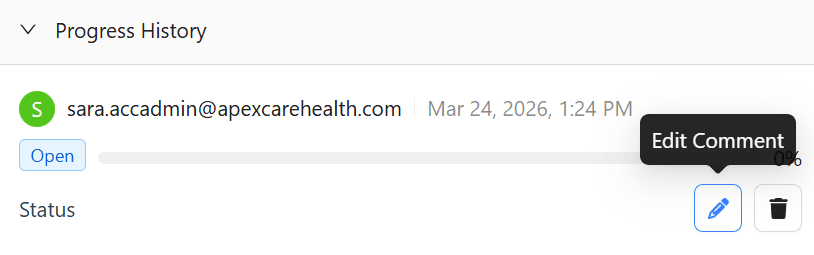
The comment will be added or updated successfully.