Configure Email Notifications and Weekly Incident Reminders
This guide explains how you can configure system notifications and reminder emails to ensure timely communication and follow-ups in the incident reporting process. Proper configuration helps improve awareness, accountability, and closure of incidents.
Who can perform this?
Account Admin
Time to complete
~5 minutes
Prerequisites
Signed in with Admin permissions
Before You Start
- Access level required: Account Admin
- Limitations: Notification types are preconfigured and cannot be newly created
If your organization uses SSO, ensure you are already authenticated before starting.
Steps
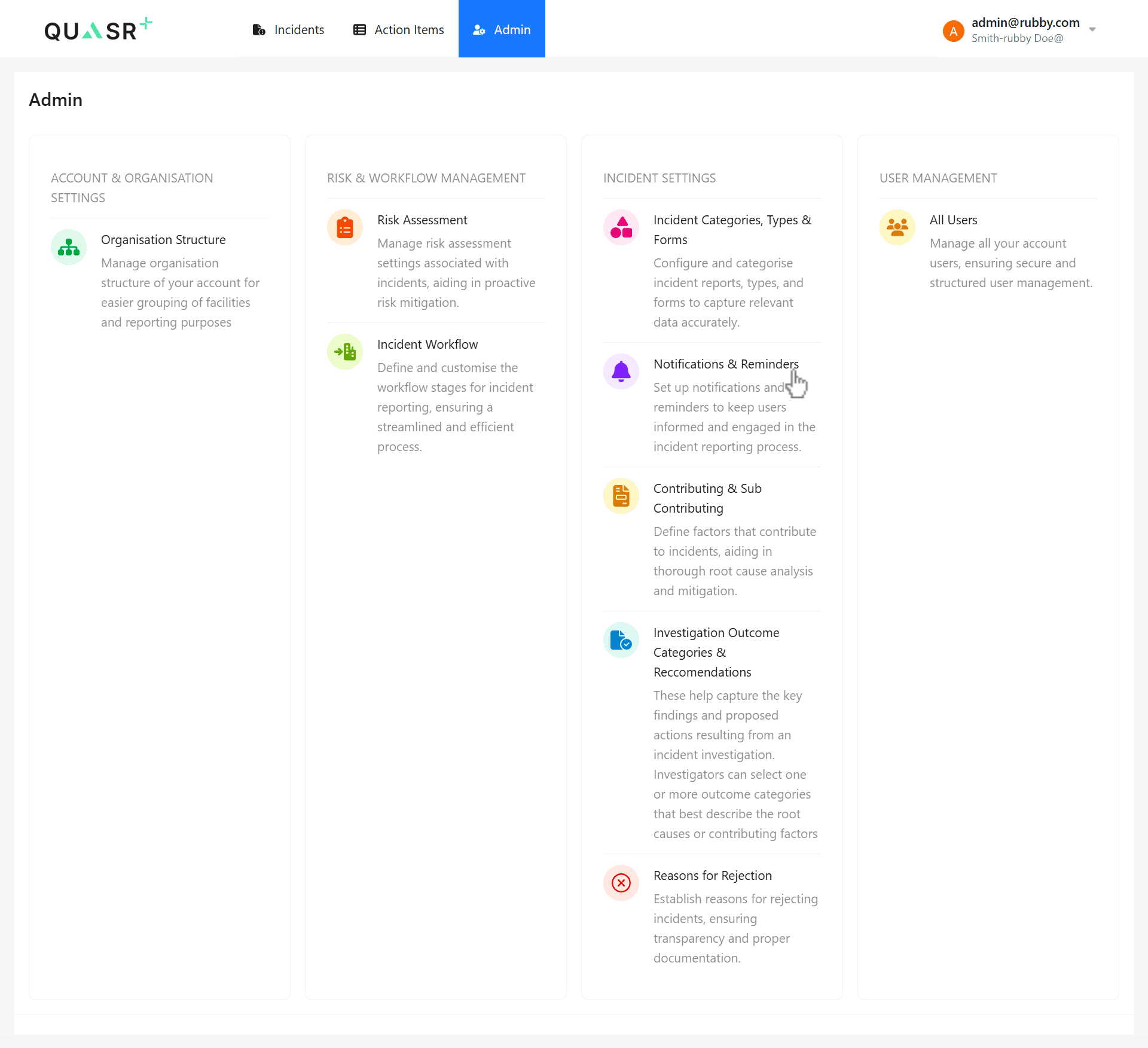
Open Notifications & Reminders
From the main navigation, go to Notifications & Reminders in the application settings.
- Expected result: The Notifications & Reminders page opens.
View notification settings
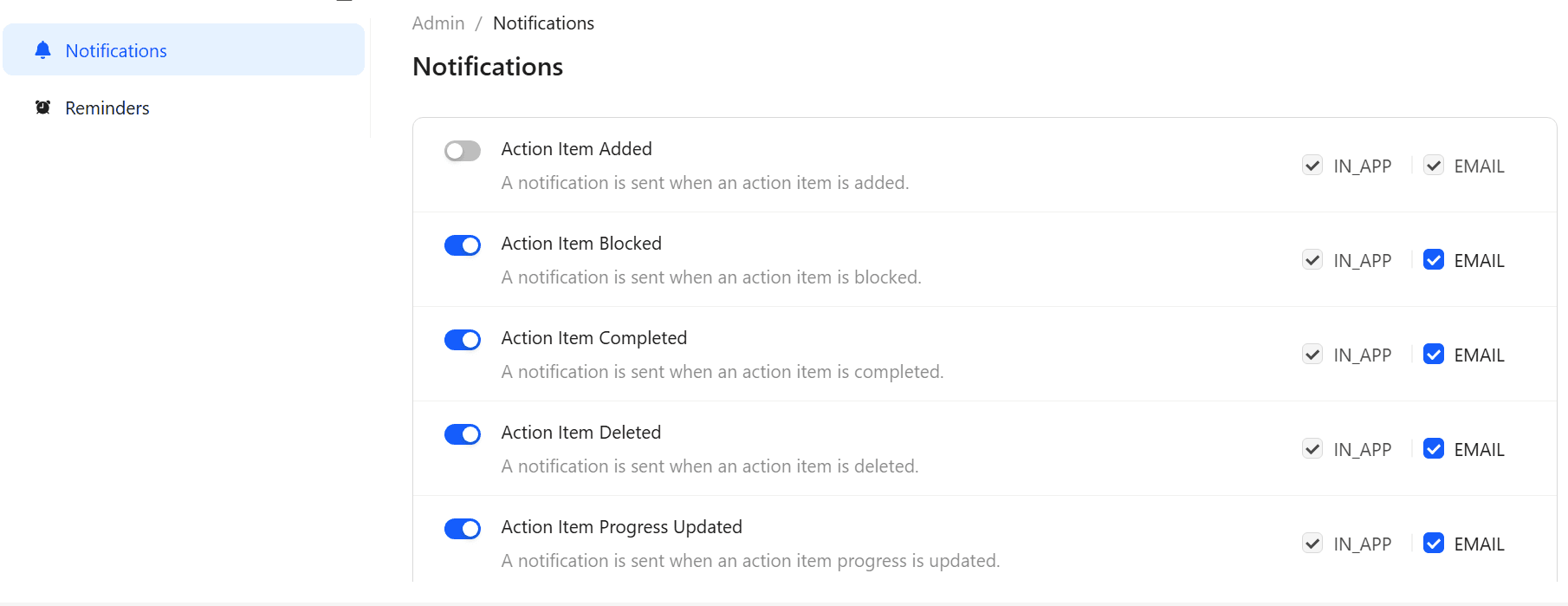
Click Notifications to view the list of preconfigured notification events.
- Why: This is where you control which in-app and email notifications are active.
- Expected result: A list of notification types is displayed.
Enable or disable notifications
Toggle notifications on or off as required.
- Changes apply to both in-app and email notifications.
- Expected result: Your preference is saved automatically.
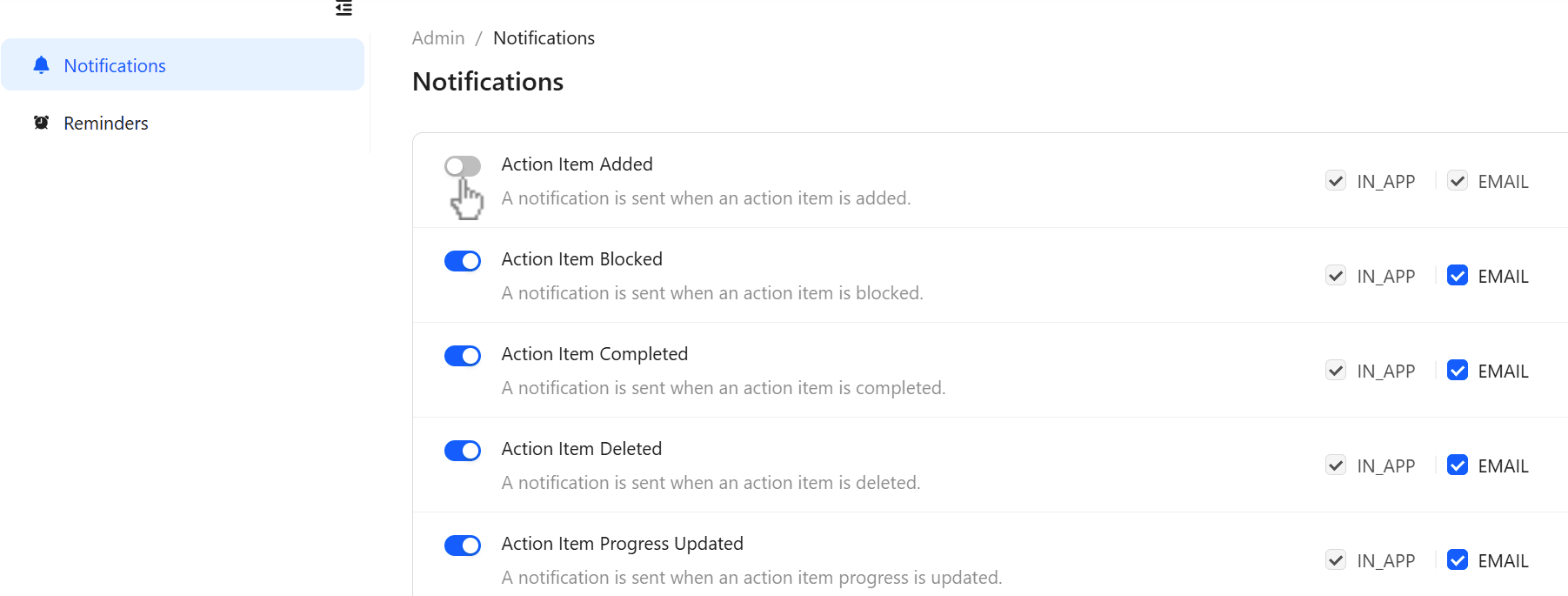
Any change is saved instantly and confirmed with a toast message.
Configure reminder frequency
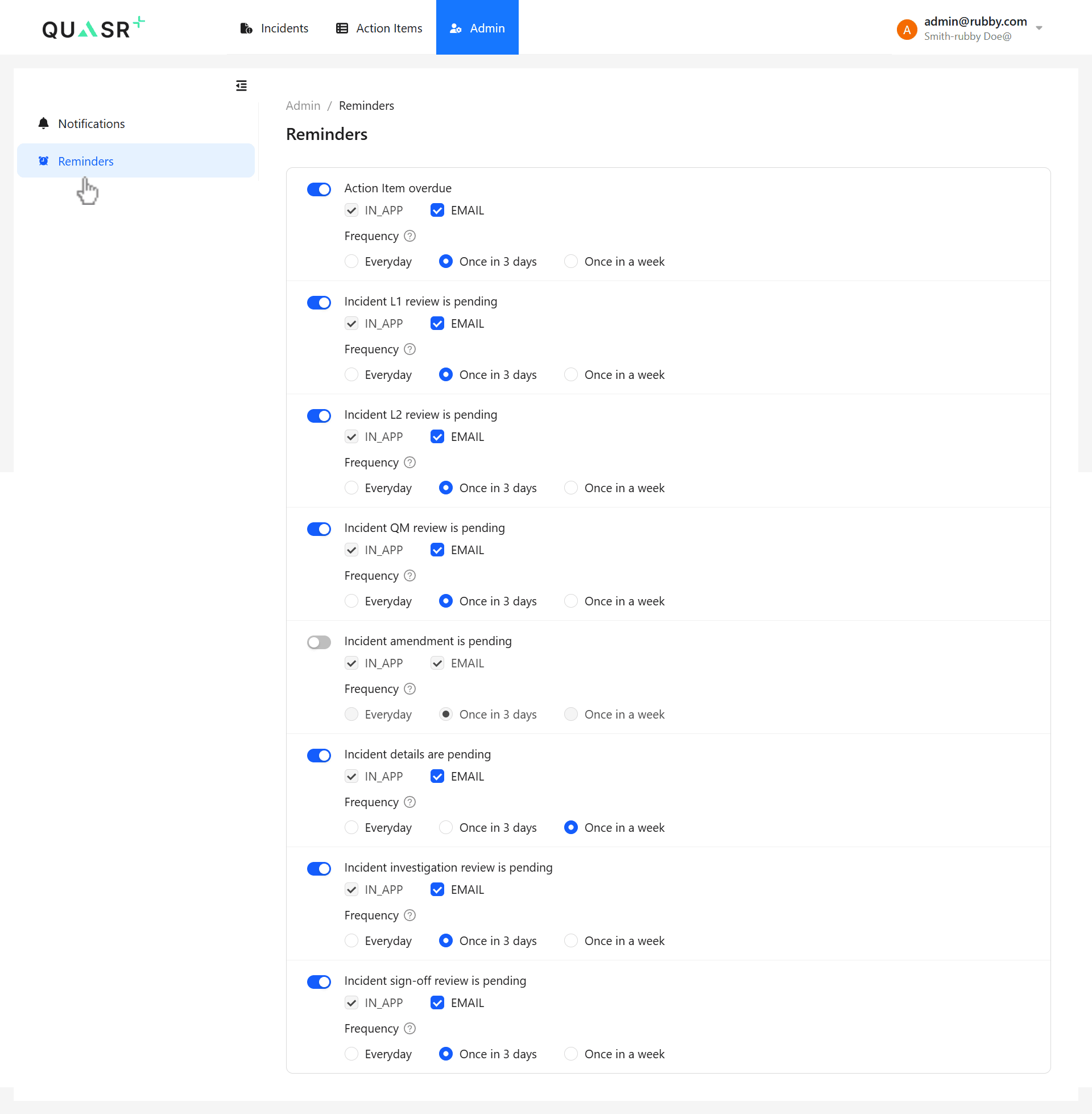
Scroll to the Reminders section to manage reminder emails.
- Select how often reminder emails are sent:
- Every day
- Once in 3 days
- Once a week
- Expected result: The selected reminder frequency is applied.
Last updated on