Add Attachments to an Incident
Attachments allow you to upload files, such as images, reports, or supporting documents, directly to an incident record. This ensures all relevant evidence and documentation are stored together, making it easier for teams to review, investigate, and track incident details.
Before You Start
Access level required: Incident Stakeholder
Limitations: You can upload up to 5 files at a time
Incident stakeholders can access the attachment through the Incident widget.
Steps
Open the Attachments widget
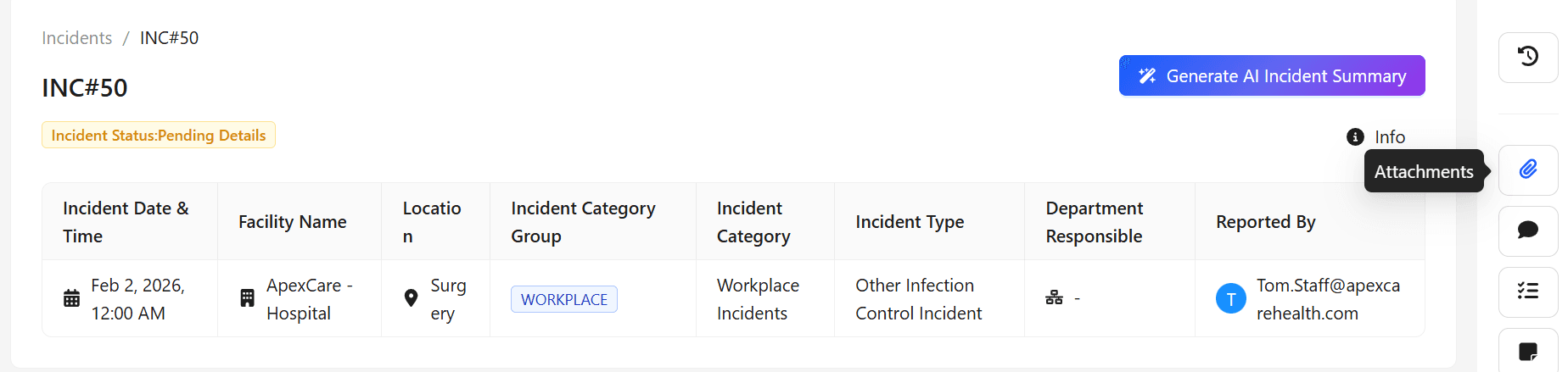
On the right side of the Incidents page, locate the Incident Widgets panel and click the Attachment icon.
Why: This widget allows you to manage files associated with the incident.
Expected result: The attachment upload interface appears.
Upload files
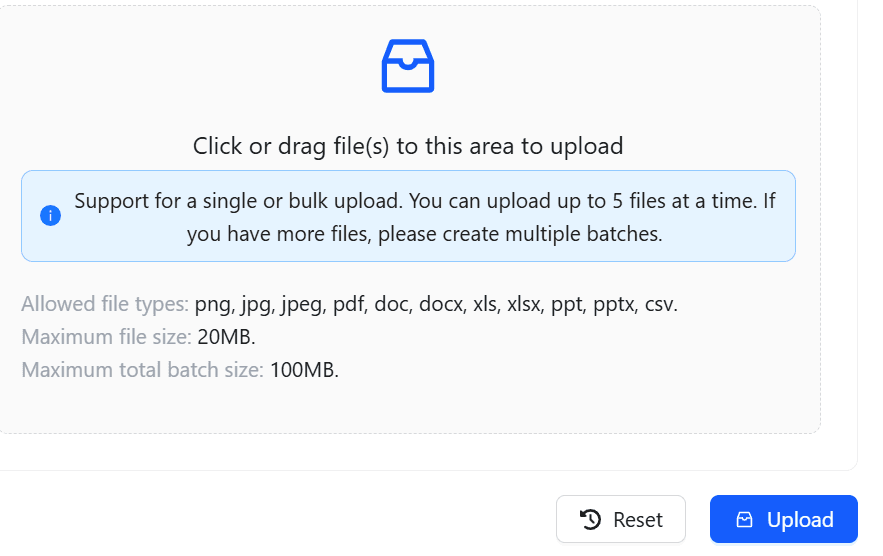
Select files from your device to upload.
You can upload up to five files at a time.
Files are added directly to the incident record once the upload completes.
If you need to attach more than five files, repeat the upload process after the first set is completed.
Verify the attachment appears
After the upload is complete:
The uploaded file is displayed in the Incident Attachments section.
Other users with access to the incident can now view or download the attachment.
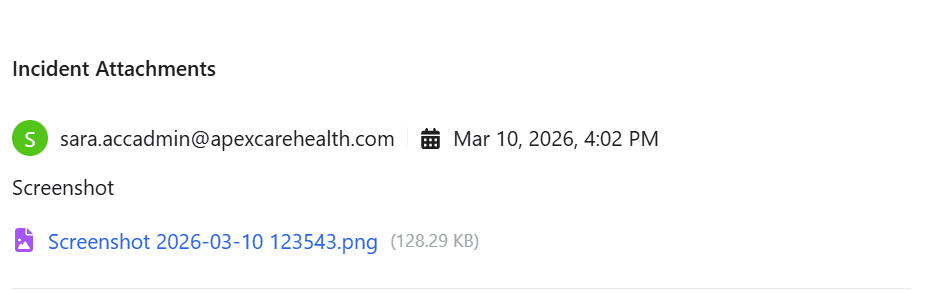
The file has been successfully uploaded and attached to the incident.